How to Fix Lines on a Monitor Screen in Windows 10

Use a screenshot test, cable and port checks, monitor diagnostics, display settings, and driver rollback to pinpoint lines on a Windows 10 monitor.
Lines on an external monitor can come from the display panel, video cable, port, graphics card, or Windows driver. Start by checking whether the lines appear in a screenshot and the monitor’s own diagnostic screen. Then test the connection and Windows settings. This order helps identify the faulty part before you buy a replacement.
These steps cover an external monitor on Windows 10. If you smell burning or find a damaged power cord, turn the equipment off and stop troubleshooting.
With the problem visible, press Windows key + Shift + S and capture the affected area. Open the capture on a phone or another computer. If the line is also in the capture, the artifact is being produced before the image reaches the monitor, which points toward Windows, an app, or the graphics hardware. If the capture looks normal, the cable, port, or monitor may still be responsible. This test narrows the possibilities; it does not identify the exact failed component.
Also try Windows key + Ctrl + Shift + B. Windows may briefly blank the screen or beep while it resets the graphics driver. Save your work and restart the PC if the lines remain. Microsoft lists both steps in its external monitor troubleshooting guidance.
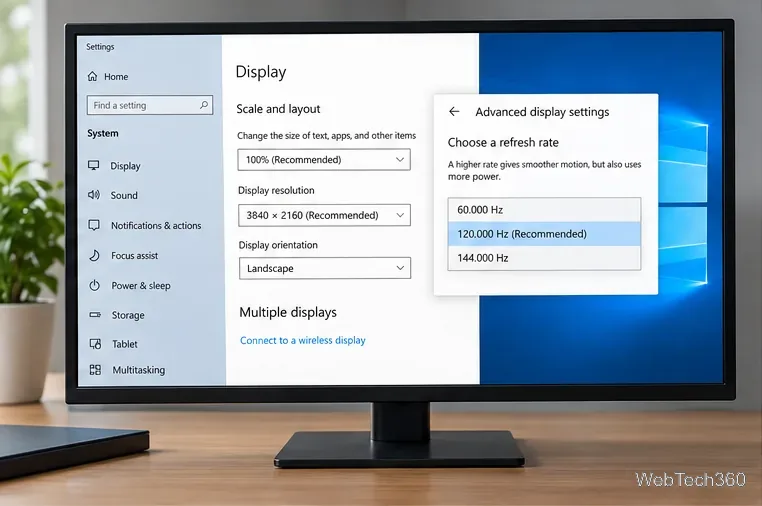
Right-click the desktop and choose Display settings. Select the external monitor, then under Scale and layout choose the resolution marked Recommended. Microsoft explains this path in its Windows resolution guide.
To check refresh rate, open Settings > System > Display > Advanced display settings, select the affected display, and choose a rate that the monitor supports. If the problem began after changing this setting, switch back to the previous supported rate. The available choices depend on the display and connection; do not force a mode listed as incompatible with the current resolution. See Microsoft’s refresh-rate instructions.
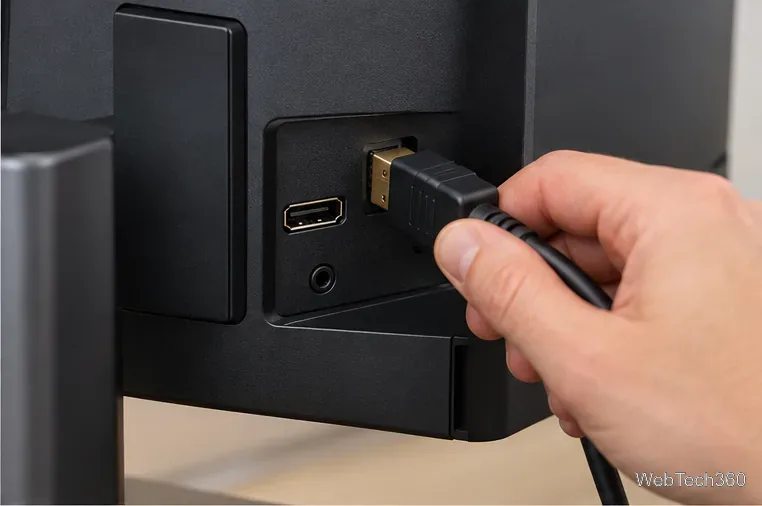
Shut down the PC and turn off the monitor. Unplug and reconnect the video cable at both ends, making sure each connector is fully seated. Inspect the plug and port for visible damage, looseness, or bent pins; do not force a connector that does not fit. If the monitor is connected through a dock or adapter, reconnect it directly to the PC for this test when possible.
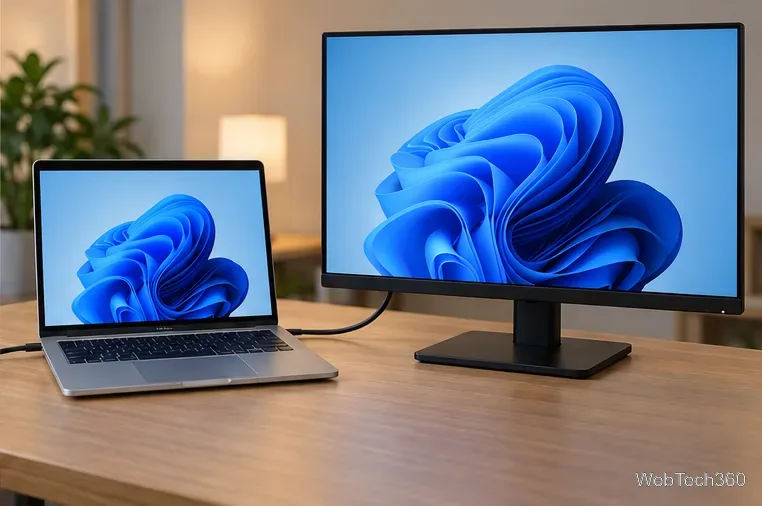
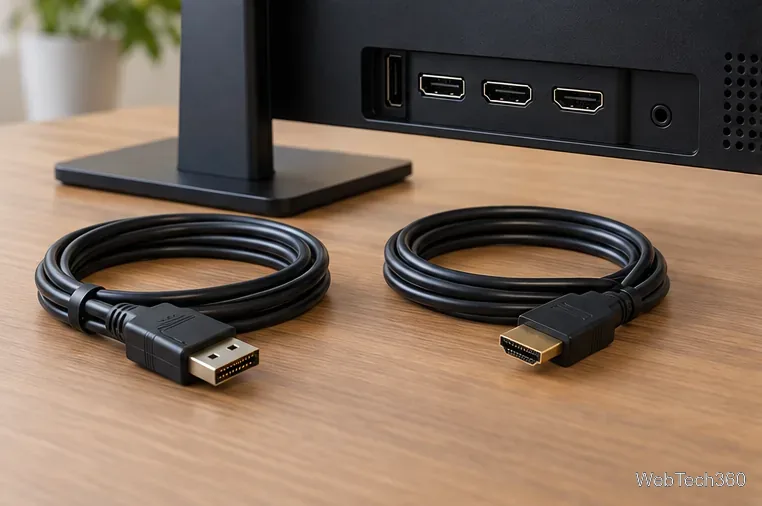
Swap in a known-good HDMI, DisplayPort, or USB-C video cable that matches the devices. Try another video input on the monitor or PC. Use the monitor’s input menu to select the port you are testing. If a desktop PC has a separate graphics card, connect the monitor to the card’s video output. A change that makes the lines disappear identifies the cable, port, dock, or adapter as the likely source.
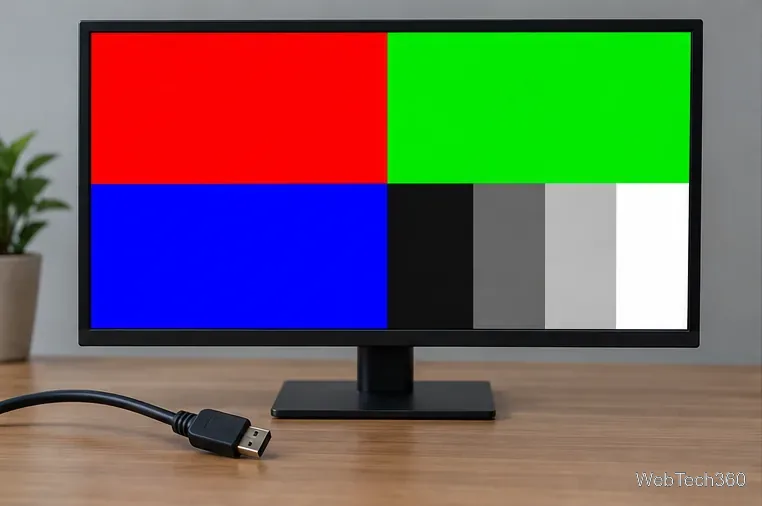
Most monitors can show an on-screen menu or diagnostic pattern without a computer. The test varies by model, so follow the manual; some models require disconnecting the video cable while the monitor stays powered. If lines appear in the menu or self-test, the monitor is a strong suspect. Dell explains its built-in diagnostics in its monitor diagnostic instructions. For other brands, use the manufacturer’s manual.
Connect the same monitor and cable to another laptop, desktop, or console, using the correct input. If the lines remain with a second source—and especially if they also appear in the monitor’s self-test—the monitor likely needs service. If the picture is clean on the second device, connect a known-good display to the original PC. Lines that follow only the original PC point back to its graphics output, driver, or graphics card.
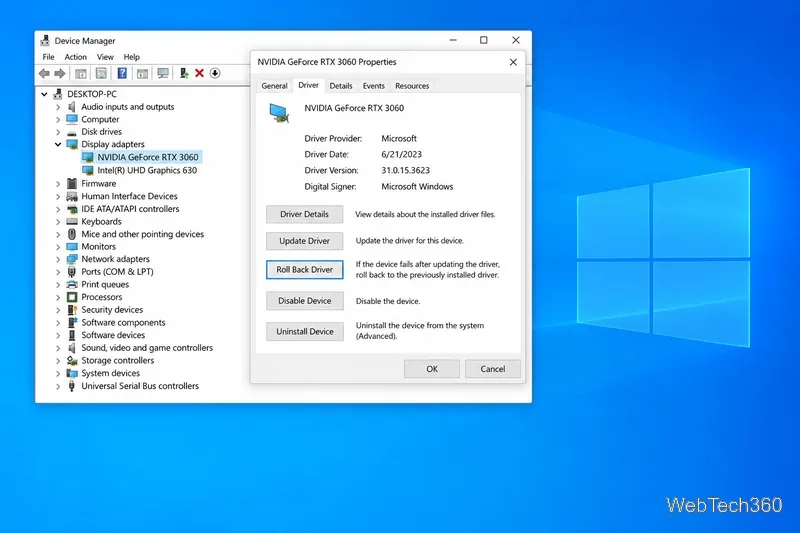
If the lines started immediately after a graphics-driver or Windows update, try returning to the previous driver. Search for Device Manager, expand Display adapters, right-click the graphics adapter, and select Properties > Driver > Roll Back Driver. The option may be unavailable if Windows has no earlier driver stored. Restart after the rollback and check the display again. Microsoft provides these steps in its Device Manager driver guide. If rollback is unavailable, get a compatible driver from the PC or graphics-card manufacturer rather than a third-party driver-updater site.
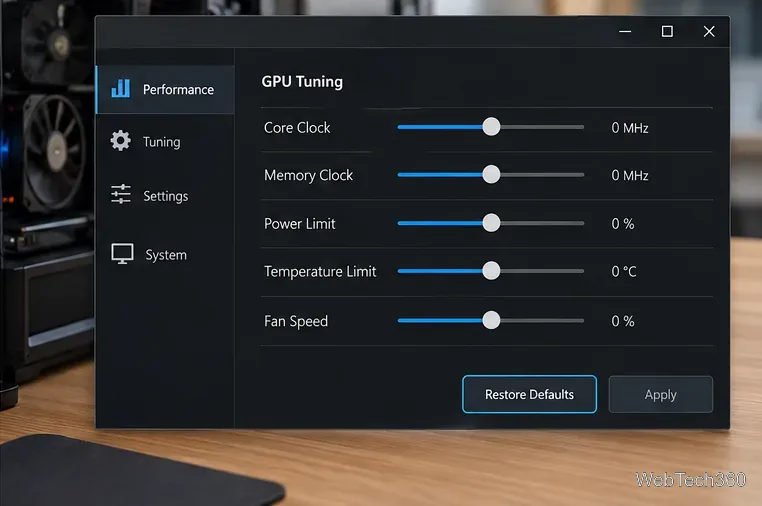
If you changed GPU clock, voltage, or memory settings in a tuning utility, use that utility’s default or reset option and restart the PC. Do not raise voltage or continue overclock testing while troubleshooting. If lines still follow this PC across monitors after the cable and driver checks, the graphics card or another PC component may need professional diagnosis.
Arrange monitor service if a line remains in the monitor’s self-test, on its own menu, or with multiple source devices and known-good cables. If another display also shows lines only when connected to the same PC, ask a qualified technician to check the graphics card and video outputs. A self-test is a useful isolation step, but it cannot identify which internal component needs replacement.
Windows 10 still runs, but Microsoft ended standard support on October 14, 2025. The troubleshooting steps above still apply; for current security updates and technical support, review Microsoft’s Windows 10 support information.
Use a screenshot test, cable and port checks, monitor diagnostics, display settings, and driver rollback to pinpoint lines on a Windows 10 monitor.
Show two other time zones beside your Windows 10 clock. Set up each additional clock, give it a clear label, and find it in the taskbar calendar.
Find the File Explorer extension that delays right-click menus in Windows 10, test it safely with ShellExView, and restore any menu features you still need.
Stop Windows 10 from powering down a specific network adapter or USB device with plan-level settings and Device Manager controls, plus tips to avoid excess battery drain.
Check whether Windows 10 uses a digital license or product key, find a firmware-stored OEM key, and save license details securely for a reinstall.
Identify a Windows 10 Task Manager process by checking its executable path, file properties, publisher, linked services, and a Microsoft Defender scan.
Create a searchable Windows 10 folder inventory with PowerShell. Save every file and subfolder path as plain text or export details to a sortable CSV.
Add a custom reminder, quote, or label to your Windows 10 desktop with a Rainmeter text skin. Create the INI file, load it, then adjust its font and position.
Use Bluetooth Swift Pair on Windows 10 to pair a compatible accessory from a notification, with setup steps and fixes when the prompt does not appear.
Learn what common laptop function key symbols mean, how Fn and Fn Lock affect them, and how to confirm the right shortcut for your Windows 10 laptop model.








