How to Fix Lines on a Monitor Screen in Windows 10

Use a screenshot test, cable and port checks, monitor diagnostics, display settings, and driver rollback to pinpoint lines on a Windows 10 monitor.
To back up a Windows 10 product key, first check whether your copy uses a key: many PCs use a digital license instead, with no 25-character code to retrieve. Save a real key in a protected note with its Windows edition. If you use a digital license, link it to your Microsoft account before reinstalling.
Windows 10 support ended on October 14, 2025; a saved key does not restore updates. See Microsoft’s support information if you are deciding whether to keep using it.
Before copying anything, record whether the PC runs Windows 10 Home or Pro. Open Settings > System > About and look under Windows specifications. Then open Settings > Update & Security > Activation to see the activation status.
A digital license is associated with the device and needs no key entry. The edition still matters: reinstall Home for a Home license or Pro for a Pro license. A key for one edition will not activate the other.

Microsoft’s product-key guide explains that the key’s location depends on the purchase method:
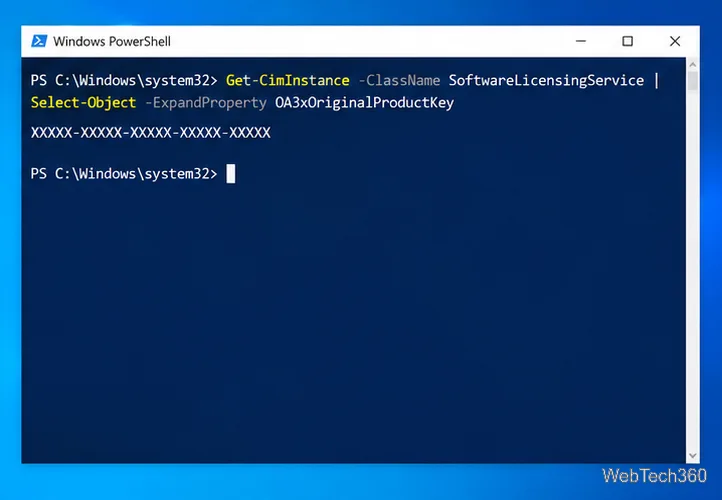
On a PC that has an embedded OEM key, PowerShell can query the firmware value. Open PowerShell and run this read-only command:
Get-CimInstance -ClassName SoftwareLicensingService | Select-Object -ExpandProperty OA3xOriginalProductKey
PowerShell displays a key only if one is stored in firmware. This query cannot reveal a digital license or a retail key in an email. A blank result does not mean Windows is unlicensed; it may have no firmware key. If you upgraded from Home to Pro, the query may show the original Home key while Pro uses a digital license.
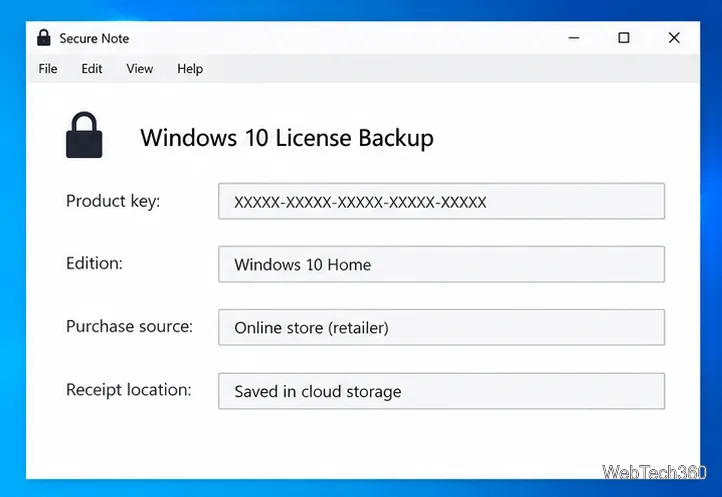
When you locate a valid 25-character key, copy it carefully into a password manager’s secure note or an encrypted file. Include the Windows edition, the PC it came with, the purchase source, and where the receipt or order confirmation is stored. These details help distinguish an original OEM key from a later upgrade.
Keep a second protected copy, such as on an encrypted backup drive. Avoid shared folders, ordinary unencrypted notes, email, or screenshots. Treat the key as a secret; activation still follows Microsoft’s license terms.
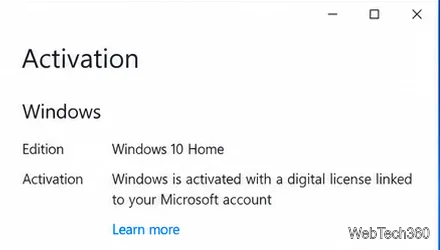
If Activation says Windows is activated with a digital license but does not say it is linked, sign in to Windows with an administrator account that uses your Microsoft account. Go back to Settings > Update & Security > Activation, select Add an account, and sign in. When it is linked, the page should say that Windows is activated with a digital license linked to your Microsoft account.
Linking can help you reactivate after a major hardware change, such as replacing a motherboard. It is not a product-key backup or a transfer guarantee; eligibility depends on the license. Ask your administrator about organization-managed devices.
Before reinstalling, confirm activation and edition, and keep your key or account details accessible outside the PC. With a digital license, install the same edition and choose I don’t have a product key if Setup asks. After connecting to the internet, sign in with the linked Microsoft account so Windows can reactivate. Enter a product key during Setup or later at Settings > Update & Security > Activation > Change product key.
Microsoft’s reinstallation instructions emphasize choosing the edition that matches your license. If Windows does not reactivate after a hardware change, try the Activation troubleshooter while signed in to the linked account.
Use a screenshot test, cable and port checks, monitor diagnostics, display settings, and driver rollback to pinpoint lines on a Windows 10 monitor.
Show two other time zones beside your Windows 10 clock. Set up each additional clock, give it a clear label, and find it in the taskbar calendar.
Find the File Explorer extension that delays right-click menus in Windows 10, test it safely with ShellExView, and restore any menu features you still need.
Stop Windows 10 from powering down a specific network adapter or USB device with plan-level settings and Device Manager controls, plus tips to avoid excess battery drain.
Check whether Windows 10 uses a digital license or product key, find a firmware-stored OEM key, and save license details securely for a reinstall.
Identify a Windows 10 Task Manager process by checking its executable path, file properties, publisher, linked services, and a Microsoft Defender scan.
Create a searchable Windows 10 folder inventory with PowerShell. Save every file and subfolder path as plain text or export details to a sortable CSV.
Add a custom reminder, quote, or label to your Windows 10 desktop with a Rainmeter text skin. Create the INI file, load it, then adjust its font and position.
Use Bluetooth Swift Pair on Windows 10 to pair a compatible accessory from a notification, with setup steps and fixes when the prompt does not appear.
Learn what common laptop function key symbols mean, how Fn and Fn Lock affect them, and how to confirm the right shortcut for your Windows 10 laptop model.







