How to Fix Lines on a Monitor Screen in Windows 10

Use a screenshot test, cable and port checks, monitor diagnostics, display settings, and driver rollback to pinpoint lines on a Windows 10 monitor.
If you miss the simple games that used to come with Windows, MSN free games are still an easy way to get a quick card, puzzle, or word-game fix without installing anything. Microsoft’s current browser-game site is branded Microsoft Casual Games – The Zone, and it lists hundreds of free games that run directly in a web browser.
The old MSN Games catalog has changed a lot over the years, so this list focuses on five games Microsoft currently lists on The Zone. They are good choices for short breaks, casual play, or anyone who wants a familiar game without committing to a large download.
| Game | Best for | What stands out |
|---|---|---|
| Microsoft Solitaire Collection | Classic card-game fans | Five Solitaire variants in one place |
| Microsoft Mahjong | Relaxed tile matching | Multiple difficulty levels and Daily Challenges |
| Microsoft Sudoku | Logic-puzzle fans | Pen and Pencil input modes |
| Microsoft Minesweeper | Fast deduction puzzles | Classic and Expert modes |
| Microsoft Crosswords | Word-game fans | Daily Challenges and adventure maps |
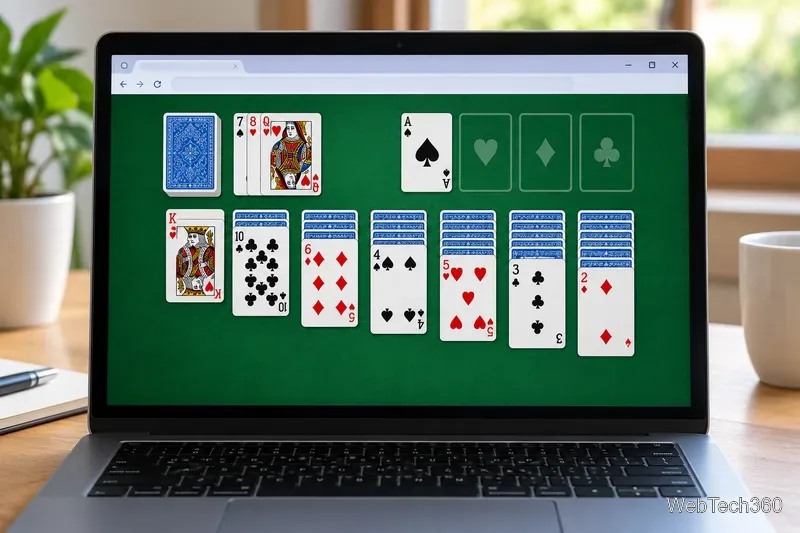
Microsoft Solitaire Collection is the strongest pick if your idea of a casual Windows game starts with Solitaire. Instead of offering only one rule set, the browser version groups five familiar variants together: Klondike, Spider, FreeCell, Pyramid, and TriPeaks.
That makes it a better long-term choice than a single Solitaire game. Klondike is the traditional version most people recognize, Spider gives you a more methodical card-stacking challenge, and FreeCell rewards careful planning because the open cells can be used to rearrange cards. Pyramid and TriPeaks change the pace with number and sequence-based clearing rules. Microsoft also lists Daily Challenges for players who want a reason to return.
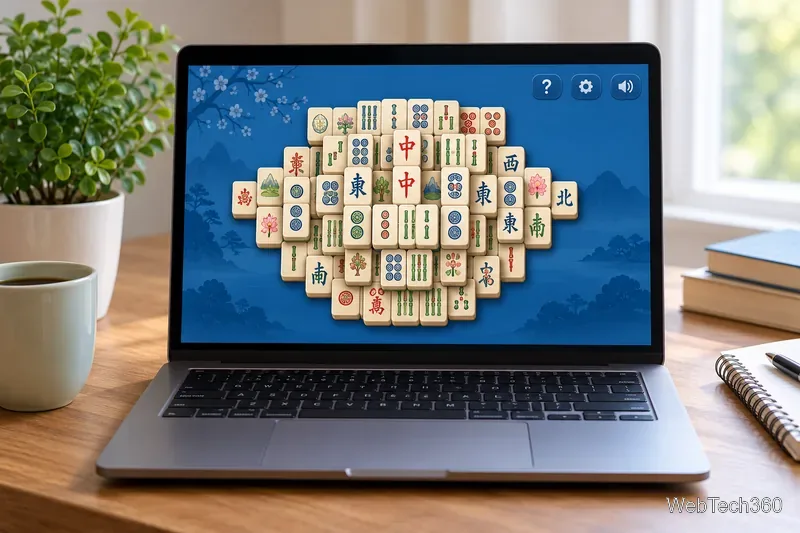
Microsoft Mahjong is a calm tile-matching game built around finding pairs of free tiles and clearing the board. Microsoft’s current game page lists four difficulty levels, which makes it approachable for beginners while still leaving room for more challenging layouts.
The game also includes Daily Challenges, and Microsoft says the current version has more than 40 puzzles. Because the rules are easy to understand and each board is visually scannable, Mahjong works especially well when you want something slower and less demanding than an action game.
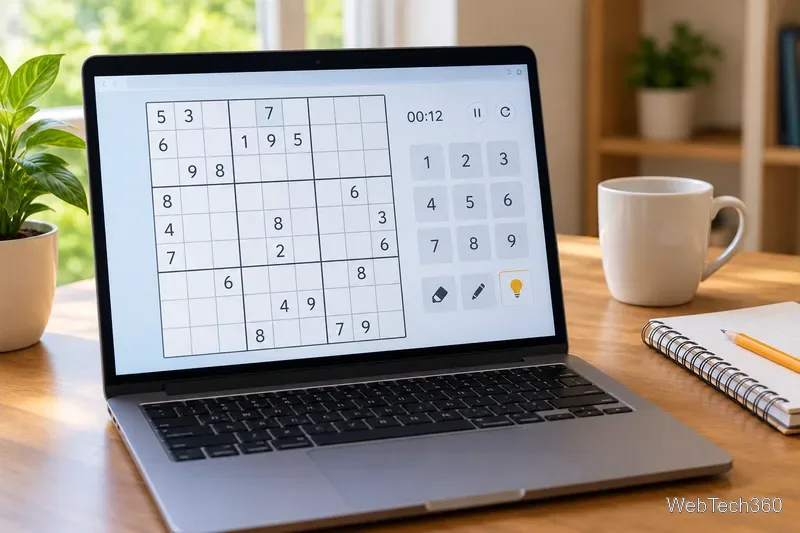
If you prefer pure logic, Microsoft Sudoku is one of the best MSN free games to bookmark. The goal is the standard one: fill a 9×9 grid so the numbers 1 through 9 do not repeat in any row or column, while also respecting each 3×3 box.
The current Microsoft version supports both Pen and Pencil modes. Pen is for answers you want to commit to, while Pencil is useful for notes when more than one number still seems possible. That small feature makes the browser version more comfortable than solving a puzzle on paper when you want to keep candidate numbers organized.
Microsoft Minesweeper keeps the core idea that made the old Windows version so memorable. You reveal squares, read the numbers around them, and use deduction to identify where mines must be hidden. A wrong move can end the round, but most of the game is about logic rather than random clicking.
Microsoft’s current page highlights a Classic Mode and an Expert option for players who want a tougher board. Minesweeper is especially good for short sessions because a puzzle can be started and understood immediately, even if you only have a few minutes.
Microsoft Crosswords is the word-game pick in this list. Microsoft says the game offers multiple board sizes and difficulty levels, so you can choose something light or spend longer on a more demanding puzzle.
There are also Daily Challenges and single-player adventure maps. On those maps, completing a puzzle earns stars and unlocks the next stage. That gives the game more structure than a one-off crossword while still keeping the basic clue-and-grid gameplay familiar.
No. The Zone describes its current catalog as free browser games with no download required. You can open a game page and play from the browser. Microsoft also says the site works on desktop and mobile browsers, although games with larger grids or detailed boards are usually easier to see on a bigger screen.
You also no longer need to worry about the old Adobe Flash requirement that affected many browser games years ago. The current Microsoft Casual Games pages are presented as modern browser games. If a title does not load correctly, first try refreshing the page, allowing required site content, or using an up-to-date browser before looking for a downloadable alternative.
Start with Microsoft Solitaire Collection if you want the most familiar Windows-style experience and the most variety in one game. Choose Mahjong for relaxed matching, Sudoku or Minesweeper for logic, and Crosswords for vocabulary and clue solving. Since the catalog is free to browse, the easiest approach is to try a few and keep the ones that fit the length and difficulty of break you actually want.
Use a screenshot test, cable and port checks, monitor diagnostics, display settings, and driver rollback to pinpoint lines on a Windows 10 monitor.
Show two other time zones beside your Windows 10 clock. Set up each additional clock, give it a clear label, and find it in the taskbar calendar.
Find the File Explorer extension that delays right-click menus in Windows 10, test it safely with ShellExView, and restore any menu features you still need.
Stop Windows 10 from powering down a specific network adapter or USB device with plan-level settings and Device Manager controls, plus tips to avoid excess battery drain.
Check whether Windows 10 uses a digital license or product key, find a firmware-stored OEM key, and save license details securely for a reinstall.
Identify a Windows 10 Task Manager process by checking its executable path, file properties, publisher, linked services, and a Microsoft Defender scan.
Create a searchable Windows 10 folder inventory with PowerShell. Save every file and subfolder path as plain text or export details to a sortable CSV.
Add a custom reminder, quote, or label to your Windows 10 desktop with a Rainmeter text skin. Create the INI file, load it, then adjust its font and position.
Use Bluetooth Swift Pair on Windows 10 to pair a compatible accessory from a notification, with setup steps and fixes when the prompt does not appear.
Learn what common laptop function key symbols mean, how Fn and Fn Lock affect them, and how to confirm the right shortcut for your Windows 10 laptop model.








