How to Access a Network Location in Command Prompt on Windows 10

Use pushd to open a UNC network path in Windows 10 Command Prompt, run commands in the shared folder, and return with popd.
If the battery icon is missing in Windows 10, start with the notification area before changing drivers. The icon may simply be hidden, or the Power system icon may have been switched off. If those quick fixes do not work, restart Windows Explorer, refresh the battery devices in Device Manager, and then repair Windows system files.
Windows 10 can move notification icons into the overflow menu when the taskbar is crowded. This is the fastest fix to check.
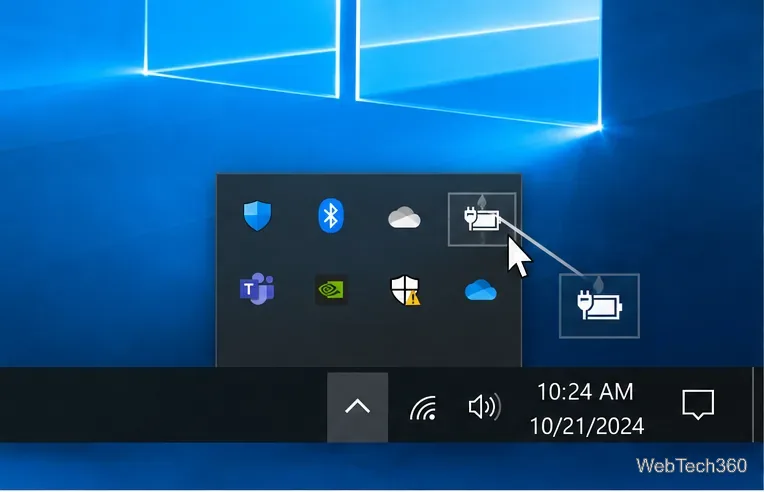
Microsoft confirms that Windows taskbar icons can be moved between the visible system tray and the overflow area. See Microsoft’s taskbar customization guide.
If the icon is not hidden, make sure Windows is allowed to display it.
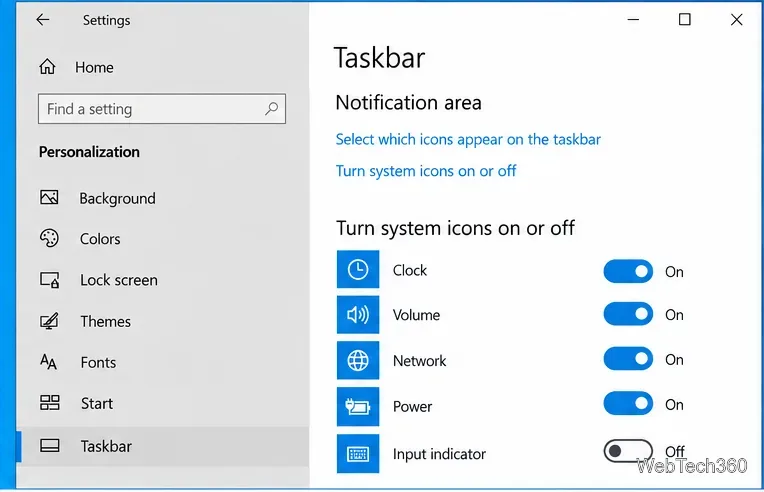
If the Power switch is unavailable or the battery icon still does not appear, continue below. That can indicate a temporary Explorer problem or that Windows is not detecting the battery correctly.
A taskbar process can occasionally fail to redraw a system icon even when its setting is correct. Restarting Windows Explorer refreshes the taskbar without requiring a full PC restart.
The taskbar may disappear briefly and then return. Check the notification area again after Explorer reloads.
If Windows does not detect the battery interface, the Power icon may be missing or show incorrect status. Save your work and connect the laptop to a reliable AC power source before changing battery devices.
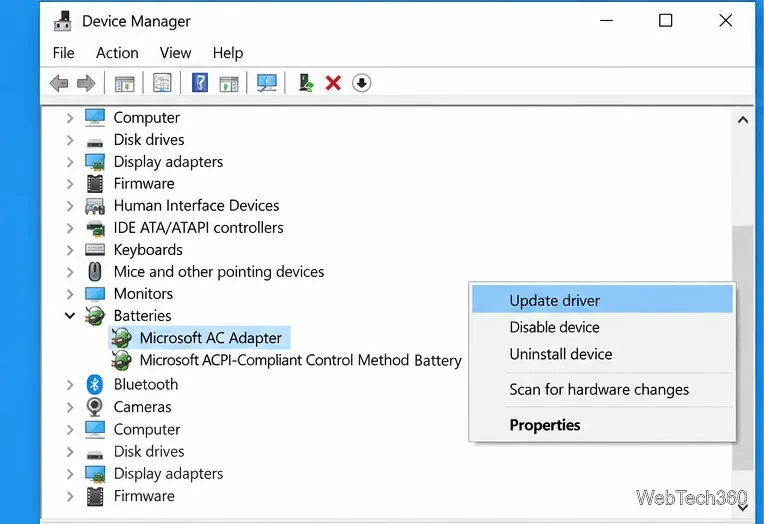
Microsoft documents both driver updates and device reinstalls through Device Manager. If Windows cannot reinstall a compatible driver, use the laptop manufacturer’s official support site rather than a third-party driver download site. See Microsoft’s Device Manager driver instructions.
If the taskbar, Settings, or other Windows components are behaving abnormally, repair the Windows image and protected system files. Microsoft recommends running DISM before System File Checker.
DISM.exe /Online /Cleanup-image /RestorehealthThen run:
sfc /scannowRestart Windows after the scans complete, then check the Power icon again.
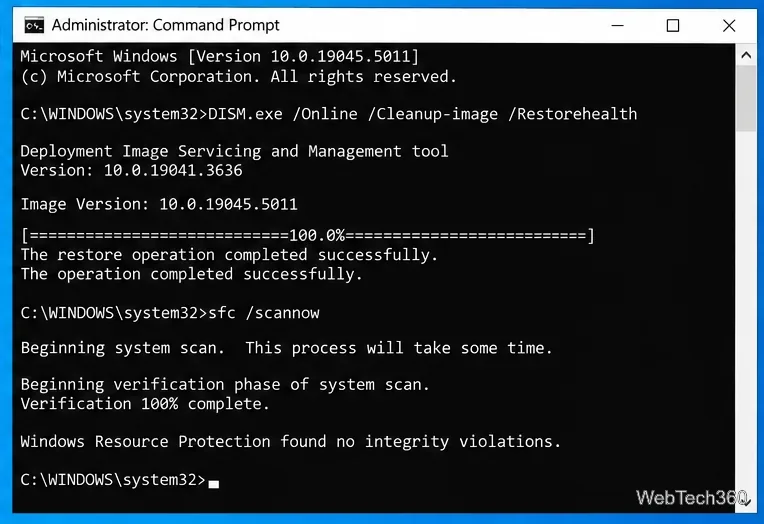
For the official repair sequence and command details, see Microsoft’s System File Checker guidance.
If Batteries is missing from Device Manager, the Power toggle remains unavailable, and Windows does not report a battery level, the problem is probably broader than a hidden taskbar icon. Check for BIOS/UEFI, chipset, power-management, and firmware updates from your PC manufacturer. If the problem started after a battery replacement, confirm that the replacement is supported by that laptop model and is physically detected by the firmware.
Avoid uninstalling an OEM power-management suite unless the manufacturer specifically recommends it for your model. Those utilities can include hotkey, charging-limit, thermal, or firmware components, so removing them at random can create additional problems.
Windows 10 support note: Microsoft ended standard Windows 10 support on October 14, 2025. Windows 10 PCs still work, but systems outside an eligible Extended Security Updates program no longer receive normal security updates. If your PC supports Windows 11, consider upgrading after you resolve the immediate battery issue. Microsoft explains the current status on its Windows 10 end-of-support page.
Use pushd to open a UNC network path in Windows 10 Command Prompt, run commands in the shared folder, and return with popd.
Learn how to install a Rainmeter skin from an INI file by placing it in the right Skins folder, preserving its resources, refreshing Rainmeter, and loading it in Manage.
Open one folder in its own File Explorer window with Shift or the context menu, or change Folder Options to make every folder open separately.
Pin a frequently used Control Panel applet, such as Power Options or Sound, to the Windows 10 Start menu for one-click access.
Choose a supported Windows 10 hotkey for switching input languages, assign shortcuts to individual layouts, or disable an accidental shortcut.
Move a Windows 10 app to the display you want, use its game monitor setting, and handle full-screen apps with a practical primary-monitor workaround.
Use a transparent PNG and a Rainmeter skin to keep an image watermark above windows, adjust its transparency, and make it click-through on Windows 10.
Convert stereo audio to mono on Windows 10 with Audacity. Mix both channels into one mono track, export a new file, and verify the channel count.
Use Windows 10 Clipboard history to save recent text and images, paste an earlier clip with Windows key + V, and manage sync, pinned items, and privacy.
Learn how to zoom in on a video in Windows 10 with VLC’s Interactive Zoom, or use Windows Magnifier when the clip is playing in another app.








