How to Access a Network Location in Command Prompt on Windows 10

Use pushd to open a UNC network path in Windows 10 Command Prompt, run commands in the shared folder, and return with popd.
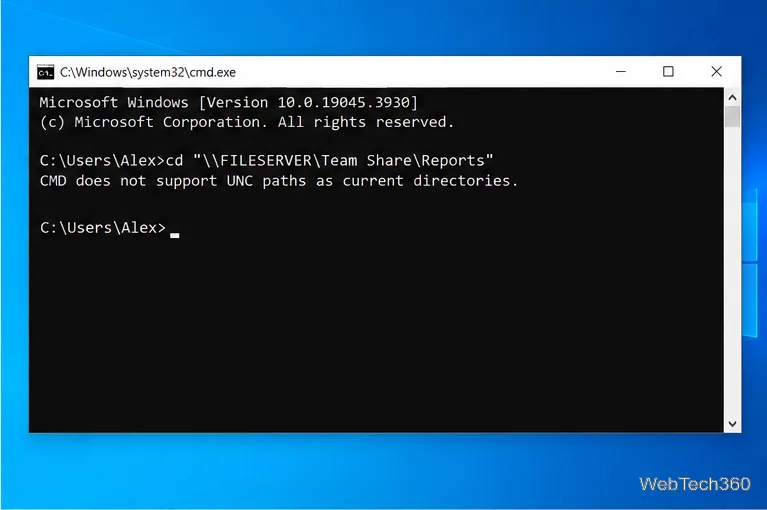
Use pushd with the full UNC path to enter a network share in Windows 10 Command Prompt, for example, pushd "\\FILESERVER\Team Share\Reports". The cd command cannot set a UNC path as the CMD current directory, so it returns “CMD does not support UNC paths as current directories.” pushd temporarily maps the share to an available drive letter and changes into the folder. Run popd afterward to return to where you started. Replace this fictional server path with one you can access.
The interface examples below use a fictional share path and sample filenames.
A UNC path starts with two backslashes and follows the pattern \\server\share\folder. In \\FILESERVER\Team Share\Reports, FILESERVER is the server, Team Share is the share, and Reports is a subfolder. Windows documents this server-and-share path format.
Open the folder in File Explorer and check its address bar. If Explorer shows a mapped drive such as Z:\Reports, run net use in Command Prompt to list network connections and find its remote UNC path.
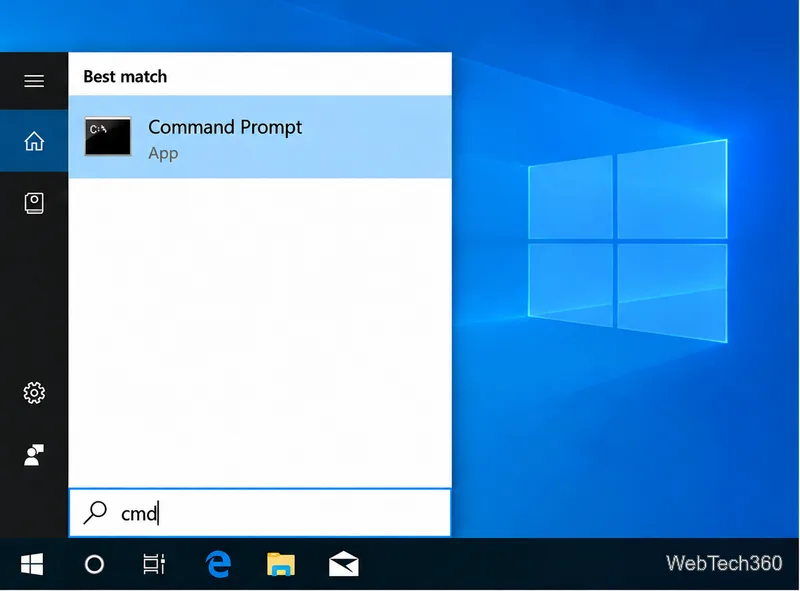
Open Start, type cmd, and select Command Prompt. For routine file commands, use a standard prompt under the same account as File Explorer. An elevated prompt may not see the same mapped drives.
cd does not work with a UNC pathTyping cd "\\FILESERVER\Team Share\Reports" does not move CMD into the share. Instead, it displays the UNC-path error and leaves the prompt at its previous location. Quotes handle spaces, but they do not overcome this limitation.
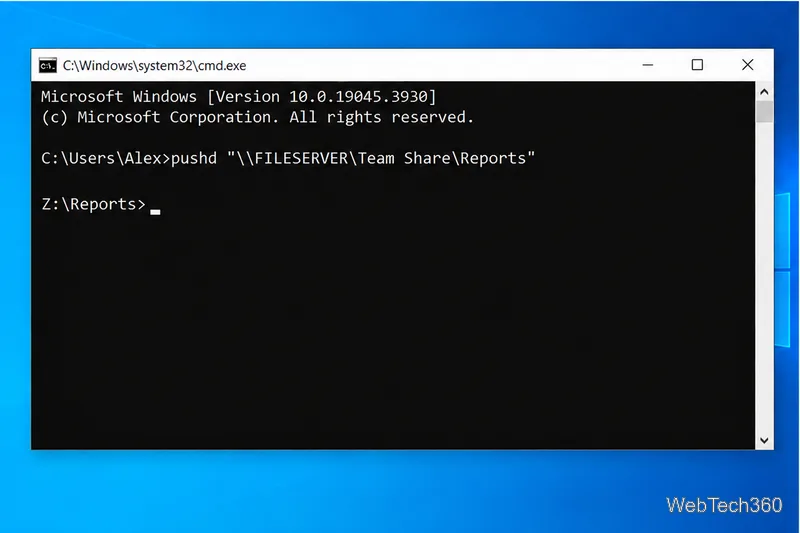
cd is pointed directly at a UNC path.pushdAt the prompt, type this command and press Enter:
pushd "\\FILESERVER\Team Share\Reports"Keep both leading backslashes and quote the full path when it contains spaces. With command extensions enabled, pushd accepts a network path and temporarily assigns the highest unused drive letter, starting with Z:. It then moves into the requested folder. If Z: is occupied, CMD uses another available letter; the assigned letter is not fixed.
Type cd by itself to display the current directory. Run dir to list folder contents or dir /b for a compact list of names. This confirms the prompt is on the share before you continue.
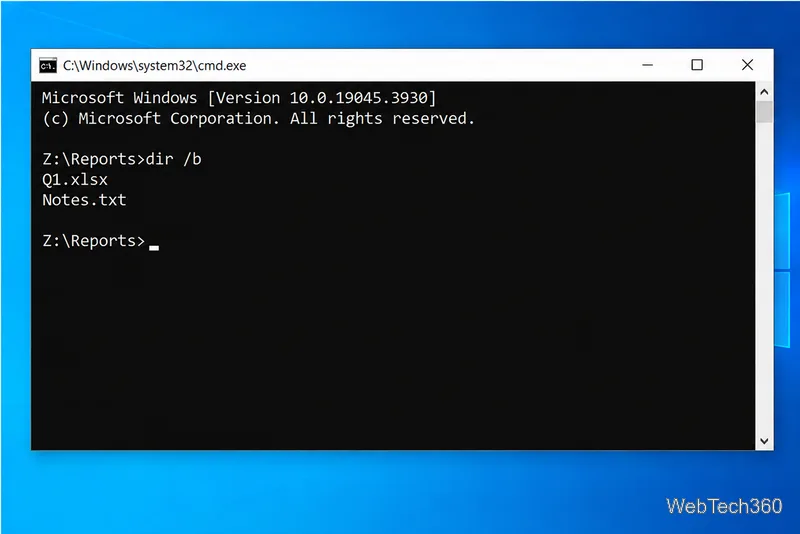
Commands now work from the network folder as they do from a local directory. For example, dir /b *.xlsx lists spreadsheet files, and type "Notes.txt" displays a plain-text file. Replace these example names with real ones and quote any filename containing spaces. pushd changes the working location; it does not grant permission to read or modify files.
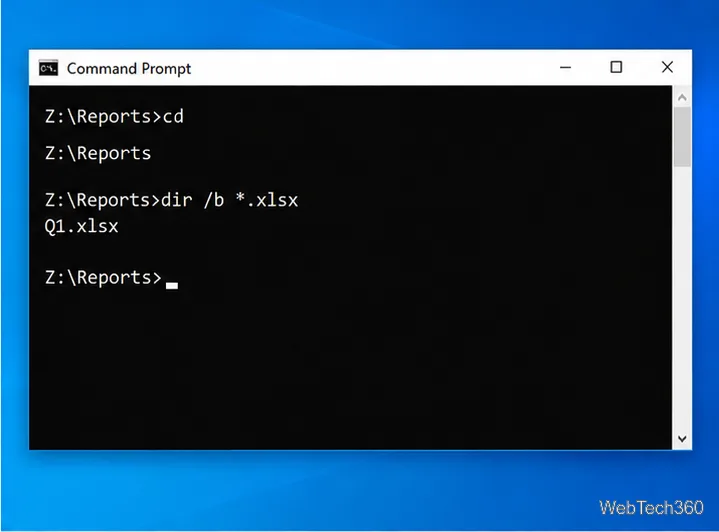
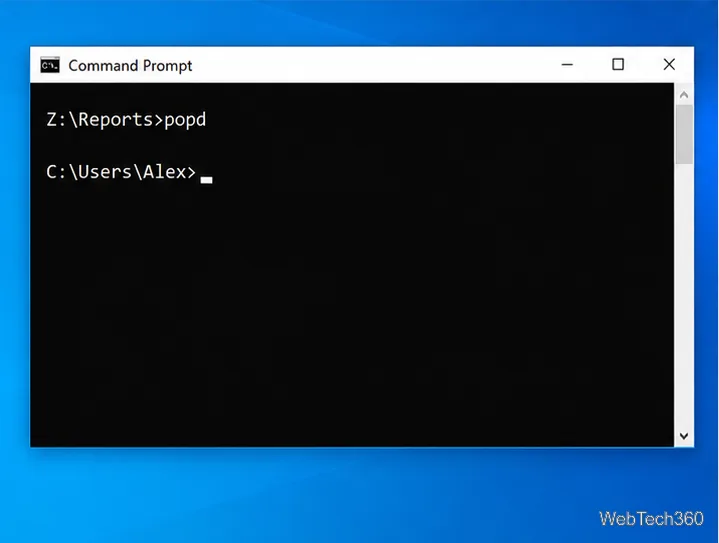
*.xlsx to list matching files.When finished, run popd. It returns CMD to the location saved by the most recent pushd. With command extensions enabled, it also removes the temporary drive-letter assignment. If you used pushd multiple times, run popd once for each saved location, in reverse order.
pushd.pushd will not accept a network path: command extensions may be disabled. Start a command session with cmd /e:on to enable them, then retry.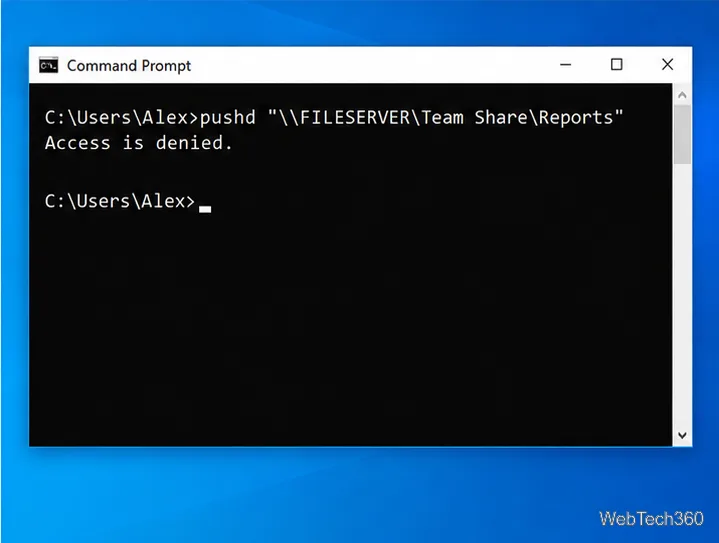
popd./e:on and command extensions.Use pushd to open a UNC network path in Windows 10 Command Prompt, run commands in the shared folder, and return with popd.
Learn how to install a Rainmeter skin from an INI file by placing it in the right Skins folder, preserving its resources, refreshing Rainmeter, and loading it in Manage.
Open one folder in its own File Explorer window with Shift or the context menu, or change Folder Options to make every folder open separately.
Pin a frequently used Control Panel applet, such as Power Options or Sound, to the Windows 10 Start menu for one-click access.
Choose a supported Windows 10 hotkey for switching input languages, assign shortcuts to individual layouts, or disable an accidental shortcut.
Move a Windows 10 app to the display you want, use its game monitor setting, and handle full-screen apps with a practical primary-monitor workaround.
Use a transparent PNG and a Rainmeter skin to keep an image watermark above windows, adjust its transparency, and make it click-through on Windows 10.
Convert stereo audio to mono on Windows 10 with Audacity. Mix both channels into one mono track, export a new file, and verify the channel count.
Use Windows 10 Clipboard history to save recent text and images, paste an earlier clip with Windows key + V, and manage sync, pinned items, and privacy.
Learn how to zoom in on a video in Windows 10 with VLC’s Interactive Zoom, or use Windows Magnifier when the clip is playing in another app.








