How to Access a Network Location in Command Prompt on Windows 10

Use pushd to open a UNC network path in Windows 10 Command Prompt, run commands in the shared folder, and return with popd.
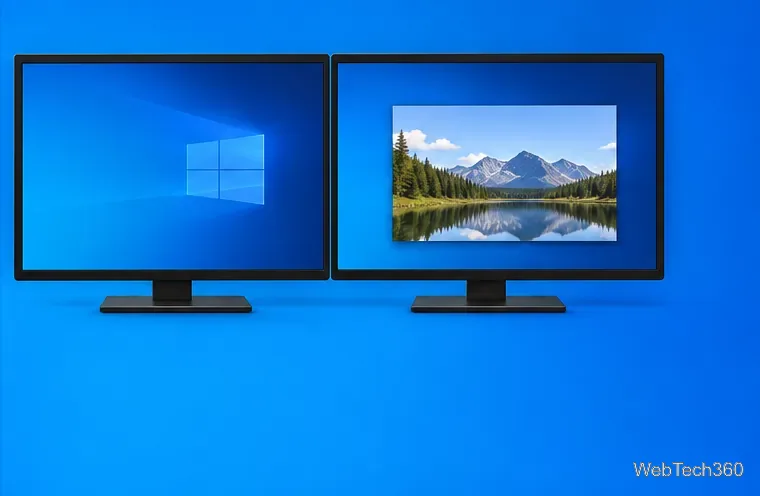
Windows 10 does not include a per-app setting that assigns a program to a monitor before every launch. For a regular desktop window, open the app and press Windows key + Shift + Left Arrow or Windows key + Shift + Right Arrow until it moves to the display you want. Maximize and close it there, then reopen it; some apps remember their last window position. Games and other full-screen apps may need a display choice in their own settings or a change to the primary monitor.
Connect both screens and use an extended desktop. Press Windows key + P, then select Extend. Duplicate mirrors the same desktop on both screens, while Extend gives Windows a separate workspace on each monitor. Microsoft lists these modes in its multiple-monitor instructions.

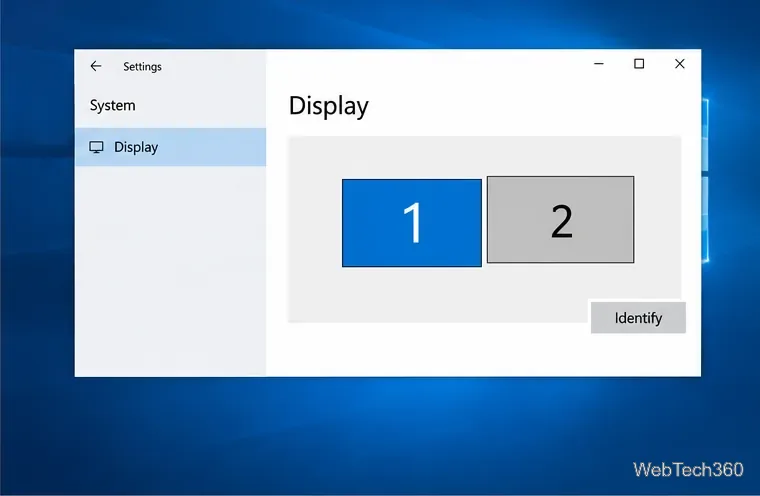
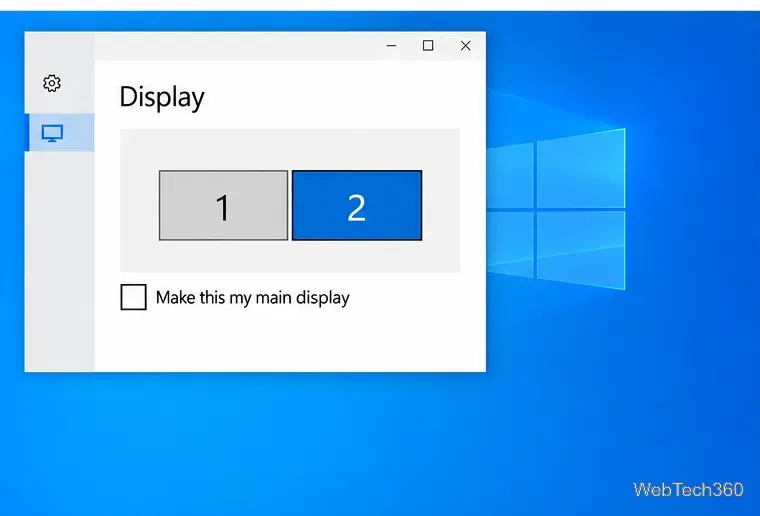
To find the screen number Windows assigned to each monitor, open Start > Settings > System > Display and select Identify. A number appears on each physical screen. If the screen layout shown in Settings does not match your desk, drag the numbered display tiles to match their real positions and select Apply.
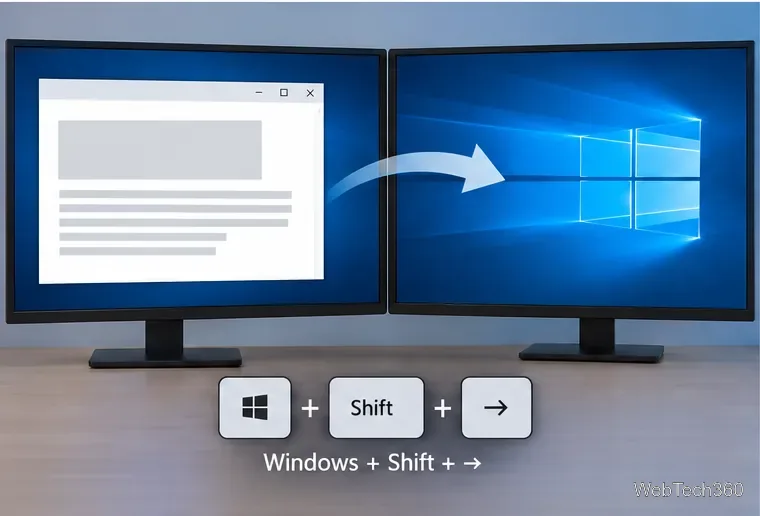
Once the window reaches the correct monitor, maximize it with the title-bar button or drag its edges to size it. Close the app normally while it is still on that screen, then launch it again to see whether it remembers the position. This behavior is controlled by each app, so it may work for one program and fail for another. If it returns to the wrong monitor, use the shortcut again after opening it.
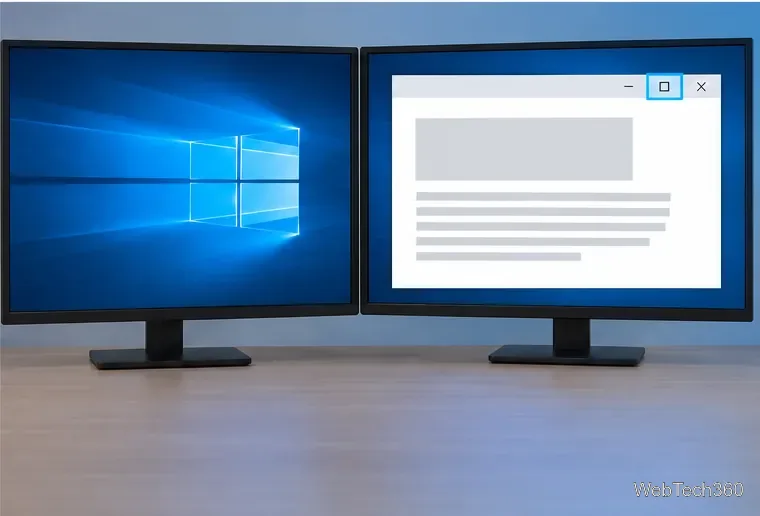
Check the game’s Video, Graphics, or Display settings for a monitor selector. If it offers one, choose the entry matching the number you identified in Windows, apply the change, and restart the game if requested. Some games remember this setting separately from Windows window placement. A game may call the option “Display 1” or “Monitor 2,” so identify the physical screens first rather than guessing from their left-to-right order.
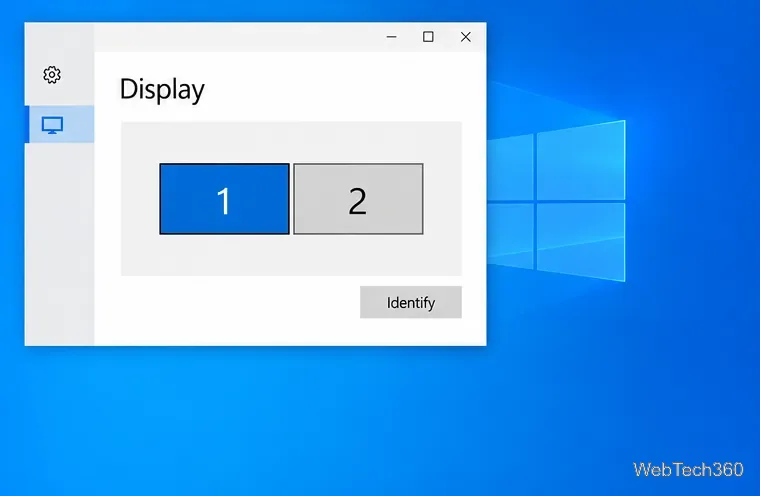
If the game has no monitor selector, switch it to Windowed or Borderless Windowed mode if available. Move its window with Windows key + Shift + Left/Right Arrow, then maximize it or return to borderless mode. Exclusive full-screen games can take control of a display and may ignore window-moving shortcuts; use the game’s own monitor option or the primary-display workaround below when that happens.
Some full-screen apps open on Windows’ primary display. To try that route, go to Settings > System > Display, select the monitor you want, scroll to Multiple displays, and check Make this my main display if it is available. Then start the app again. This changes the main display for Windows overall, not just one app, and does not guarantee that every program will follow it. To undo the change, select the previous primary monitor and check the same option.
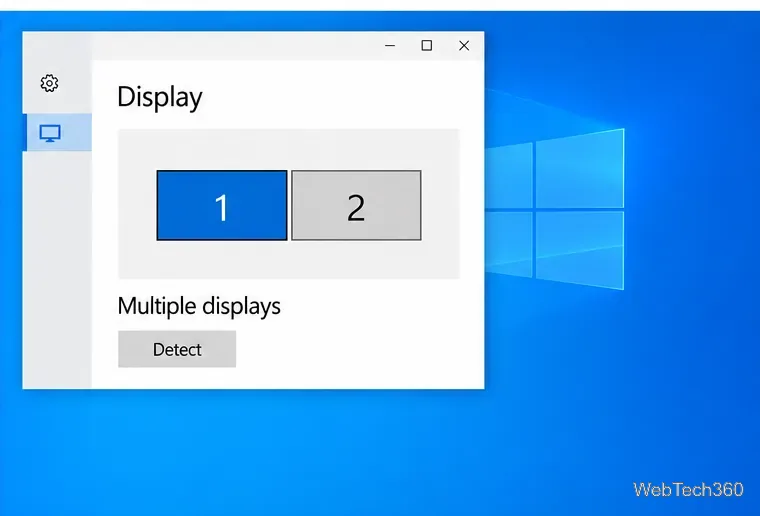
Confirm that Windows is using Extend, check the monitor numbers again, and look for a display option inside the app. If a connected screen is missing from Display settings, check its cable or dock, then select Settings > System > Display > Multiple displays > Detect. Recheck the numbers after reconnecting a monitor because Windows may assign them differently. For the exact Windows 10 display controls, see Microsoft’s guide to using multiple monitors.
Windows 10 support note: Microsoft ended standard Windows 10 support on October 14, 2025. The display steps above remain available, but ordinary Windows 10 installations no longer receive free security updates; see Microsoft’s Windows display support page for the notice.
Use pushd to open a UNC network path in Windows 10 Command Prompt, run commands in the shared folder, and return with popd.
Learn how to install a Rainmeter skin from an INI file by placing it in the right Skins folder, preserving its resources, refreshing Rainmeter, and loading it in Manage.
Open one folder in its own File Explorer window with Shift or the context menu, or change Folder Options to make every folder open separately.
Pin a frequently used Control Panel applet, such as Power Options or Sound, to the Windows 10 Start menu for one-click access.
Choose a supported Windows 10 hotkey for switching input languages, assign shortcuts to individual layouts, or disable an accidental shortcut.
Move a Windows 10 app to the display you want, use its game monitor setting, and handle full-screen apps with a practical primary-monitor workaround.
Use a transparent PNG and a Rainmeter skin to keep an image watermark above windows, adjust its transparency, and make it click-through on Windows 10.
Convert stereo audio to mono on Windows 10 with Audacity. Mix both channels into one mono track, export a new file, and verify the channel count.
Use Windows 10 Clipboard history to save recent text and images, paste an earlier clip with Windows key + V, and manage sync, pinned items, and privacy.
Learn how to zoom in on a video in Windows 10 with VLC’s Interactive Zoom, or use Windows Magnifier when the clip is playing in another app.







