How to Access a Network Location in Command Prompt on Windows 10

Use pushd to open a UNC network path in Windows 10 Command Prompt, run commands in the shared folder, and return with popd.
To convert a stereo audio file into a single-channel mono file on Windows 10, open it in Audacity and choose Tracks > Mix > Mix Stereo down to Mono. Audacity combines the left and right channels into one mono track; export that track as a new audio file. Windows’ Mono audio accessibility setting is for listening and does not rewrite a file.
A stereo recording stores separate left and right channels. A mono recording has one channel, which playback devices generally send to both speakers or headphones. Audacity’s mix-down command combines the stereo channels into one track and lowers the mixed level to help prevent clipping. This keeps information from both sides; it is different from keeping only the left or right channel.
If your goal is simply to hear both sides through one earbud, you may not need to edit the file. In Windows 10, open Settings > Ease of Access > Audio and turn on Turn on mono audio. That is a system playback setting. For a mono file you can send or upload, use the steps below. See Microsoft’s Windows audio accessibility instructions.
Use the current desktop version of Audacity for Windows. The menu names below follow the Audacity manual; small layout details can vary by release.
Start Audacity and drag the audio file into the project window, or use File > Import > Audio. A stereo track normally appears with two stacked waveforms. If the track already has one waveform lane and is labeled Mono, it is already mono and does not need this conversion.

Click the track’s control area to select it, then open Tracks > Mix and choose Mix Stereo down to Mono. Audacity replaces the stereo track with one mono track. The command combines both sides rather than discarding either one. The official Audacity editing FAQ describes this mix-down and its effect on the track.
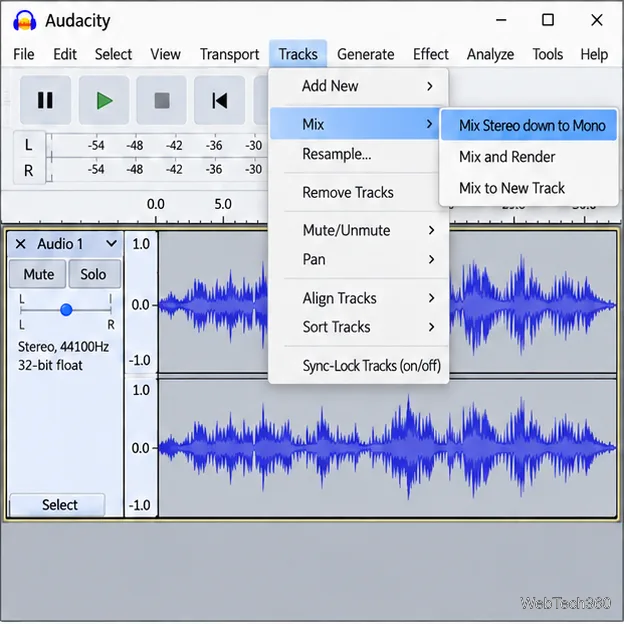
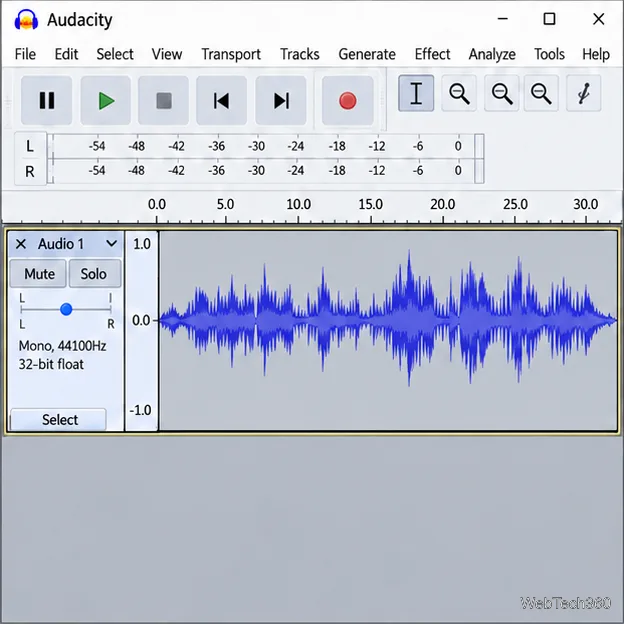
Play a few seconds from the beginning, middle, and end. The project should now show one waveform lane, and the track controls should identify it as mono. Listen for missing or unusually thin sound: if the original left and right channels contain strongly opposing signals, combining them can reduce some of that content. Undo the mix with Ctrl+Z if the result sounds wrong, then inspect the channels separately before choosing a conversion method.
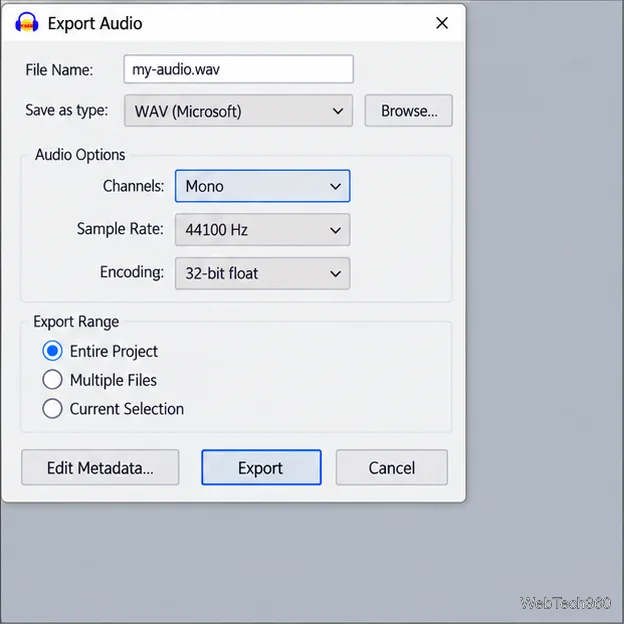
Choose File > Export Audio. Pick a folder, enter a file name, and select a format such as WAV or MP3. In the format’s audio options, choose Mono for the channel setting when that option is shown. For WAV, Audacity’s export options include a Channels control. Keep the sample rate and encoding at the defaults unless the receiving service or device specifies different requirements. Click Export and complete any metadata dialog that appears.
Use a different filename or folder from the original so you retain the stereo source. The export is the file to share; saving the Audacity project separately keeps the editable session and track changes.
Import the exported file into a new Audacity project. A mono file should appear as one waveform lane rather than a pair of stacked channels. You can also inspect the file’s channel information in an audio player or media utility. The exported channel count matters more than the project view alone, because an export format can have its own channel options. Audacity’s Export Audio manual explains the format and audio-option controls.
Choose Split Stereo to Mono from the track dropdown menu only when you need to edit the left and right sides independently or keep just one side—for example, if one channel is silent or noisy. Audacity creates two separate mono tracks. Listen to each, remove the unwanted track if that is your intent, then export the remaining track as mono. Deleting a channel discards everything recorded on that side; it does not blend the two channels. For the usual conversion that preserves both sides, use Mix Stereo down to Mono. See Audacity’s guide to splitting and joining stereo tracks.
For future recordings, open Edit > Preferences > Audio Settings and set Recording Channels to 1 (Mono). Depending on the version and toolbar layout, the same channel control may be available in the Audio Setup or Device toolbar. The Audio Settings manual documents the preference. This affects new recordings, not audio already in the project. If your input device is stereo and you need both of its channels, leave recording set to two channels; some devices may provide only the left input when configured for one-channel recording. You can change the preference again at any time.
Use pushd to open a UNC network path in Windows 10 Command Prompt, run commands in the shared folder, and return with popd.
Learn how to install a Rainmeter skin from an INI file by placing it in the right Skins folder, preserving its resources, refreshing Rainmeter, and loading it in Manage.
Open one folder in its own File Explorer window with Shift or the context menu, or change Folder Options to make every folder open separately.
Pin a frequently used Control Panel applet, such as Power Options or Sound, to the Windows 10 Start menu for one-click access.
Choose a supported Windows 10 hotkey for switching input languages, assign shortcuts to individual layouts, or disable an accidental shortcut.
Move a Windows 10 app to the display you want, use its game monitor setting, and handle full-screen apps with a practical primary-monitor workaround.
Use a transparent PNG and a Rainmeter skin to keep an image watermark above windows, adjust its transparency, and make it click-through on Windows 10.
Convert stereo audio to mono on Windows 10 with Audacity. Mix both channels into one mono track, export a new file, and verify the channel count.
Use Windows 10 Clipboard history to save recent text and images, paste an earlier clip with Windows key + V, and manage sync, pinned items, and privacy.
Learn how to zoom in on a video in Windows 10 with VLC’s Interactive Zoom, or use Windows Magnifier when the clip is playing in another app.







