How to Access a Network Location in Command Prompt on Windows 10

Use pushd to open a UNC network path in Windows 10 Command Prompt, run commands in the shared folder, and return with popd.
Windows 10 can keep a short list of things you copy, so you can paste an earlier item instead of copying it again. Turn on Clipboard history, copy text or an image as usual, then press Windows key + V and select the clip you need. The built-in feature works on your PC without a Microsoft account; syncing clips to other devices is a separate, optional setting.
Windows 10’s regular clipboard still holds the latest item for Ctrl + V. Clipboard history gives you a menu of recent items when you want to choose a different one.

You do not have to enable syncing to use the local history. In the same Clipboard settings page, keep Sync across devices off if you only want to use clips on this PC. Turning sync on requires the same Microsoft or work account on each device and sends eligible text clips to Microsoft for syncing. Microsoft explains the options in its Clipboard support guide.
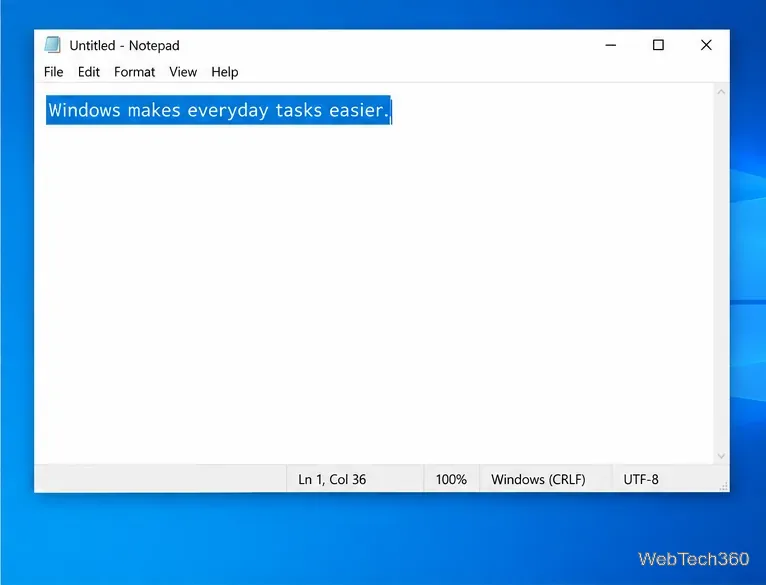
Open the app that contains the first item, select it, and press Ctrl + C. Repeat for each additional item. For example, copy a name from a document, a link from a browser, and then a short note from another app. Each copy becomes a separate entry in Clipboard history, even though the standard clipboard now contains only the most recent copy.
Clipboard history can also show supported image data. Microsoft lists text, HTML, and bitmap formats, with a maximum of 4 MB per item. Whether an item can be pasted still depends on the destination app: place the cursor in a text field for text, or use an app that accepts images for a picture. Windows history is not a general file archive, so do not expect every copied file or format to appear as a reusable entry.
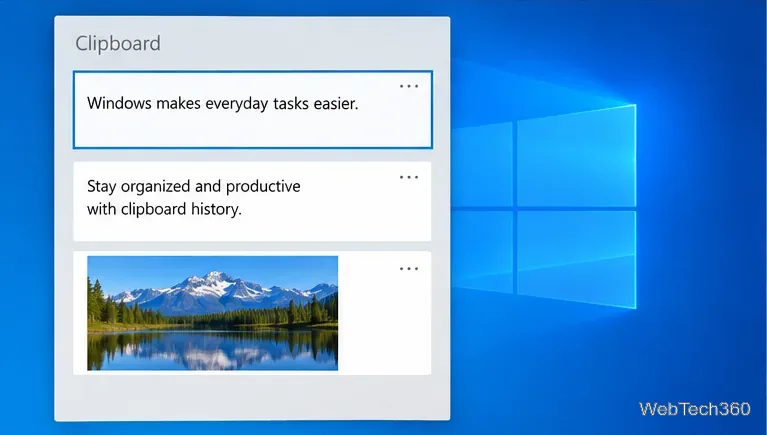
If the flyout says there is nothing to show, copy a small piece of text with Ctrl+C and open it again. If Windows key + V displays a prompt, enable history as described above. Microsoft’s Windows keyboard shortcut reference also lists Windows key + V as the shortcut for opening Clipboard history.
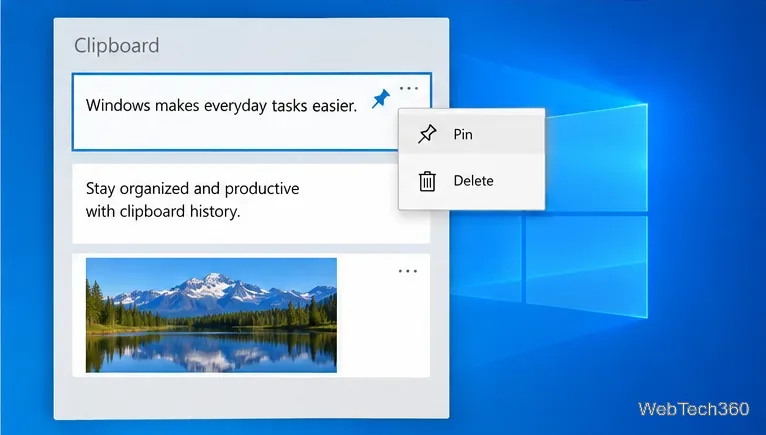
For a clip you use repeatedly, open its three-dot menu and choose Pin. Pinned items stay in history after a restart; unpinned entries are cleared when you restart Windows. The history holds up to 25 copied entries. As new items arrive, older unpinned entries are removed to make room, so pin anything you need to keep.
To remove one clip, open its three-dot menu and choose Delete. To clear the unpinned list, press Windows key + V and choose Clear all. You can also open Settings > System > Clipboard and select Clear under Clear clipboard data. Pinned clips are excluded from Clear all; remove a pinned clip individually if you no longer want it saved.
Clipboard history can temporarily contain personal information. Avoid copying passwords, payment details, or private messages when you do not want them retained, and delete a sensitive clip if it appears in the history. With cross-device sync off, you can use the built-in history without sending clips through Windows clipboard sync.
These steps apply to Windows 10, although Microsoft ended its general support for the operating system on October 14, 2025. Microsoft says free Windows Update software updates, technical assistance, and security fixes ended on that date. See the current Microsoft clipboard documentation for feature details and troubleshooting.
Use pushd to open a UNC network path in Windows 10 Command Prompt, run commands in the shared folder, and return with popd.
Learn how to install a Rainmeter skin from an INI file by placing it in the right Skins folder, preserving its resources, refreshing Rainmeter, and loading it in Manage.
Open one folder in its own File Explorer window with Shift or the context menu, or change Folder Options to make every folder open separately.
Pin a frequently used Control Panel applet, such as Power Options or Sound, to the Windows 10 Start menu for one-click access.
Choose a supported Windows 10 hotkey for switching input languages, assign shortcuts to individual layouts, or disable an accidental shortcut.
Move a Windows 10 app to the display you want, use its game monitor setting, and handle full-screen apps with a practical primary-monitor workaround.
Use a transparent PNG and a Rainmeter skin to keep an image watermark above windows, adjust its transparency, and make it click-through on Windows 10.
Convert stereo audio to mono on Windows 10 with Audacity. Mix both channels into one mono track, export a new file, and verify the channel count.
Use Windows 10 Clipboard history to save recent text and images, paste an earlier clip with Windows key + V, and manage sync, pinned items, and privacy.
Learn how to zoom in on a video in Windows 10 with VLC’s Interactive Zoom, or use Windows Magnifier when the clip is playing in another app.







