How to Access a Network Location in Command Prompt on Windows 10

Use pushd to open a UNC network path in Windows 10 Command Prompt, run commands in the shared folder, and return with popd.
To pin an individual Control Panel setting in Windows 10, open Control Panel, change View by to Small icons or Large icons, then right-click the applet and select Pin to Start. The Start menu tile opens that applet directly, so you can get back to a frequently used page such as Power Options without browsing through Control Panel each time.

Control Panel has two common layouts. Category view groups settings under headings such as Network and Internet or Hardware and Sound. The groups are useful for browsing, but the category names themselves are not the shortcuts you want to pin. For a direct list of applets, use the View by menu in the upper-right corner and choose Small icons or Large icons.
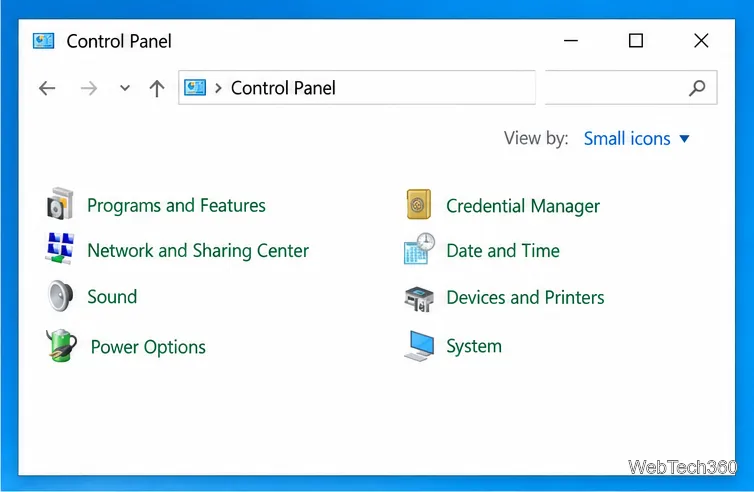
Applet availability can vary between Windows editions and devices. Some entries depend on installed hardware or drivers, and Windows has moved some older Control Panel tasks into the Settings app. If you do not see a particular item, it may not be available on that PC under that name.
control, and press Enter.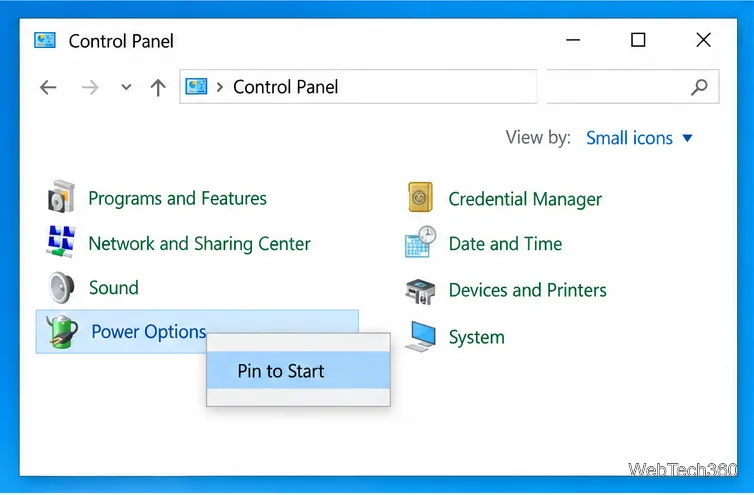
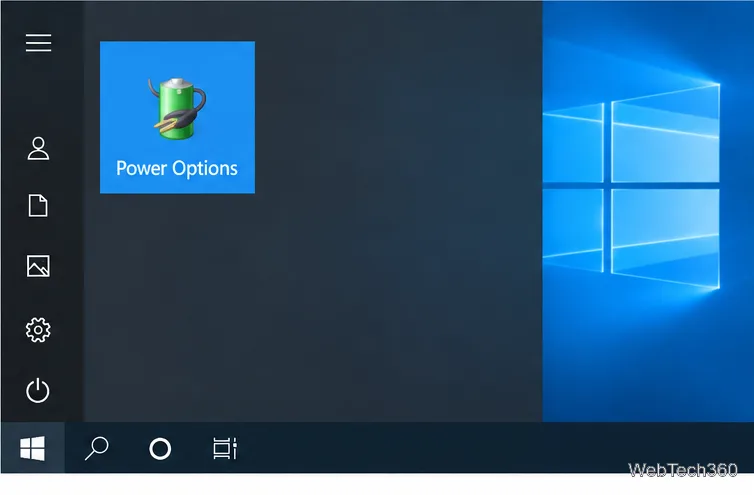
A pinned tile is a shortcut to a Control Panel applet; it does not apply a setting or change your configuration on its own. Open it, then make and apply changes in the applet as usual. The tile typically opens the applet in a new window, while the exact controls shown there depend on the device and Windows build.
You can organize the tile with other Start tiles by dragging it to a new position or grouping it with related shortcuts. For example, a laptop user might keep Power Options near other maintenance tools, while a desktop user might pin Sound or Programs and Features. Pin only the applets you return to often so the Start area stays easy to scan.
To remove the shortcut, open Start, right-click its tile, and choose Unpin from Start. This removes only the tile; the Control Panel applet and its settings remain on the PC. You can also right-click the applet in Control Panel and choose the unpin command if Windows offers it there.
If you do not see Pin to Start, first make sure you are right-clicking an individual applet in icon view, not a category heading or blank area. Try the other icon size and check whether the item is present. Context-menu choices can differ by applet and system configuration. If that applet cannot be pinned directly, search for Control Panel in Start, right-click the app result, and pin the Control Panel app itself as a fallback. That shortcut opens the main Control Panel rather than the specific setting.
These steps apply to Windows 10's classic Start menu and Control Panel. Microsoft ended standard Windows 10 support on October 14, 2025; the pinning shortcut still helps with navigation, but it does not provide security updates or technical support. Check Microsoft's current guidance if you need to confirm support or Extended Security Updates options for your device.
Use pushd to open a UNC network path in Windows 10 Command Prompt, run commands in the shared folder, and return with popd.
Learn how to install a Rainmeter skin from an INI file by placing it in the right Skins folder, preserving its resources, refreshing Rainmeter, and loading it in Manage.
Open one folder in its own File Explorer window with Shift or the context menu, or change Folder Options to make every folder open separately.
Pin a frequently used Control Panel applet, such as Power Options or Sound, to the Windows 10 Start menu for one-click access.
Choose a supported Windows 10 hotkey for switching input languages, assign shortcuts to individual layouts, or disable an accidental shortcut.
Move a Windows 10 app to the display you want, use its game monitor setting, and handle full-screen apps with a practical primary-monitor workaround.
Use a transparent PNG and a Rainmeter skin to keep an image watermark above windows, adjust its transparency, and make it click-through on Windows 10.
Convert stereo audio to mono on Windows 10 with Audacity. Mix both channels into one mono track, export a new file, and verify the channel count.
Use Windows 10 Clipboard history to save recent text and images, paste an earlier clip with Windows key + V, and manage sync, pinned items, and privacy.
Learn how to zoom in on a video in Windows 10 with VLC’s Interactive Zoom, or use Windows Magnifier when the clip is playing in another app.







