How to Set a Custom Keyboard Shortcut for Language Switching in Windows 10

Windows 10 lets you change the shortcut used to switch between installed input languages or keyboard layouts. Open Advanced keyboard settings, go to Language bar options, and use the legacy Advanced Key Settings tab. There, you can choose one of the built-in combinations—such as Left Alt + Shift, Ctrl + Shift, or the grave accent (`) key—or turn that shortcut off. The dialog offers a short preset list, not an unrestricted shortcut recorder.

This changes the active typing input. It does not translate text or change the language of Windows menus and other interface elements.

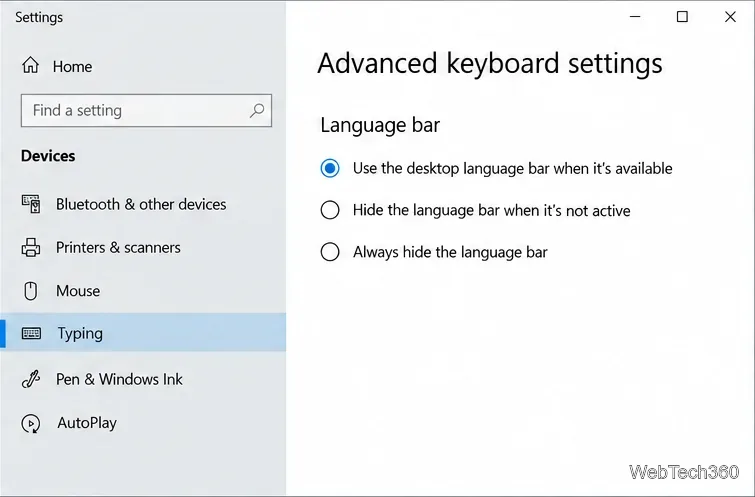
Windows 10 Settings on the Devices  data-awj-image-key= Typing page, with Advanced keyboard settings visible under More keyboard settings." width="755">
On the Windows 10 Typing page, open Advanced keyboard settings to reach the legacy language-bar controls.

Before you begin

You need at least two input choices—different languages or keyboard layouts. You do not need to change Windows’ display language. If only one input is installed, add another keyboard layout first; otherwise, there is nothing to switch to.

Windows key + Spacebar opens the built-in input selector and cycles through installed languages and layouts, even if you keep the older shortcut.

Change the shortcut between input languages

  1. Open Advanced keyboard settings. Select Start, type Advanced keyboard settings, and open the matching result. You can also go to Settings > Devices > Typing > Advanced keyboard settings on Windows 10.
  2. Open Language bar options. On the Advanced keyboard settings page, select Language bar options. This opens the older Text Services and Input Languages dialog, which still contains the keyboard shortcut controls.
Windows 10 Advanced keyboard settings showing the legacy language bar and its visibility choices.
The Advanced keyboard settings page links to options for the legacy language bar.
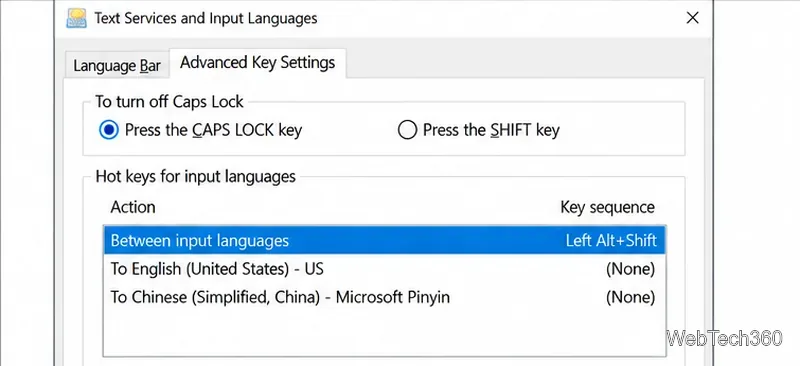
  1. Select the language-switching action. In the Text Services and Input Languages window, open the Advanced Key Settings tab. Under Hot keys for input languages, select Between input languages, then choose Change Key Sequence.
The Advanced Key Settings tab with Between input languages selected and its current Left Alt+Shift assignment shown.
Select Between input languages to edit the shortcut that cycles among installed inputs.
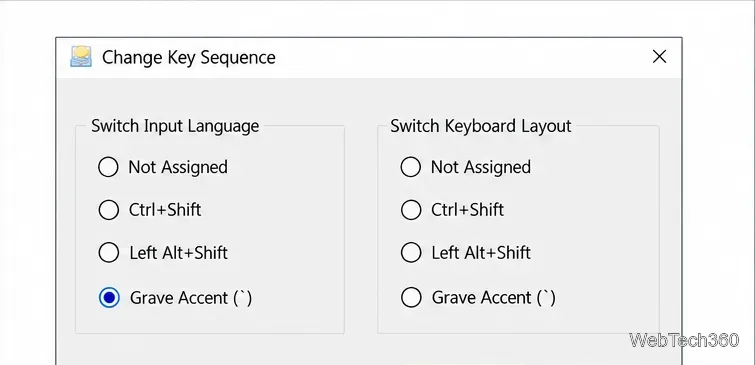
  1. Choose the combination. In the Switch Input Language column, select Not Assigned, Ctrl + Shift, Left Alt + Shift, or Grave Accent (`), depending on the options shown on your PC. Do not confuse this column with Switch Keyboard Layout: that separate setting controls layout switching. The grave-accent key is usually near the top-left of a U.S. keyboard, above Tab; key placement and legends vary by keyboard.
  2. Save and test it. Select OK in the Change Key Sequence dialog, then choose Apply and OK in the parent window. Open Notepad or another plain-text field and press the new shortcut. Check the input indicator near the clock to confirm which input is active.
The Change Key Sequence dialog with the Switch Input Language choices Not Assigned, Ctrl+Shift, Left Alt+Shift, and Grave Accent.
The legacy dialog only lets you select from its preset input-language combinations.

Assign a shortcut to one specific input

To select one input directly, choose its To [language or keyboard] row instead of Between input languages, then click Change Key Sequence. Enable the sequence if shown and choose an offered preset. These assignments are limited; common choices include Ctrl + Shift + a number from 0–9 or a grave-accent option. Available rows depend on installed inputs.

Assign a different combination to each input. If you add or remove a keyboard later, revisit this list; the To… actions mirror installed inputs.

Keep or disable the default shortcut

Windows key + Spacebar remains separate: Microsoft lists it for switching forward through installed inputs, while Windows key + Shift + Spacebar switches backward. The legacy dialog cannot remap it.

To stop accidental Alt + Shift switches, select Not Assigned for Between input languages and save. Windows key + Spacebar remains available. If another app uses your new combination, choose a different preset.

Troubleshooting

  • The shortcut appears to do nothing: confirm there are at least two installed inputs and that you changed the left-hand Switch Input Language option. Test in a basic text field and check the taskbar input indicator.
  • The wrong letters appear after switching: the active keyboard layout may differ from the language you expected. The taskbar indicator identifies the current input; changing a keyboard layout changes how keys produce characters, not the language of the Windows interface.
  • You want to switch an IME between modes: a Chinese, Japanese, or other input method can have its own mode shortcut. That is separate from the Windows shortcut for switching among installed inputs, so check that IME’s settings.
  • You cannot find the old dialog: search Start for Advanced keyboard settings, then look for Language bar options. Microsoft’s current guide describes the legacy link from the Advanced keyboard settings page.

What this setting changes

This shortcut changes the active input only; it does not change Windows’ display language or translate text. For more detail, see Microsoft’s guide to language and keyboard input settings and its Windows keyboard shortcut reference.

Standard support for Windows 10 ended on October 14, 2025. The PC still works, but standard support no longer includes free security updates.

Leave a Comment

How to Access a Network Location in Command Prompt on Windows 10

How to Access a Network Location in Command Prompt on Windows 10

Use pushd to open a UNC network path in Windows 10 Command Prompt, run commands in the shared folder, and return with popd.

How to Install a Rainmeter Skin From an INI File on Windows 10

How to Install a Rainmeter Skin From an INI File on Windows 10

Learn how to install a Rainmeter skin from an INI file by placing it in the right Skins folder, preserving its resources, refreshing Rainmeter, and loading it in Manage.

How to Open Folders in a New File Explorer Window on Windows 10

How to Open Folders in a New File Explorer Window on Windows 10

Open one folder in its own File Explorer window with Shift or the context menu, or change Folder Options to make every folder open separately.

How to Pin a Control Panel Setting to the Start Menu in Windows 10

How to Pin a Control Panel Setting to the Start Menu in Windows 10

Pin a frequently used Control Panel applet, such as Power Options or Sound, to the Windows 10 Start menu for one-click access.

How to Set a Custom Keyboard Shortcut for Language Switching in Windows 10

How to Set a Custom Keyboard Shortcut for Language Switching in Windows 10

Choose a supported Windows 10 hotkey for switching input languages, assign shortcuts to individual layouts, or disable an accidental shortcut.

How to Run an App on a Specific Monitor in Windows 10

How to Run an App on a Specific Monitor in Windows 10

Move a Windows 10 app to the display you want, use its game monitor setting, and handle full-screen apps with a practical primary-monitor workaround.

How to Add an Image Watermark to Your Windows 10 Screen

How to Add an Image Watermark to Your Windows 10 Screen

Use a transparent PNG and a Rainmeter skin to keep an image watermark above windows, adjust its transparency, and make it click-through on Windows 10.

How to Convert Stereo Audio to Mono on Windows 10

How to Convert Stereo Audio to Mono on Windows 10

Convert stereo audio to mono on Windows 10 with Audacity. Mix both channels into one mono track, export a new file, and verify the channel count.

How to Copy Multiple Items to the Clipboard in Windows 10

How to Copy Multiple Items to the Clipboard in Windows 10

Use Windows 10 Clipboard history to save recent text and images, paste an earlier clip with Windows key + V, and manage sync, pinned items, and privacy.

How to Zoom In on a Video While It’s Playing in Windows 10

How to Zoom In on a Video While It’s Playing in Windows 10

Learn how to zoom in on a video in Windows 10 with VLC’s Interactive Zoom, or use Windows Magnifier when the clip is playing in another app.