How to Access a Network Location in Command Prompt on Windows 10

Use pushd to open a UNC network path in Windows 10 Command Prompt, run commands in the shared folder, and return with popd.
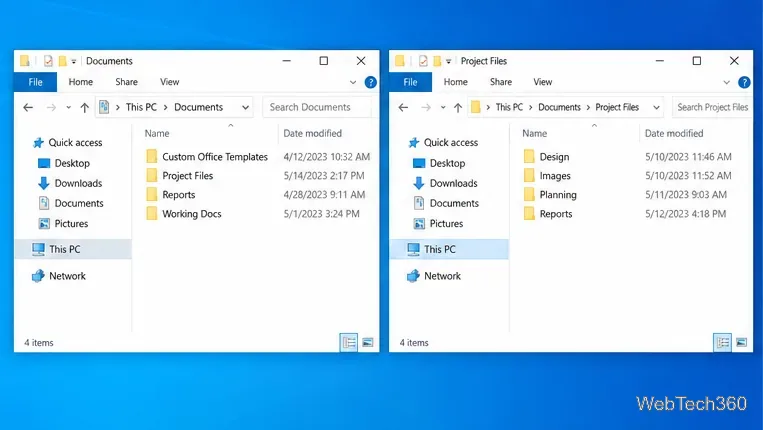
To open a folder in a separate File Explorer window on Windows 10, hold Shift while double-clicking it. To make separate windows the default for every folder, change the Browse folders setting in Folder Options. The first method is temporary; the setting remains in effect until you change it back.
File Explorer normally opens folders in the current window. Windows 10 does not show folders in File Explorer tabs, so a new-window action creates another window and leaves the original location available.
| What you want | Method | Effect |
|---|---|---|
| Open one folder separately | Hold Shift and double-click | Only the selected folder opens in a new window. |
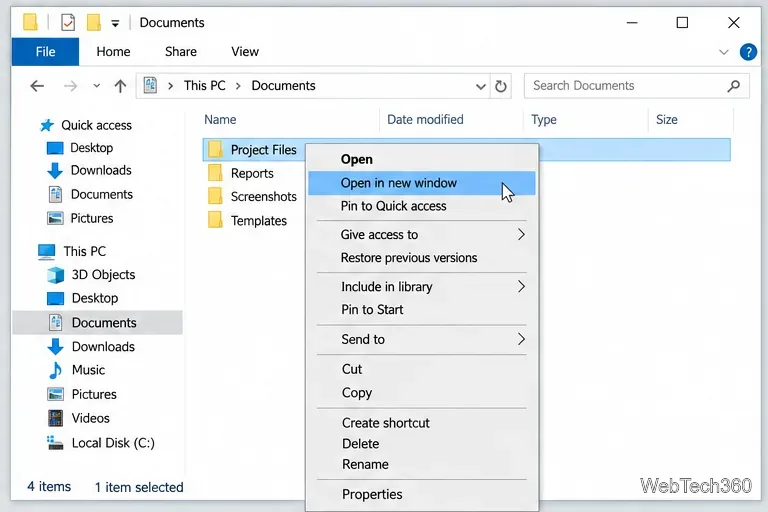
| Use the mouse instead | Right-click and choose Open in new window | The same one-time result. |
| Open folders separately by default | Change Folder Options | Future folder openings use their own windows until you restore the same-window choice. |
Use this approach when you need a second location for one task but want normal browsing to continue in the current window.

If you prefer not to hold a key, right-click the folder in File Explorer and select Open in new window. This is also a good way to confirm the action before opening another window. Right-click the folder itself in the file list, rather than a file inside it.
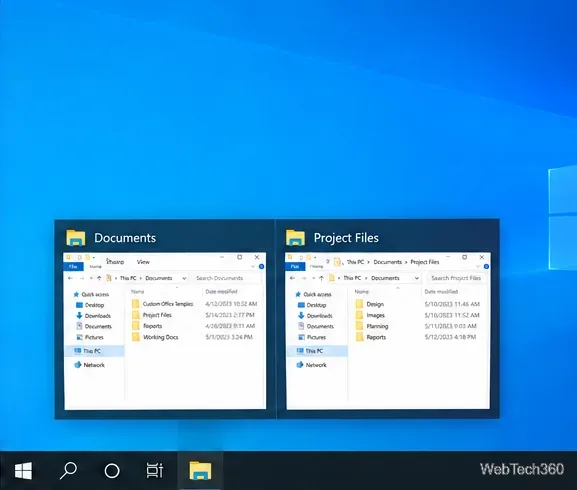
When you have several File Explorer windows open, hover over the File Explorer icon on the taskbar to see window previews. Select the preview for the folder you want to return to. You can also arrange two windows side by side when you need to compare their contents.
Change the Folder Options preference if you routinely work in separate locations and want each folder to open independently.
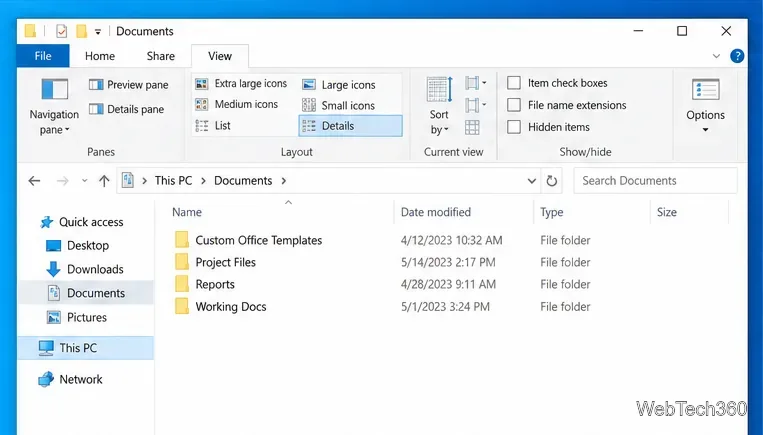
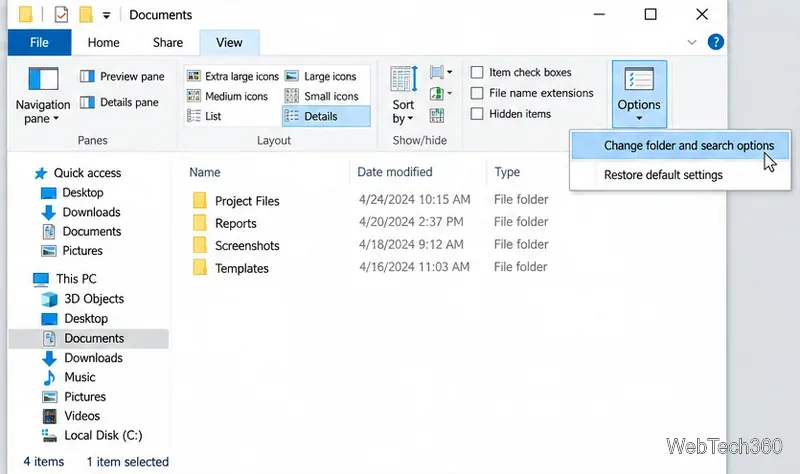
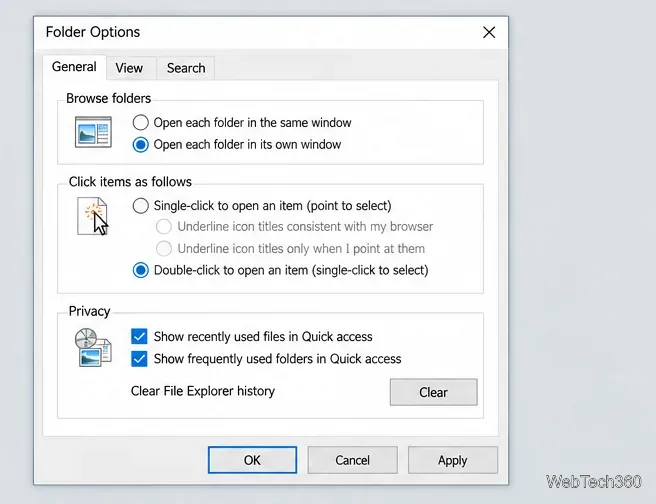
After you save the setting, folders opened from File Explorer use separate windows by default. You no longer need to hold Shift for each folder. Keep in mind that browsing through a chain of nested folders can create many windows, so this setting works best if you regularly compare or move between different locations.
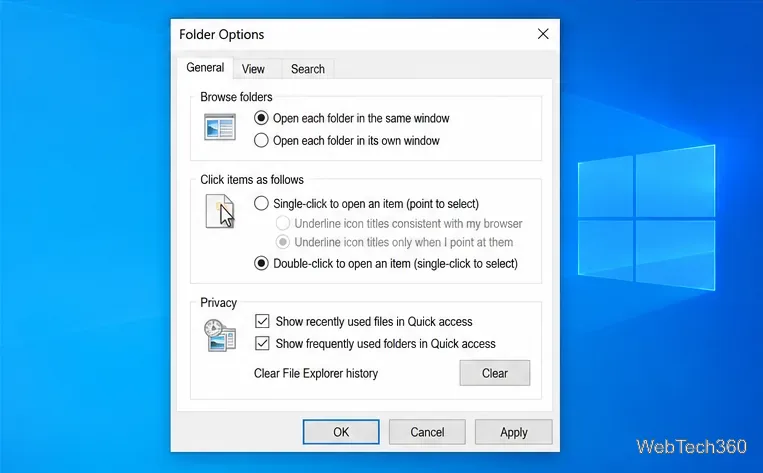
This setting controls how folders open going forward; it does not combine windows that are already open. Close or arrange those windows separately. If you wanted separate windows only occasionally, leave the same-window option selected and use Shift or the context menu when needed.
Make sure Shift is held during the double-click, and check that you are opening a folder rather than a file. If that is awkward with your mouse, use the folder's context menu. If every folder keeps opening separately after you expected to return to the current window, check that Open each folder in the same window is selected in Folder Options.
Microsoft ended support for Windows 10 on October 14, 2025. File Explorer continues to run, but Microsoft no longer provides regular free software updates or security fixes for Windows 10. See Microsoft's File Explorer guidance and Windows 10 support note for current information.
Use pushd to open a UNC network path in Windows 10 Command Prompt, run commands in the shared folder, and return with popd.
Learn how to install a Rainmeter skin from an INI file by placing it in the right Skins folder, preserving its resources, refreshing Rainmeter, and loading it in Manage.
Open one folder in its own File Explorer window with Shift or the context menu, or change Folder Options to make every folder open separately.
Pin a frequently used Control Panel applet, such as Power Options or Sound, to the Windows 10 Start menu for one-click access.
Choose a supported Windows 10 hotkey for switching input languages, assign shortcuts to individual layouts, or disable an accidental shortcut.
Move a Windows 10 app to the display you want, use its game monitor setting, and handle full-screen apps with a practical primary-monitor workaround.
Use a transparent PNG and a Rainmeter skin to keep an image watermark above windows, adjust its transparency, and make it click-through on Windows 10.
Convert stereo audio to mono on Windows 10 with Audacity. Mix both channels into one mono track, export a new file, and verify the channel count.
Use Windows 10 Clipboard history to save recent text and images, paste an earlier clip with Windows key + V, and manage sync, pinned items, and privacy.
Learn how to zoom in on a video in Windows 10 with VLC’s Interactive Zoom, or use Windows Magnifier when the clip is playing in another app.







