How to Access a Network Location in Command Prompt on Windows 10

Use pushd to open a UNC network path in Windows 10 Command Prompt, run commands in the shared folder, and return with popd.
To place an image watermark over apps on Windows 10, create a small Rainmeter skin that displays a PNG. Set the skin to Topmost to keep it above ordinary windows, then adjust its size and transparency. This adds a movable overlay while Rainmeter is running; it does not alter the original image or permanently watermark your desktop.
The older ScreenDragons download domain is parked, so this guide uses Rainmeter’s documented image meter.
Prepare a small logo or other image you have permission to use. A transparent PNG is usually the best choice because its clear areas let the apps underneath show through. Rainmeter’s Image meter supports PNG and retains image transparency. A JPEG works too, but it cannot have a transparent background.

Rainmeter supports Windows 7 and later, but Microsoft ended standard Windows 10 support on October 14, 2025. Windows 10 still runs, though standard security updates have stopped. See Microsoft’s support notice for current options.
Download Rainmeter from the official Rainmeter website and run the standard installer. After setup, Rainmeter is available from the notification area.
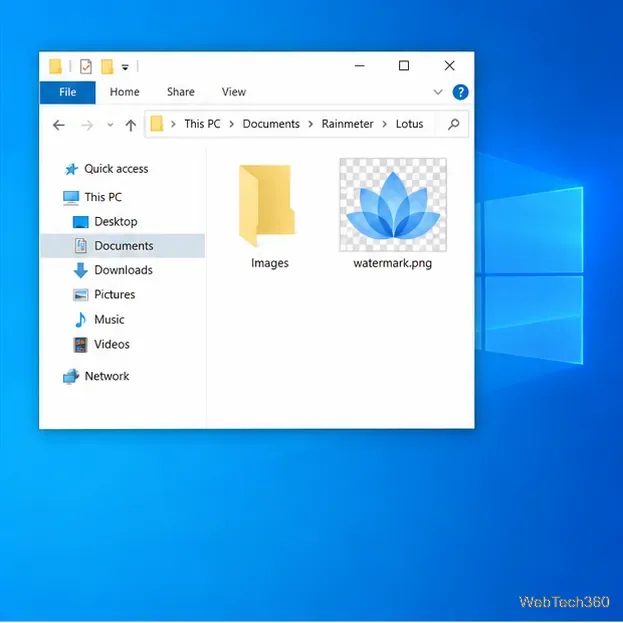
In File Explorer, open Documents\Rainmeter\Skins, create a folder named ImageWatermark, and copy your PNG into it as watermark.png. Rainmeter stores each skin in its own folder with an INI file and its image assets; see the skin folder reference.
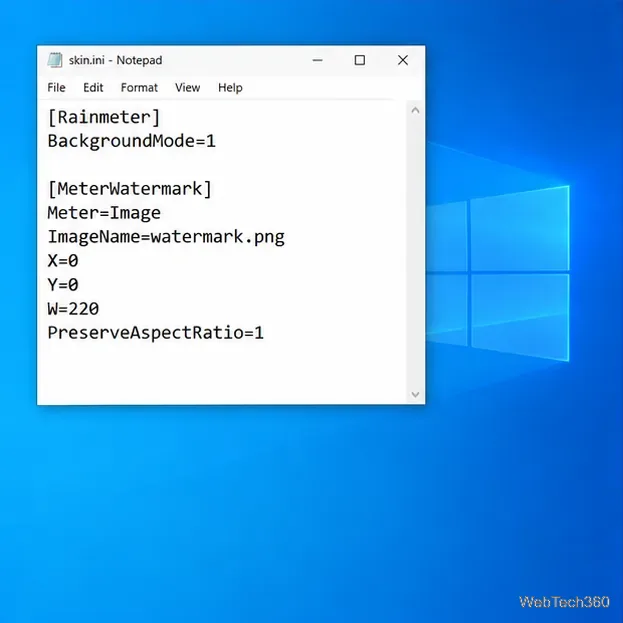
Open Notepad, paste the configuration below, and save it in the ImageWatermark folder as skin.ini. In Notepad’s Save as type menu, choose All Files so Windows does not append .txt to the filename.
[Rainmeter]
Update=-1
BackgroundMode=1
DynamicWindowSize=1

[MeterWatermark]
Meter=Image
ImageName=watermark.png
X=0
Y=0
W=220
PreserveAspectRatio=1
ImageName points to the nearby PNG. Change W=220 to resize it; PreserveAspectRatio=1 prevents stretching. BackgroundMode=1 makes the skin background transparent. Update=-1 suits a static image because the skin redraws only when loaded or refreshed. See Rainmeter’s Image meter reference and skin settings reference.
Right-click the Rainmeter icon in the Windows notification area and select Refresh all. Right-click the icon again, open Skins, then select ImageWatermark > skin.ini. Rainmeter’s menu lists discovered skin files and loads the selected INI file.
The image appears as a movable skin; drag it into place. To keep it above regular app windows, right-click it and choose Settings > Position > Topmost. Use Stay topmost only if another topmost window covers it; overlapping skins in that mode can flicker.
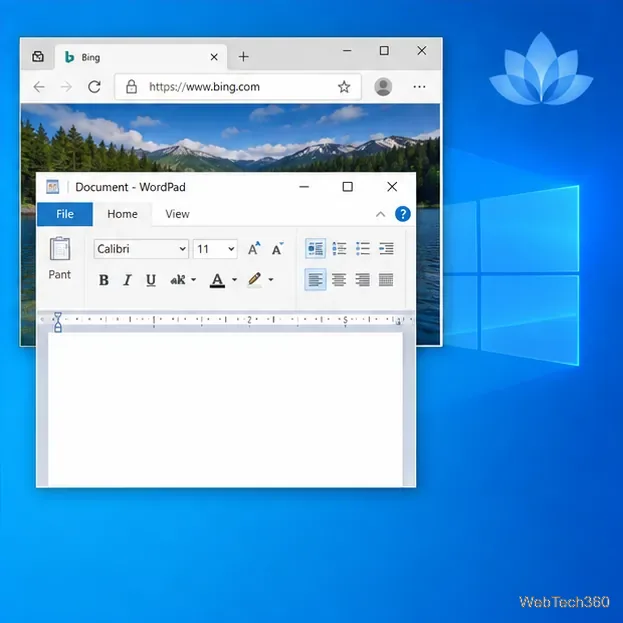
If the mark is too prominent, right-click it and open Settings > Transparency. Start around 15% or 20% and adjust by eye. The setting applies to the whole skin, in addition to any transparency built into the PNG.
To change the image’s dimensions, right-click the skin, choose Edit skin, change the number after W=, save the file, and select Refresh skin. Keep PreserveAspectRatio=1 so the logo remains proportional.
After positioning it, enable Settings > Click through so mouse clicks pass to the app underneath. Hold Ctrl temporarily to interact with the skin, or turn click-through off before moving it.
watermark.png, that it sits beside skin.ini, and that the configuration was saved with an .ini extension. Use Refresh all, then load the skin again from the Skins menu.BackgroundMode=1 is under the [Rainmeter] section.PreserveAspectRatio=1 in place.A desktop overlay is not part of the source file, and a recorder that captures only one application window may omit it. For a reliable watermark in a recording or stream, add the PNG as an Image source in the recording software’s scene and place it above the captured display or game. OBS Studio’s Image Sources guide confirms PNG alpha support and explains how source order controls what appears on top.
Use pushd to open a UNC network path in Windows 10 Command Prompt, run commands in the shared folder, and return with popd.
Learn how to install a Rainmeter skin from an INI file by placing it in the right Skins folder, preserving its resources, refreshing Rainmeter, and loading it in Manage.
Open one folder in its own File Explorer window with Shift or the context menu, or change Folder Options to make every folder open separately.
Pin a frequently used Control Panel applet, such as Power Options or Sound, to the Windows 10 Start menu for one-click access.
Choose a supported Windows 10 hotkey for switching input languages, assign shortcuts to individual layouts, or disable an accidental shortcut.
Move a Windows 10 app to the display you want, use its game monitor setting, and handle full-screen apps with a practical primary-monitor workaround.
Use a transparent PNG and a Rainmeter skin to keep an image watermark above windows, adjust its transparency, and make it click-through on Windows 10.
Convert stereo audio to mono on Windows 10 with Audacity. Mix both channels into one mono track, export a new file, and verify the channel count.
Use Windows 10 Clipboard history to save recent text and images, paste an earlier clip with Windows key + V, and manage sync, pinned items, and privacy.
Learn how to zoom in on a video in Windows 10 with VLC’s Interactive Zoom, or use Windows Magnifier when the clip is playing in another app.







