How to Access a Network Location in Command Prompt on Windows 10

Use pushd to open a UNC network path in Windows 10 Command Prompt, run commands in the shared folder, and return with popd.
If the Rainmeter skin you downloaded is a standalone .ini file, install it manually: put it in a folder under Rainmeter’s active Skins directory, refresh Rainmeter, then load the INI from Manage. An INI file contains the skin’s configuration, but it may depend on other files such as images, fonts, or scripts. Keep those companion files with the skin and preserve the folder structure supplied by its author.
The example uses a placeholder folder name; your account name and screen may differ.
For a standard installation, Rainmeter’s default location is C:\Users\YourName\Documents\Rainmeter\Skins, where YourName is your Windows account folder. In a portable installation, the Skins folder is inside the Rainmeter program folder. A custom SkinPath setting can point Rainmeter somewhere else, so the default path may not be the one it uses.
To check for a custom path, right-click Rainmeter’s notification-area icon and choose Edit settings. In Rainmeter.ini, look under the [Rainmeter] section for SkinPath=. The value is the full path to the active Skins folder. Inspect it without changing the setting. Rainmeter documents the default and portable locations in its installation manual, and defines SkinPath in its settings reference.

Skins. Use the skin’s own folder rather than copying its files into the root of Skins.ExampleSkin. Put the INI file inside it. The expected shape is Skins\ExampleSkin\ExampleSkin.ini. Avoid an extra layer such as Skins\ExampleSkin\ExampleSkin\ExampleSkin.ini unless the author’s supplied structure specifically calls for it.@Resources, images, fonts, Lua scripts, sounds, or other files referenced by the INI, copy them into the corresponding locations and keep their relative paths intact. Rainmeter’s manual says supporting files belong in the skin folder and recommends an @Resources folder for complex skins. An INI can be present in the list and still display incorrectly if its required assets are missing.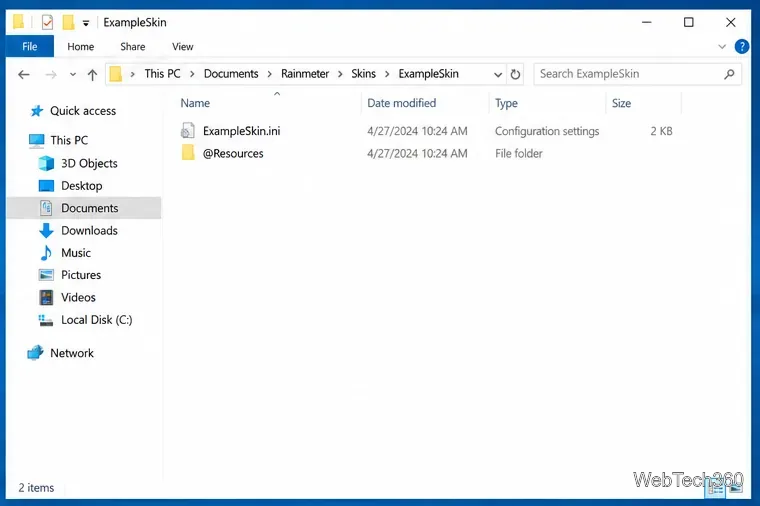
.ini file, then click Load. Rainmeter’s documentation also notes that double-clicking an INI in the Skins list loads it when it is inactive. The skin should now appear on the desktop as a movable Rainmeter window.Rainmeter’s refresh guide explains when to refresh all, and the Manage reference covers the Skins list and Load controls.
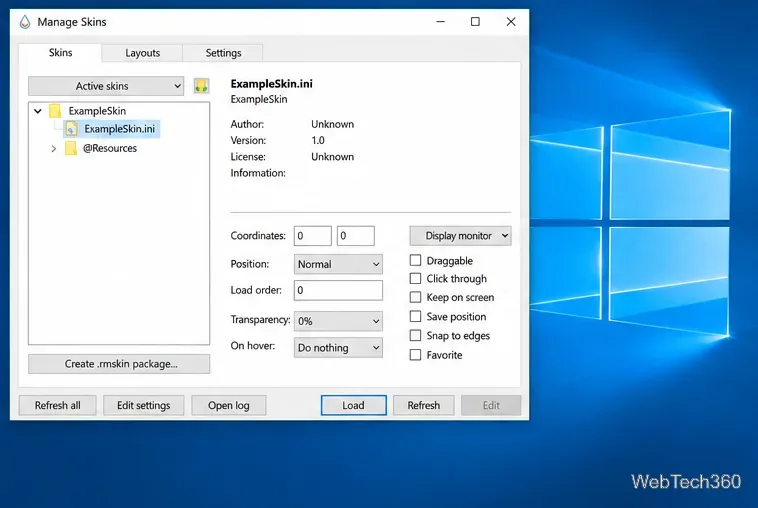
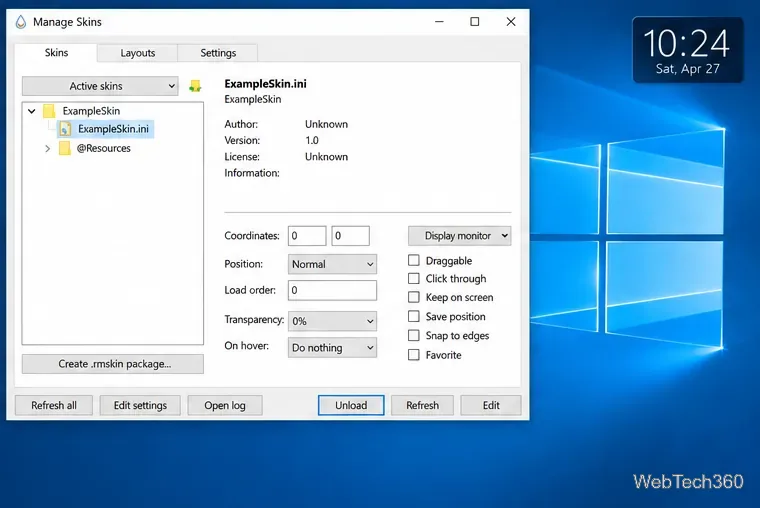
A .ini file is the configuration Rainmeter reads to define a skin; it is not a self-installing package. A .rmskin file is a package created with Rainmeter’s Skin Packager and opened with the Rainmeter Skin Installer. It can include a skin along with related components and installation information. Renaming a ZIP file to .rmskin does not turn it into a valid Rainmeter package. You do not need to convert a standalone INI to use it; manual placement and a refresh are enough when the file has everything it needs. See Rainmeter’s official skin installation instructions for the package and manual methods.
Multiple INI files in one folder are variants of the same skin; only one can be active at a time. Put unrelated skins in separate folders.
SkinPath, not just the default folder, and choose Refresh all again. Confirm the INI is inside a folder beneath Skins..ini, not .ini.txt. Also check for an unnecessary nested folder between the skin folder and the INI.@Resources or other dependencies, and preserve the author’s folder structure. In Manage, use Open log to review Rainmeter messages if the problem continues.Use pushd to open a UNC network path in Windows 10 Command Prompt, run commands in the shared folder, and return with popd.
Learn how to install a Rainmeter skin from an INI file by placing it in the right Skins folder, preserving its resources, refreshing Rainmeter, and loading it in Manage.
Open one folder in its own File Explorer window with Shift or the context menu, or change Folder Options to make every folder open separately.
Pin a frequently used Control Panel applet, such as Power Options or Sound, to the Windows 10 Start menu for one-click access.
Choose a supported Windows 10 hotkey for switching input languages, assign shortcuts to individual layouts, or disable an accidental shortcut.
Move a Windows 10 app to the display you want, use its game monitor setting, and handle full-screen apps with a practical primary-monitor workaround.
Use a transparent PNG and a Rainmeter skin to keep an image watermark above windows, adjust its transparency, and make it click-through on Windows 10.
Convert stereo audio to mono on Windows 10 with Audacity. Mix both channels into one mono track, export a new file, and verify the channel count.
Use Windows 10 Clipboard history to save recent text and images, paste an earlier clip with Windows key + V, and manage sync, pinned items, and privacy.
Learn how to zoom in on a video in Windows 10 with VLC’s Interactive Zoom, or use Windows Magnifier when the clip is playing in another app.







