How to Access a Network Location in Command Prompt on Windows 10

Use pushd to open a UNC network path in Windows 10 Command Prompt, run commands in the shared folder, and return with popd.
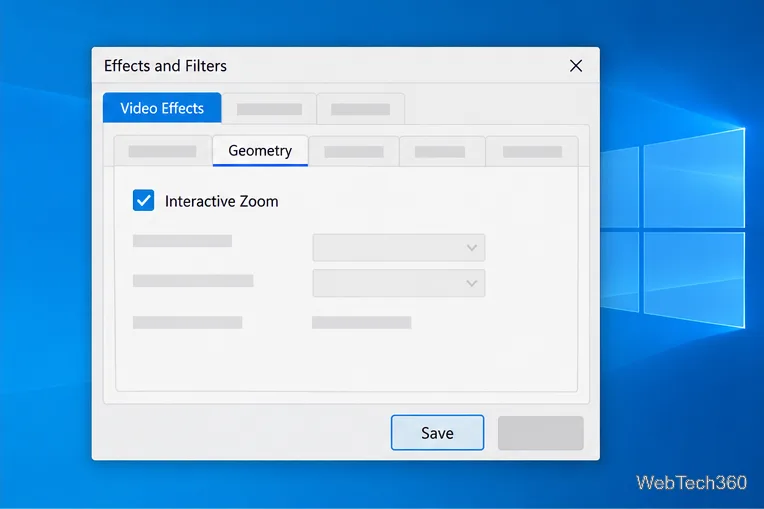
To zoom in on a specific part of a video while it plays in Windows 10, use VLC Media Player’s Interactive Zoom filter. In VLC, open Tools > Effects and Filters, select Video Effects > Geometry, check Interactive Zoom, and click Save. A small preview appears over the video; click the area you want to enlarge and adjust the zoom control beneath the preview. Turn the filter off in the same Geometry tab when you are done.

Open the clip in VLC. If VLC is not installed, get it from VideoLAN’s official Windows download page. VLC’s Windows menu documentation describes Tools as the place for audio and video effects and filters, while the Video menu contains zoom, aspect-ratio, and crop options. Menu wording can vary slightly between VLC releases or translations.
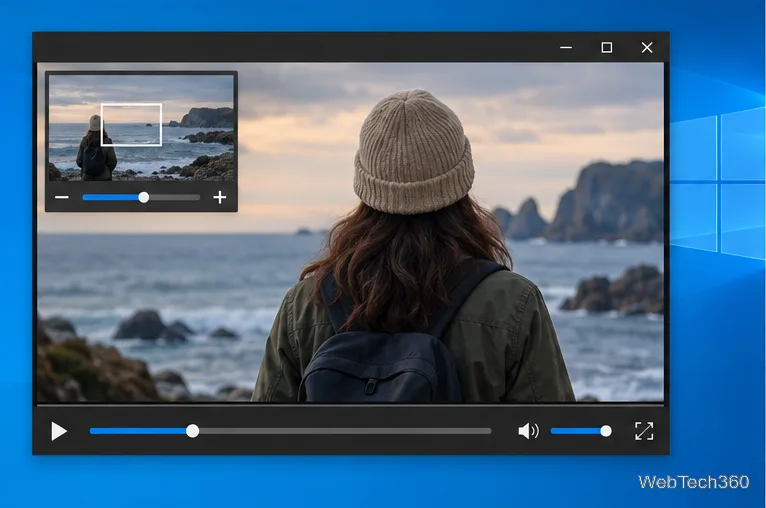
When the filter is on, VLC adds a small navigation preview over the video. This is the control you use to choose which part of the frame appears enlarged in the main player.
Move the pointer over the small preview, then click the part of the picture you want to inspect. The main playback area updates to show that region at a larger scale. A selection rectangle in the preview indicates which portion of the full frame is being shown.
Use the zoom control beneath the preview to increase or reduce magnification. The exact appearance of the control can differ by version, but it is attached to the preview. Click another point in the preview to shift the enlarged view to a different subject or detail. You can keep the video playing while you make these adjustments.
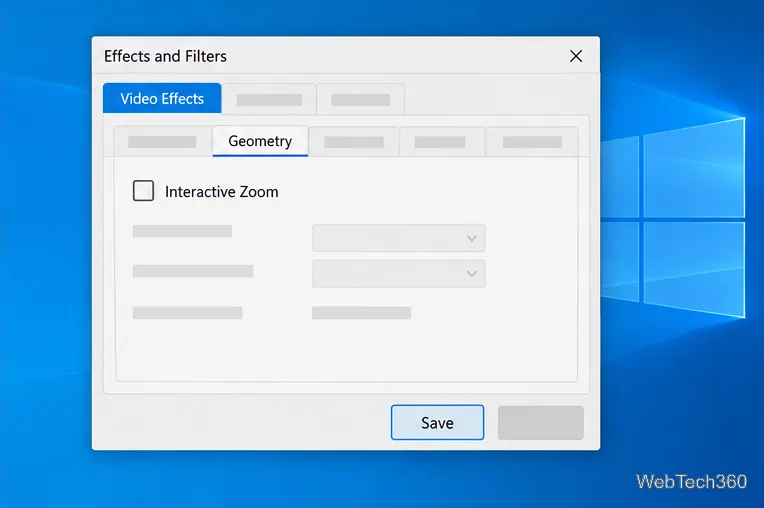
Interactive Zoom can remain enabled after you finish inspecting a clip. To remove the preview and restore the ordinary picture, open Tools > Effects and Filters > Video Effects > Geometry, clear the Interactive Zoom checkbox, and click Save. If the preview is still visible, close and reopen the clip or restart playback after saving.
If the video is playing in a browser or another Windows app, Windows Magnifier can enlarge the screen without changing the player. Press Windows logo key + Plus (+) to turn it on and zoom in; press the shortcut again to increase magnification. Use Windows logo key + Minus (-) to zoom out, or Windows logo key + Esc to close Magnifier. Microsoft also documents Ctrl+Alt+mouse wheel for zooming and Ctrl+Alt+arrow keys for panning. Magnifier enlarges the screen view, so it may also magnify player controls and other on-screen content. See Microsoft’s Magnifier keyboard shortcuts for the full list.
Zooming enlarges the pixels already present in the source; it does not restore detail that a low-resolution, compressed, or out-of-focus video never captured. The more you magnify, the softer or blockier the image may look. For a closer view of a moving subject, select a clear frame and use only as much magnification as you need.
Interactive Zoom is for enlarging a selected region. If you only want the whole video to fill the player differently, try VLC’s Video > Zoom, Aspect Ratio, or Crop options instead. Those controls change how the full frame fits the player; they do not provide the same small preview for choosing a particular detail. See VLC’s Windows menu guide for the menus’ general functions.
Use pushd to open a UNC network path in Windows 10 Command Prompt, run commands in the shared folder, and return with popd.
Learn how to install a Rainmeter skin from an INI file by placing it in the right Skins folder, preserving its resources, refreshing Rainmeter, and loading it in Manage.
Open one folder in its own File Explorer window with Shift or the context menu, or change Folder Options to make every folder open separately.
Pin a frequently used Control Panel applet, such as Power Options or Sound, to the Windows 10 Start menu for one-click access.
Choose a supported Windows 10 hotkey for switching input languages, assign shortcuts to individual layouts, or disable an accidental shortcut.
Move a Windows 10 app to the display you want, use its game monitor setting, and handle full-screen apps with a practical primary-monitor workaround.
Use a transparent PNG and a Rainmeter skin to keep an image watermark above windows, adjust its transparency, and make it click-through on Windows 10.
Convert stereo audio to mono on Windows 10 with Audacity. Mix both channels into one mono track, export a new file, and verify the channel count.
Use Windows 10 Clipboard history to save recent text and images, paste an earlier clip with Windows key + V, and manage sync, pinned items, and privacy.
Learn how to zoom in on a video in Windows 10 with VLC’s Interactive Zoom, or use Windows Magnifier when the clip is playing in another app.







