How to Open a Linux Shell in a Folder on Windows 10

Open a Linux shell in any Windows 10 folder with File Explorer, PowerShell, and WSL. Check the Linux path and fix common setup issues.
If services.msc will not open, freezes, or closes immediately in Windows 10, start by launching the Services console directly through Microsoft Management Console (MMC). If that fails, repair the .msc association, run DISM and System File Checker, and then test for a background software conflict. You do not normally need administrator rights just to open Services, although changing protected services may require elevation.
Services is an MMC snap-in used to view, start, stop, and configure Windows services. Microsoft still documents services.msc as the command for opening the Services console.
services.msc and press Enter.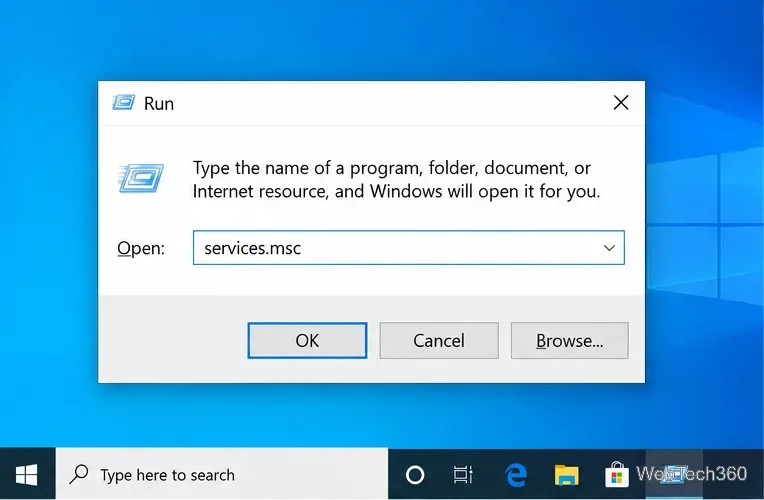
services.msc.A working console should show Services (Local) and a list of services with columns such as Status and Startup Type.
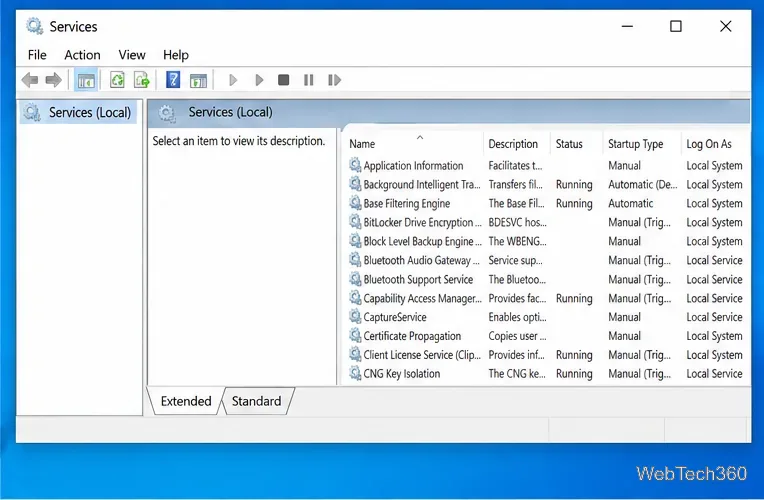
If Run does nothing or reports an error, open Command Prompt and ask MMC to load the console file directly:
mmc %windir%\System32\services.mscMicrosoft documents the MMC syntax for opening a saved .msc console. If this command works while services.msc by itself does not, focus on the file association in the next section. See Microsoft's MMC command documentation.
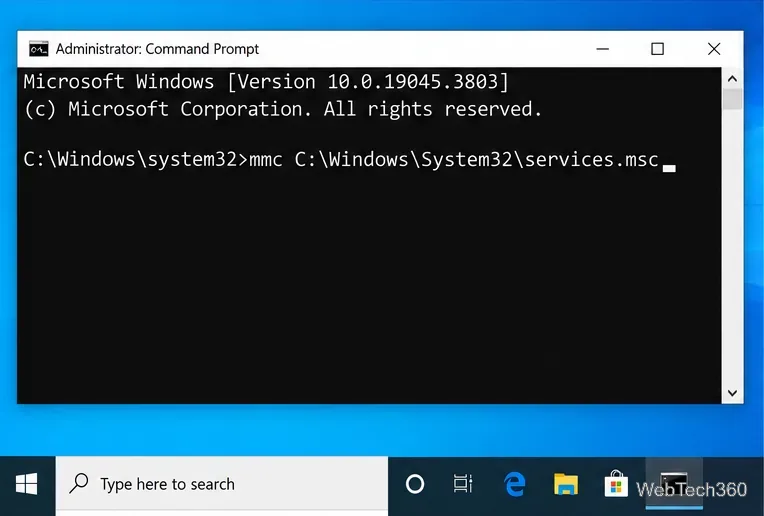
mmc.exe can help distinguish an MMC problem from a file-association problem.Windows uses the .msc extension for saved MMC consoles. A damaged association can stop Services, Event Viewer, Task Scheduler, and other MMC tools from opening normally.
Open Command Prompt as administrator. These commands are for cmd.exe, not PowerShell. First check the current association:
assoc .msc
ftype MSCFile
On a standard Windows 10 installation, .msc should be associated with MSCFile, and that file type should open through mmc.exe. If the association is missing or clearly incorrect, restore it with:
assoc .msc=MSCFile
ftype MSCFile="%SystemRoot%\system32\mmc.exe" "%1" %*
Close Command Prompt and try services.msc again. Microsoft documents assoc and ftype as the built-in commands for extension and file-type associations.
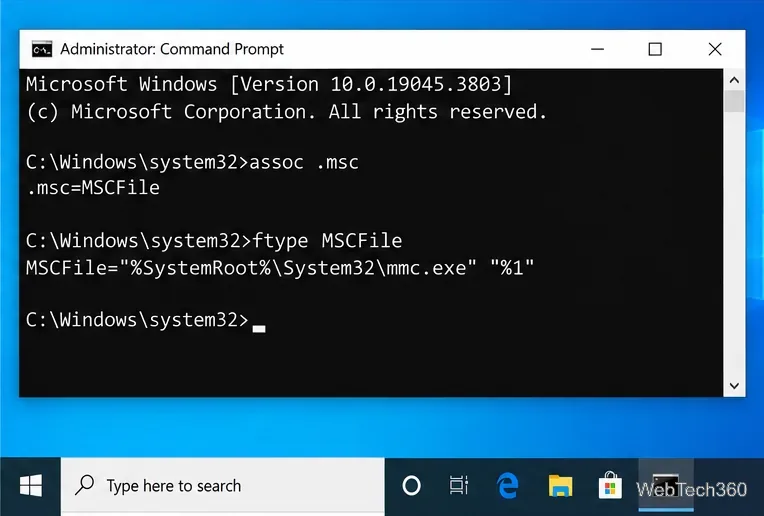
assoc and ftype in an elevated Command Prompt to inspect the .msc association.If MMC itself is damaged, repairing protected Windows components is a better fix than registering random DLL files. Microsoft recommends running DISM before SFC.
DISM.exe /Online /Cleanup-image /Restorehealth and wait for it to finish.sfc /scannow.See Microsoft's DISM and System File Checker instructions for scan results and advanced repair options.
If Services opens in Safe Mode or immediately after a clean boot but not during a normal startup, a third-party service or startup program may be interfering with MMC. Use Microsoft's clean-boot procedure: hide Microsoft services before disabling third-party services, disable startup items, restart, and test again. If the problem disappears, re-enable items in groups until you identify the conflict.
Avoid changing unrelated Windows service startup types simply because the Services console is failing. In particular, the older workaround of changing Application Information in Safe Mode is not a general repair for services.msc.
Try another snap-in such as eventvwr.msc. If several MMC consoles fail even after DISM/SFC and a clean boot, the issue is more likely system-wide than specific to Services. If the problem began after a recent driver, app, or Windows change, consider System Restore when a suitable restore point exists. Resetting Windows should be a last resort after backing up important files. Microsoft's Windows recovery options explains the least-disruptive choices first.
Windows 10 support note: Microsoft ended standard support for Windows 10 on October 14, 2025. Windows 10 still runs, but systems outside an applicable Extended Security Updates program no longer receive the normal security fixes. If the PC is eligible, plan a move to a supported Windows version; see Microsoft's Windows 10 end-of-support guidance.
No. A standard user can normally open the console and view services. Administrative permission is required for many changes, such as starting, stopping, or reconfiguring protected services.
It usually points to an MMC console-file problem, an incorrect .msc association, or damaged Windows components. Try the direct MMC command first, then repair the association and run DISM/SFC.
Open a Linux shell in any Windows 10 folder with File Explorer, PowerShell, and WSL. Check the Linux path and fix common setup issues.
Use a screenshot test, cable and port checks, monitor diagnostics, display settings, and driver rollback to pinpoint lines on a Windows 10 monitor.
Show two other time zones beside your Windows 10 clock. Set up each additional clock, give it a clear label, and find it in the taskbar calendar.
Find the File Explorer extension that delays right-click menus in Windows 10, test it safely with ShellExView, and restore any menu features you still need.
Stop Windows 10 from powering down a specific network adapter or USB device with plan-level settings and Device Manager controls, plus tips to avoid excess battery drain.
Check whether Windows 10 uses a digital license or product key, find a firmware-stored OEM key, and save license details securely for a reinstall.
Identify a Windows 10 Task Manager process by checking its executable path, file properties, publisher, linked services, and a Microsoft Defender scan.
Create a searchable Windows 10 folder inventory with PowerShell. Save every file and subfolder path as plain text or export details to a sortable CSV.
Add a custom reminder, quote, or label to your Windows 10 desktop with a Rainmeter text skin. Create the INI file, load it, then adjust its font and position.
Use Bluetooth Swift Pair on Windows 10 to pair a compatible accessory from a notification, with setup steps and fixes when the prompt does not appear.








