How to Open a Linux Shell in a Folder on Windows 10

Open a Linux shell in any Windows 10 folder with File Explorer, PowerShell, and WSL. Check the Linux path and fix common setup issues.
To open a Linux shell in a particular Windows 10 folder, open Windows PowerShell from that folder and run wsl. WSL starts your default Linux distribution in the current Windows working directory, so you can work on the same files from a Linux prompt. Confirm the location with pwd. This method uses the Windows Subsystem for Linux (WSL); it does not require a dual-boot Linux installation or a special File Explorer menu item.
Open Windows PowerShell or Command Prompt and run:
wsl --list --verboseThe command lists installed distributions and their WSL versions. A distribution shown as Stopped is installed; it will start when you launch it. If you see no Linux distribution, Windows has no shell to open yet. On Windows 10 version 2004 (build 19041) or later, open PowerShell as an administrator and install Ubuntu with wsl --install -d Ubuntu. Restart if Windows asks, then launch Ubuntu once from the Start menu and complete its first-run setup by creating a Linux username and password. Microsoft's WSL installation guide lists the current requirements; older Windows 10 builds use the manual installation steps.
wsl --list --verbose showing an installed Ubuntu distribution; Stopped is a normal state.powershell, and press Enter. On a typical Windows 10 setup, PowerShell opens with that folder as its current location.If that shortcut does not work on your PC, open Windows PowerShell from the Start menu and change to the target folder explicitly. Replace the example path with the location shown in File Explorer:
Set-Location -LiteralPath 'C:\Users\Alex\Documents\LinuxProject'-LiteralPath treats characters in the path literally, and the single quotes keep spaces together. You can check PowerShell's current location by running Get-Location; it should name the folder you intend to open in Linux.
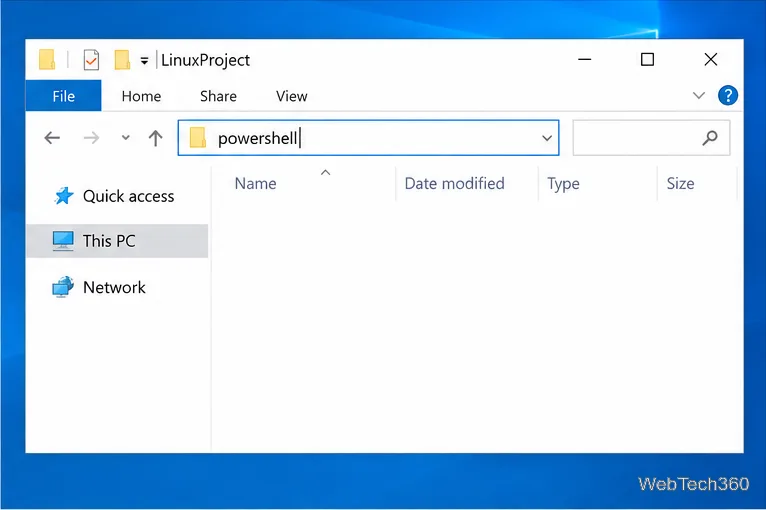
powershell entered in the address bar while the LinuxProject folder is open.In the PowerShell window, enter:
wslPress Enter. WSL opens the default distribution in an interactive shell. If you have more than one distribution, find the exact name in the wsl --list --verbose output and choose it explicitly, for example:
wsl -d UbuntuUse the distribution name exactly as it appears in the list; some installations use names such as Ubuntu-22.04. The WSL basic commands reference documents how to list and start distributions.
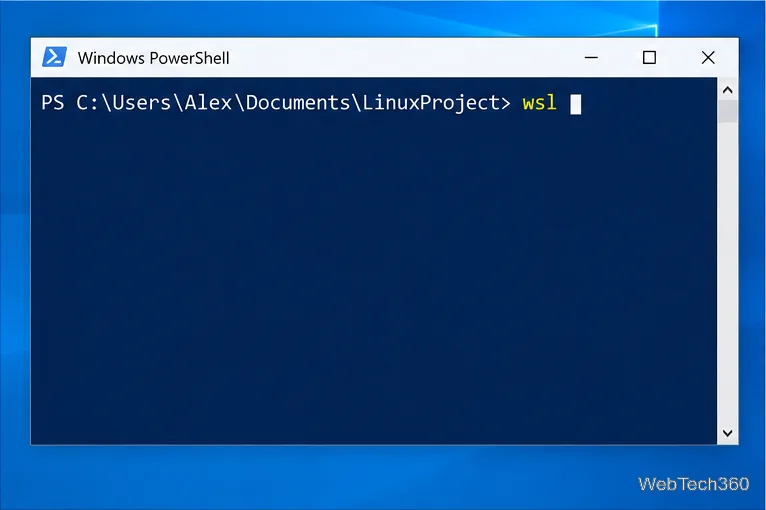
wsl ready to run.At the Linux prompt, run:
pwdFor the example folder C:\Users\Alex\Documents\LinuxProject, the result should look like this:
/mnt/c/Users/Alex/Documents/LinuxProjectWSL mounts the Windows C: drive under /mnt/c; a folder on D: normally appears under /mnt/d. You can run ls to check the files in the current directory. Windows paths use backslashes and drive letters, while Linux commands expect Linux-style paths. If the shell opens somewhere else, type exit, check Get-Location in PowerShell, change to the correct Windows folder with Set-Location -LiteralPath, and run wsl again.
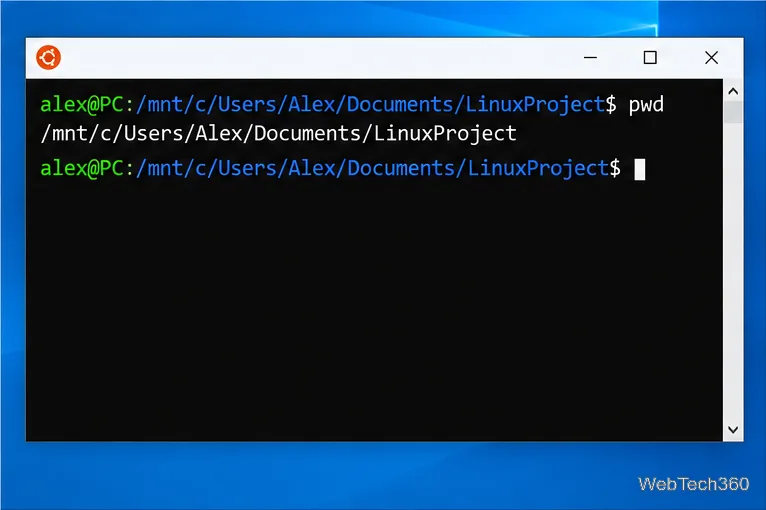
/mnt/c, with pwd confirming the current location.For normal work, start PowerShell without choosing Run as administrator. WSL launches the distribution’s configured default Linux user, and Linux commands started through WSL inherit the Windows administrative rights of the calling terminal. Elevation is generally only needed for system setup or a task that specifically requires it; it does not fix a wrong working directory.
Using a Windows folder through /mnt/c is convenient when you need to share files with Windows applications. For Linux-heavy builds, Microsoft's guidance on working across Windows and Linux file systems recommends keeping project files in the Linux file system, such as /home/<username>/projects, for faster performance. If your project is already in the Windows folder, you can still open it from there with the steps above.
wsl is not recognized: check your Windows version with winver. The one-command installer requires Windows 10 version 2004/build 19041 or later; use Microsoft's manual steps on an older build.Set-Location -LiteralPath 'C:\path\to\your\folder' in PowerShell and retry.wsl -d <DistributionName> to select the one you want.The older “Open Linux shell here” context-menu item can vary with Windows and distribution setup. Starting WSL from PowerShell in the folder gives you a direct way to reach the same result and makes the current path easy to verify.
Open a Linux shell in any Windows 10 folder with File Explorer, PowerShell, and WSL. Check the Linux path and fix common setup issues.
Use a screenshot test, cable and port checks, monitor diagnostics, display settings, and driver rollback to pinpoint lines on a Windows 10 monitor.
Show two other time zones beside your Windows 10 clock. Set up each additional clock, give it a clear label, and find it in the taskbar calendar.
Find the File Explorer extension that delays right-click menus in Windows 10, test it safely with ShellExView, and restore any menu features you still need.
Stop Windows 10 from powering down a specific network adapter or USB device with plan-level settings and Device Manager controls, plus tips to avoid excess battery drain.
Check whether Windows 10 uses a digital license or product key, find a firmware-stored OEM key, and save license details securely for a reinstall.
Identify a Windows 10 Task Manager process by checking its executable path, file properties, publisher, linked services, and a Microsoft Defender scan.
Create a searchable Windows 10 folder inventory with PowerShell. Save every file and subfolder path as plain text or export details to a sortable CSV.
Add a custom reminder, quote, or label to your Windows 10 desktop with a Rainmeter text skin. Create the INI file, load it, then adjust its font and position.
Use Bluetooth Swift Pair on Windows 10 to pair a compatible accessory from a notification, with setup steps and fixes when the prompt does not appear.








