How to Move Minecraft to Another Drive in Windows 10

Move Minecraft for Windows to another drive with the built-in Settings option, protect your worlds, and see what to do if Move is unavailable.
If Adobe Acrobat Reader will not print a PDF on Windows 10, first determine whether the problem is the PDF, Reader, or the printer. Try another document and a Windows test page, then use the fixes below. For Reader-only failures, updating or repairing Reader and using Print as Image are the key fixes.
Microsoft ended standard Windows 10 support on October 14, 2025. The OS still runs, but most editions no longer receive normal security fixes unless covered by an eligible Extended Security Updates program. See Microsoft's Windows 10 end-of-support guidance.
Try a different PDF first. If other PDFs print, the original may be damaged or restricted. Password-protected PDFs can block printing; Reader cannot bypass that restriction. Ask the file owner for a printable copy or the required password.
Press Ctrl+P and confirm the intended physical printer is selected and available. Adobe's current Reader printing guide covers the normal workflow.
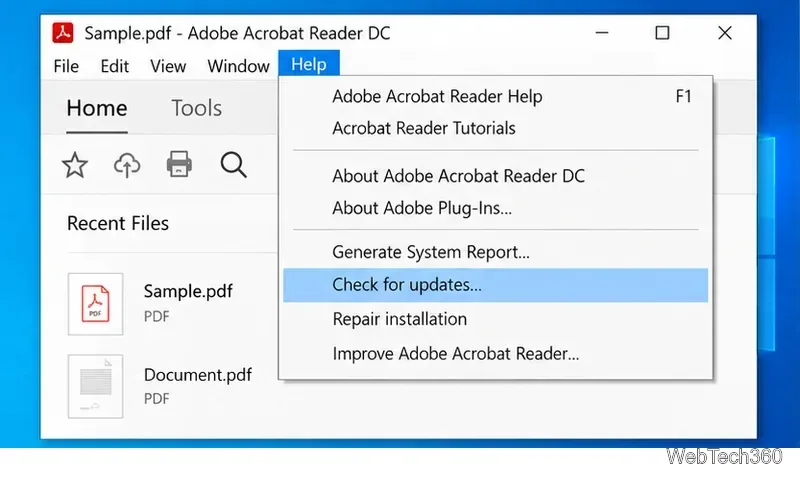
Adobe recommends installing current Reader updates when PDFs fail to print. Open the application menu or Help menu, choose Check for updates, install anything offered, and restart Reader. Menu placement varies slightly between newer and classic layouts.
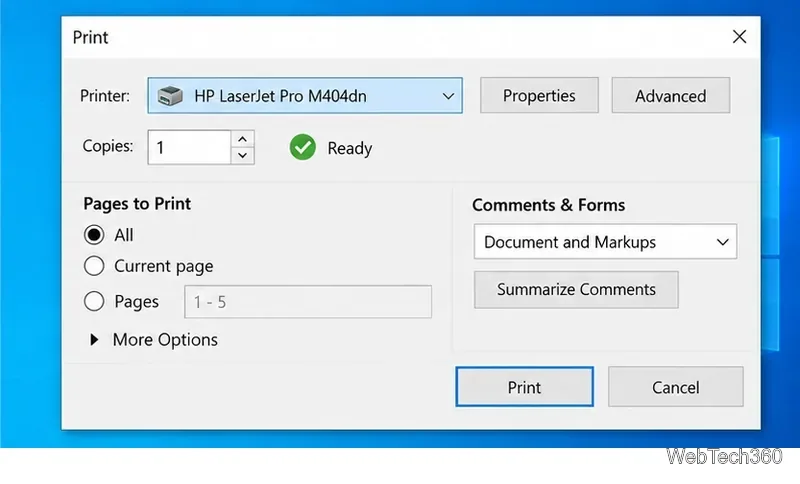
If Word, Notepad, a browser, or a Windows test page also fails, the problem is probably not Reader. Go to Start > Settings > Devices > Printers & scanners, select the printer, and print a test page if available.
Microsoft's printer troubleshooting guide for Windows covers these checks in more detail.
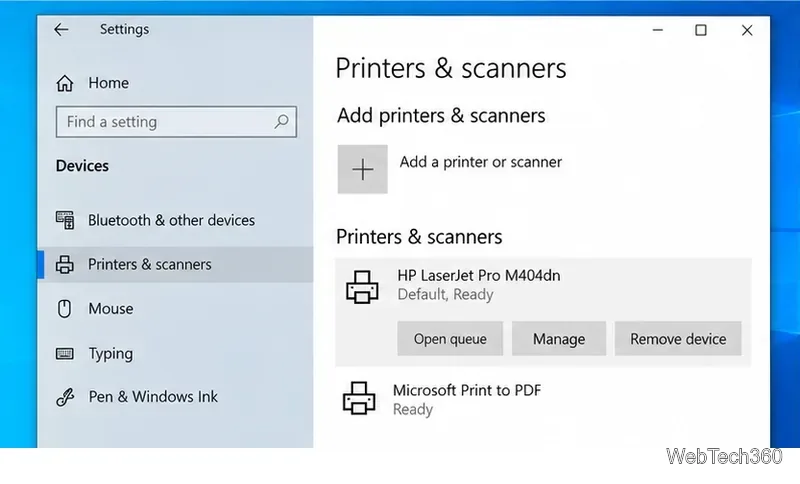
A stalled job can make Reader appear broken. Open the printer queue and cancel stuck jobs. If they will not clear, restart the Print Spooler service. Microsoft also documents a manual spool-folder reset in its stuck print queue instructions.
If the printer works from other apps but Reader still cannot print, open Menu > Help > Repair installation (or Help > Repair Installation in classic layouts), accept the prompt, and restart Windows when the repair finishes.
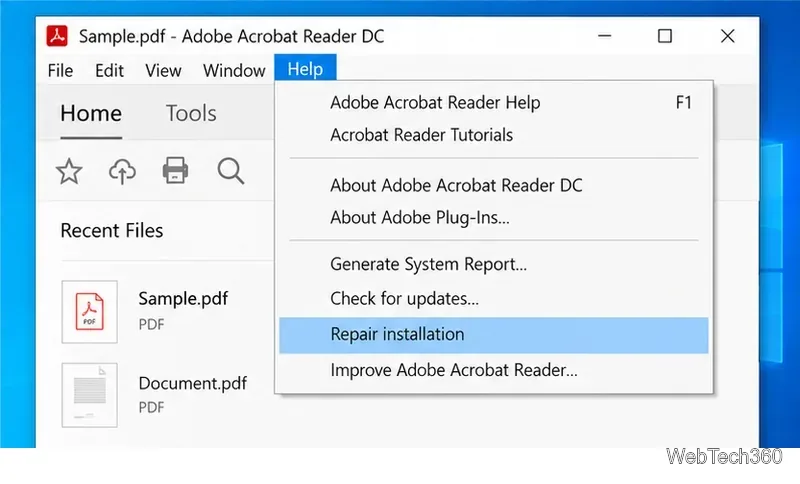
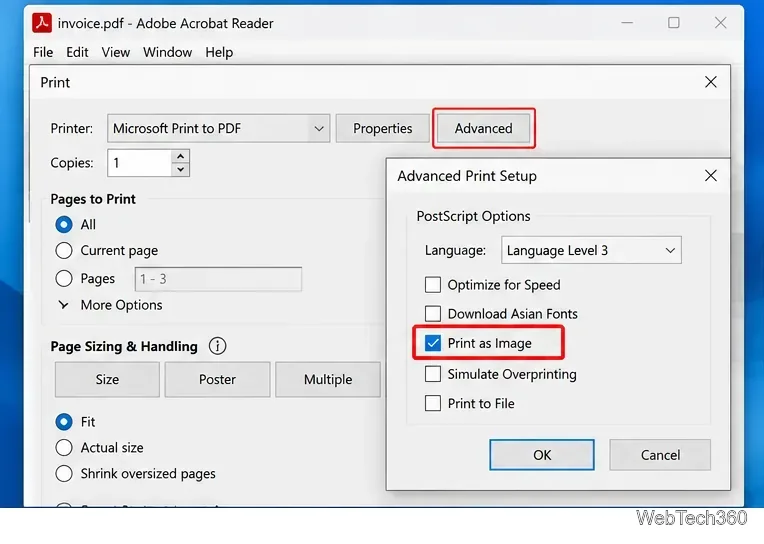
This helps when a PDF contains fonts, transparency, or page content the printer driver struggles to process.
Printing as an image rasterizes each page before sending it to the printer, so it can be slower. Use it as a workaround rather than the default. See Adobe's official PDF printing error guide.
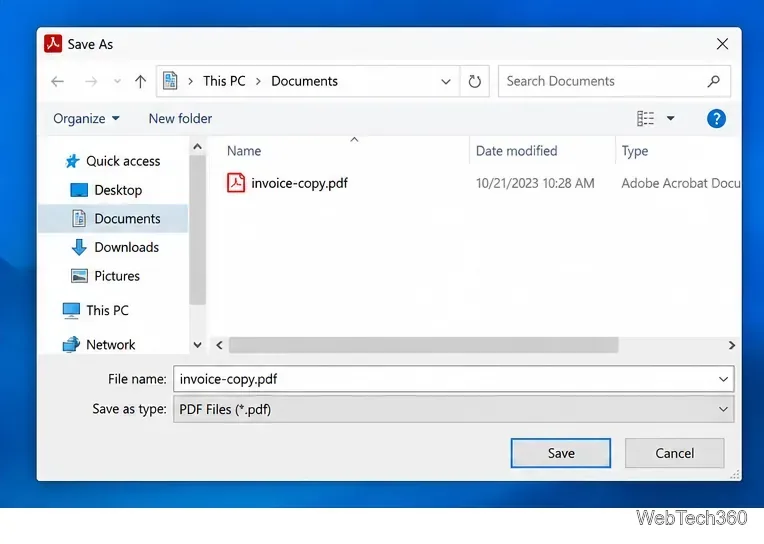
If only one file fails, save or download it again to the PC instead of printing from a network share, email preview, USB drive, or temporary browser location. Use a simple filename made from letters and numbers, reopen the local copy in Reader, and print again.
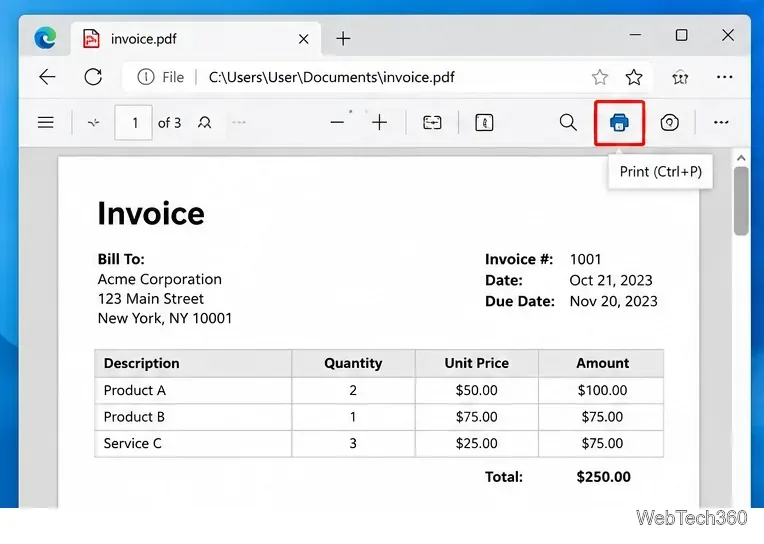
Microsoft Edge and Google Chrome can print PDFs without Reader's print path. If the PDF prints in a browser but not Reader, the problem is probably Reader-specific. If it fails everywhere, return to the printer, driver, queue, or document itself.
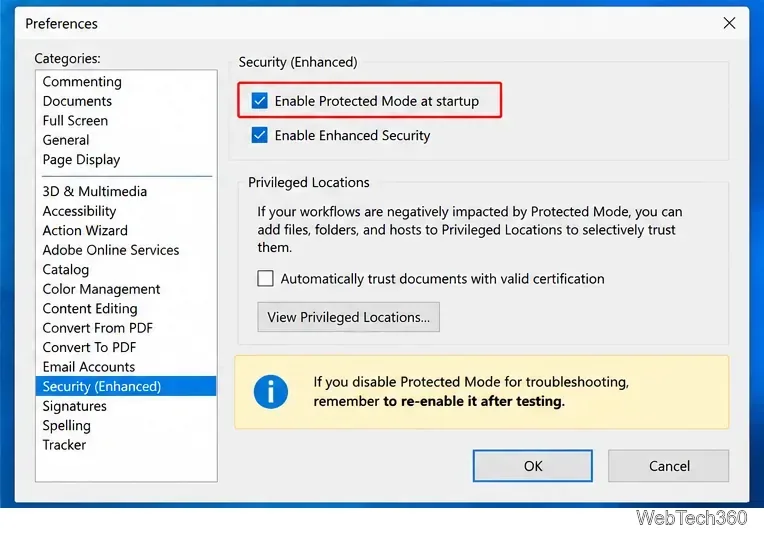
Adobe's Protected Mode is a security feature and should normally stay enabled. Adobe documents temporarily disabling it as a troubleshooting test when it appears to interfere with printing. Choose Edit > Preferences > Security (Enhanced), clear Enable Protected Mode at startup, restart Reader, and test the PDF.
Re-enable Protected Mode immediately after the test. Do not leave this security protection off just to make printing work. Adobe's current Protected Mode documentation explains the setting.
If updates and Repair installation do not help, uninstall Acrobat Reader and reinstall the latest supported build from Adobe. If no application can print, focus on the Windows printer driver and spooler instead of Reader.
Move Minecraft for Windows to another drive with the built-in Settings option, protect your worlds, and see what to do if Move is unavailable.
Find out why Windows 10 hides SmartScreen’s Run anyway button, how to review the warning, and how to allow a bypass while keeping SmartScreen on.
Combine left and right channels so you can hear the full mix through one earbud. Follow the Windows 10 Settings path and learn how to restore stereo when you want it.
Learn how to build a custom grid for your display in Windows 10 with PowerToys FancyZones, adjust zones, choose each monitor, and snap apps into place.
Set Windows 10 to sign in automatically at startup with Microsoft Sysinternals Autologon, then learn how to disable it and understand the security tradeoffs.
Add the Ultimate Performance power plan in Windows 10 with an elevated command, select it in Power Options, and check compatibility and power-use limits.
Refresh missing or incorrect bookmark icons in Edge by reopening the saved page, clearing cached images, or rebuilding the favicon cache safely.
Turn the number row into virtual numpad keys on Windows 10 with AutoHotkey v2. Set up a Caps Lock toggle, test it in your app, and see what the script cannot remap.
Turn off a wired Ethernet adapter in Windows 10, confirm you selected the right device, restore it later, or use PowerShell.
Pair Bluetooth headphones with Windows 10, choose them as your audio output, and fix common discovery or sound problems.








