How to Move Minecraft to Another Drive in Windows 10

Move Minecraft for Windows to another drive with the built-in Settings option, protect your worlds, and see what to do if Move is unavailable.
To move the Microsoft Store version, Minecraft for Windows, open Settings > Apps > Apps & features, select the app, choose Move, and pick a drive. This works only when Windows enables Move for that installation. Back up worlds first; Java Edition uses a different method.
Windows manages protected app files. Don’t move files out of WindowsApps or change its ownership: Microsoft says packaged files are read-only and can stop launching if altered.
The Settings method is for Minecraft for Windows (Bedrock) installed through Microsoft Store. It does not relocate Java Edition game files. Check the app name in Settings or the edition selected in Minecraft Launcher.
Before moving the app, close Minecraft and export any Bedrock worlds you would not want to lose. Use Minecraft’s official Windows world-backup instructions. Keep the backup until you have launched the game after the move and confirmed that your worlds open.
Choose a connected drive with enough free space. An internal drive is convenient; keep an external drive connected whenever you play.
Press Windows key + I to open Settings, then choose Apps and Apps & features. Wait for the app list to load, then search for Minecraft. Select the entry named Minecraft for Windows.
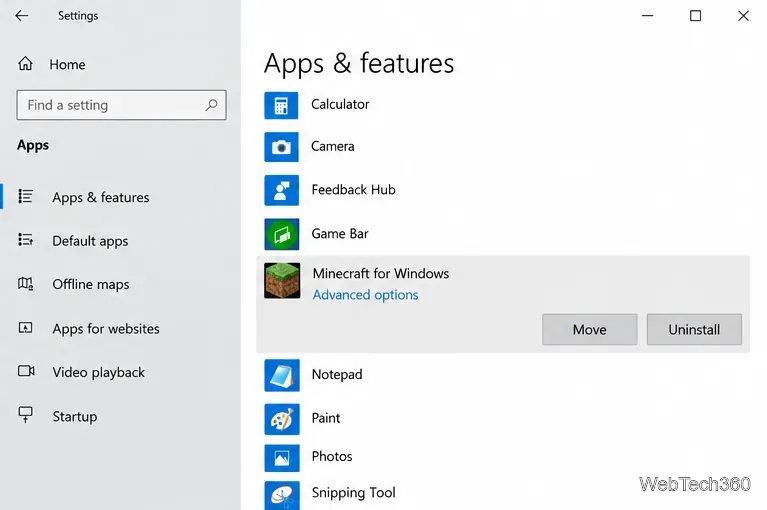
With the app entry expanded, select Move. Depending on your Windows display, the button may appear beside Uninstall below the app name. If you see only options such as Advanced options and Uninstall, skip to the fallback below; Windows does not expose a move command for every app package.
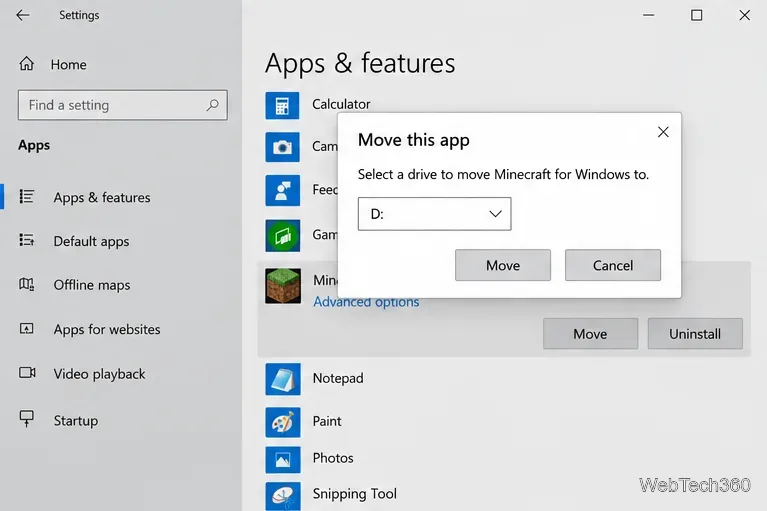
In the Move this app dialog, open the drive list and choose the drive you want to use, such as D:. Windows lists eligible drives; if your preferred drive is missing, make sure it is connected and visible in File Explorer. Select Move in the dialog to start.
Let Windows complete the transfer before opening Minecraft or disconnecting the destination drive. If the game was still running, Windows may close it. When the process ends, launch Minecraft for Windows from Start or Minecraft Launcher and check that your worlds still load.
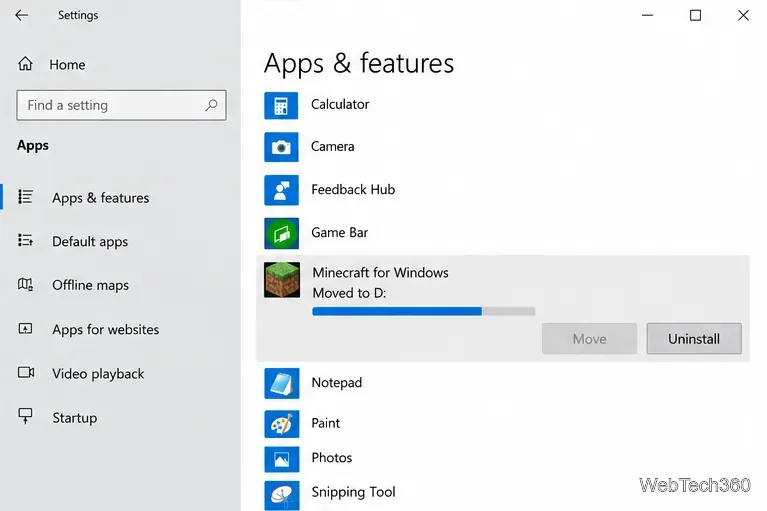
The move relocates the app package, but may not move every user-data folder. Keep your world backups until you confirm the game works. Windows manages protected files in WindowsApps; you do not need to edit that folder.
First confirm that you selected Minecraft for Windows, not Java Edition or just the launcher. If the correct app still has no usable Move button, set a new default drive for future Microsoft Store apps, then reinstall Minecraft:
Changing the default drive does not move an app that is already installed; it sets the location for new app installations. Microsoft’s Windows storage guidance describes the new-content location setting. The exact availability of Move depends on whether the installed package supports moving between drives, as explained in Microsoft’s packaged-app documentation.
Java Edition uses a game directory rather than the Microsoft Store move control. To put its game data on another drive, back up the world saves first. On Windows, Minecraft’s help guide identifies the usual Java saves folder as %APPDATA%\.minecraft\saves.
saves folder to a safe backup location.D:\Games\MinecraftJava, and save the installation.saves folder into the new game directory. Copy other folders you need, such as mods or resource packs, only if you use them. Launch the installation and verify your worlds before removing the old files.For the world files and transfer details, follow Minecraft’s Java Edition world-transfer guide. Moving the launcher program itself does not automatically move Java worlds or game data.
Windows 10 still runs, but standard support ended October 14, 2025. Microsoft no longer provides regular free security and feature updates; see Microsoft’s Windows 10 support notice for current options.
Move Minecraft for Windows to another drive with the built-in Settings option, protect your worlds, and see what to do if Move is unavailable.
Find out why Windows 10 hides SmartScreen’s Run anyway button, how to review the warning, and how to allow a bypass while keeping SmartScreen on.
Combine left and right channels so you can hear the full mix through one earbud. Follow the Windows 10 Settings path and learn how to restore stereo when you want it.
Learn how to build a custom grid for your display in Windows 10 with PowerToys FancyZones, adjust zones, choose each monitor, and snap apps into place.
Set Windows 10 to sign in automatically at startup with Microsoft Sysinternals Autologon, then learn how to disable it and understand the security tradeoffs.
Add the Ultimate Performance power plan in Windows 10 with an elevated command, select it in Power Options, and check compatibility and power-use limits.
Refresh missing or incorrect bookmark icons in Edge by reopening the saved page, clearing cached images, or rebuilding the favicon cache safely.
Turn the number row into virtual numpad keys on Windows 10 with AutoHotkey v2. Set up a Caps Lock toggle, test it in your app, and see what the script cannot remap.
Turn off a wired Ethernet adapter in Windows 10, confirm you selected the right device, restore it later, or use PowerShell.
Pair Bluetooth headphones with Windows 10, choose them as your audio output, and fix common discovery or sound problems.








