How to Move Minecraft to Another Drive in Windows 10

Move Minecraft for Windows to another drive with the built-in Settings option, protect your worlds, and see what to do if Move is unavailable.
To enable Mono audio in Windows 10, open Settings > Ease of Access > Audio, then turn on Turn on mono audio. Windows combines the left and right stereo channels into one channel, which helps you hear the full mix when using one earbud or listening with one ear. You can return to stereo from the same page whenever you want.
Stereo sound keeps separate left and right channels. A song, video, or game can place different sounds in each channel, creating a sense of direction. If you remove one earbud, or can hear through only one side of a headset, audio assigned mainly to the other channel may be hard to hear.
Mono audio folds those channels into a single mix, so sounds from both sides are included. It can make dialog or other audio easier to follow through one headphone. It does not increase the volume or repair a damaged speaker, cable, or earbud. Because it removes left-right separation, turn it off when you want the normal stereo effect in music, games, or movies. Microsoft's guide to making Windows easier to hear describes Mono audio as a way to hear all sounds in one channel.
Use the Windows 10 accessibility setting below. The menu is separate from the per-device controls under System > Sound, so look for Ease of Access in Settings.
Press Windows key + I to open Settings. You can also select Start and choose the gear-shaped Settings icon.

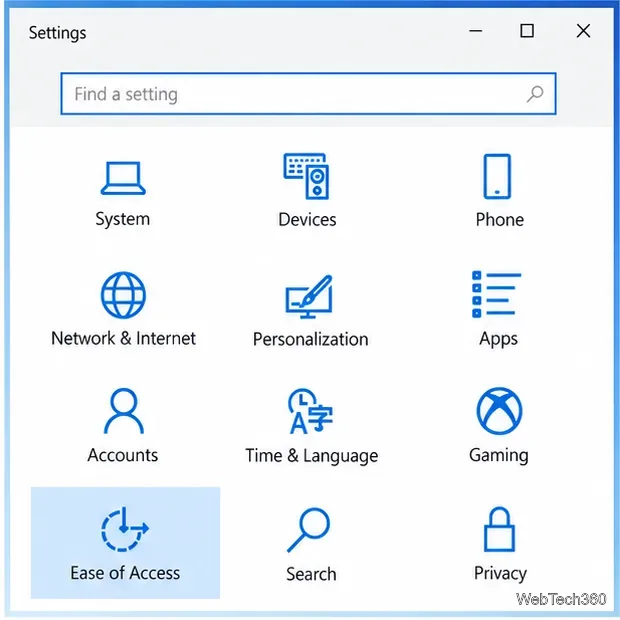
On the Settings home screen, select Ease of Access. Windows 10 groups accessibility options here. If Settings opens to another page, select Home first, then choose Ease of Access.
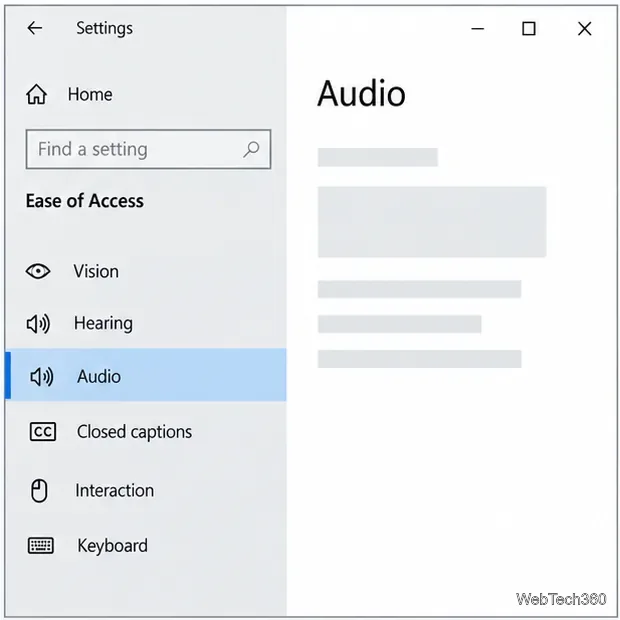
In the navigation pane, select Audio. If the window is narrow, maximize it or scroll the navigation list until Audio appears. The main panel should be headed Audio; this is where Windows places the mono playback switch.
Find Turn on mono audio and select its toggle so it shows On. Play a track or video to check the result. You do not need to change the setting separately for each song or app.
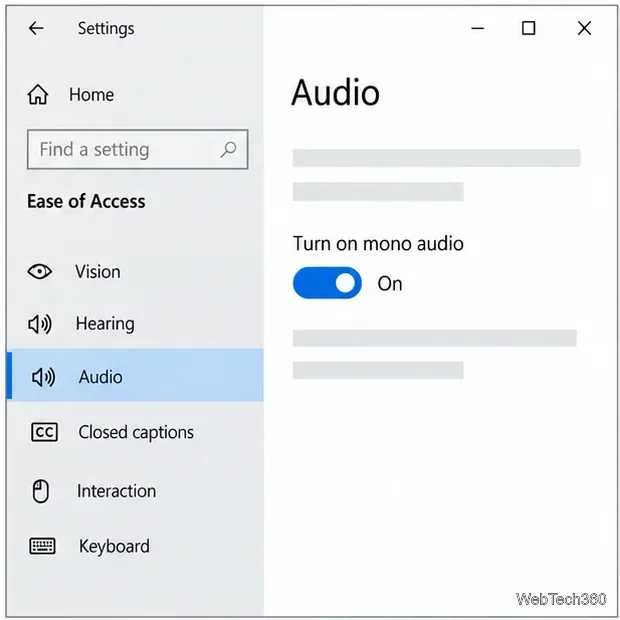
With Mono audio on, content mixed into either stereo channel should be included in the single playback mix. If you are using one earbud, dialogue and other sounds should remain audible even when they were originally placed on the other side. The change is intended for listening; it does not change the recording channel setting for a microphone.
To restore stereo, return to Settings > Ease of Access > Audio and switch Turn on mono audio off. Stereo is the better choice when you want left-right positioning, such as directional cues in a game or the natural separation in a music mix.
Mono audio combines channels, but it cannot fix every one-sided sound problem. If you still hear audio from only one earbud, check the output device and the headset itself:
For Bluetooth audio, Microsoft's troubleshooting guide for sound playing in one channel covers battery level, device condition, audio balance, and reconnecting or re-pairing. If the issue affects several devices, use Microsoft's Windows sound troubleshooting steps to check broader audio settings.
No. Mono audio combines the left and right channels; it does not raise the volume. Adjust the Windows, app, or headphone volume separately if the sound is too quiet.
No. This is a Windows accessibility setting, not a toggle stored in one headphone's settings. It applies to Windows playback more broadly, so switch it off when you no longer need the combined mono mix.
Move Minecraft for Windows to another drive with the built-in Settings option, protect your worlds, and see what to do if Move is unavailable.
Find out why Windows 10 hides SmartScreen’s Run anyway button, how to review the warning, and how to allow a bypass while keeping SmartScreen on.
Combine left and right channels so you can hear the full mix through one earbud. Follow the Windows 10 Settings path and learn how to restore stereo when you want it.
Learn how to build a custom grid for your display in Windows 10 with PowerToys FancyZones, adjust zones, choose each monitor, and snap apps into place.
Set Windows 10 to sign in automatically at startup with Microsoft Sysinternals Autologon, then learn how to disable it and understand the security tradeoffs.
Add the Ultimate Performance power plan in Windows 10 with an elevated command, select it in Power Options, and check compatibility and power-use limits.
Refresh missing or incorrect bookmark icons in Edge by reopening the saved page, clearing cached images, or rebuilding the favicon cache safely.
Turn the number row into virtual numpad keys on Windows 10 with AutoHotkey v2. Set up a Caps Lock toggle, test it in your app, and see what the script cannot remap.
Turn off a wired Ethernet adapter in Windows 10, confirm you selected the right device, restore it later, or use PowerShell.
Pair Bluetooth headphones with Windows 10, choose them as your audio output, and fix common discovery or sound problems.







