How to Move Minecraft to Another Drive in Windows 10

Move Minecraft for Windows to another drive with the built-in Settings option, protect your worlds, and see what to do if Move is unavailable.
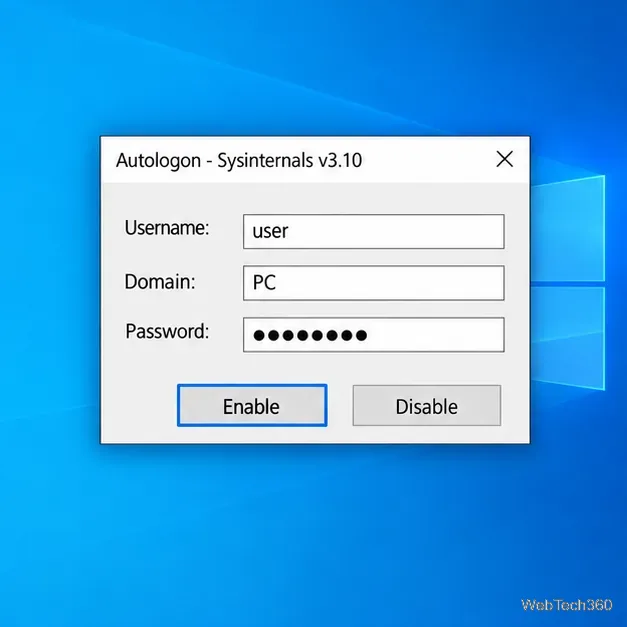
To make Windows 10 sign in to one account automatically when the PC starts, use Microsoft Sysinternals Autologon. Download the utility from Microsoft, enter the account name, domain, and password, then select Enable. This is convenient on a physically secured single-user computer, but anyone who can reach the desktop can use that account.
Autologon configures Windows’ built-in automatic logon feature. Microsoft’s download page currently lists Autologon v3.10, published August 29, 2016. Use the official Sysinternals Autologon page rather than an unofficial download mirror.
Have the account’s password ready. A Windows Hello PIN is not the password Autologon asks for. The tool also does not check that the credentials you enter are correct or that the account is allowed to sign in, so confirm both before restarting. This setting applies to automatic sign-in during startup; it does not remove the sign-in requirement when you manually lock the PC.
Autologon.exe.
Autologon.exe and choose Run as administrator. Approve a User Account Control prompt if Windows displays one. The small Autologon dialog shows fields for the username, domain, and password.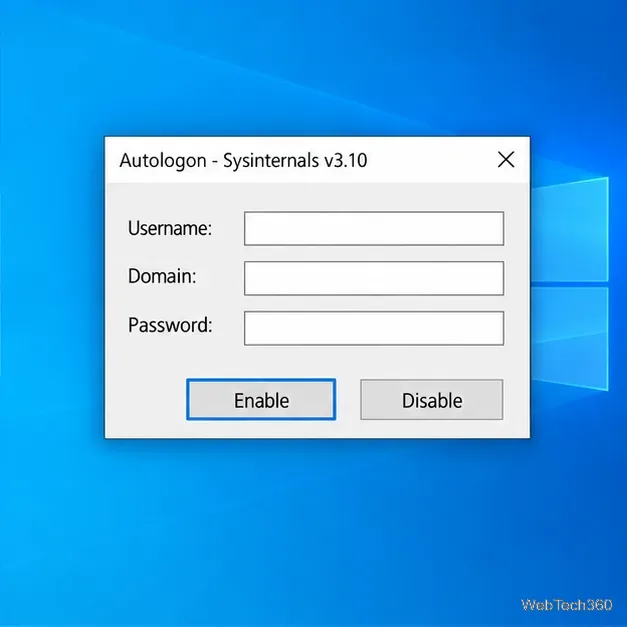
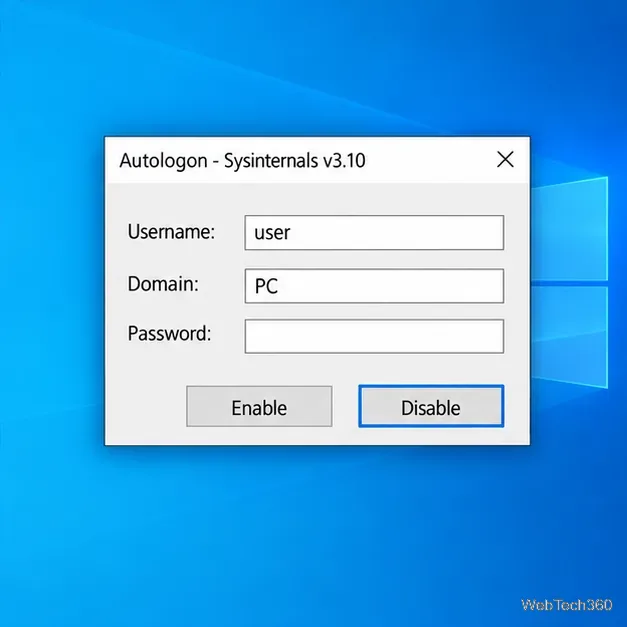
Run Autologon.exe again and select Disable. Restart or sign out to confirm that Windows returns to its normal sign-in screen. To skip one automatic sign-in instead, hold down Shift before choosing Restart or Sign out and keep holding it as Windows reaches the sign-in screen. Microsoft advises holding Shift before choosing Restart or Sign out; on some systems, pressing it only after logging off is too late. See its Shift-key guidance. Disabling Autologon in the utility is the reliable way to turn the setting off.
Automatic logon removes the password prompt at startup, so a person with physical access can reach the account’s desktop and files. Autologon stores the password as an encrypted Local Security Authority (LSA) secret instead of placing it in the Winlogon password field, but Microsoft warns that a user with administrator rights can retrieve and decrypt it. Do not enable this on a shared or unattended laptop, a work-managed computer without approval, or a PC that contains data you need to protect.
If automatic sign-in does not work, check that the account password has not changed and that the account is permitted to sign in locally. If you changed the password, update Autologon with the current one; the utility does not validate credentials when you enable the setting. A domain or Microsoft Entra–joined PC may try to sign in before its network is ready. Microsoft documents network timing limits for these devices, so ask your administrator about the supported configuration. Exchange ActiveSync password restrictions or a logon banner policy can also prevent automatic logon. See Microsoft’s automatic logon guidance for these limitations.
Windows 10 version 22H2 and most Home, Pro, Enterprise, and Education editions reached end of support on October 14, 2025; some LTSC releases and devices enrolled in Extended Security Updates have separate terms. If you still use Windows 10, review Microsoft’s Windows 10 end-of-support information and your device’s current support status before relying on it for sensitive work.
Move Minecraft for Windows to another drive with the built-in Settings option, protect your worlds, and see what to do if Move is unavailable.
Find out why Windows 10 hides SmartScreen’s Run anyway button, how to review the warning, and how to allow a bypass while keeping SmartScreen on.
Combine left and right channels so you can hear the full mix through one earbud. Follow the Windows 10 Settings path and learn how to restore stereo when you want it.
Learn how to build a custom grid for your display in Windows 10 with PowerToys FancyZones, adjust zones, choose each monitor, and snap apps into place.
Set Windows 10 to sign in automatically at startup with Microsoft Sysinternals Autologon, then learn how to disable it and understand the security tradeoffs.
Add the Ultimate Performance power plan in Windows 10 with an elevated command, select it in Power Options, and check compatibility and power-use limits.
Refresh missing or incorrect bookmark icons in Edge by reopening the saved page, clearing cached images, or rebuilding the favicon cache safely.
Turn the number row into virtual numpad keys on Windows 10 with AutoHotkey v2. Set up a Caps Lock toggle, test it in your app, and see what the script cannot remap.
Turn off a wired Ethernet adapter in Windows 10, confirm you selected the right device, restore it later, or use PowerShell.
Pair Bluetooth headphones with Windows 10, choose them as your audio output, and fix common discovery or sound problems.







