How to Move Minecraft to Another Drive in Windows 10

Move Minecraft for Windows to another drive with the built-in Settings option, protect your worlds, and see what to do if Move is unavailable.
Microsoft Edge calls saved bookmarks Favorites. If a favorite shows a missing, stale, or unrelated icon, open the exact page saved in the favorite first. If that does not update it, clear Edge's cached images and files. For persistent problems, you can rebuild the profile's favicon cache as a last resort. These steps refresh site icons without deleting the favorite itself. Microsoft's Edge favicon troubleshooting guidance covers the same cache behavior.
Edge looks for a favicon associated with the exact page URL, then may fall back to an icon cached for the same website host. That fallback can show the wrong image when a site uses different icons on different pages, such as a page and a PDF. The browser may also display a generic letter if it has not downloaded an icon yet. Edge does not provide a built-in Refresh Icon command for an individual favorite, so refreshing the relevant cache is the practical fix.
First, identify the URL saved in the affected favorite. Open it from the Favorites bar or press Ctrl+Shift+O to open Favorites and select it there. If the icon still looks wrong, copy the favorite's URL and paste it into the address bar. Use that same page, not just the site's home page: Edge may cache icons by exact URL. Let the page finish loading, then check the Favorites bar or menu again. Close and reopen Edge if the icon does not change immediately.

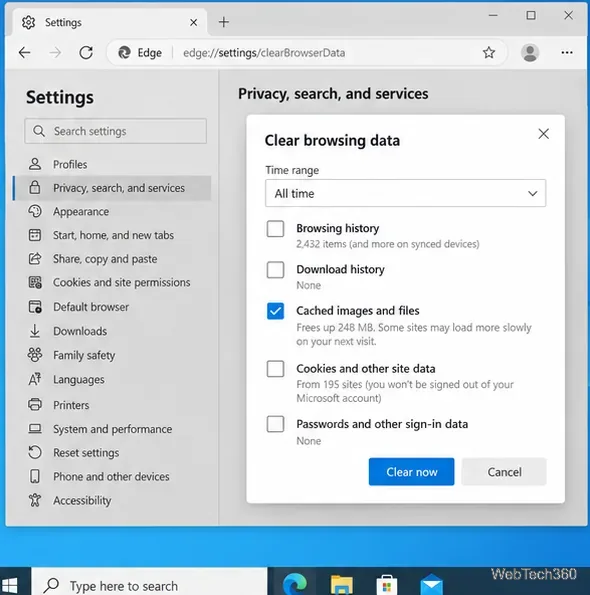
If revisiting the page does not help, clear Edge's cached image files. In the address bar, open edge://settings/privacy. Under Clear browsing data, select Choose what to clear. Set the time range to All time for a full cache refresh, then select only Cached images and files and choose Clear now. Leave browsing history, cookies, passwords, and other data unchecked. This removes cached page images, so some sites may load those images more slowly the next time you visit. It does not remove your Favorites when those other categories remain unchecked. After clearing, open the same saved URL again and give Edge time to fetch its icon.
Use this step only if the first two methods fail. Before changing profile files, you can make an HTML backup: open Settings and more > Favorites, select More options above the favorites list, and choose Export favorites. Microsoft's favorites backup guide documents this option.
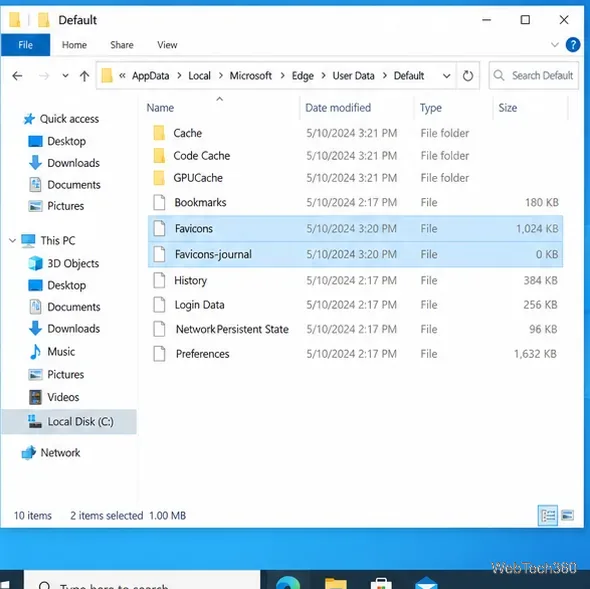
edge://version and note the Profile path. This identifies the profile currently in use; it may not be the Default profile if you use multiple profiles.Microsoft\Edge\User Data\Default.Favicons and Favicons-journal, if present. Do not delete the Bookmarks file or the profile folder.These file names and the restart sequence come from Microsoft's manual favicon-cache instructions. If your Profile path is customized, use the path shown by edge://version rather than assuming the Default folder.
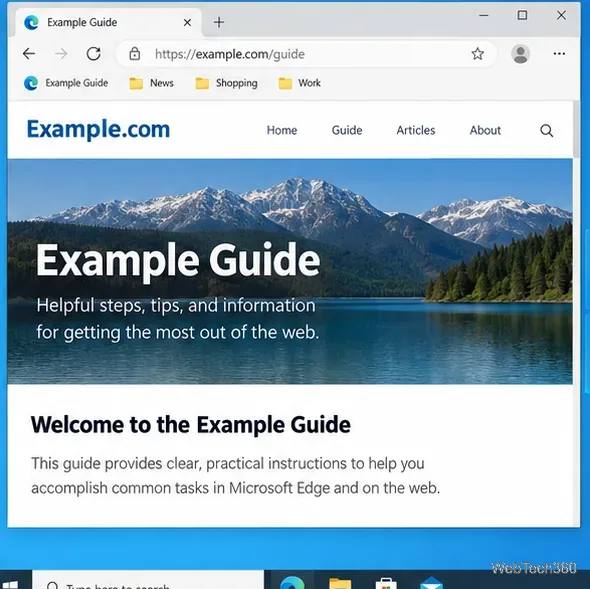
After Edge has reopened the site, look at the same favorite again. If the icon is still a generic letter, the website may not provide a favicon at that URL. If it changes to another site's icon, the site may serve different favicons on different pages; open the exact page saved in the favorite and repeat the cache refresh if necessary. If you have multiple Edge profiles, confirm that you are checking the same profile shown on edge://version.
Older versions of this advice recommend the Manage Edge Favorites utility, also known as EdgeManage, for a one-click refresh or custom icon. Its developer now states that the program works only with legacy Edge and is not compatible with Chromium-based Edge. Do not follow its old menu instructions for the current browser. The developer's compatibility note explains the limitation.
Move Minecraft for Windows to another drive with the built-in Settings option, protect your worlds, and see what to do if Move is unavailable.
Find out why Windows 10 hides SmartScreen’s Run anyway button, how to review the warning, and how to allow a bypass while keeping SmartScreen on.
Combine left and right channels so you can hear the full mix through one earbud. Follow the Windows 10 Settings path and learn how to restore stereo when you want it.
Learn how to build a custom grid for your display in Windows 10 with PowerToys FancyZones, adjust zones, choose each monitor, and snap apps into place.
Set Windows 10 to sign in automatically at startup with Microsoft Sysinternals Autologon, then learn how to disable it and understand the security tradeoffs.
Add the Ultimate Performance power plan in Windows 10 with an elevated command, select it in Power Options, and check compatibility and power-use limits.
Refresh missing or incorrect bookmark icons in Edge by reopening the saved page, clearing cached images, or rebuilding the favicon cache safely.
Turn the number row into virtual numpad keys on Windows 10 with AutoHotkey v2. Set up a Caps Lock toggle, test it in your app, and see what the script cannot remap.
Turn off a wired Ethernet adapter in Windows 10, confirm you selected the right device, restore it later, or use PowerShell.
Pair Bluetooth headphones with Windows 10, choose them as your audio output, and fix common discovery or sound problems.







