How to Move Minecraft to Another Drive in Windows 10

Move Minecraft for Windows to another drive with the built-in Settings option, protect your worlds, and see what to do if Move is unavailable.
To create a custom grid for your display in Windows 10, use FancyZones, the window manager included with Microsoft PowerToys. It lets you define rectangular zones, apply a layout to a chosen monitor, and place app windows with a drag gesture. Microsoft’s FancyZones guide covers both Grid and Canvas layouts.
Check compatibility before installing: current PowerToys requires Windows 10 version 2004 (20H1, build 19041) or newer and a 64-bit x64 or ARM64 processor. Microsoft ended Windows 10 support on October 14, 2025. The operating system still works, but it no longer receives regular free feature and security updates; see Microsoft’s Windows 10 support notice.
Install PowerToys from the Microsoft Store or the official PowerToys releases page. Microsoft also documents installation options, including WinGet, in its PowerToys installation guide. If you use WinGet, open Terminal or PowerShell and run winget install --id Microsoft.PowerToys --source winget.
After installation, open PowerToys Settings and select FancyZones in the left navigation. Turn on its Enabled switch. Keep PowerToys running while you arrange windows; FancyZones is one of its utilities, not a separate Windows setting.

On the FancyZones settings page, select Open layout editor. You can also press Win + Shift + grave accent (the backtick key); change the editor shortcut in FancyZones settings if it conflicts with another shortcut. The editor displays layout previews and a monitor selector.
If you use more than one display, choose the monitor you want to configure first. You can assign a different layout to each monitor. By default, FancyZones shows the zones for the monitor under the pointer while you drag a window. There is also an option to let zones span multiple monitors, but Microsoft notes that all connected displays must use the same DPI scaling for that mode.
Choose an existing layout to start quickly, or select Create new layout to design one. For a straightforward rows-and-columns arrangement, choose the Grid model.
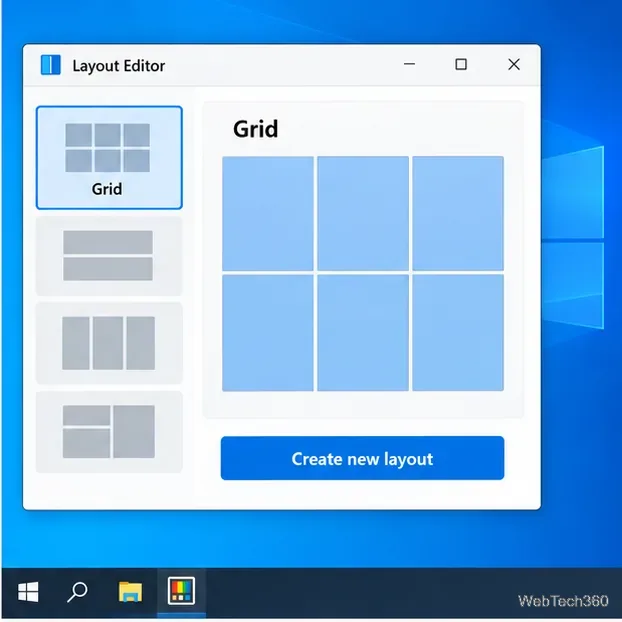
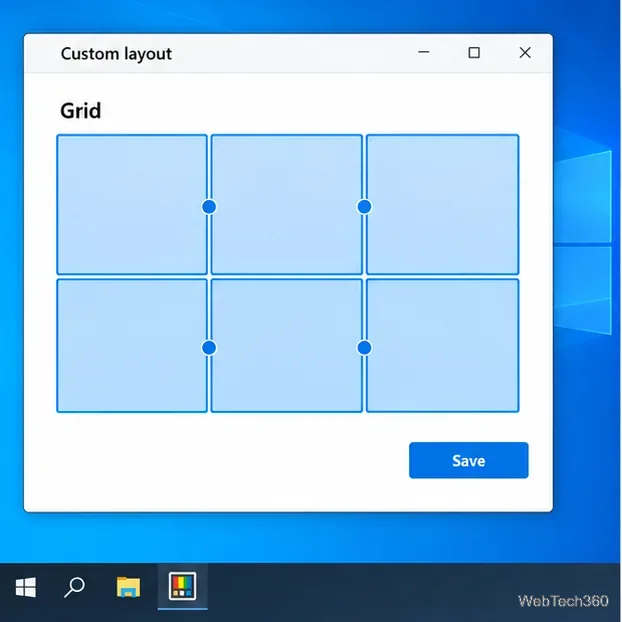
FancyZones offers Grid and Canvas layouts. Grid is the better fit when you want aligned rows and columns. It begins with three columns, which you can divide, resize, or merge. For example, to make a three-column, two-row layout, split each column once in the horizontal direction. Click in a zone to add a divider; hold Shift while clicking to rotate the divider when needed. Drag a divider handle to adjust the proportions.
To combine neighboring areas into a larger zone, select the zones and choose Merge. Use Canvas instead when you need zones with different sizes or positions; Canvas zones can overlap. When the arrangement looks right, save it and select the saved layout for the chosen monitor. Double-clicking a layout preview applies it and closes the editor. Grid layouts are relative, so they resize with different screen sizes.
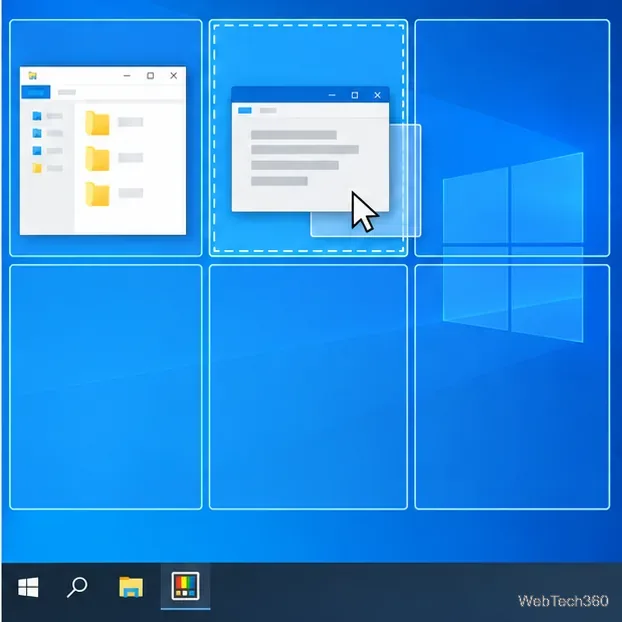
Open an app and drag its title bar. By default, hold Shift while dragging to show the FancyZones overlay. Move the window over the zone you want; the highlighted zone marks the target. Release the mouse button to snap the window into place. The Shift behavior can be changed in FancyZones settings, so check its activation options if the zones do not appear.
To stretch one window across adjacent zones, start dragging until a zone is active, then hold Ctrl while dragging to select additional zones. This is useful for a browser or document that needs more space than one cell.
Once saved, the custom layout is available again in the FancyZones editor. Reopen it whenever you want to adjust zone sizes or assign a different layout to a monitor.
Move Minecraft for Windows to another drive with the built-in Settings option, protect your worlds, and see what to do if Move is unavailable.
Find out why Windows 10 hides SmartScreen’s Run anyway button, how to review the warning, and how to allow a bypass while keeping SmartScreen on.
Combine left and right channels so you can hear the full mix through one earbud. Follow the Windows 10 Settings path and learn how to restore stereo when you want it.
Learn how to build a custom grid for your display in Windows 10 with PowerToys FancyZones, adjust zones, choose each monitor, and snap apps into place.
Set Windows 10 to sign in automatically at startup with Microsoft Sysinternals Autologon, then learn how to disable it and understand the security tradeoffs.
Add the Ultimate Performance power plan in Windows 10 with an elevated command, select it in Power Options, and check compatibility and power-use limits.
Refresh missing or incorrect bookmark icons in Edge by reopening the saved page, clearing cached images, or rebuilding the favicon cache safely.
Turn the number row into virtual numpad keys on Windows 10 with AutoHotkey v2. Set up a Caps Lock toggle, test it in your app, and see what the script cannot remap.
Turn off a wired Ethernet adapter in Windows 10, confirm you selected the right device, restore it later, or use PowerShell.
Pair Bluetooth headphones with Windows 10, choose them as your audio output, and fix common discovery or sound problems.







