How to Move Minecraft to Another Drive in Windows 10

Move Minecraft for Windows to another drive with the built-in Settings option, protect your worlds, and see what to do if Move is unavailable.
To connect Bluetooth headphones to Windows 10, turn on Bluetooth on the PC, put the headphones into pairing mode, then open Start > Settings > Devices > Bluetooth & other devices. Choose Add Bluetooth or other device > Bluetooth, select the headphones when they appear, and follow any on-screen prompt. Pairing adds the headset to Windows; you may still need to select it as the audio output before sound plays through it.
Windows can pair headphones from the Settings app. The key detail is that the headphones must be discoverable while Windows is searching. Pairing mode varies by model, so use the headphone maker’s instructions if the button sequence is not obvious.
Select Start > Settings > Devices > Bluetooth & other devices and switch Bluetooth to On. If the toggle is missing, skip to the troubleshooting section: Windows may not detect a Bluetooth adapter or its driver.

Use the manufacturer’s pairing instructions while the headset is on. A flashing indicator or pairing announcement often signals that it is discoverable, but the indicator differs by model. Do not assume that simply powering on the headphones makes them visible to Windows. Keep them close to the computer and leave pairing mode active while you continue.
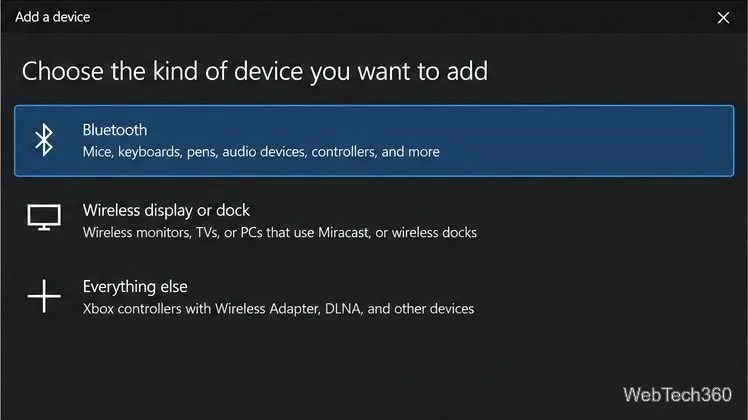
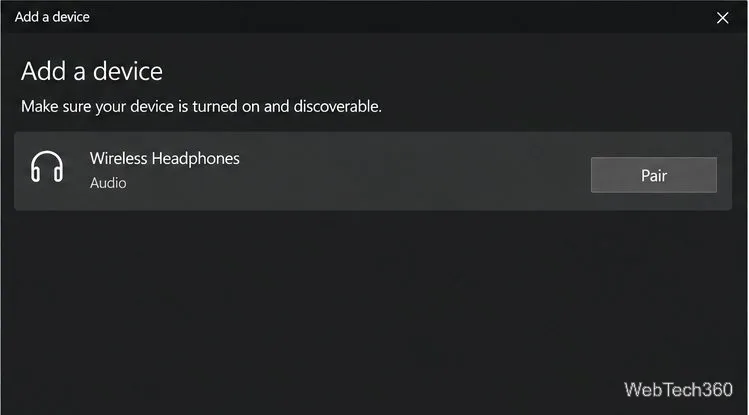
On the Bluetooth & other devices page, select Add Bluetooth or other device. In the Add a device window, choose Bluetooth. Windows searches for discoverable accessories; when the headphone name appears, select it and choose Pair if prompted. Accept any confirmation request on the headset or PC, then select Done if that button appears. Microsoft’s Windows Bluetooth pairing guide covers the same Settings flow for headphones and other accessories.
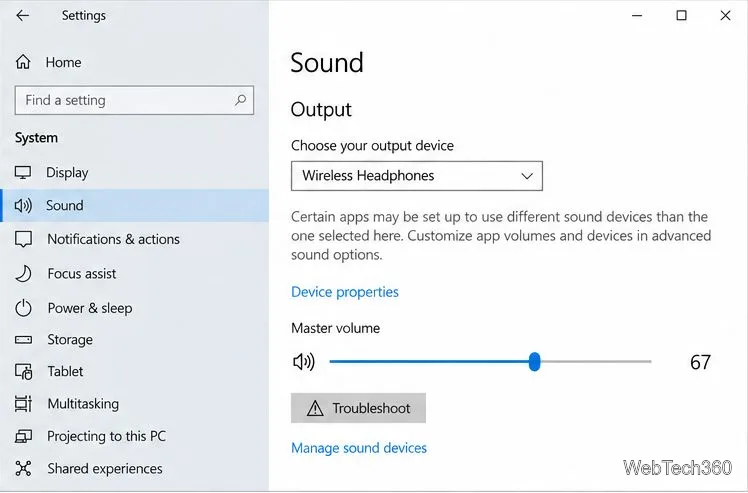
After pairing, open Start > Settings > System > Sound. Under Choose your output device, select the Bluetooth headphones. You can also select the speaker icon on the taskbar and choose the headset from the available output devices. Raise the Windows volume and check the headphone’s own volume controls.
Make sure they are still in pairing mode, then wait briefly or close and reopen Add Bluetooth or other device and search again. Confirm that Bluetooth is on, the headset is charged, and it is not actively connected to another device. If the PC’s Bluetooth toggle is absent, restart the PC and check Device Manager > Bluetooth for the adapter. Install a driver from the PC or adapter manufacturer if Windows does not recognize it; Microsoft’s Bluetooth troubleshooting guide has additional checks.
Pairing does not always make the headset the active playback device. Recheck Settings > System > Sound > Choose your output device, and check the app’s own audio-output setting if only one app is silent. If the headset is selected but still has no audio, toggle Bluetooth off, wait about 10 seconds, and turn it on again. Microsoft’s Bluetooth connected-but-no-sound instructions also recommend confirming the selected output and checking drivers.
In Settings > Devices > Bluetooth & other devices, select the headphones and choose Remove device. Put the headset back in pairing mode and add it again using the steps above. This clears the old pairing record and is useful when Windows lists the headset but cannot establish a connection. For Windows’ general add-device steps, see Microsoft’s guide to adding hardware in Windows.
If another Bluetooth accessory also fails to connect, troubleshoot the PC’s Bluetooth adapter first. If only the headphones have trouble, check the model’s manual for its reset and pairing procedure.
Move Minecraft for Windows to another drive with the built-in Settings option, protect your worlds, and see what to do if Move is unavailable.
Find out why Windows 10 hides SmartScreen’s Run anyway button, how to review the warning, and how to allow a bypass while keeping SmartScreen on.
Combine left and right channels so you can hear the full mix through one earbud. Follow the Windows 10 Settings path and learn how to restore stereo when you want it.
Learn how to build a custom grid for your display in Windows 10 with PowerToys FancyZones, adjust zones, choose each monitor, and snap apps into place.
Set Windows 10 to sign in automatically at startup with Microsoft Sysinternals Autologon, then learn how to disable it and understand the security tradeoffs.
Add the Ultimate Performance power plan in Windows 10 with an elevated command, select it in Power Options, and check compatibility and power-use limits.
Refresh missing or incorrect bookmark icons in Edge by reopening the saved page, clearing cached images, or rebuilding the favicon cache safely.
Turn the number row into virtual numpad keys on Windows 10 with AutoHotkey v2. Set up a Caps Lock toggle, test it in your app, and see what the script cannot remap.
Turn off a wired Ethernet adapter in Windows 10, confirm you selected the right device, restore it later, or use PowerShell.
Pair Bluetooth headphones with Windows 10, choose them as your audio output, and fix common discovery or sound problems.







