How to Move Minecraft to Another Drive in Windows 10

Move Minecraft for Windows to another drive with the built-in Settings option, protect your worlds, and see what to do if Move is unavailable.
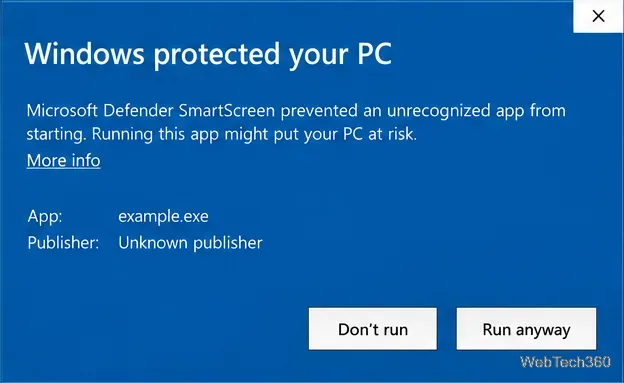
If Windows 10 shows “Windows protected your PC” but no Run anyway button, SmartScreen may be set by policy to warn and prevent bypass. On a personal PC with Local Group Policy Editor, change the Microsoft Defender SmartScreen policy to Warn. That keeps the warning on while allowing you to continue after reviewing it. If a work or school administrator manages the PC, ask them to review the policy instead of trying to override it.
SmartScreen checks downloaded app and file reputation. A warning is not proof of malware, but it is not proof of safety either. Bypass it only for a file from a developer you have verified.
The missing button applies to the Windows SmartScreen dialog, commonly headed “Windows protected your PC.” Select More info (some older Windows 10 builds use See more) to expand the app name and publisher details. If the expanded dialog still has no Run anyway option, a policy may be preventing the override.

Check the message first. “Threat found” or “Threat detected” is a Microsoft Defender Antivirus alert, not the SmartScreen reputation warning. Do not disable antivirus to bypass it. If a potentially unwanted app was flagged by mistake, review it in Windows Security Protection history; Microsoft documents an Allow action for certain SmartScreen blocks, followed by downloading the file again. Use that only after you have verified the file and its source.
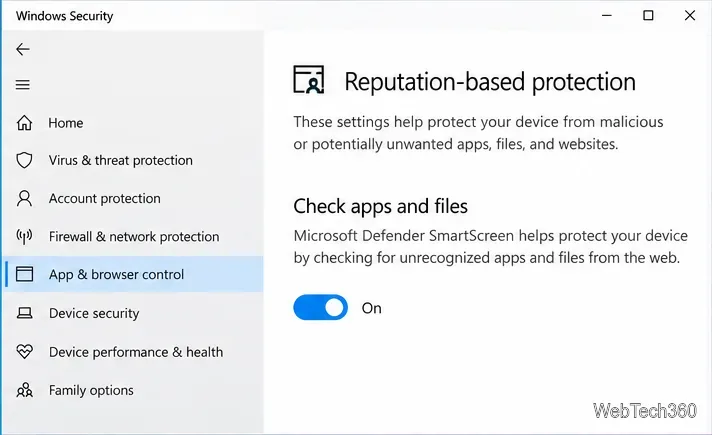
Microsoft’s current Windows Security guide describes Check apps and files as the SmartScreen control for evaluating apps and files downloaded from the web. Older Windows 10 versions expose additional Block and Warn choices. If the page says settings are managed by your organization, or controls are unavailable, a local change will not override the administrator’s policy.
Use this step only on a PC you administer that includes Local Group Policy Editor. If the editor is unavailable or the PC is managed, contact the administrator rather than using registry edits from an unofficial guide.
gpedit.msc, and press Enter.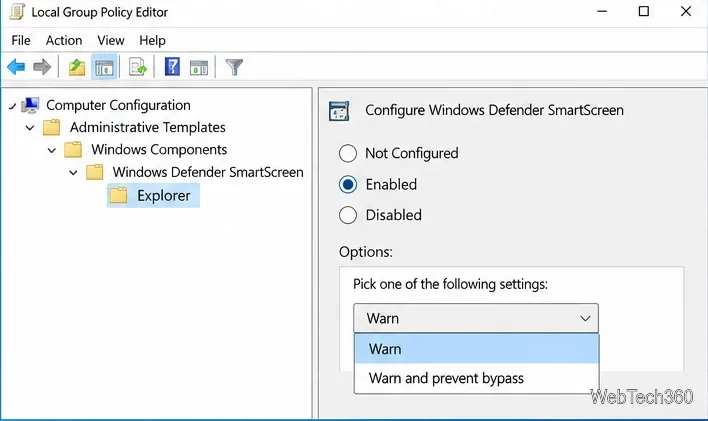
Microsoft says Warn and prevent bypass suppresses the option to run the app, while Warn leaves the warning in place. This is a security tradeoff; use Warn only if you accept the risk of running an unrecognized file. Close the editor and try again; restart Windows if the old policy remains.
Return to the warning and select More info. Check the app name and publisher. “Unknown publisher” means Windows cannot verify who signed the program, so confirm the download came directly from the developer and check its signature or checksum if the developer provides one. You can also scan the downloaded file with Windows Security. If the signature is invalid, the download source is questionable, or Defender reports malware, choose Don’t run and delete the file.
Check whether the device is managed by work or school, and whether Windows Security reports that its settings are controlled by an administrator. Group Policy or mobile-device management can enforce a no-bypass rule. Third-party security software can also show its own block screen; follow that product’s guidance instead of changing SmartScreen. If Protection history reports a malware detection, do not treat the missing Run anyway button as a glitch.
If you believe Microsoft Defender SmartScreen has incorrectly flagged a legitimate download, submit it for review using Microsoft’s SmartScreen file-submission guidance. Keep SmartScreen enabled after troubleshooting. Also note that Windows 10 support ended on October 14, 2025; Microsoft recommends moving to a supported Windows version or enrolling eligible devices in its Extended Security Updates program. See Microsoft’s Windows 10 support notice.
For the current settings and policy details, see Microsoft’s Windows Security App & browser control guide and available Microsoft Defender SmartScreen settings.
Move Minecraft for Windows to another drive with the built-in Settings option, protect your worlds, and see what to do if Move is unavailable.
Find out why Windows 10 hides SmartScreen’s Run anyway button, how to review the warning, and how to allow a bypass while keeping SmartScreen on.
Combine left and right channels so you can hear the full mix through one earbud. Follow the Windows 10 Settings path and learn how to restore stereo when you want it.
Learn how to build a custom grid for your display in Windows 10 with PowerToys FancyZones, adjust zones, choose each monitor, and snap apps into place.
Set Windows 10 to sign in automatically at startup with Microsoft Sysinternals Autologon, then learn how to disable it and understand the security tradeoffs.
Add the Ultimate Performance power plan in Windows 10 with an elevated command, select it in Power Options, and check compatibility and power-use limits.
Refresh missing or incorrect bookmark icons in Edge by reopening the saved page, clearing cached images, or rebuilding the favicon cache safely.
Turn the number row into virtual numpad keys on Windows 10 with AutoHotkey v2. Set up a Caps Lock toggle, test it in your app, and see what the script cannot remap.
Turn off a wired Ethernet adapter in Windows 10, confirm you selected the right device, restore it later, or use PowerShell.
Pair Bluetooth headphones with Windows 10, choose them as your audio output, and fix common discovery or sound problems.







