How to Move Minecraft to Another Drive in Windows 10

Move Minecraft for Windows to another drive with the built-in Settings option, protect your worlds, and see what to do if Move is unavailable.
To enable the Ultimate Performance power plan in Windows 10, open Command Prompt as an administrator, run the powercfg command below, and then select the new plan in Control Panel. The command adds the plan to Windows; you may still need to activate it afterward. The procedure takes a few minutes and uses built-in Windows tools.
Microsoft introduced Ultimate Performance for demanding workstation workloads. It builds on High Performance and is designed to reduce small delays caused by fine-grained power management. That does not guarantee faster results in every app, and it is not a dedicated gaming mode. The difference depends on your hardware and workload.
The plan can use more electricity than Balanced. Microsoft also noted when introducing it that the plan was unavailable on battery-powered systems. Laptop makers and Windows editions may further limit which plans appear, so availability is not guaranteed on every Windows 10 PC. If your device does not support it, use the power plan provided by its manufacturer.
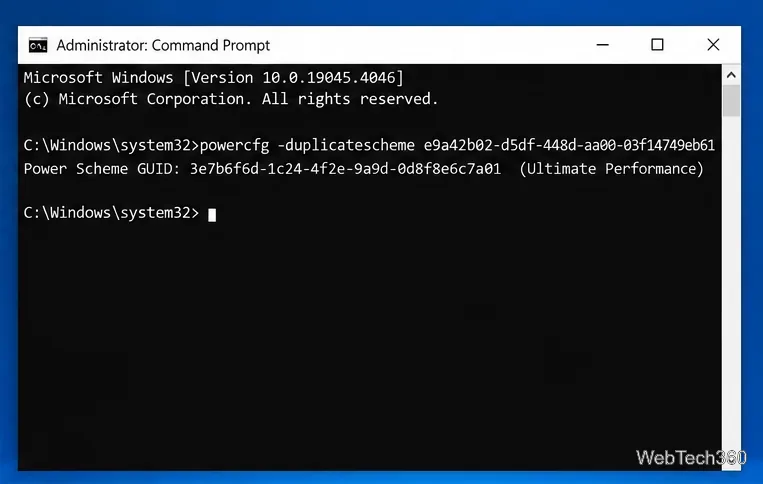
Select Start, type cmd, right-click Command Prompt, and choose Run as administrator. Approve the User Account Control prompt if it appears. The elevated window should say “Administrator” in its title bar.

In the administrator window, enter this command and press Enter:
powercfg -duplicatescheme e9a42b02-d5df-448d-aa00-03f14749eb61The command duplicates the Ultimate Performance scheme. If it succeeds, Command Prompt returns a “Power Scheme GUID” for the new copy, often followed by its name. The GUID is generated for your PC, so it will differ from the example in the image. Keep the GUID handy if you need to activate the plan with a command later.
Press Windows key + R, type powercfg.cpl, and press Enter. This opens the classic Control Panel Power Options page. You can also navigate through Control Panel > System and Security > Power Options.
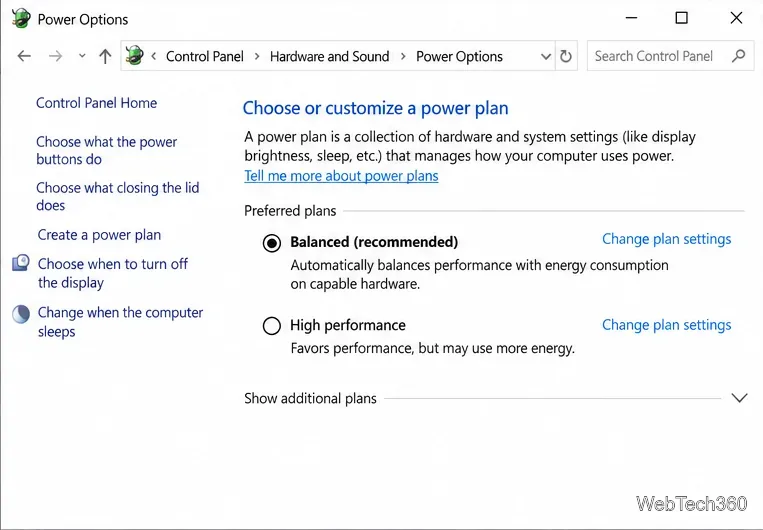
Choose Show additional plans or expand Additional plans, then select the radio button beside Ultimate Performance. Selecting it makes the plan active. Use the same page to switch back to Balanced when you want to reduce power use.
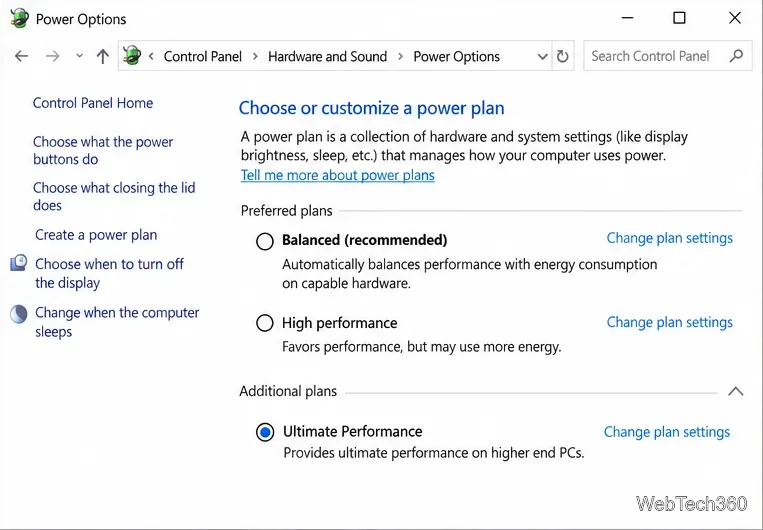
Look for the selected radio button in Power Options. For a command-line check, open Command Prompt and run powercfg /getactivescheme. Windows prints the active scheme name and GUID. Microsoft documents /duplicatescheme for copying a scheme and /getactivescheme for checking which one is active.
powercfg /list to see the schemes registered on the PC. If Ultimate Performance is not listed, reopen Command Prompt as an administrator and carefully re-enter the command, including all hyphens in the GUID.powercfg /list results, then run powercfg /setactive <new-scheme-GUID>, replacing the placeholder with the GUID. Confirm with powercfg /getactivescheme.Windows 10 support note: Microsoft ended standard support for Windows 10 on October 14, 2025. Changing a power plan does not restore security updates; see Microsoft's current support information if you still use Windows 10.
Move Minecraft for Windows to another drive with the built-in Settings option, protect your worlds, and see what to do if Move is unavailable.
Find out why Windows 10 hides SmartScreen’s Run anyway button, how to review the warning, and how to allow a bypass while keeping SmartScreen on.
Combine left and right channels so you can hear the full mix through one earbud. Follow the Windows 10 Settings path and learn how to restore stereo when you want it.
Learn how to build a custom grid for your display in Windows 10 with PowerToys FancyZones, adjust zones, choose each monitor, and snap apps into place.
Set Windows 10 to sign in automatically at startup with Microsoft Sysinternals Autologon, then learn how to disable it and understand the security tradeoffs.
Add the Ultimate Performance power plan in Windows 10 with an elevated command, select it in Power Options, and check compatibility and power-use limits.
Refresh missing or incorrect bookmark icons in Edge by reopening the saved page, clearing cached images, or rebuilding the favicon cache safely.
Turn the number row into virtual numpad keys on Windows 10 with AutoHotkey v2. Set up a Caps Lock toggle, test it in your app, and see what the script cannot remap.
Turn off a wired Ethernet adapter in Windows 10, confirm you selected the right device, restore it later, or use PowerShell.
Pair Bluetooth headphones with Windows 10, choose them as your audio output, and fix common discovery or sound problems.







