How to Move Minecraft to Another Drive in Windows 10

Move Minecraft for Windows to another drive with the built-in Settings option, protect your worlds, and see what to do if Move is unavailable.
To add a numeric keypad to a compact keyboard on Windows 10, use AutoHotkey v2 to remap the number row to virtual Numpad keys. The script below makes the top-row digits act as keypad digits while Caps Lock is on and restores their normal behavior when it is off. It works only in apps that accept AutoHotkey's simulated key events.
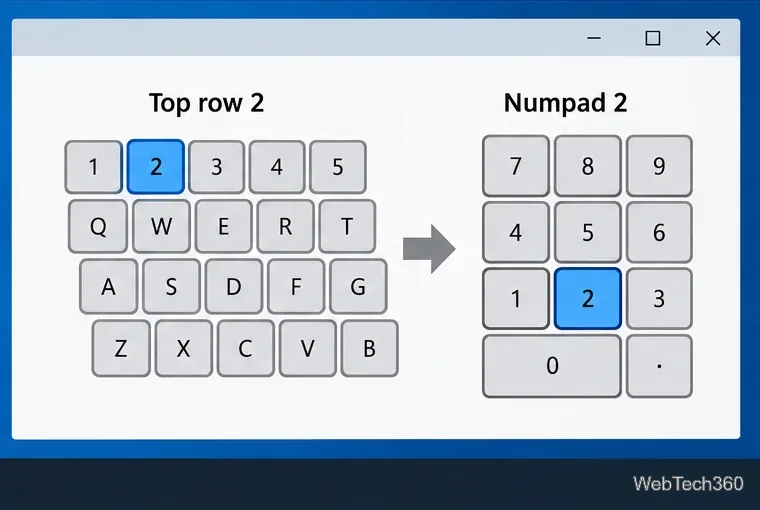
Windows and applications can distinguish a digit typed from the top row from the same digit sent by a numeric keypad. AutoHotkey can intercept a key and send a different one in its place. Here, 1 through 0 send Numpad1 through Numpad0; the #HotIf condition limits the remapping to the period when Caps Lock is toggled on. AutoHotkey documents these context-sensitive hotkeys and key names in its #HotIf reference, GetKeyState reference, and remapping guide.
Download the current stable AutoHotkey v2 release from the official AutoHotkey download page, then run the installer and keep the standard options unless you have a reason to change them. Use version 2 for the script below; older AutoHotkey v1 scripts use different conditional-hotkey syntax. The official installation guide explains the setup choices.

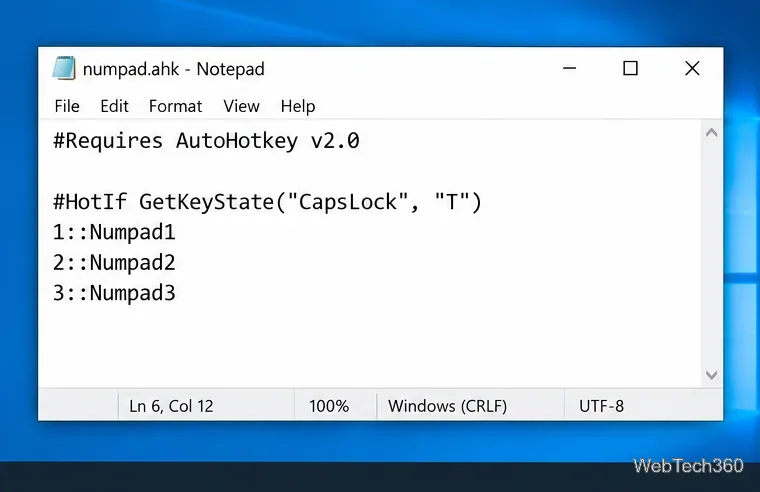
Open Notepad, paste the complete script below, and save it somewhere easy to find as numpad.ahk. In Notepad's Save As dialog, set Save as type to All files so Windows does not append .txt to the filename.
#Requires AutoHotkey v2.0
#SingleInstance Force

#HotIf GetKeyState("CapsLock", "T")
1::Numpad1
2::Numpad2
3::Numpad3
4::Numpad4
5::Numpad5
6::Numpad6
7::Numpad7
8::Numpad8
9::Numpad9
0::Numpad0
#HotIf
The first line asks for AutoHotkey v2, and #SingleInstance Force prevents duplicate copies of this script from running. The conditional block applies the remaps only while Caps Lock is on; the final #HotIf clears that condition for any hotkeys that might be added later. This script intentionally maps only the ten digits. See AutoHotkey's key list if you want to add keypad operators or other keys.
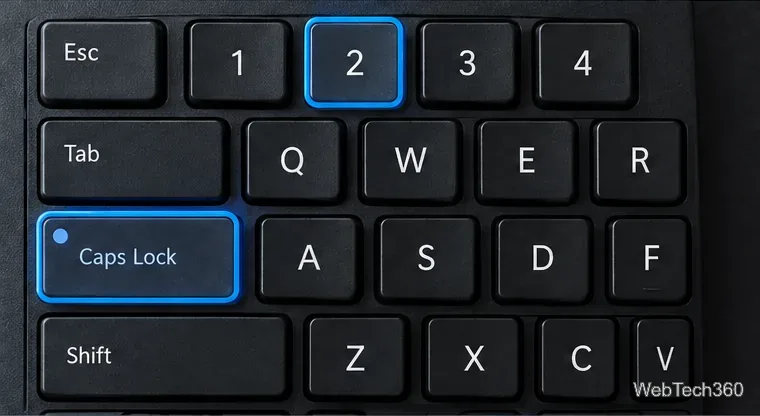
Double-click numpad.ahk. AutoHotkey should appear in the notification area near the Windows clock; if the icon is hidden, select the small up arrow to view tray icons. Press Caps Lock to turn the remapping on, then type a number-row digit in the app you want to use. Press Caps Lock again to return to ordinary number-row input.
Caps Lock still controls letter case. While it is on, letters you type are uppercase, so switch it off when you return to normal typing. To stop the mapping entirely, right-click the AutoHotkey tray icon and choose Exit.
Use a harmless shortcut or input setting that specifically expects a keypad key. With Caps Lock on, press the matching digit on the top row; turn Caps Lock off and repeat to confirm the mapping stops. A text editor alone cannot distinguish the two inputs because both normally display the same numeral. If the app has a key-binding screen, bind a temporary action to a keypad-only key and test it there.
.ahk, not .ahk.txt, and that AutoHotkey v2 is installed. An older v1 interpreter cannot run this v2 script as written.If you only need an on-screen keypad for occasional mouse or touch entry, Windows includes the On-Screen Keyboard. Press Windows key + Ctrl + O, select Options, and turn on Turn on numeric keypad. This displays keypad buttons; it does not turn the physical number row into a numpad. Microsoft's On-Screen Keyboard guide covers the option.
Move Minecraft for Windows to another drive with the built-in Settings option, protect your worlds, and see what to do if Move is unavailable.
Find out why Windows 10 hides SmartScreen’s Run anyway button, how to review the warning, and how to allow a bypass while keeping SmartScreen on.
Combine left and right channels so you can hear the full mix through one earbud. Follow the Windows 10 Settings path and learn how to restore stereo when you want it.
Learn how to build a custom grid for your display in Windows 10 with PowerToys FancyZones, adjust zones, choose each monitor, and snap apps into place.
Set Windows 10 to sign in automatically at startup with Microsoft Sysinternals Autologon, then learn how to disable it and understand the security tradeoffs.
Add the Ultimate Performance power plan in Windows 10 with an elevated command, select it in Power Options, and check compatibility and power-use limits.
Refresh missing or incorrect bookmark icons in Edge by reopening the saved page, clearing cached images, or rebuilding the favicon cache safely.
Turn the number row into virtual numpad keys on Windows 10 with AutoHotkey v2. Set up a Caps Lock toggle, test it in your app, and see what the script cannot remap.
Turn off a wired Ethernet adapter in Windows 10, confirm you selected the right device, restore it later, or use PowerShell.
Pair Bluetooth headphones with Windows 10, choose them as your audio output, and fix common discovery or sound problems.







