How to Move Minecraft to Another Drive in Windows 10

Move Minecraft for Windows to another drive with the built-in Settings option, protect your worlds, and see what to do if Move is unavailable.
To turn off a wired Ethernet connection in Windows 10, disable its network adapter in the classic Network Connections window. Press Windows + R, enter ncpa.cpl, and press Enter. Then right-click the correct Ethernet adapter and choose Disable. Windows may ask for administrator approval.
This turns off the adapter, so every connection that uses it stops working until you enable it again. It does not necessarily disconnect the whole PC: Windows can still use Wi-Fi, cellular data, or another network adapter. If you are controlling the PC remotely over Ethernet, do not disable that adapter unless you have another way to reconnect.
Windows can show more than one wired-style adapter. A desktop might have a built-in Ethernet port plus a USB or dock adapter; a PC can also list virtual adapters. Names such as Ethernet and Ethernet 2 are adapter labels, and your device may use a manufacturer-specific name instead. The adapter description identifies the hardware; the status line describes its current connection.
Confirm which adapter is connected to the cable or dock you want to stop. Leave Wi-Fi alone if you want wireless networking to keep working. If you are unsure, use the read-only PowerShell check later in this guide before making a change.
Press Windows + R, type ncpa.cpl, and press Enter. The Network Connections window opens directly. If you prefer to navigate through Control Panel, open Control Panel > Network and Internet > Network and Sharing Center, then select Change adapter settings on the left.

Find the tile named Ethernet, Ethernet 2, or the label used by your PC. Compare the device description beneath the name when multiple adapters appear. A wireless adapter is usually labeled Wi-Fi and may include “Wireless” in its device description. Do not choose a Wi-Fi tile or a virtual adapter by mistake.
If the names are unclear, open Windows PowerShell and run Get-NetAdapter. Review the Name, InterfaceDescription, and Status columns to match the adapter to its hardware. The command only lists adapter details; it does not change the connection.
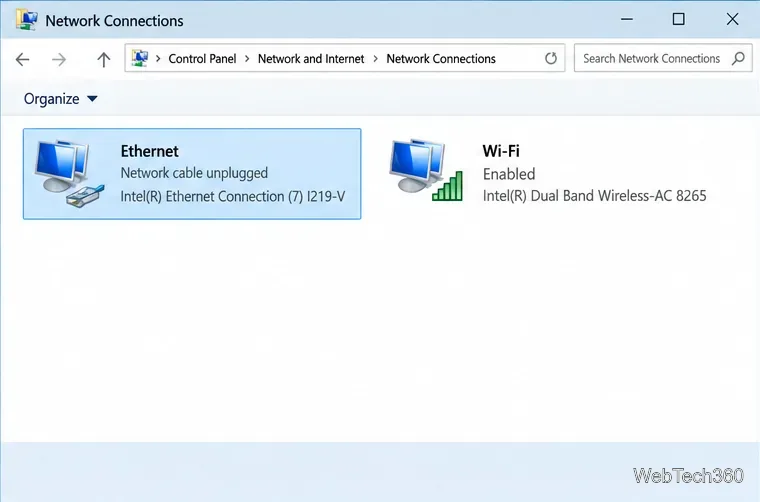
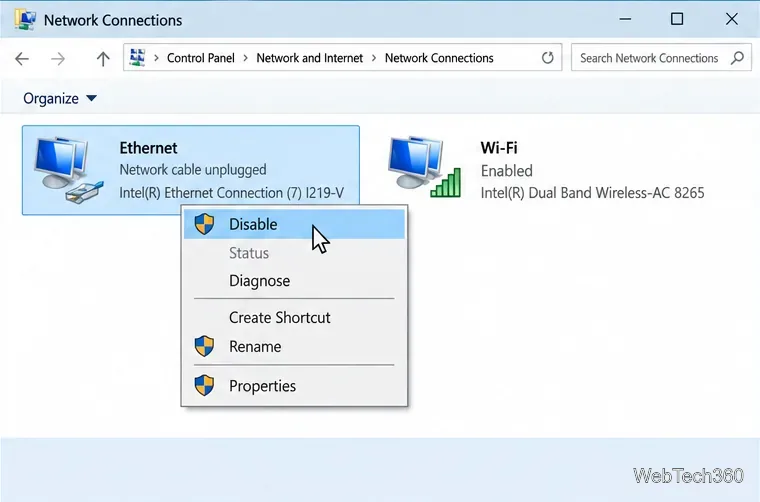
Right-click the Ethernet tile and select Disable. Approve the administrator prompt if Windows displays one. The adapter may become gray or show a disabled status. Any network session using that adapter—including internet access, shared drives, or a remote desktop connection—will be interrupted. Other adapters remain available, so Windows may switch to Wi-Fi automatically.
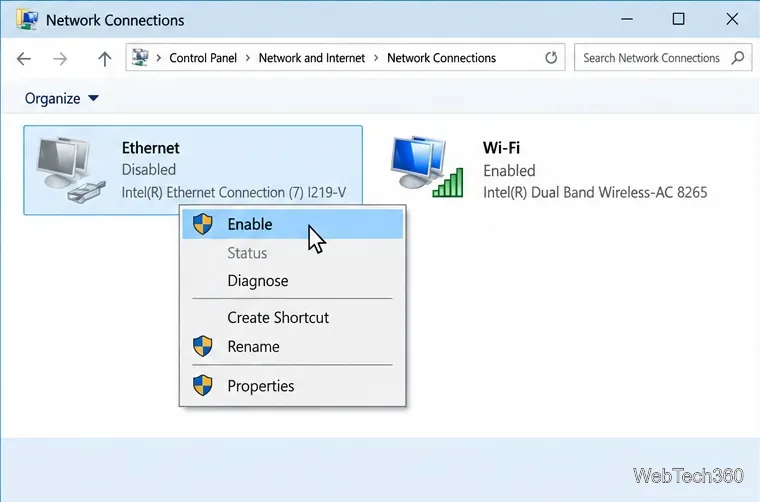
Return to Network Connections, right-click the disabled Ethernet tile, and choose Enable. Wait for Windows to refresh its status. If the cable is connected and the network is available, the adapter should reconnect; a dock or USB Ethernet adapter may need to be plugged in first.
For an administrator workflow, first run Get-NetAdapter and copy the exact value in the Name column. In an elevated PowerShell window, replace Ethernet below with that exact name:
Disable-NetAdapter -Name "Ethernet"
To restore the adapter, run:
Enable-NetAdapter -Name "Ethernet"
Microsoft documents that disabling an adapter causes loss of connectivity through that adapter, and that an adapter must be enabled to connect. Do not run a disable command against an adapter used to manage a remote computer. See the official Disable-NetAdapter, Enable-NetAdapter, and Get-NetAdapter references.
For Ethernet address and network details in Windows, see Microsoft's essential network settings guide.
Move Minecraft for Windows to another drive with the built-in Settings option, protect your worlds, and see what to do if Move is unavailable.
Find out why Windows 10 hides SmartScreen’s Run anyway button, how to review the warning, and how to allow a bypass while keeping SmartScreen on.
Combine left and right channels so you can hear the full mix through one earbud. Follow the Windows 10 Settings path and learn how to restore stereo when you want it.
Learn how to build a custom grid for your display in Windows 10 with PowerToys FancyZones, adjust zones, choose each monitor, and snap apps into place.
Set Windows 10 to sign in automatically at startup with Microsoft Sysinternals Autologon, then learn how to disable it and understand the security tradeoffs.
Add the Ultimate Performance power plan in Windows 10 with an elevated command, select it in Power Options, and check compatibility and power-use limits.
Refresh missing or incorrect bookmark icons in Edge by reopening the saved page, clearing cached images, or rebuilding the favicon cache safely.
Turn the number row into virtual numpad keys on Windows 10 with AutoHotkey v2. Set up a Caps Lock toggle, test it in your app, and see what the script cannot remap.
Turn off a wired Ethernet adapter in Windows 10, confirm you selected the right device, restore it later, or use PowerShell.
Pair Bluetooth headphones with Windows 10, choose them as your audio output, and fix common discovery or sound problems.







