How to Fix Lines on a Monitor Screen in Windows 10

Use a screenshot test, cable and port checks, monitor diagnostics, display settings, and driver rollback to pinpoint lines on a Windows 10 monitor.
CC and BCC are optional recipient fields in email, but they handle visibility differently. People added to CC are visible to the other recipients. People added to BCC receive the message without their addresses being shown to the other recipients. In both cases, they receive the same email message; CC and BCC do not create a separate message for each person.
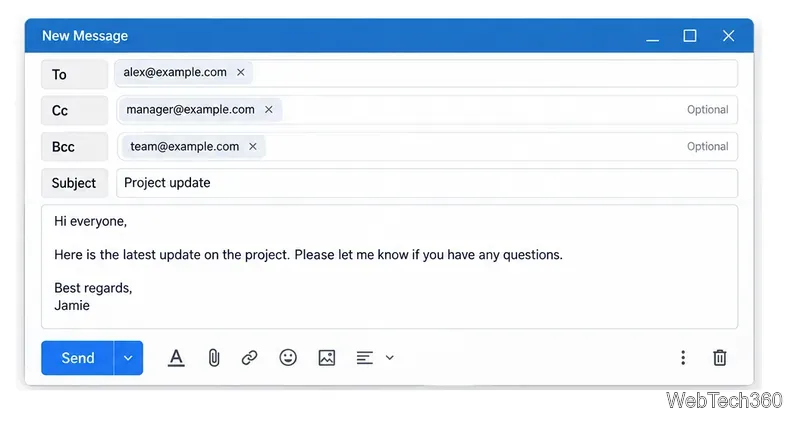
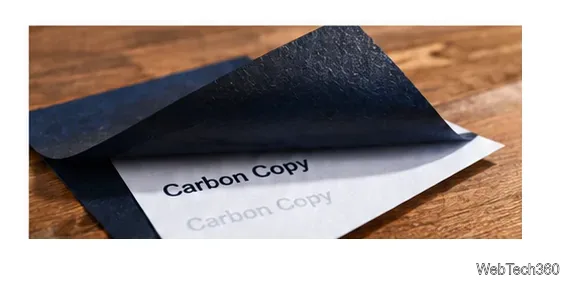
CC stands for carbon copy, while BCC stands for blind carbon copy. The terminology comes from carbon paper, which was used to make a copy of a typed or handwritten document. The internet email standard RFC 5322 describes Cc as addresses of additional people who should receive the message and Bcc as addresses that should not be revealed to the other recipients.
| Feature | CC | BCC |
|---|---|---|
| Recipient visibility | Visible to other recipients | Hidden from other recipients |
| Typical purpose | Keep someone informed openly | Send a copy without exposing that recipient's address |
| Reply All | CC recipients are normally included | BCC recipients are normally not included in other people's Reply All responses |
| Best for | Transparent group communication | Recipient privacy or discreet copies |
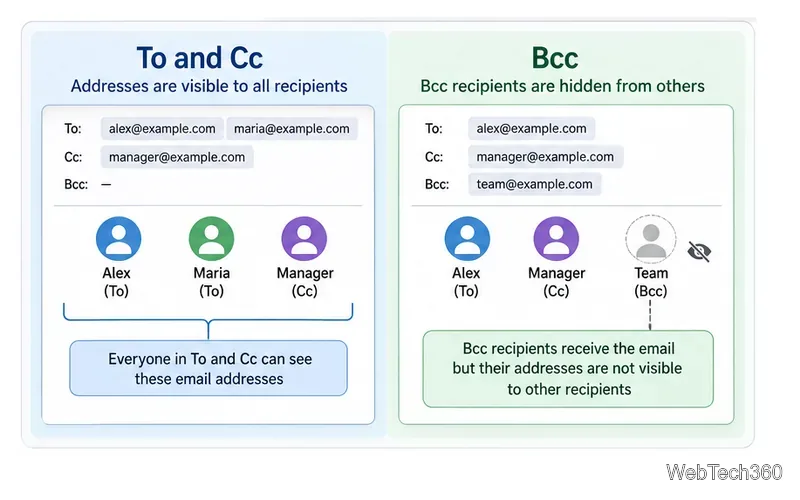
Use CC when someone needs to know about the conversation but is not the main person being addressed. Their inclusion is visible, so everyone can understand who is following the thread.
Avoid copying people simply to create pressure or to fill inboxes with information they do not need. If someone is expected to act on the message, putting them in the To field is usually clearer.
BCC is useful when the recipient list should remain private. A common example is sending one message to a group of people who do not know one another, such as members of a club, event attendees, or customers receiving a one-off notice. Putting those addresses in BCC prevents the recipients from seeing each other's email addresses.
BCC can also be used to send a discreet copy to another person, but use that carefully in workplace conversations. Hidden recipients can change the tone of a discussion if their presence later becomes known. When transparency is more important than privacy, CC is usually the better choice.
BCC is not a security or encryption feature. It hides addresses from the other message recipients, but the sender and email systems handling the message can still know who received it. A BCC recipient can also reveal their involvement by replying or forwarding the message.
Reply behavior is one of the most practical differences. In common email clients, Reply All sends a response to the original sender plus recipients shown in the To and CC fields. Hidden BCC recipients are not automatically added to those replies. Google states that BCC recipients do not receive other people's Reply All responses, while Microsoft describes Reply All as sending to the sender and the visible To and CC recipients.
If a BCC recipient replies, their new message naturally identifies them as the sender of that reply. That can reveal that they had access to the original email, so BCC should not be treated as a guarantee of secrecy.
Most email services place CC and BCC next to the To field or behind a small recipient-options control.
Use To for the people the message is mainly directed to, CC for people who should be visibly kept in the loop, and BCC when an additional recipient should receive the email without their address being exposed to the rest of the recipient list.
Use a screenshot test, cable and port checks, monitor diagnostics, display settings, and driver rollback to pinpoint lines on a Windows 10 monitor.
Show two other time zones beside your Windows 10 clock. Set up each additional clock, give it a clear label, and find it in the taskbar calendar.
Find the File Explorer extension that delays right-click menus in Windows 10, test it safely with ShellExView, and restore any menu features you still need.
Stop Windows 10 from powering down a specific network adapter or USB device with plan-level settings and Device Manager controls, plus tips to avoid excess battery drain.
Check whether Windows 10 uses a digital license or product key, find a firmware-stored OEM key, and save license details securely for a reinstall.
Identify a Windows 10 Task Manager process by checking its executable path, file properties, publisher, linked services, and a Microsoft Defender scan.
Create a searchable Windows 10 folder inventory with PowerShell. Save every file and subfolder path as plain text or export details to a sortable CSV.
Add a custom reminder, quote, or label to your Windows 10 desktop with a Rainmeter text skin. Create the INI file, load it, then adjust its font and position.
Use Bluetooth Swift Pair on Windows 10 to pair a compatible accessory from a notification, with setup steps and fixes when the prompt does not appear.
Learn what common laptop function key symbols mean, how Fn and Fn Lock affect them, and how to confirm the right shortcut for your Windows 10 laptop model.








