How to Create a List of All Items in a Folder on Windows 10

Create a searchable Windows 10 folder inventory with PowerShell. Save every file and subfolder path as plain text or export details to a sortable CSV.
If the Chrome menu button is missing, first check whether you are in full-screen mode or an installed web-app window. In a normal desktop Chrome window, the More button—the three vertical dots—should appear at the top right. If the toolbar is visible but the button is still gone, restart and update Chrome, then work through the troubleshooting steps below.
On Windows, macOS, and Linux, the Chrome menu button normally sits at the far right of the browser toolbar, next to your profile and other toolbar controls. It opens commands for settings, history, downloads, bookmarks, extensions, printing, and more.
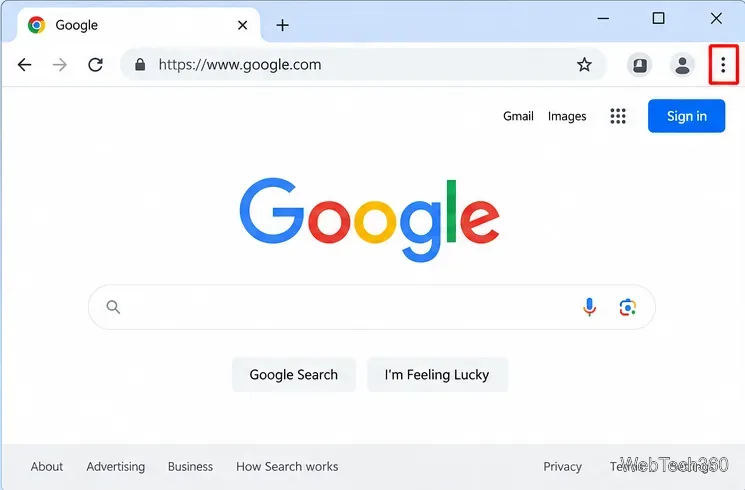
If the tabs and address bar are missing too, Chrome may simply be in full-screen mode. Google documents F11 on Windows and Linux and Control + Command + F on Mac for toggling full screen. See Google's Chrome zoom and full-screen help.
Leave full-screen mode first. If you opened a site from a desktop shortcut or launcher and the window looks like a standalone app, close it and start Google Chrome from your Start menu, taskbar, Applications folder, or app launcher instead.
Chrome can install websites as web apps, and those app windows do not necessarily look like a regular browser window. Google explains this behavior in its web apps documentation.
Close every Chrome window, reopen the browser, and check the toolbar again. If that does not help, restart the computer so any stuck browser processes are cleared.
You do not need the missing menu button to check for updates:
chrome://settings/help in the address bar.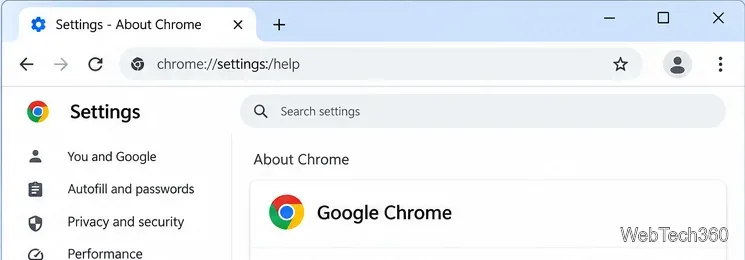
Google notes that Chrome normally updates in the background and applies updates when the browser is relaunched. See the official Chrome update instructions.
An extension normally cannot remove Chrome's core browser controls, so do not assume an extension is malicious just because the menu is missing. However, a damaged or incompatible extension can still contribute to browser instability, so disabling extensions is a useful isolation test.
chrome://extensions/.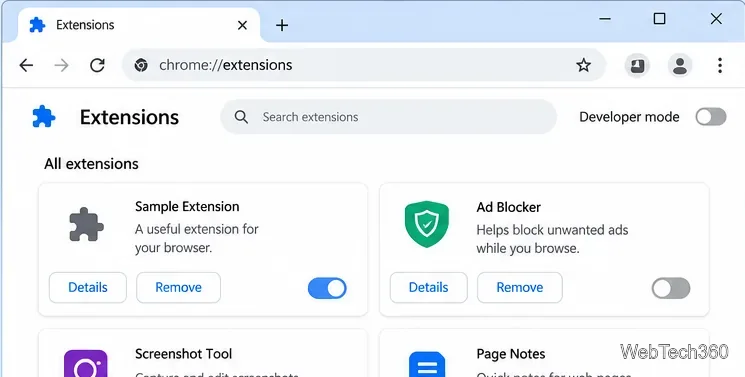
Google's extension management guide explains how to turn extensions off or remove them.
You can keep using many browser functions even before the button is fixed. On Windows and Linux, Google lists Alt + F or Alt + E as shortcuts that open the Chrome menu. You can also enter these internal addresses directly:
| Chrome page | Address |
|---|---|
| Settings | chrome://settings/ |
| Bookmarks | chrome://bookmarks/ |
| History | chrome://history/ |
| Downloads | chrome://downloads/ |
| Extensions | chrome://extensions/ |
| About Chrome / updates | chrome://settings/help |
The keyboard shortcuts are listed in Google's Chrome keyboard shortcut reference.
If the toolbar still looks wrong, open chrome://settings/reset, choose Restore settings to their original defaults, and confirm the reset.
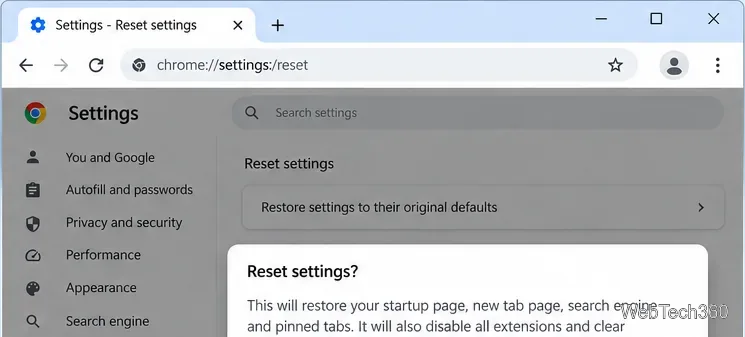
A reset changes settings such as the startup page, new-tab behavior, default search engine, pinned tabs, site data, extensions, and themes. Google states that saved bookmarks and passwords are not deleted by this reset. Review the official reset Chrome settings guide before continuing if you rely on customized browser settings.
If the settings interface itself is missing or will not open, Google recommends uninstalling Chrome and installing it again. Use Google's uninstall instructions and official Chrome installer guide.
A missing menu button by itself is not proof of malware. But if your homepage or search engine keeps changing, unfamiliar extensions return after removal, or browsing is redirected unexpectedly, check the computer for unwanted software. Google lists these as warning signs in its unwanted software and malware guidance.
In most cases, restoring the normal browser window, updating Chrome, or resetting the browser is enough to bring the three-dot menu back.
Create a searchable Windows 10 folder inventory with PowerShell. Save every file and subfolder path as plain text or export details to a sortable CSV.
Add a custom reminder, quote, or label to your Windows 10 desktop with a Rainmeter text skin. Create the INI file, load it, then adjust its font and position.
Use Bluetooth Swift Pair on Windows 10 to pair a compatible accessory from a notification, with setup steps and fixes when the prompt does not appear.
Learn what common laptop function key symbols mean, how Fn and Fn Lock affect them, and how to confirm the right shortcut for your Windows 10 laptop model.
Turn off your Windows 10 display instantly with ScreenSleep, set a keyboard shortcut, and see when to use the built-in screen timeout instead.
Fix the “running scripts is disabled on this system” PowerShell error on Windows 10 with a current-user policy, a temporary session option, and safe steps for downloaded scripts.
Change the Windows 10 drag-selection color with a backup-first registry walkthrough, RGB examples, troubleshooting tips, and steps to restore your original values.
Check your router’s connected-device list or scan a local network with Fing Desktop on a supported PC. Learn what each method can show and how to verify unfamiliar entries.
Messenger does not offer a documented per-friend online alert. Learn how Active Status works, where to check the green dot, and which notifications you can enable instead.
Use 7-Zip to find an exact filename or wildcard match inside a ZIP or other supported archive on Windows 10 without unpacking its files.








