How to Create a List of All Items in a Folder on Windows 10

Create a searchable Windows 10 folder inventory with PowerShell. Save every file and subfolder path as plain text or export details to a sortable CSV.
If the Discord overlay is getting in the way, causing trouble in a game, or simply is not something you use, you can turn it off without quitting Discord. On the Windows desktop app, the main control is in User Settings > Game Overlay. You can disable the overlay everywhere or keep it enabled globally and turn it off for individual games.
Discord rebuilt its Game Overlay for Windows and now documents it as a Windows-only feature. If you are using macOS or Linux, you will not see the same Game Overlay settings. Discord also recommends disabling the overlay for a specific game if it contributes to lag, crashes, or other gameplay problems. See Discord's official Game Overlay guide for the current feature overview.
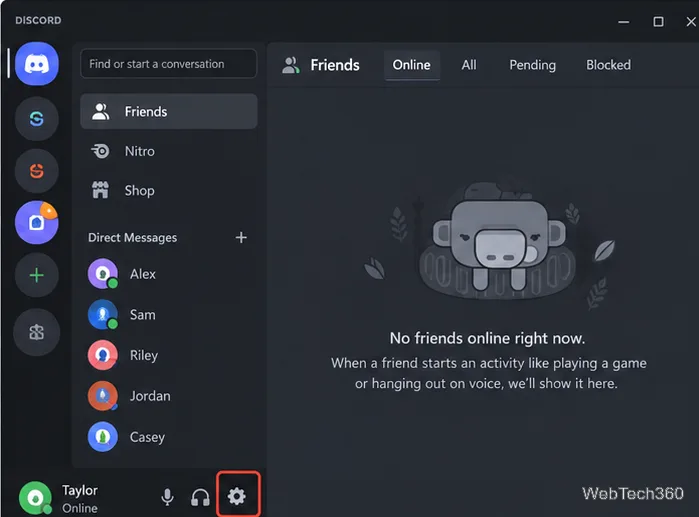
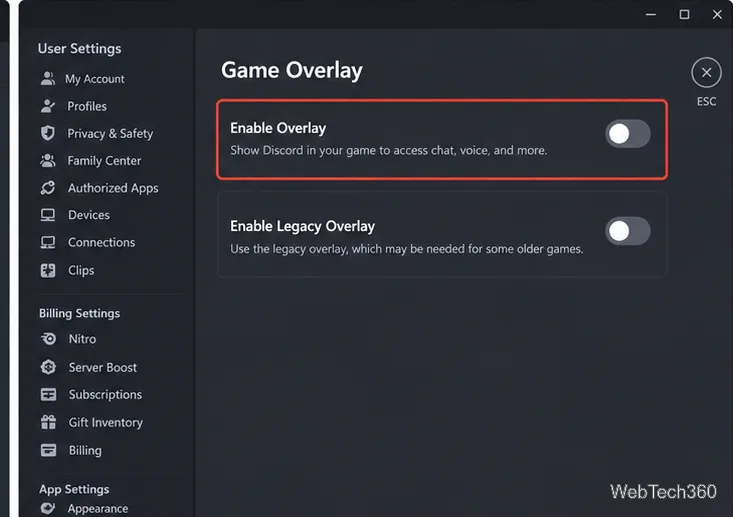
You normally do not need to sign out of Discord. If a game was already running when you changed the setting and the overlay remains visible, close the game and reopen it. If necessary, fully exit Discord from the Windows system tray and launch it again.
You may also see an Enable Legacy Overlay option in current Windows builds. That is a separate compatibility option for the older overlay implementation. If your goal is to remove Discord's overlay entirely, leave both the normal and legacy overlay options disabled.
If you want the overlay in some games but not others, leave the main Enable Overlay switch on and use Discord's per-game overlay control for the title you want to exclude. Discord's current documentation confirms that overlay behavior can be controlled per game, although the exact placement of the game list can vary as the desktop client changes.
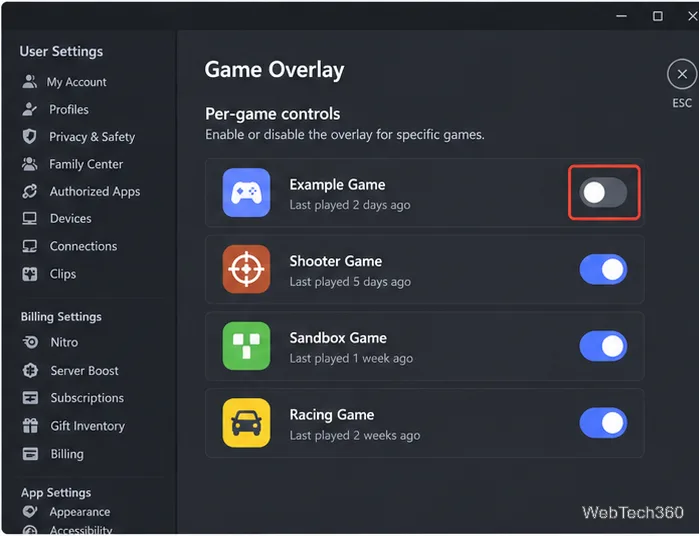
Be careful not to confuse overlay controls with activity detection. Discord's Registered Games area can also contain controls that decide whether a game appears as your activity status. Turning off activity detection is not the same thing as disabling the Game Overlay, so use a control that is explicitly labeled for the overlay.
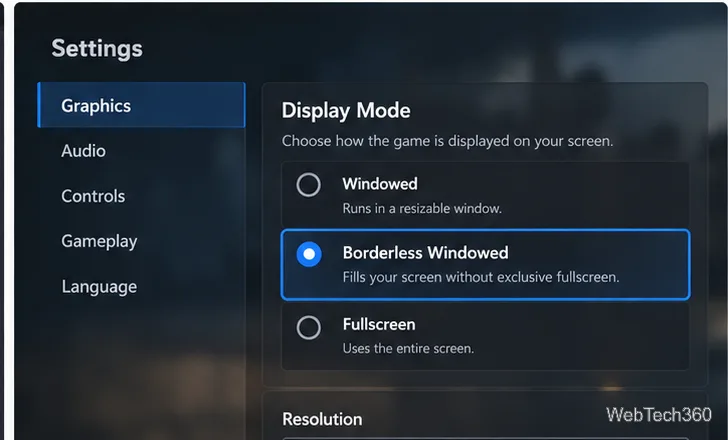
If you reached this page because the overlay is missing rather than because you want to remove it, check the basics before reinstalling anything. Discord says the current Game Overlay works on Windows 10 and Windows 11, not macOS or Linux. Make sure Enable Overlay is on, verify that the game has not been disabled in the per-game overlay settings, and then check the game's display mode.
Discord recommends windowed or borderless windowed mode when the overlay does not appear. True exclusive fullscreen can prevent the newer overlay from being displayed. Some Discord builds still expose a legacy overlay option for older compatibility, but switching the game to borderless windowed is the safer first step.
If the game runs with elevated administrator permissions and Discord shortcuts fail, Discord may offer its experimental Discord System Helper to some Windows users. The helper is not available to everyone, so do not worry if that option does not appear in your client.
The overlay can be useful for voice chat, notifications, streams, and other Discord features without leaving a game. But there is no downside to disabling it if you prefer a cleaner screen or a particular game does not behave well with overlays. Discord itself advises turning the Game Overlay off for a game when it causes lag, crashes, or related issues.
For the latest menu names and compatibility notes, use Discord's official in-game Overlay guide rather than older instructions that still refer to the former Game Activity layout.
Create a searchable Windows 10 folder inventory with PowerShell. Save every file and subfolder path as plain text or export details to a sortable CSV.
Add a custom reminder, quote, or label to your Windows 10 desktop with a Rainmeter text skin. Create the INI file, load it, then adjust its font and position.
Use Bluetooth Swift Pair on Windows 10 to pair a compatible accessory from a notification, with setup steps and fixes when the prompt does not appear.
Learn what common laptop function key symbols mean, how Fn and Fn Lock affect them, and how to confirm the right shortcut for your Windows 10 laptop model.
Turn off your Windows 10 display instantly with ScreenSleep, set a keyboard shortcut, and see when to use the built-in screen timeout instead.
Fix the “running scripts is disabled on this system” PowerShell error on Windows 10 with a current-user policy, a temporary session option, and safe steps for downloaded scripts.
Change the Windows 10 drag-selection color with a backup-first registry walkthrough, RGB examples, troubleshooting tips, and steps to restore your original values.
Check your router’s connected-device list or scan a local network with Fing Desktop on a supported PC. Learn what each method can show and how to verify unfamiliar entries.
Messenger does not offer a documented per-friend online alert. Learn how Active Status works, where to check the green dot, and which notifications you can enable instead.
Use 7-Zip to find an exact filename or wildcard match inside a ZIP or other supported archive on Windows 10 without unpacking its files.








