How to Open a Linux Shell in a Folder on Windows 10

Open a Linux shell in any Windows 10 folder with File Explorer, PowerShell, and WSL. Check the Linux path and fix common setup issues.
If Discord TTS is not working, start by checking two separate settings: whether your client is allowed to play and use /tts, and whether Text-to-Speech notifications are set to play in the channel you are using. If you can type /tts but hear nothing, the problem is usually a playback setting, channel permission, muted app volume, or output-device issue rather than the message itself.
Open User Settings > App Settings > Accessibility. Make sure Allow playback and usage of /tts command is enabled. Discord also places its Text-to-Speech rate control in Accessibility, so you can adjust the reading speed and preview it there. Discord documents these controls in its TTS playback help and Accessibility settings guide.
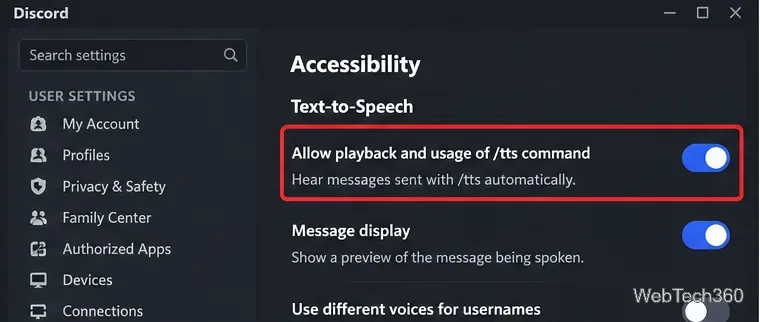
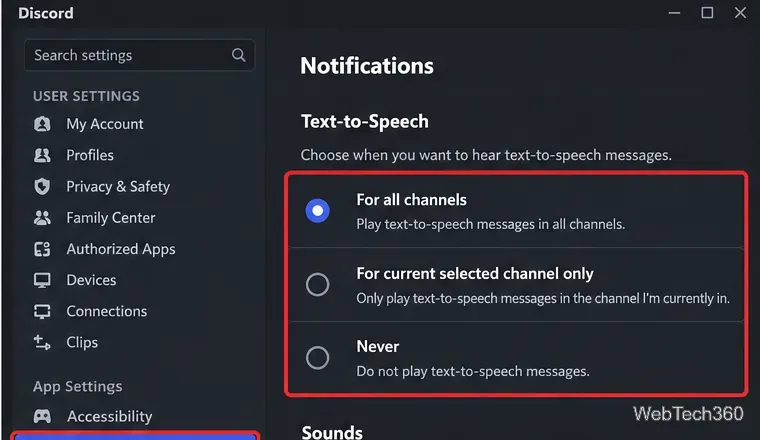
Discord treats TTS playback preferences separately from the /tts command itself. Go to User Settings > Notifications > Text-to-Speech and choose For all channels or For current selected channel only. If it is set to Never, messages will not be spoken on your client. Discord's Text-to-Speech 101 explains these three options.
If TTS works in direct messages or another server but not in one channel, the channel may block it. Server owners and moderators can open the channel's permissions for the relevant role or member and allow Send Text-to-Speech Messages. Discord confirms that this permission controls whether members can send TTS messages in that channel in its Channel Permissions Settings 101.
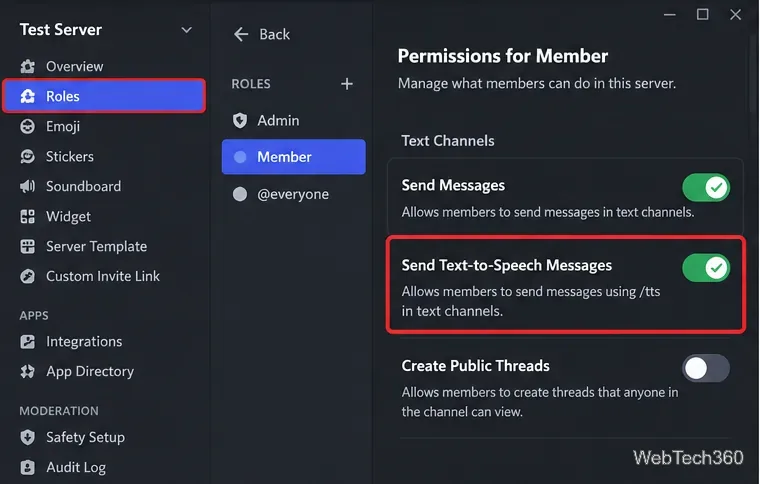
If you do not manage the server, ask a moderator to check this permission instead of repeatedly changing your local settings.
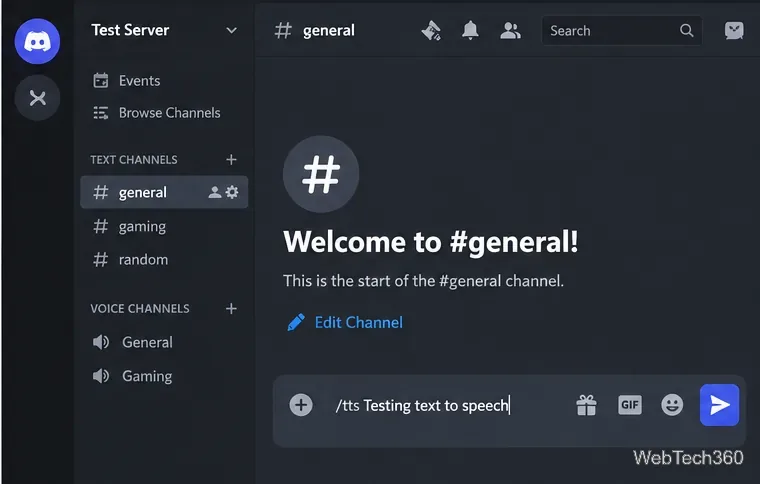
In a text channel where you can send messages, type /tts followed by a space and your message, for example /tts Testing text to speech, then send it. Discord's official TTS documentation still uses this format. TTS is played by each recipient's client according to that person's own settings, so one person may hear the message while another does not.
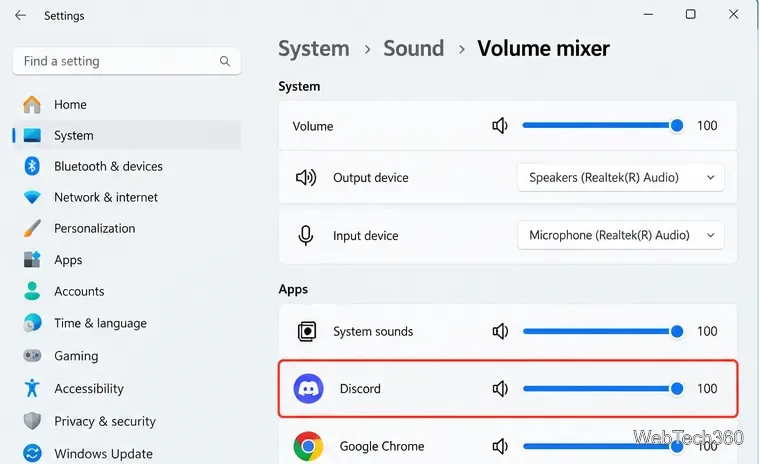
If the command is accepted but you hear nothing, verify that Discord is not muted at the operating-system level. On Windows 11, open Settings > System > Sound > Volume mixer. Under Apps, raise Discord's volume and make sure it is using the output device you actually want. Microsoft specifically recommends checking per-app volume and output-device selection when system sounds work but one app is silent in its app audio troubleshooting guide.
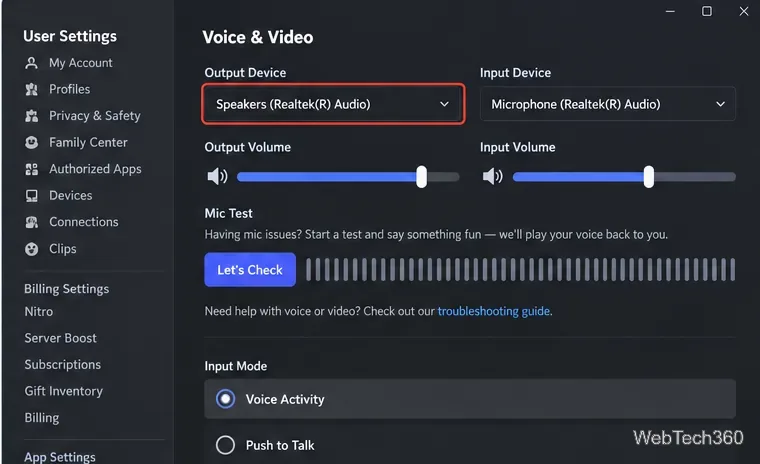
If you also cannot hear voice-channel audio, open User Settings > Voice & Video and confirm the correct Output Device. This is a broader Discord audio check rather than a TTS-only control, but it is useful when the problem affects every sound from Discord. Discord recommends verifying the output device in its Voice and Video Troubleshooting Guide.
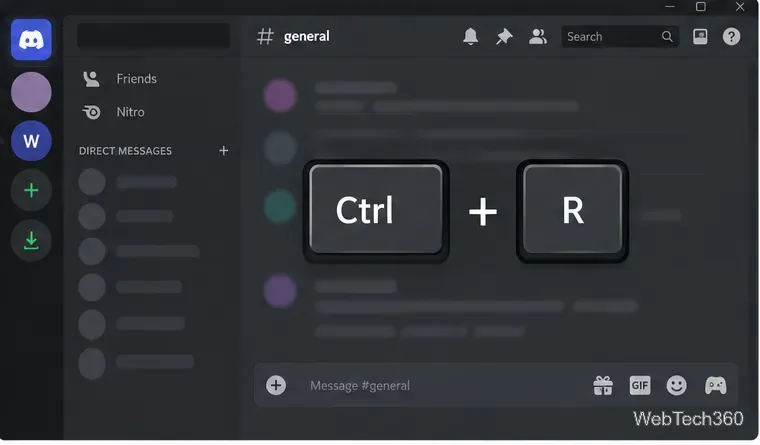
A temporary client problem can stop audio or settings from applying correctly. Press Ctrl+R on Windows or Cmd+R on macOS to refresh Discord. If that does not help, fully quit the app and reopen it. Discord's troubleshooting documentation recommends keeping the client updated and notes that a full refresh or restart can resolve audio problems.
If you use Discord in a browser, also check that the browser tab or site is not muted. Discord notes that browser TTS voices can differ from the Windows or macOS desktop voices because the speech engine depends on the platform.
If TTS and other Discord audio still fail after the settings above, reinstall the desktop client. Download a fresh installer only from the official Discord download page. Discord's general troubleshooting guidance recommends a clean reinstall for persistent installation or update problems.
These checks keep the fix focused on the current Discord controls instead of older menu paths. The key point is that sending TTS and hearing TTS are separate: server permissions control whether a TTS message can be sent, while each user's client settings determine whether it is played aloud.
Open a Linux shell in any Windows 10 folder with File Explorer, PowerShell, and WSL. Check the Linux path and fix common setup issues.
Use a screenshot test, cable and port checks, monitor diagnostics, display settings, and driver rollback to pinpoint lines on a Windows 10 monitor.
Show two other time zones beside your Windows 10 clock. Set up each additional clock, give it a clear label, and find it in the taskbar calendar.
Find the File Explorer extension that delays right-click menus in Windows 10, test it safely with ShellExView, and restore any menu features you still need.
Stop Windows 10 from powering down a specific network adapter or USB device with plan-level settings and Device Manager controls, plus tips to avoid excess battery drain.
Check whether Windows 10 uses a digital license or product key, find a firmware-stored OEM key, and save license details securely for a reinstall.
Identify a Windows 10 Task Manager process by checking its executable path, file properties, publisher, linked services, and a Microsoft Defender scan.
Create a searchable Windows 10 folder inventory with PowerShell. Save every file and subfolder path as plain text or export details to a sortable CSV.
Add a custom reminder, quote, or label to your Windows 10 desktop with a Rainmeter text skin. Create the INI file, load it, then adjust its font and position.
Use Bluetooth Swift Pair on Windows 10 to pair a compatible accessory from a notification, with setup steps and fixes when the prompt does not appear.








