How to Open a Linux Shell in a Folder on Windows 10

Open a Linux shell in any Windows 10 folder with File Explorer, PowerShell, and WSL. Check the Linux path and fix common setup issues.
An Exception Access Violation error on Windows 10 usually means a program tried to read, write, or execute memory it was not allowed to use. Microsoft identifies the common access-violation exception code as 0xC0000005. The crash can come from an app bug, damaged program files, a driver or background-software conflict, corrupted Windows files, or failing RAM.
Start with the affected app. If only one program crashes, repair or reinstall that program and update its drivers or plug-ins. If several unrelated apps fail with similar errors, check Windows system files and memory next. Microsoft ended free Windows 10 support on October 14, 2025, so a supported Windows release is the safer long-term platform when your PC is eligible. See Microsoft's Windows 10 end-of-support guidance.
Microsoft describes an access violation as an application accessing an invalid memory address. In everyday troubleshooting, the most useful causes to check are:
For the technical definition, see Microsoft's 0xC0000005 access-violation explanation. Avoid treating security protections as the problem by default. Older guides often recommend disabling User Account Control or adding broad Data Execution Prevention exceptions. DEP is a Windows memory-protection mitigation, so it is better to leave it enabled unless the software vendor provides a specific, documented compatibility requirement. Microsoft explains DEP in its Data Execution Prevention documentation.
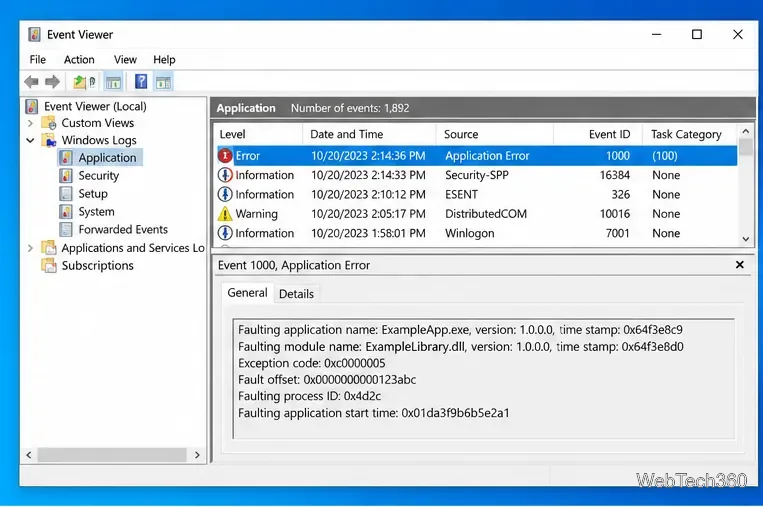
Press Win + R, enter eventvwr.msc, and open Windows Logs > Application. Look for an Application Error event at the time of the crash. Note the faulting application name, faulting module, and exception code. This helps separate an app-specific problem from a system-wide one.
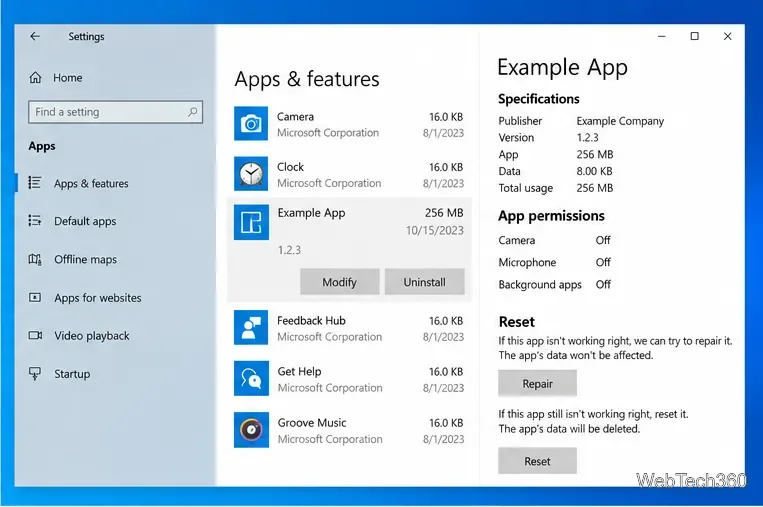
For apps that expose repair controls, open Start > Settings > Apps > Apps & features, select the app, and open Advanced options. Choose Repair first. If repair is unavailable or does not help, use Reset only after confirming what local app data it may remove. Microsoft documents these options in Repair apps and programs in Windows.
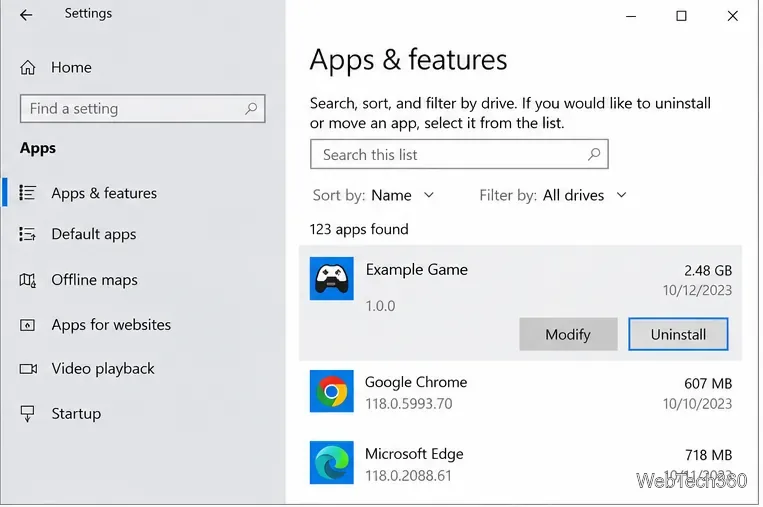
For a traditional desktop program, open Control Panel > Programs > Programs and Features and use Repair or Change if offered. Otherwise uninstall the program, restart Windows, and reinstall a fresh copy from the Microsoft Store or the software publisher. Back up app-specific data first if the uninstall process may remove it.
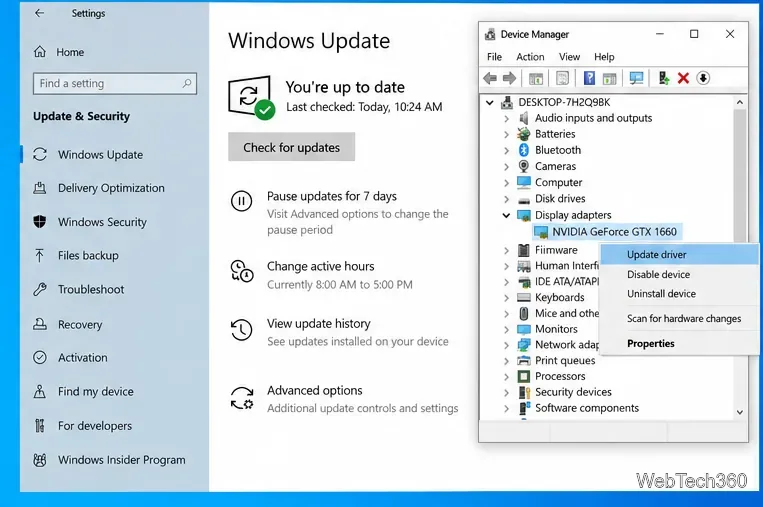
Install the latest stable version of the crashing app, then check drivers for hardware it relies on. Use Settings > Update & Security > Windows Update for available Windows 10 updates that still apply to your servicing channel, and check your PC, GPU, or device manufacturer's support page for current drivers. If the problem started immediately after a driver update, open Device Manager, view that device's driver properties, and use Roll Back Driver when the option is available.
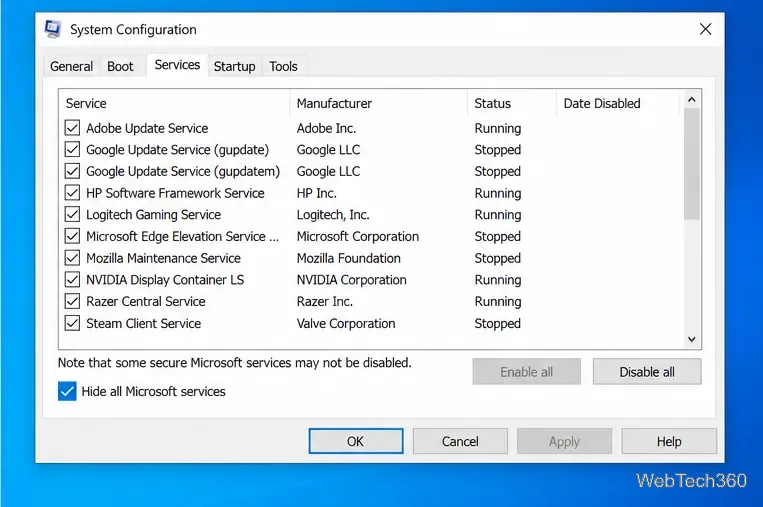
A clean boot starts Windows with only essential Microsoft services and selected startup items. Press Win + R, enter msconfig, open the Services tab, check Hide all Microsoft services, then disable the remaining non-Microsoft services for testing. Disable nonessential startup apps in Task Manager and restart. If the error disappears, re-enable items in groups until you find the conflict. Follow Microsoft's clean-boot procedure so you also restore normal startup afterward.
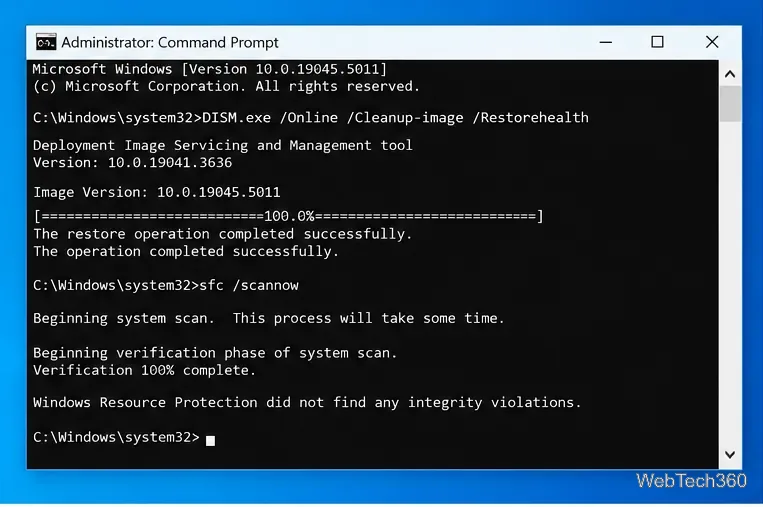
If different apps are crashing or Windows itself seems unstable, open Command Prompt as administrator. Run these commands in order:
DISM.exe /Online /Cleanup-image /Restorehealth
sfc /scannow
DISM repairs the Windows component image; System File Checker then verifies protected system files. Restart after the scans complete and test the app again. Microsoft provides the same sequence in its DISM and System File Checker instructions.
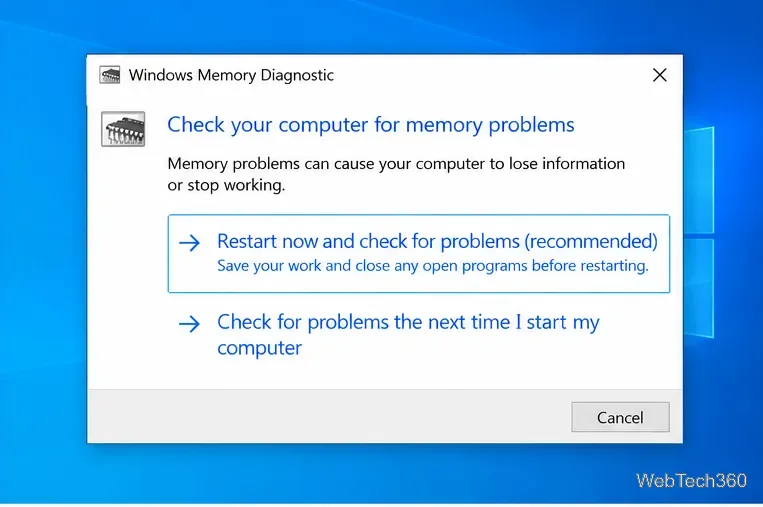
Save your work, press Win + R, enter mdsched.exe, and choose Restart now and check for problems. Windows Memory Diagnostic runs outside the normal desktop and restarts the PC when finished. If the standard test finds nothing but random access-violation crashes continue, press F1 during a later diagnostic run and select the extended test. Repeated memory errors are a strong reason to stop software troubleshooting and test or replace the RAM with help from the PC or memory manufacturer.
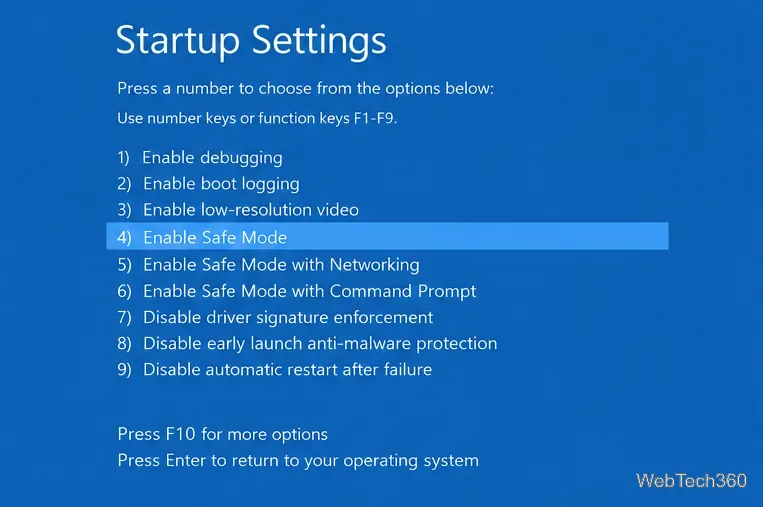
Hold Shift while selecting Restart, then go to Troubleshoot > Advanced options > Startup Settings > Restart. Choose 4 for Safe Mode or 5 for Safe Mode with Networking. Microsoft notes that Safe Mode loads only a limited set of files and drivers. If the app no longer throws the access-violation error there, focus on third-party drivers, startup apps, overlays, and services rather than Windows' basic configuration. See Windows startup settings.
If one application still fails after a clean reinstall and clean-boot test, the most likely next step is the software publisher: provide the exact app version, exception code, faulting module from Event Viewer, and the action that triggers the crash. If Windows Memory Diagnostic reports errors, or many unrelated programs crash unpredictably, investigate hardware instead of repeatedly reinstalling software. Avoid downloading replacement DLL files from unofficial sites; use the app installer, Windows repair tools, or the hardware/software vendor's official package.
Open a Linux shell in any Windows 10 folder with File Explorer, PowerShell, and WSL. Check the Linux path and fix common setup issues.
Use a screenshot test, cable and port checks, monitor diagnostics, display settings, and driver rollback to pinpoint lines on a Windows 10 monitor.
Show two other time zones beside your Windows 10 clock. Set up each additional clock, give it a clear label, and find it in the taskbar calendar.
Find the File Explorer extension that delays right-click menus in Windows 10, test it safely with ShellExView, and restore any menu features you still need.
Stop Windows 10 from powering down a specific network adapter or USB device with plan-level settings and Device Manager controls, plus tips to avoid excess battery drain.
Check whether Windows 10 uses a digital license or product key, find a firmware-stored OEM key, and save license details securely for a reinstall.
Identify a Windows 10 Task Manager process by checking its executable path, file properties, publisher, linked services, and a Microsoft Defender scan.
Create a searchable Windows 10 folder inventory with PowerShell. Save every file and subfolder path as plain text or export details to a sortable CSV.
Add a custom reminder, quote, or label to your Windows 10 desktop with a Rainmeter text skin. Create the INI file, load it, then adjust its font and position.
Use Bluetooth Swift Pair on Windows 10 to pair a compatible accessory from a notification, with setup steps and fixes when the prompt does not appear.








