How to Open a Linux Shell in a Folder on Windows 10

Open a Linux shell in any Windows 10 folder with File Explorer, PowerShell, and WSL. Check the Linux path and fix common setup issues.
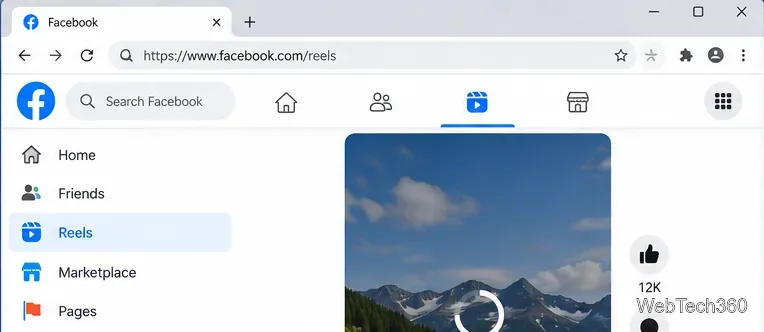
If Facebook videos are not playing in Chrome, Firefox, Safari, or another desktop browser, start with the browser and network before changing anything on your Facebook account. Meta’s own troubleshooting guidance recommends checking your connection, using an up-to-date browser, and restarting the computer. The fixes below are ordered from least disruptive to more targeted troubleshooting.
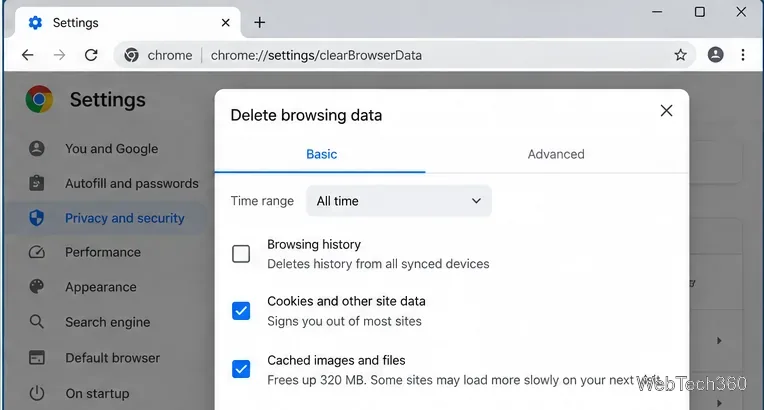
Corrupted or stale site data can stop the Facebook player from loading correctly. Clearing it forces the browser to request fresh data. Be aware that deleting cookies can sign you out of Facebook and other sites.
Google documents what each option removes in its Chrome browsing-data guide.
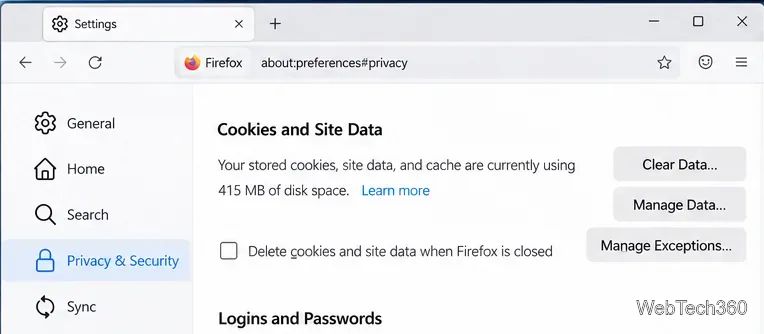
Open Settings > Privacy & Security. Under Cookies and Site Data, use Manage Data to remove Facebook data, or use Clear Data if you want a broader reset. Mozilla also explains site-data removal in its Firefox support guide.
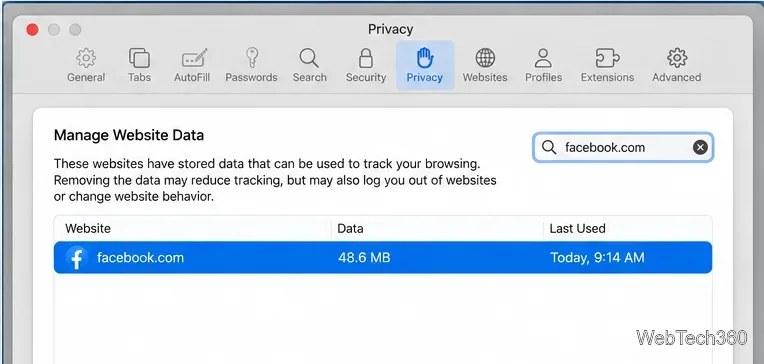
Choose Safari > Settings > Privacy > Manage Website Data, search for facebook.com, select it, and click Remove. Apple notes that removing website data can sign you out or change website behavior. See Apple’s Safari website-data instructions.
Ad blockers, privacy tools, script blockers, download helpers, and other extensions can modify requests or page code that the video player needs. Turn them off temporarily, reload Facebook, and then re-enable them one at a time to find the conflict.
chrome://extensions or use Extensions > Manage extensions. Google’s extension guide explains how to disable or remove extensions.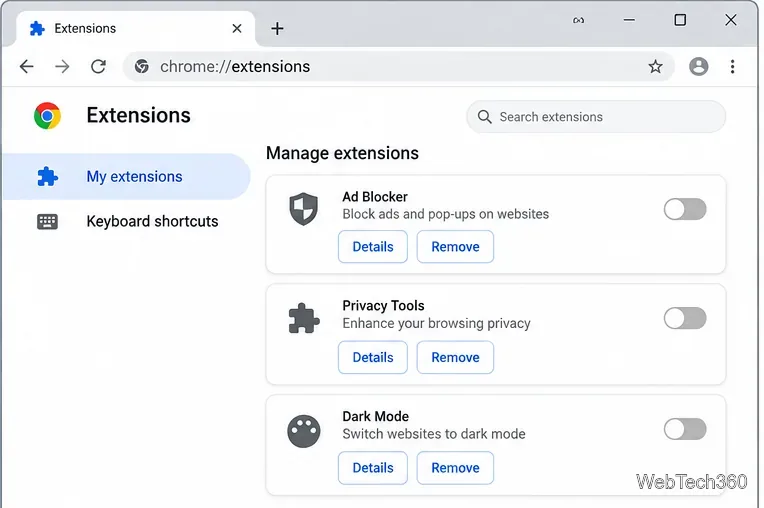
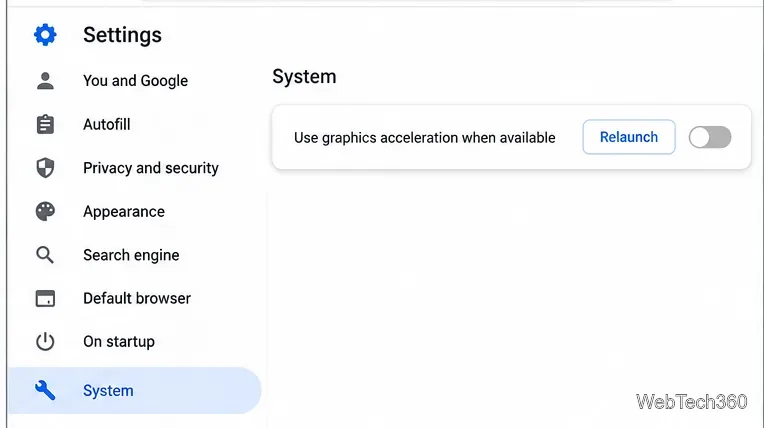
A graphics-driver or GPU rendering problem can produce a black player, freezing, or playback that never starts. In Chrome, open Settings > System and temporarily turn off Use graphics acceleration when available, then relaunch Chrome. Some versions use similar “hardware acceleration” wording. If nothing changes, turn it back on.
In Firefox, open Settings > General > Performance, clear Use recommended performance settings, then clear Use hardware acceleration when available and restart Firefox. Mozilla documents this test in its hardware-acceleration guide. Safari does not provide an equivalent user-facing acceleration toggle, so skip this step there.
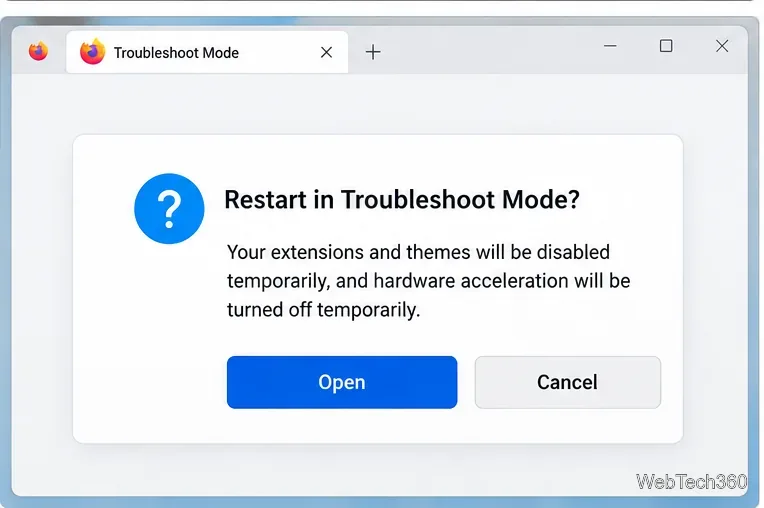
If the problem is specific to Firefox, Troubleshoot Mode temporarily disables extensions, themes, and hardware acceleration. Open the Firefox menu, go to Help, choose Troubleshoot Mode, and restart when prompted. If Facebook videos work in this mode, an extension, theme, or acceleration setting is the likely cause. Mozilla explains exactly what the mode disables in its Troubleshoot Mode documentation.
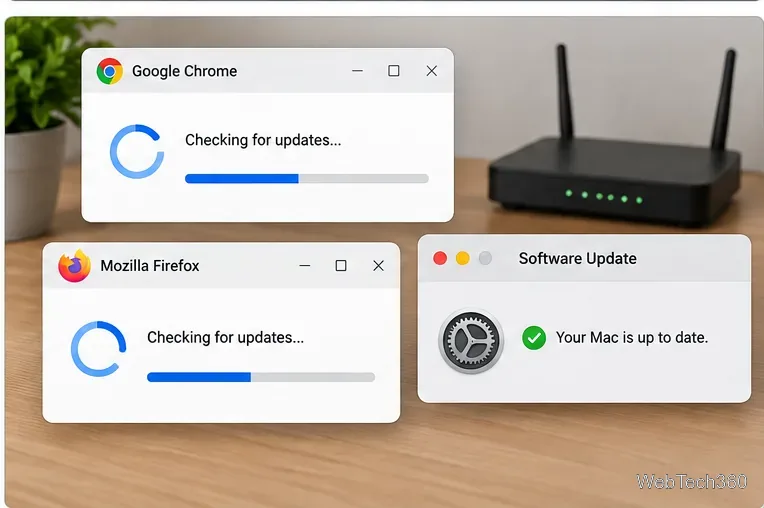
Install pending browser and operating-system updates before doing deeper repairs. In Chrome, use More > Help > About Google Chrome; Google says Chrome checks for updates on that page and applies them after a relaunch. In Firefox, use Help > About Firefox. Safari updates are delivered with Apple operating-system updates, as explained in Apple’s Safari update guidance.
Test the same video on another device and another internet connection. If only your computer fails, the remaining suspects are local security software, a managed proxy, DNS filtering, or a damaged browser profile. If every device and browser fails, wait and retry later or use Facebook’s built-in Report a problem option. Avoid installing old media plug-ins or “codec packs” from third-party download sites; modern Facebook playback should work in a current supported browser without them.
Open a Linux shell in any Windows 10 folder with File Explorer, PowerShell, and WSL. Check the Linux path and fix common setup issues.
Use a screenshot test, cable and port checks, monitor diagnostics, display settings, and driver rollback to pinpoint lines on a Windows 10 monitor.
Show two other time zones beside your Windows 10 clock. Set up each additional clock, give it a clear label, and find it in the taskbar calendar.
Find the File Explorer extension that delays right-click menus in Windows 10, test it safely with ShellExView, and restore any menu features you still need.
Stop Windows 10 from powering down a specific network adapter or USB device with plan-level settings and Device Manager controls, plus tips to avoid excess battery drain.
Check whether Windows 10 uses a digital license or product key, find a firmware-stored OEM key, and save license details securely for a reinstall.
Identify a Windows 10 Task Manager process by checking its executable path, file properties, publisher, linked services, and a Microsoft Defender scan.
Create a searchable Windows 10 folder inventory with PowerShell. Save every file and subfolder path as plain text or export details to a sortable CSV.
Add a custom reminder, quote, or label to your Windows 10 desktop with a Rainmeter text skin. Create the INI file, load it, then adjust its font and position.
Use Bluetooth Swift Pair on Windows 10 to pair a compatible accessory from a notification, with setup steps and fixes when the prompt does not appear.








