How to Set Different Scaling Levels for Multiple Monitors in Windows 10

Adjust each Windows 10 monitor independently with per-display scaling, keep text readable, and troubleshoot custom scaling or blurry apps.
When File Explorer stops responding in Windows 10, first restart Windows Explorer from Task Manager. If it freezes only while opening one folder or location, test a different folder before changing system settings. Work through these fixes in order and stop when Explorer is stable.
The interface images below are illustrations; controls can look slightly different across Windows 10 builds. Save open work before restarting Windows or running recovery tools.
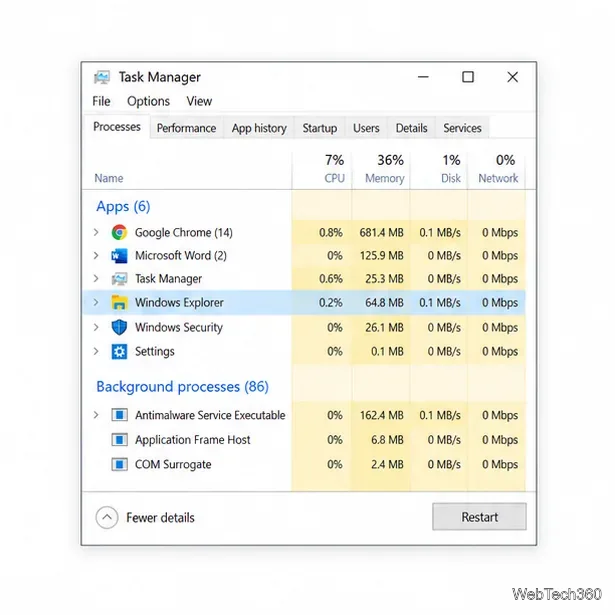
Press Ctrl + Shift + Esc to open Task Manager. If the compact view appears, select More details. On the Processes tab, select Windows Explorer, then Restart. The taskbar and desktop may briefly disappear while Windows reloads the shell. Reopen File Explorer with Win + E.
If Windows Explorer is not listed, select File > Run new task in Task Manager, enter explorer.exe, and select OK.
Press Win + R, enter C:\, and press Enter. If C: opens but one folder, USB drive, or mapped network location hangs, check that location’s connection and try another local folder. Low free space can also slow Windows; use Disk Cleanup and review categories before removing files. Microsoft includes restarting the PC and Disk Cleanup among its File Explorer troubleshooting suggestions.
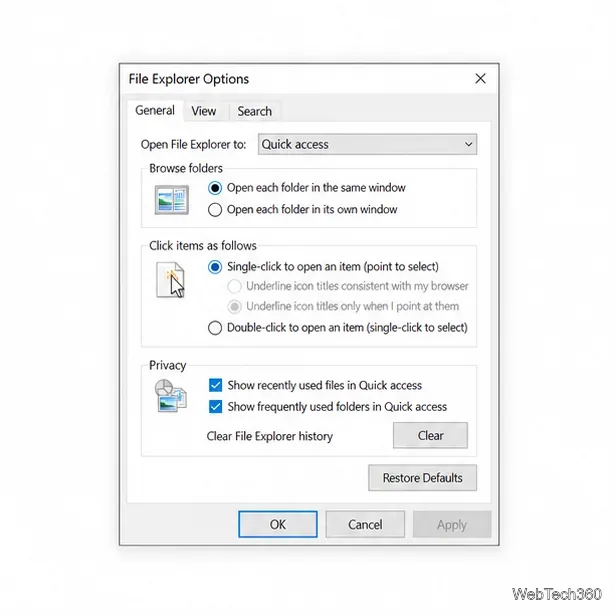
Press Win + R, enter control folders, and press Enter. On the General tab, set Open File Explorer to to This PC, then select Clear under Privacy. Select Apply and test Explorer. This clears recent-location history, not your files.
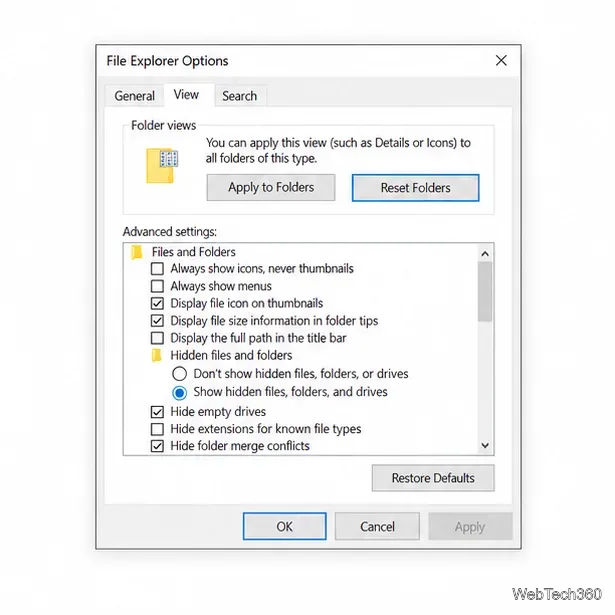
Open File Explorer Options with control folders. On View, select Reset Folders under Folder views, then select Restore Defaults under Advanced settings and choose Apply. This resets display choices; it does not erase files.
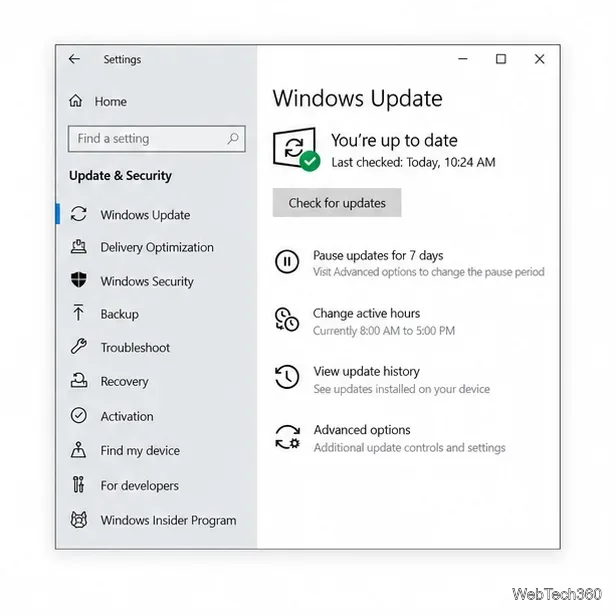
Restart the PC. Open Start > Settings > Update & Security > Windows Update, select Check for updates, and install what Windows offers for your device. Restart if prompted.
Standard Windows 10 support ended on October 14, 2025, so free updates are no longer generally provided. Eligible devices enrolled in Microsoft’s Extended Security Updates program may still receive security updates. Check Microsoft’s Windows 10 end-of-support notice for current options.
If Explorer freezes across different folders, run Microsoft’s built-in DISM and System File Checker tools. Search Start for Command Prompt, right-click it, choose Run as administrator, and approve the prompt. Run these commands one at a time, waiting for each to finish:
DISM.exe /Online /Cleanup-Image /RestoreHealth
sfc /scannow
Run DISM first, then SFC. The scan can take several minutes. Restart Windows afterward and test Explorer. See Microsoft’s System File Checker instructions.
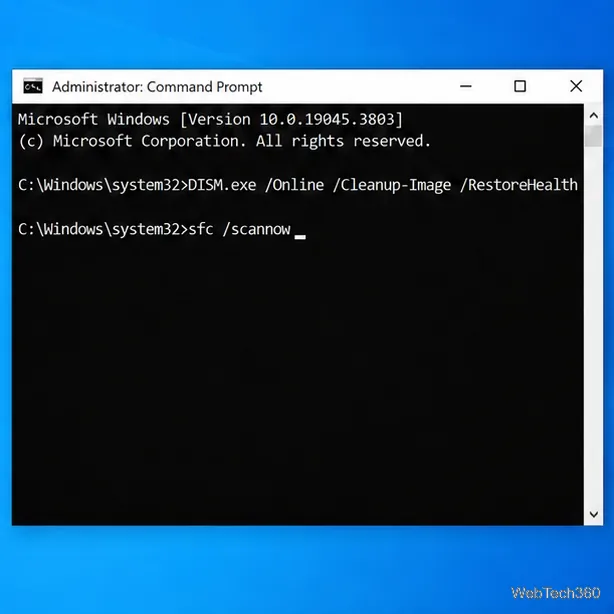
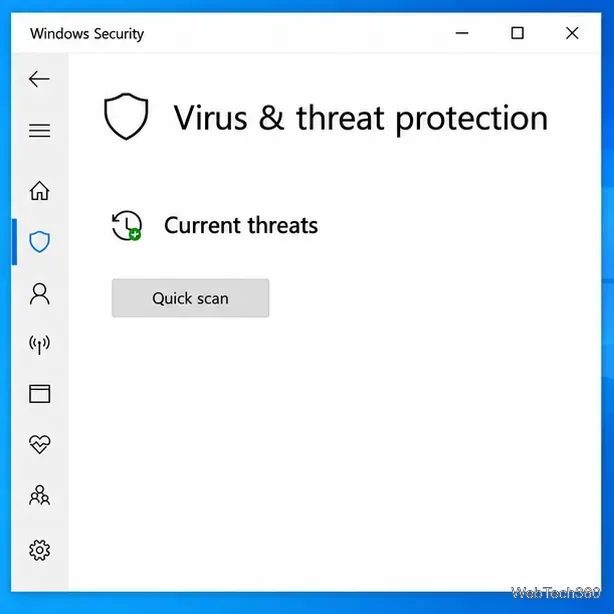
sfc /scannow after it completes.A slow folder by itself does not prove the PC is infected. If the problem comes with unexpected pop-ups, security alerts, or unfamiliar software, open Windows Security > Virus & threat protection and choose Quick scan. Follow Windows Security’s recommendations if it finds a threat, then test Explorer again. See Microsoft’s Virus & threat protection guide.
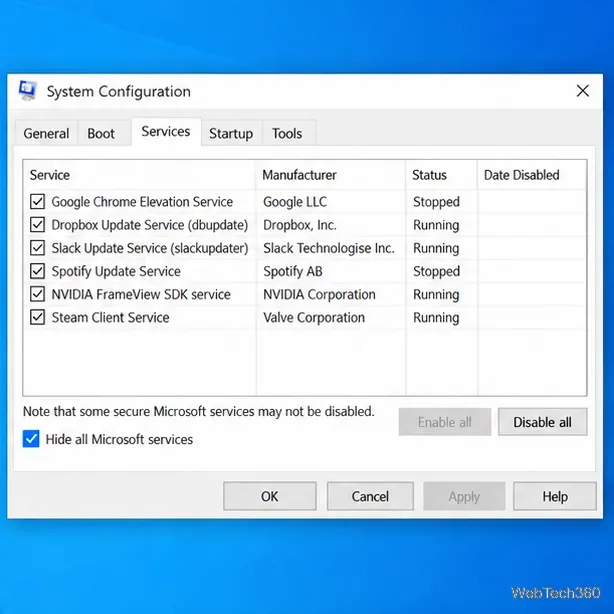
Press Win + R, enter msconfig, and press Enter. On Services, check Hide all Microsoft services before selecting Disable all. On Startup, select Open Task Manager and disable enabled startup apps. Restart and test Explorer.
If the freeze stops, re-enable items in small groups and restart between tests to locate the conflict. Restore normal startup settings afterward; do not disable Microsoft services. Follow Microsoft’s clean boot instructions for the full procedure.
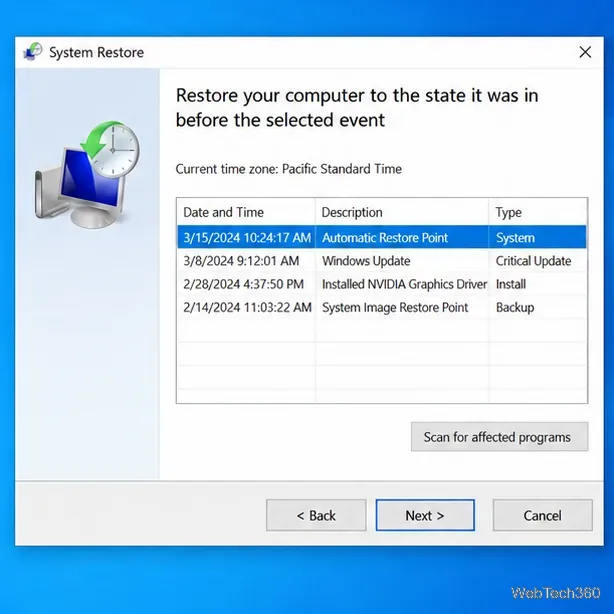
If the freeze began after installing an app, driver, or update, press Win + R, enter rstrui.exe, and press Enter. Choose a restore point from before the problem, select Scan for affected programs, and review the results before continuing. System Restore can roll back apps, drivers, updates, and system settings installed after that point. Back up irreplaceable files first. See Microsoft’s System Restore guide.
Note whether every folder freezes or only one path, and keep any error message. If the problem persists after system-file repair and a clean boot, use Microsoft’s File Explorer troubleshooting guide or send details through Feedback Hub. Avoid resetting Windows until you have a verified backup. Since Windows 10 is out of standard support, plan to move the PC to a supported operating system when practical.
Adjust each Windows 10 monitor independently with per-display scaling, keep text readable, and troubleshoot custom scaling or blurry apps.
Use AirType’s browser pairing setup to type on an iPhone from a Windows 10 PC, with current setup steps, troubleshooting, and privacy limits.
Hide the mouse pointer in Windows 10 videos, games, and other apps with built-in typing controls or PowerToys CursorHide’s adjustable inactivity timer.
Find Control Panel Power Options on a Windows 10 desktop, open the page with a Run command, and adjust power plans, display timeouts, sleep, and button behavior.
Learn what Windows 10 deletion leaves behind, how to use SDelete on an HDD, and why SSDs and cloud backups need separate treatment.
Use FFmpeg’s DirectShow tools to open an integrated webcam’s driver properties in Windows 10, find the correct device, and troubleshoot missing controls.
Identify a keypress in Windows 10 with a browser event tester or SharpKeys, then separate layout, software, and keyboard hardware issues.
Use double quotes around each complete path with spaces in Command Prompt. Learn how to list, change to, copy, and troubleshoot Windows 10 files and folders.
Turn off the Windows 10 Start menu’s hover-to-expand behavior with a legacy Mach2 command, check build limits, and see the built-in app-list alternative.
Fix the iTunes Library.itl read error on Windows 10 by updating iTunes, restoring a compatible backup, or safely creating a new library without deleting media files.








