How to Set Different Scaling Levels for Multiple Monitors in Windows 10

Adjust each Windows 10 monitor independently with per-display scaling, keep text readable, and troubleshoot custom scaling or blurry apps.
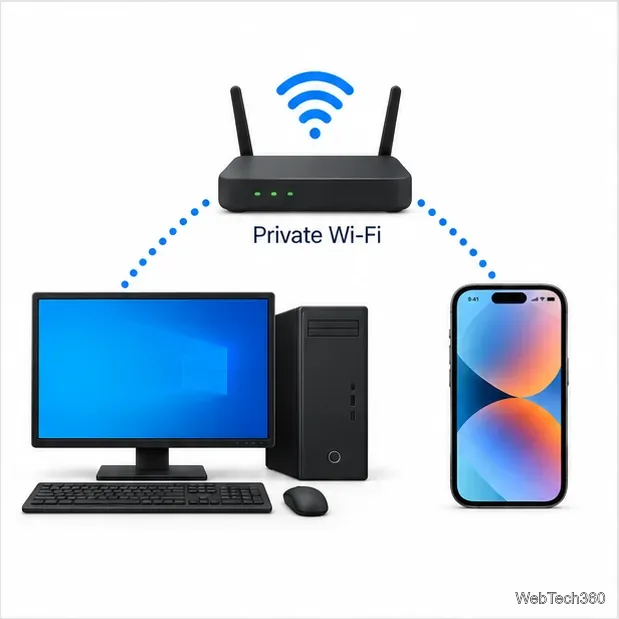
To type on an iPhone from a Windows 10 PC, use AirType on the iPhone and its browser portal on the PC. You do not install a Windows program: AirType sends text from the PC browser into the iPhone’s active text field over the same Wi-Fi network. It does not control the iPhone screen or tap an app’s own Send button.
The current AirType App Store listing describes a six-digit pairing code and a Local Network permission. Older instructions that rely on noting an IP address alone may not match the current setup. The listing I checked on October 23, 2026, requires iOS 17 or later; availability and requirements can vary by storefront, so confirm the details shown in your App Store.
On the iPhone, find AirType - Type, over the air in the App Store and install it. Check the developer name and current compatibility information before downloading, especially if the app does not appear in your region.

Open Settings > General > Keyboard > Keyboards, tap Add New Keyboard, and choose AirType. Apple documents this location for adding third-party keyboards; the exact screen styling can vary with iOS.
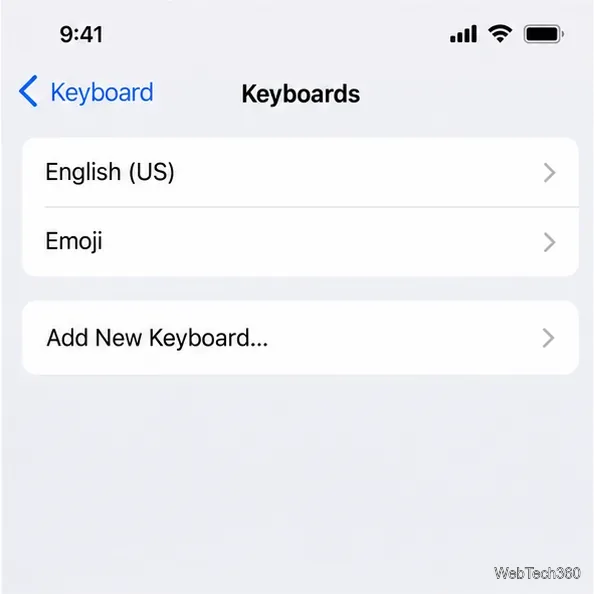
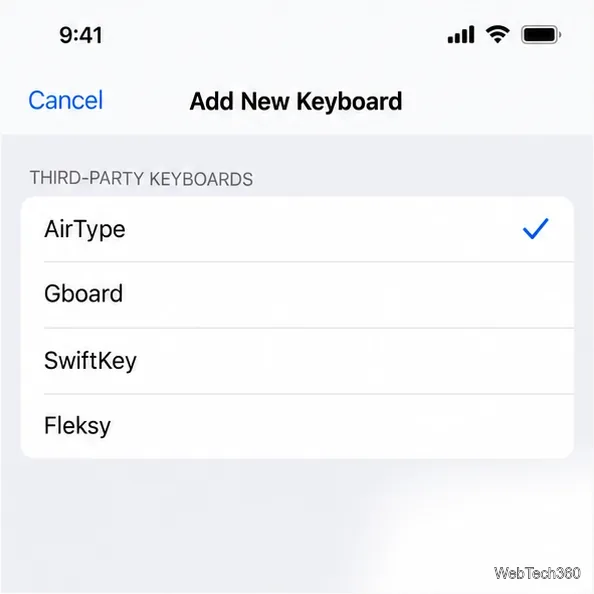
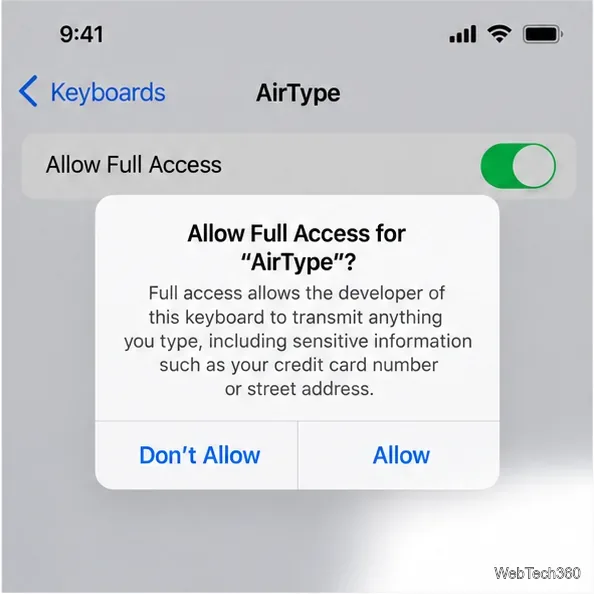
In the keyboard list, tap AirType and turn on Allow Full Access, then confirm the iOS warning. AirType says this permission is required for its remote typing feature. iOS displays the warning because a keyboard with full access can transmit information you type; enable it only if you are comfortable trusting the app. Apple explains how custom keyboards are restricted by default and can request broader access with user consent in its security guide for extensions.
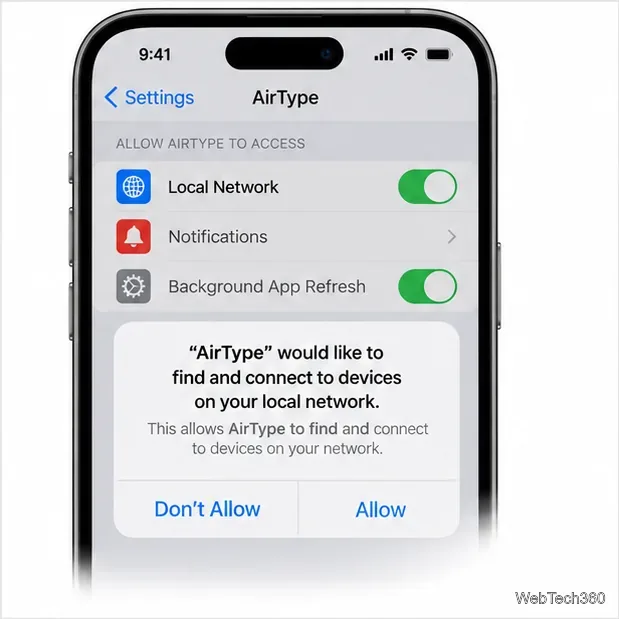
Open AirType and enable its local network or Web Access connection when prompted. When iOS asks whether AirType may find and connect to devices on your local network, tap Allow. Remote typing needs this permission so the iPhone keyboard and PC browser can communicate.
Join the iPhone and Windows PC to the same Wi-Fi network. A guest network or a network that isolates connected devices may block the connection even when both devices show Wi-Fi access. Because AirType’s Web Access uses unencrypted local HTTP, use a private network you trust rather than public Wi-Fi.
On the iPhone, open the app where you want to enter text and tap its text field. Touch and hold the Emoji or keyboard-switch key, then select AirType. Keep AirType’s Web Access keyboard on screen while you type from Windows; the current listing says the receiving connection runs only while that keyboard is visible. Some apps do not allow third-party keyboards, and iOS uses its system keyboard in secure text fields.
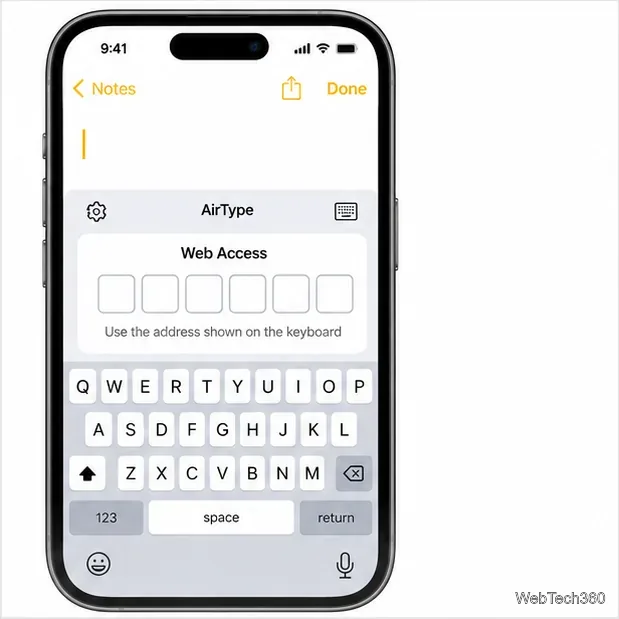
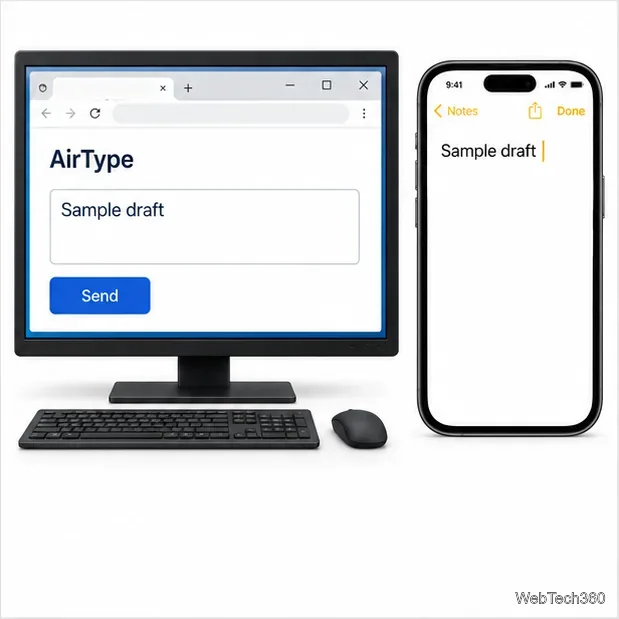
On the PC, open a browser such as Edge or Chrome and enter the address shown in the AirType keyboard. Type the six-digit code displayed on the iPhone to pair the browser. Then enter text in the browser’s AirType box and select Send (or use the browser’s Enter control if offered). AirType transfers that text into the active iPhone field. To send a message or submit a form, pick up the iPhone and use the app’s own button.
Do not use this method for passwords, payment details, authentication codes, or sensitive personal information. AirType’s App Store description says Web Access uses unencrypted local HTTP and that the developer does not collect data; Apple notes that privacy details are supplied by the developer and are not verified by Apple. If you no longer need remote typing, you can turn off AirType’s Full Access permission in the keyboard settings.
Windows 10 still runs browser-based workflows, but Microsoft ended standard support for Windows 10 on October 14, 2025. Microsoft recommends moving to a supported Windows release or enrolling in the applicable Extended Security Updates program. See Microsoft’s Windows 10 support notice for current options.
If your only goal is replying to iPhone text messages at the PC, Microsoft Phone Link is another option. Microsoft lists iPhone message, call, and notification features for Windows 10 (May 2019 Update or later) or Windows 11, a PC with Bluetooth Low Energy, and an iPhone running iOS 16 or later. Phone Link is for its supported phone features; AirType is the option here for entering text into a field in another iPhone app.
Adjust each Windows 10 monitor independently with per-display scaling, keep text readable, and troubleshoot custom scaling or blurry apps.
Use AirType’s browser pairing setup to type on an iPhone from a Windows 10 PC, with current setup steps, troubleshooting, and privacy limits.
Hide the mouse pointer in Windows 10 videos, games, and other apps with built-in typing controls or PowerToys CursorHide’s adjustable inactivity timer.
Find Control Panel Power Options on a Windows 10 desktop, open the page with a Run command, and adjust power plans, display timeouts, sleep, and button behavior.
Learn what Windows 10 deletion leaves behind, how to use SDelete on an HDD, and why SSDs and cloud backups need separate treatment.
Use FFmpeg’s DirectShow tools to open an integrated webcam’s driver properties in Windows 10, find the correct device, and troubleshoot missing controls.
Identify a keypress in Windows 10 with a browser event tester or SharpKeys, then separate layout, software, and keyboard hardware issues.
Use double quotes around each complete path with spaces in Command Prompt. Learn how to list, change to, copy, and troubleshoot Windows 10 files and folders.
Turn off the Windows 10 Start menu’s hover-to-expand behavior with a legacy Mach2 command, check build limits, and see the built-in app-list alternative.
Fix the iTunes Library.itl read error on Windows 10 by updating iTunes, restoring a compatible backup, or safely creating a new library without deleting media files.







