How to Set Different Scaling Levels for Multiple Monitors in Windows 10

Adjust each Windows 10 monitor independently with per-display scaling, keep text readable, and troubleshoot custom scaling or blurry apps.
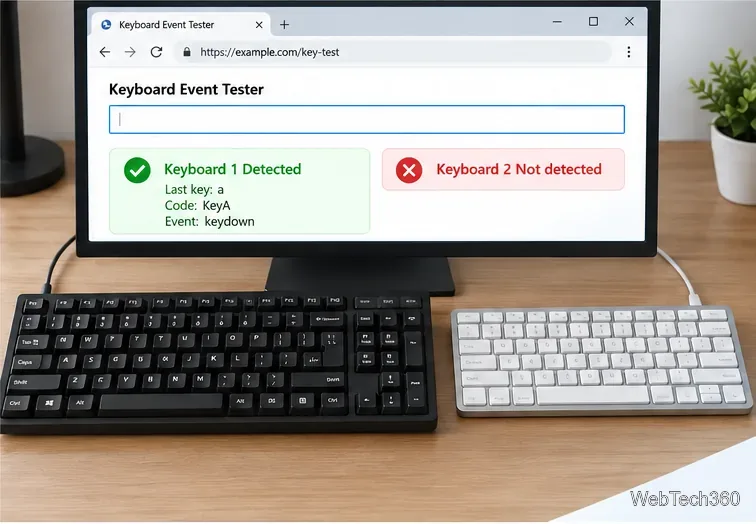
To identify a keypress in Windows 10, start with a browser-based key event tester for ordinary keys, then use SharpKeys when you need a Windows key name and scan-code-style value. These tools show only the input that reaches them. A missing result does not automatically mean the key is broken: Windows, the browser, keyboard firmware, or a remapping utility may handle it first.
key, code, location, and the event type. Repeat with Shift only if you need to see whether the produced character changes.
The fields answer different questions. key is the character or action produced with the active keyboard layout and modifiers; pressing Shift+A can change it from “a” to “A.” code identifies the physical key position, so the A-position key is usually reported as KeyA even when another layout types a different character there. location can distinguish left/right modifier keys or a numeric-keypad key; common values are 0 for standard, 1 for left, 2 for right, and 3 for numpad. The MDN’s KeyboardEvent reference explains these properties. A keydown is sent when a key goes down and keyup when it is released.
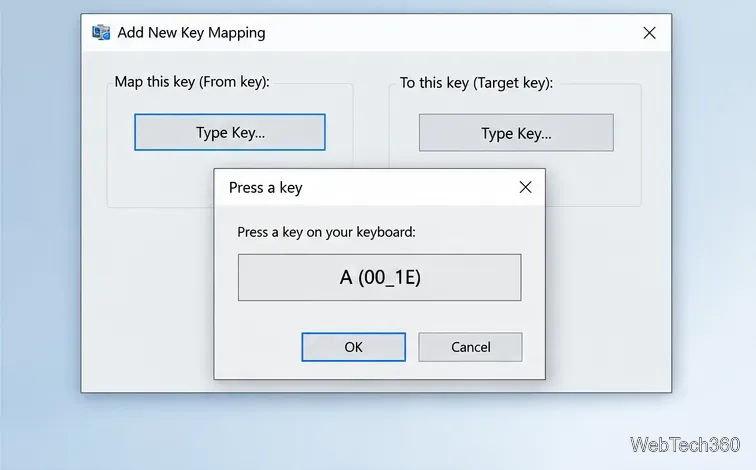
SharpKeys is useful when the browser’s character display is not enough, especially for navigation and modifier keys. The SharpKeys project documentation notes that some keys are not available to its Type Key feature. For example, many laptop Fn keys are handled inside the keyboard and never reach Windows; the Alt key may also need to be selected from the list instead of captured by typing it. An “Unknown” label or a catch-all code such as 00_100 is an inconclusive result, not proof that the key is dead.
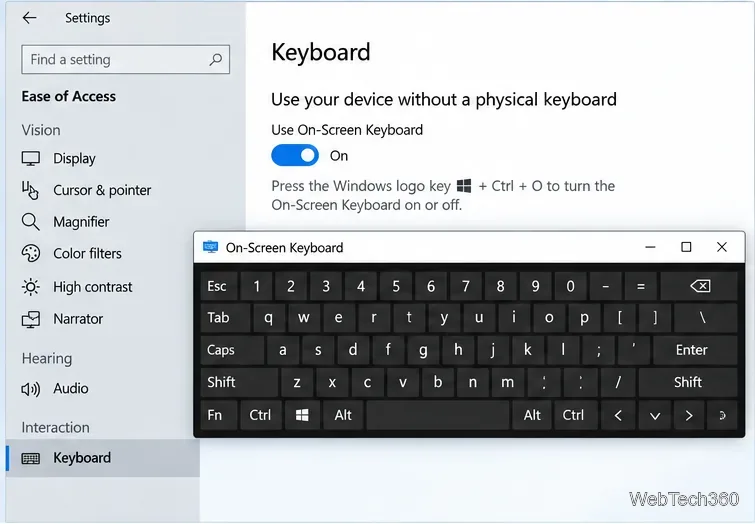
Windows 10’s On-Screen Keyboard (OSK) is an alternate way to enter text, not a physical-key detector. Open it with Windows logo key + Ctrl + O, or go to Settings > Ease of Access > Keyboard and turn on Use the On-Screen Keyboard. Click a letter in the OSK while a safe text field is active. If the click inserts text but a physical press does not, the app can accept keyboard input and the issue is more likely in the physical-key path. Microsoft describes the OSK as a way to type without a physical keyboard; it does not promise to highlight the corresponding physical key.
If a key does not appear in the browser tester or SharpKeys, close any active macro or remapping software and test again. Examples include an AutoHotkey script, PowerToys Keyboard Manager, or a utility supplied with the keyboard. These tools can change the input that another program receives. Also make sure the tester has focus, and test the key in a plain text field rather than inside an app that may reserve its own shortcuts.
For an external keyboard, unplug and reconnect it, try another USB port, and test a second keyboard on the same PC. If the suspect key works on the second keyboard, the original keyboard, its cable or receiver, or its firmware is the likely cause. If the same key is missing on multiple keyboards, check for a shortcut intercepted by Windows, the active layout, and keyboard software before concluding that Windows cannot read it. On a laptop, Fn-layer and media keys may be processed by the device firmware instead of appearing as ordinary browser key events.
Microsoft’s Microsoft’s Windows keyboard input overview describes how scan codes are translated into virtual-key codes and then interpreted through the active keyboard layout. That is why a physical key, the character it types, and the event an app receives are related but not always identical. For the OSK steps, see Microsoft’s On-Screen Keyboard guide. If an obscure key produces no result in either diagnostic, record the keyboard model and test it with the manufacturer’s software or support documentation; do not assume every special key can be detected or remapped by a general Windows utility.
Adjust each Windows 10 monitor independently with per-display scaling, keep text readable, and troubleshoot custom scaling or blurry apps.
Use AirType’s browser pairing setup to type on an iPhone from a Windows 10 PC, with current setup steps, troubleshooting, and privacy limits.
Hide the mouse pointer in Windows 10 videos, games, and other apps with built-in typing controls or PowerToys CursorHide’s adjustable inactivity timer.
Find Control Panel Power Options on a Windows 10 desktop, open the page with a Run command, and adjust power plans, display timeouts, sleep, and button behavior.
Learn what Windows 10 deletion leaves behind, how to use SDelete on an HDD, and why SSDs and cloud backups need separate treatment.
Use FFmpeg’s DirectShow tools to open an integrated webcam’s driver properties in Windows 10, find the correct device, and troubleshoot missing controls.
Identify a keypress in Windows 10 with a browser event tester or SharpKeys, then separate layout, software, and keyboard hardware issues.
Use double quotes around each complete path with spaces in Command Prompt. Learn how to list, change to, copy, and troubleshoot Windows 10 files and folders.
Turn off the Windows 10 Start menu’s hover-to-expand behavior with a legacy Mach2 command, check build limits, and see the built-in app-list alternative.
Fix the iTunes Library.itl read error on Windows 10 by updating iTunes, restoring a compatible backup, or safely creating a new library without deleting media files.







