How to Set Different Scaling Levels for Multiple Monitors in Windows 10

Adjust each Windows 10 monitor independently with per-display scaling, keep text readable, and troubleshoot custom scaling or blurry apps.
Windows 10 does not provide one universal advanced-settings panel for every built-in webcam. If your camera driver exposes a DirectShow property page, you can ask FFmpeg to open it from Command Prompt. The dialog may offer controls such as brightness or contrast, but the available settings depend on the webcam and its driver; FFmpeg cannot add controls the hardware does not support.
Windows 10 support note: Microsoft ended standard support for Windows 10 on October 14, 2025. These instructions are for existing Windows 10 installations.
Open the official FFmpeg download page and use one of the Windows executable builds linked there. FFmpeg itself distributes source code and points to third-party providers for compiled Windows builds. Choose a current build that includes DirectShow support, download its archive, and extract it. In the extracted files, open the bin folder that contains ffmpeg.exe.
In File Explorer, click the address bar while viewing that folder, type cmd, and press Enter. A Command Prompt window should open with its working directory set to the FFmpeg bin folder. If you already have Command Prompt open, change folders with this command, replacing the example path with your own:
cd /d "C:\path\to\ffmpeg\bin"
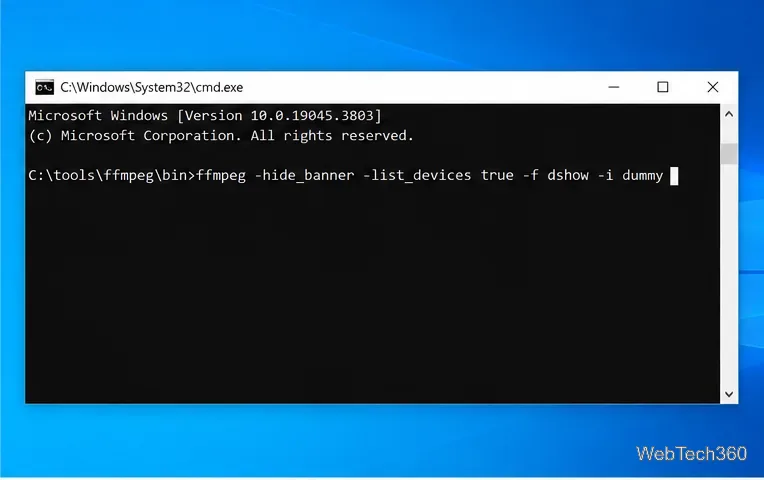
In that Command Prompt window, run the device-list command documented by FFmpeg:
ffmpeg -hide_banner -list_devices true -f dshow -i dummyFFmpeg prints the available DirectShow video and audio devices, then exits. Look under DirectShow video devices for the built-in camera. The displayed name might be “Integrated Webcam,” “HD Camera,” or a manufacturer-specific label. Copy it exactly, including punctuation and spaces. Ignore similarly named entries under the audio-device section; those are microphones, not cameras.
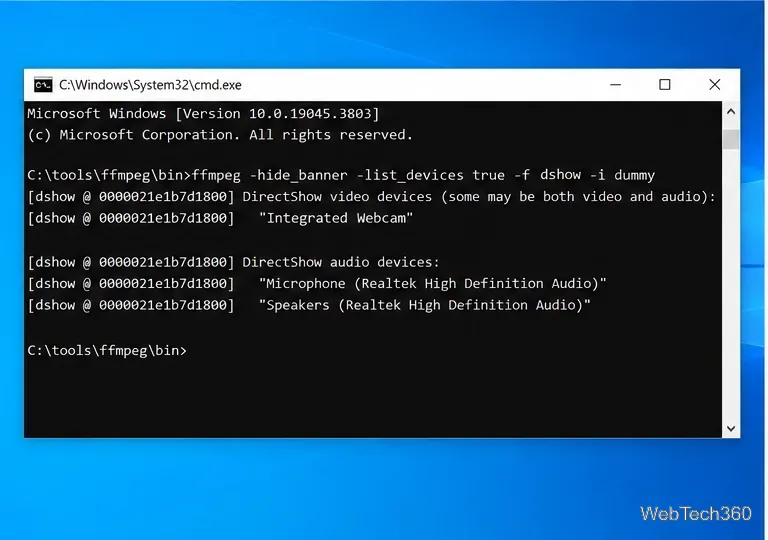
Replace Integrated Webcam in this command with the exact video-device name from your output:
ffmpeg -hide_banner -f dshow -show_video_device_dialog true -i video="Integrated Webcam" -t 1 -f null -Press Enter. FFmpeg’s show_video_device_dialog option asks the DirectShow driver to display its video-property dialog before capture starts. The final options discard a one-second capture after you close the dialog, so FFmpeg does not create a recording file.
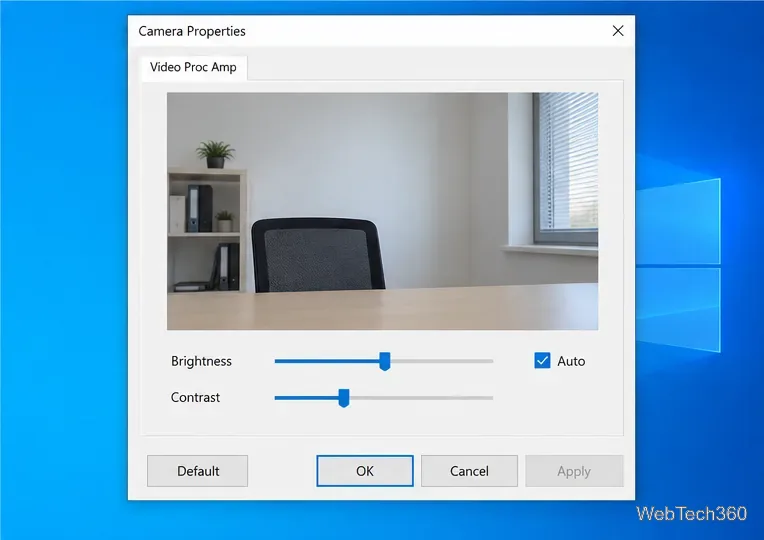
Change one control at a time and note its starting value so you can undo a change. Some controls include an automatic mode; turn it off only when you specifically want to set that value manually. If the dialog has an Apply button, use it to preview or save the change, then choose OK or close the window. A Default button may restore the camera’s reported defaults.
Check the camera in the video-call, recording, or conferencing app where you need the adjustment. FFmpeg opens the property page supplied by the DirectShow driver, and some devices retain changes for later sessions. Other apps may use a different camera interface or reapply their own exposure and color settings, so a change in this dialog is not guaranteed to carry over to every program. Microsoft describes controls such as brightness, contrast, hue, saturation, gamma, and sharpness as hardware-dependent properties exposed only when supported by the device.
dshow is unavailable, use a Windows build that includes DirectShow support from a provider linked on the official FFmpeg page.For the exact DirectShow options, see FFmpeg’s DirectShow input documentation. For the camera properties Windows can expose, see Microsoft’s IAMVideoProcAmp documentation; for access permissions, see Microsoft’s camera privacy guide.
Adjust each Windows 10 monitor independently with per-display scaling, keep text readable, and troubleshoot custom scaling or blurry apps.
Use AirType’s browser pairing setup to type on an iPhone from a Windows 10 PC, with current setup steps, troubleshooting, and privacy limits.
Hide the mouse pointer in Windows 10 videos, games, and other apps with built-in typing controls or PowerToys CursorHide’s adjustable inactivity timer.
Find Control Panel Power Options on a Windows 10 desktop, open the page with a Run command, and adjust power plans, display timeouts, sleep, and button behavior.
Learn what Windows 10 deletion leaves behind, how to use SDelete on an HDD, and why SSDs and cloud backups need separate treatment.
Use FFmpeg’s DirectShow tools to open an integrated webcam’s driver properties in Windows 10, find the correct device, and troubleshoot missing controls.
Identify a keypress in Windows 10 with a browser event tester or SharpKeys, then separate layout, software, and keyboard hardware issues.
Use double quotes around each complete path with spaces in Command Prompt. Learn how to list, change to, copy, and troubleshoot Windows 10 files and folders.
Turn off the Windows 10 Start menu’s hover-to-expand behavior with a legacy Mach2 command, check build limits, and see the built-in app-list alternative.
Fix the iTunes Library.itl read error on Windows 10 by updating iTunes, restoring a compatible backup, or safely creating a new library without deleting media files.







