How to Set Different Scaling Levels for Multiple Monitors in Windows 10

Adjust each Windows 10 monitor independently with per-display scaling, keep text readable, and troubleshoot custom scaling or blurry apps.
To hide the mouse cursor in a Windows 10 app, first try the app’s own auto-hide behavior. If you want the pointer to disappear after it sits idle across apps, use Microsoft PowerToys CursorHide. Windows 10’s built-in “Hide pointer while typing” option only hides the pointer while you type; it does not provide a general inactivity timer.
| What you want | Use this | What to expect |
|---|---|---|
| Hide the pointer during a video or game | The app’s own behavior | Many full-screen apps hide it after you stop moving the mouse, but the delay and controls vary. |
| Hide the pointer while entering text | Windows Mouse Properties | The pointer hides while you type in text fields. |
| Hide an idle pointer across apps | PowerToys CursorHide | Choose an inactivity delay, then move or click to bring the pointer back. |
Many media players hide the mouse pointer when it has been still for a short time. Move it away from the playback buttons and seek bar, then leave the mouse or touchpad alone for a few seconds. In some players, controls remain visible as long as the pointer is over them. If the pointer does not disappear, check the player’s own settings or help page; keyboard shortcuts differ between apps, so there is no universal key that reliably hides it.

Games can handle pointers differently. A game may let Windows manage the system pointer, hide it itself, or draw a custom pointer inside the game. Start with the game’s display or interface settings if its pointer stays visible. A Windows setting may not control a pointer the game draws for itself.
Windows includes a setting that keeps the mouse pointer from covering text as you type. It is useful in a document or search box, but it will not hide a pointer simply because you stopped moving it.
If your Settings layout uses different wording, search Windows for “Mouse settings” and open the additional mouse options. Microsoft documents this checkbox as a way to keep the pointer from obscuring text; it is not a full-screen or app-wide auto-hide control. The checkbox is easy to reverse: return to Pointer Options and clear it if you want the pointer to remain visible while typing.
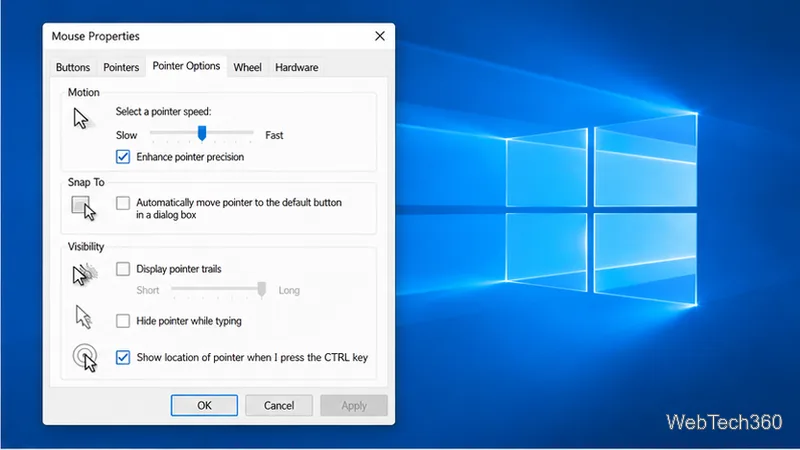
See Microsoft’s mouse settings instructions for the Pointer Options controls.
For an automatic timer, install Microsoft PowerToys and turn on CursorHide in Mouse Utilities. Microsoft’s documentation calls the feature Auto Hide Cursor; the PowerToys 0.102 release notes call it CursorHide. PowerToys supports Windows 10 version 2004 (build 19041) or later on x64 and ARM64 devices. The feature was introduced in PowerToys 0.102, so update PowerToys if the setting is missing.
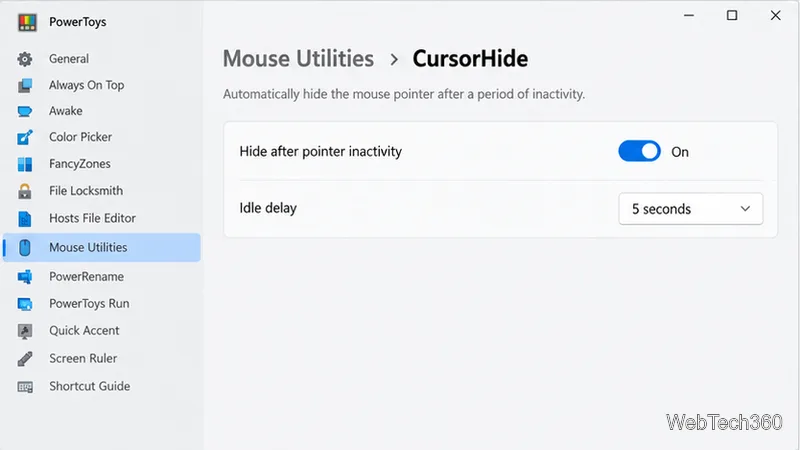
When CursorHide is active, the pointer returns when you intentionally move the mouse, click a button, or use the scroll wheel. PowerToys must be running for its utility to work. Review Microsoft’s Mouse Utilities documentation for the current options and behavior.
First identify where you can see it: on the desktop, inside the app, or only in a recording. Microsoft notes that apps using their own custom or software-rendered cursor may continue to show it while Auto Hide Cursor is enabled. In that case, use the game or app’s own cursor setting if one is available; Windows cannot reliably hide a cursor that the app draws as part of its picture.

If the pointer is visible only in captured footage, change the recorder’s capture setting rather than the Windows pointer setting. For example, OBS Game Capture has a Capture Cursor option that controls whether OBS includes the system cursor in the recording. OBS notes that a cursor rendered inside the game itself is captured separately and may remain in the footage. See the OBS Game Capture guide for that distinction.
If the problem is limited to one app, close and reopen it after changing its cursor or display options. Test the same mouse behavior in another app to tell whether the issue follows the Windows pointer or is specific to that program.
Microsoft ended standard support for Windows 10 on October 14, 2025. These pointer settings remain available, but Windows 10 no longer receives regular free security updates from Windows Update. See Microsoft’s Windows 10 support notice.
Adjust each Windows 10 monitor independently with per-display scaling, keep text readable, and troubleshoot custom scaling or blurry apps.
Use AirType’s browser pairing setup to type on an iPhone from a Windows 10 PC, with current setup steps, troubleshooting, and privacy limits.
Hide the mouse pointer in Windows 10 videos, games, and other apps with built-in typing controls or PowerToys CursorHide’s adjustable inactivity timer.
Find Control Panel Power Options on a Windows 10 desktop, open the page with a Run command, and adjust power plans, display timeouts, sleep, and button behavior.
Learn what Windows 10 deletion leaves behind, how to use SDelete on an HDD, and why SSDs and cloud backups need separate treatment.
Use FFmpeg’s DirectShow tools to open an integrated webcam’s driver properties in Windows 10, find the correct device, and troubleshoot missing controls.
Identify a keypress in Windows 10 with a browser event tester or SharpKeys, then separate layout, software, and keyboard hardware issues.
Use double quotes around each complete path with spaces in Command Prompt. Learn how to list, change to, copy, and troubleshoot Windows 10 files and folders.
Turn off the Windows 10 Start menu’s hover-to-expand behavior with a legacy Mach2 command, check build limits, and see the built-in app-list alternative.
Fix the iTunes Library.itl read error on Windows 10 by updating iTunes, restoring a compatible backup, or safely creating a new library without deleting media files.







