How to Set Different Scaling Levels for Multiple Monitors in Windows 10

Adjust each Windows 10 monitor independently with per-display scaling, keep text readable, and troubleshoot custom scaling or blurry apps.
If Windows 10 shows “The file ‘iTunes Library.itl’ cannot be read because it was created by a newer version of iTunes,” the iTunes version you opened is older than the version that last saved the library. Update the iTunes installation you plan to use. If you cannot update it, restore a compatible library copy. Back up the iTunes folder before replacing or renaming anything: the .itl file stores library organization, while your music and videos are separate files.
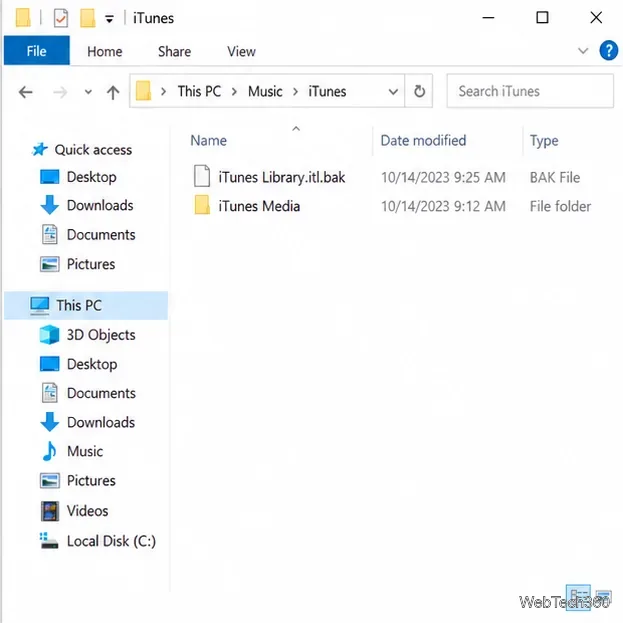
Close iTunes. In File Explorer, enter %USERPROFILE%\Music\iTunes in the address bar. This is the usual Windows library folder; if you moved the library, use its actual location instead. Apple’s Windows guide identifies the default iTunes Media folder as [User folder]\Music\iTunes\iTunes Media and recommends backing up the library and media together. If you cannot find the folder, search This PC for iTunes Library.itl and check the file’s location.
 Music > iTunes, with iTunes Library.itl and iTunes Media visible.">
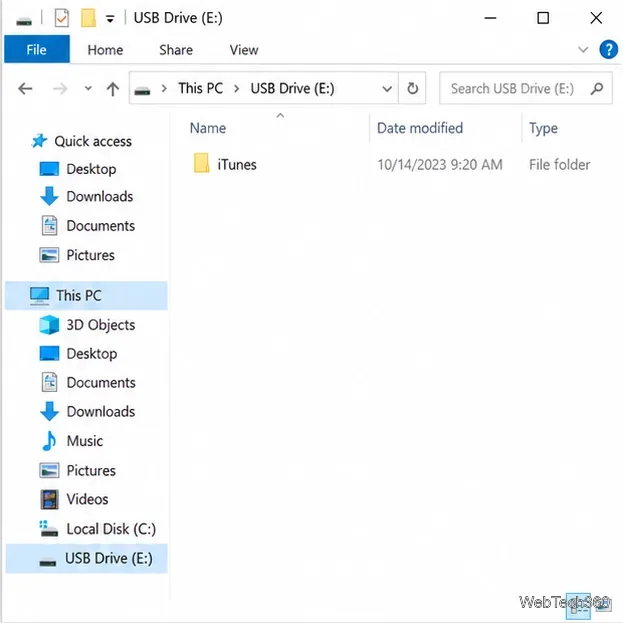
Copy the whole iTunes folder to an external drive or another safe location. Copying is safer than moving: keep the original folder in place while you test a repair. If you have important playlists, you can also export them as XML from iTunes using File > Library > Export Library. Apple notes that playlist exports contain playlist information, not the music or video files themselves. See Apple’s iTunes library backup guide and playlist export instructions.
Try this before restoring a file. When the error says the library was made by a newer version, updating the older app is the least disruptive fix because it leaves the current library intact.
Use the update route for the copy you intend to keep, then reopen iTunes. Apple documents both update methods in its iTunes update instructions. If iTunes opens normally afterward, stop here; you do not need to replace the library file.
If you cannot update iTunes or the error remains, look for an older library file. In the default iTunes folder, check for Previous iTunes Libraries. That folder may not exist, especially if iTunes has not saved an earlier copy on this PC. Select a dated .itl backup from before the version change—the newest copy that you know was created by a version this installation can read.
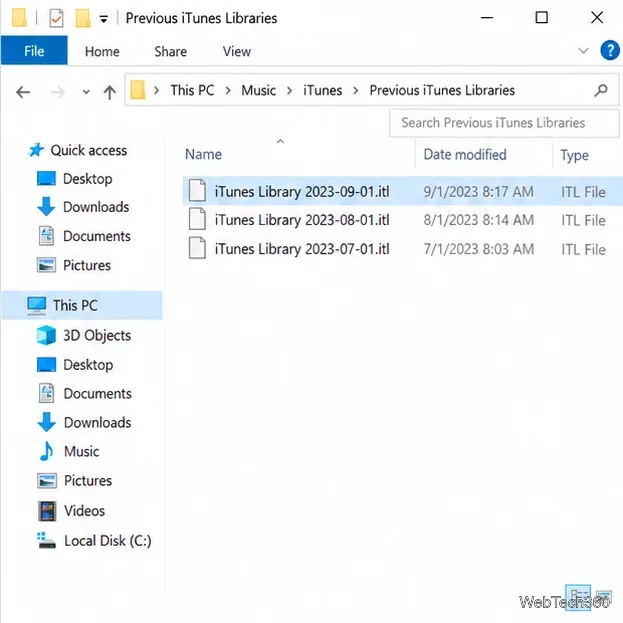
iTunes folder; do not move or delete the original backup.iTunes Library.itl to iTunes Library.itl.bak. If Windows hides extensions, confirm the final name in File Explorer so you do not accidentally add the extension twice.iTunes Library.itl.Do not choose a backup created by the same newer version that triggered the message; it may produce the same error. Apple’s guide to choosing an iTunes library explains how to open a different library file.
Keep the full folder backup, then rename the unreadable iTunes Library.itl instead of deleting it. Reopen iTunes; if it cannot find an active library, it can create a new one. You can also hold Shift while opening iTunes and choose Create Library to make a separate library folder. Apple’s guide describes both creating and choosing libraries.
A new library starts without the old library’s playlists and other organization. Your media files are not erased by renaming the .itl file, but iTunes may not automatically reconnect every item. Add existing songs or folders back to the library only after confirming where the originals are stored; Apple’s instructions for adding items to iTunes explain the supported import options. If playlists matter and you have an XML export, import it after the songs are present. Do not sync an empty replacement library to an iPhone as a test: verify the selected content first.
Apple’s current Windows setup separates some jobs that older versions handled in iTunes. Apple Music manages the music library, Apple TV manages movies and shows, and Apple Devices handles iPhone or iPad syncing; iTunes remains available for podcasts and audiobooks. If your goal is to sync a device rather than open an old iTunes library, check Apple’s current Windows app guide and syncing instructions before changing libraries.
If the message says the iTunes folder is locked or the library cannot be created, confirm that the drive is connected and that your Windows account can write to the folder. If the file is on a removable or network drive, reconnect it and reopen iTunes before changing the library again.
Adjust each Windows 10 monitor independently with per-display scaling, keep text readable, and troubleshoot custom scaling or blurry apps.
Use AirType’s browser pairing setup to type on an iPhone from a Windows 10 PC, with current setup steps, troubleshooting, and privacy limits.
Hide the mouse pointer in Windows 10 videos, games, and other apps with built-in typing controls or PowerToys CursorHide’s adjustable inactivity timer.
Find Control Panel Power Options on a Windows 10 desktop, open the page with a Run command, and adjust power plans, display timeouts, sleep, and button behavior.
Learn what Windows 10 deletion leaves behind, how to use SDelete on an HDD, and why SSDs and cloud backups need separate treatment.
Use FFmpeg’s DirectShow tools to open an integrated webcam’s driver properties in Windows 10, find the correct device, and troubleshoot missing controls.
Identify a keypress in Windows 10 with a browser event tester or SharpKeys, then separate layout, software, and keyboard hardware issues.
Use double quotes around each complete path with spaces in Command Prompt. Learn how to list, change to, copy, and troubleshoot Windows 10 files and folders.
Turn off the Windows 10 Start menu’s hover-to-expand behavior with a legacy Mach2 command, check build limits, and see the built-in app-list alternative.
Fix the iTunes Library.itl read error on Windows 10 by updating iTunes, restoring a compatible backup, or safely creating a new library without deleting media files.







