How to Set Different Scaling Levels for Multiple Monitors in Windows 10

Adjust each Windows 10 monitor independently with per-display scaling, keep text readable, and troubleshoot custom scaling or blurry apps.
Windows 10 lets you choose a separate display-scaling percentage for each connected monitor. This is useful when, for example, a high-resolution laptop screen needs 150% scaling while a larger external monitor is comfortable at 100% or 125%. The key is to select one display in Settings before changing its scale. Keep each screen at its recommended resolution, and avoid Windows’ global custom-scaling setting if you want different percentages per monitor.
Connect every monitor you want to configure and make sure Windows detects them. Open Start > Settings > System > Display. You can also right-click an empty area of the desktop and choose Display settings.
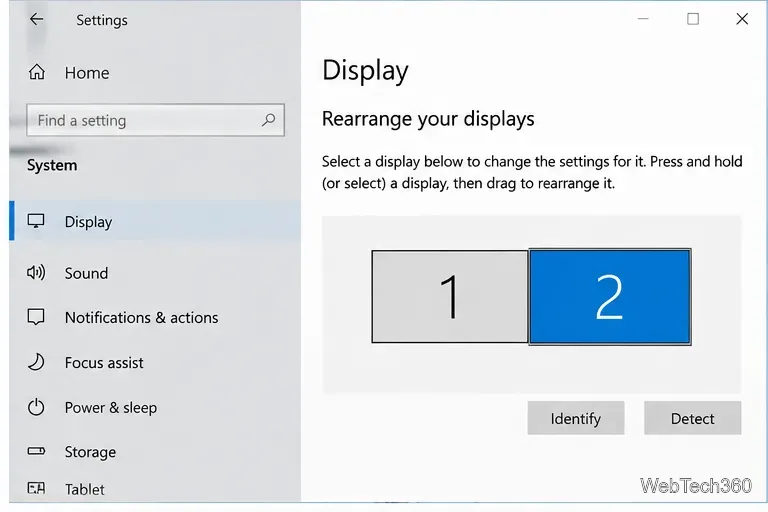
In the display arrangement diagram near the top, select Identify if you are unsure which numbered rectangle corresponds to each physical screen. Windows briefly displays a number on each monitor. If a connected screen is missing, check its cable, dock, input source, and power, then scroll to Multiple displays and select Detect.
Click the rectangle for the first monitor in the diagram. The selected display is highlighted, and the settings below apply to that screen—not automatically to every monitor. This selection is the most important step when you use different scaling levels.
Repeat this process separately for each screen. If you use Duplicate mode, the available behavior can differ from an extended desktop; for independent sizing, press Windows + P and choose Extend where your setup supports it.
With the correct monitor selected, scroll to Scale and layout. Under Change the size of text, apps, and other items, choose a percentage from the drop-down list. The available values depend on the display and Windows configuration; common options include 100%, 125%, 150%, and 200%. A higher percentage makes interface elements larger, while a lower percentage gives them more room on screen.
For example, you might use 150% on a compact, high-resolution laptop display and 125% on a larger external monitor. These are only starting points: use the option marked Recommended as a baseline, then choose what is comfortable to read.
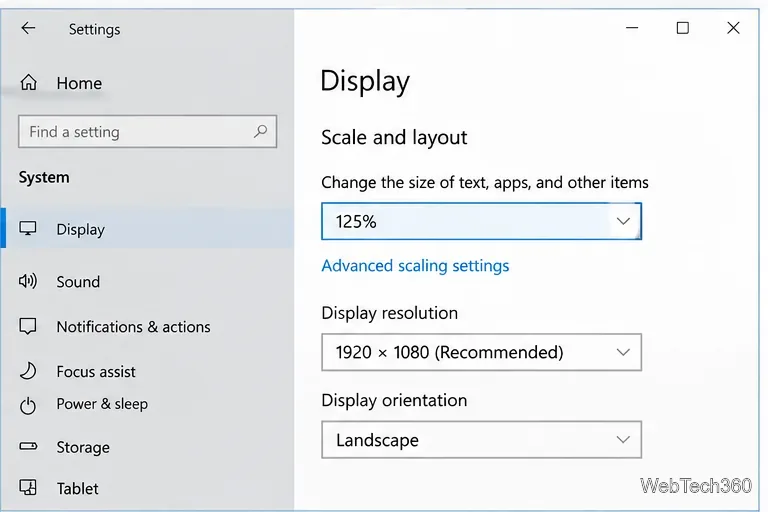
Next, click the second monitor in the arrangement diagram and choose its own scale. Continue until each connected display has the desired setting. The percentages do not have to match.
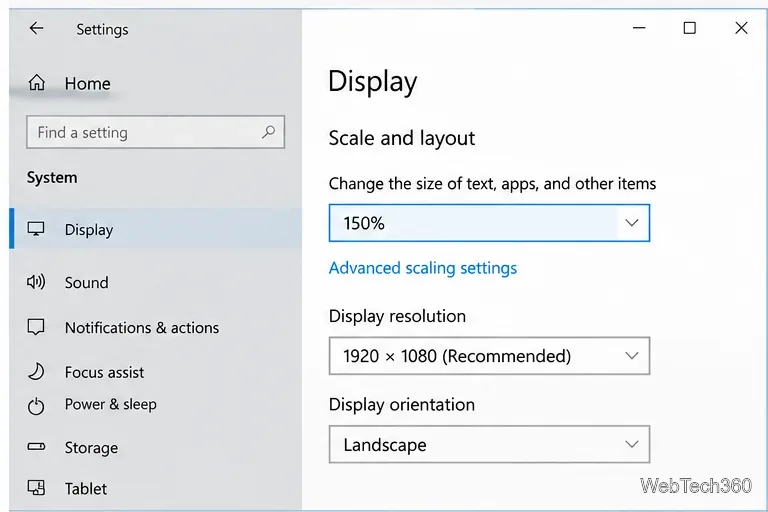
Scale changes the size of text, app controls, and other interface elements. Display resolution changes how many pixels Windows uses. If text looks too small, try adjusting Scale first rather than lowering the resolution. For a sharp image, leave each display at its own Recommended resolution unless you have a specific reason to change it.
Monitor size and pixel density matter. A 4K screen may need a higher scale than a 1080p screen even when both are physically similar in size. It is normal for windows or text to appear a different physical size when moved between displays, especially with older apps that do not fully support per-monitor DPI scaling.
Windows 10 also includes custom scaling under Advanced scaling settings. This option lets you enter a percentage that is not in the standard list, but it can act as a system-wide setting and interfere with per-monitor choices. If Windows keeps applying the same scale everywhere, open Settings > System > Display > Advanced scaling settings and review whether a custom value is enabled. Clear or disable the custom value if available, apply the change, and sign out and back in before setting each monitor individually.
Prefer the standard per-display drop-down when your goal is simply to use, for example, 125% on one screen and 150% on another. Avoid entering an arbitrary custom value unless you need it and understand that it may change scaling behavior across displays.
For the current Windows 10 steps, see Microsoft’s guides to changing screen resolution and layout and using multiple monitors. Note that Microsoft ended standard support for Windows 10 on October 14, 2025, so it no longer receives free routine security updates through Windows Update.
Adjust each Windows 10 monitor independently with per-display scaling, keep text readable, and troubleshoot custom scaling or blurry apps.
Use AirType’s browser pairing setup to type on an iPhone from a Windows 10 PC, with current setup steps, troubleshooting, and privacy limits.
Hide the mouse pointer in Windows 10 videos, games, and other apps with built-in typing controls or PowerToys CursorHide’s adjustable inactivity timer.
Find Control Panel Power Options on a Windows 10 desktop, open the page with a Run command, and adjust power plans, display timeouts, sleep, and button behavior.
Learn what Windows 10 deletion leaves behind, how to use SDelete on an HDD, and why SSDs and cloud backups need separate treatment.
Use FFmpeg’s DirectShow tools to open an integrated webcam’s driver properties in Windows 10, find the correct device, and troubleshoot missing controls.
Identify a keypress in Windows 10 with a browser event tester or SharpKeys, then separate layout, software, and keyboard hardware issues.
Use double quotes around each complete path with spaces in Command Prompt. Learn how to list, change to, copy, and troubleshoot Windows 10 files and folders.
Turn off the Windows 10 Start menu’s hover-to-expand behavior with a legacy Mach2 command, check build limits, and see the built-in app-list alternative.
Fix the iTunes Library.itl read error on Windows 10 by updating iTunes, restoring a compatible backup, or safely creating a new library without deleting media files.








