How to Set Different Scaling Levels for Multiple Monitors in Windows 10

Adjust each Windows 10 monitor independently with per-display scaling, keep text readable, and troubleshoot custom scaling or blurry apps.
On a Windows 10 desktop, open Control Panel Power Options by searching for Control Panel from Start and selecting Hardware and Sound > Power Options. You do not need a battery icon in the notification area. For a direct shortcut, press Windows + R, enter control.exe /name Microsoft.PowerOptions, and press Enter.
Power Options is available on desktop PCs as well as laptops. It is where you can choose an available power plan, set when the display turns off or the computer sleeps, and choose what the physical power button does. The exact controls depend on the PC’s hardware and Windows configuration.

This route is useful if you want to see the Control Panel categories or choose a specific power task.
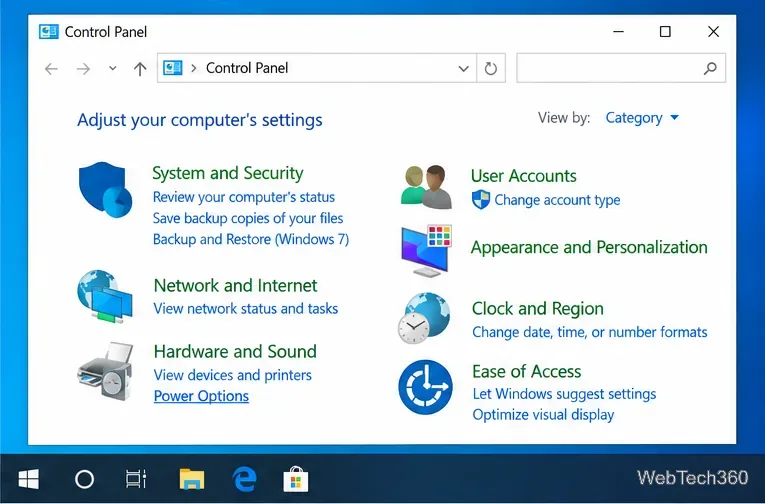
Use the Run shortcut when you already know where you need to go or want to skip the Control Panel categories:
control.exe /name Microsoft.PowerOptions exactly, including the spaces, then press Enter or select OK.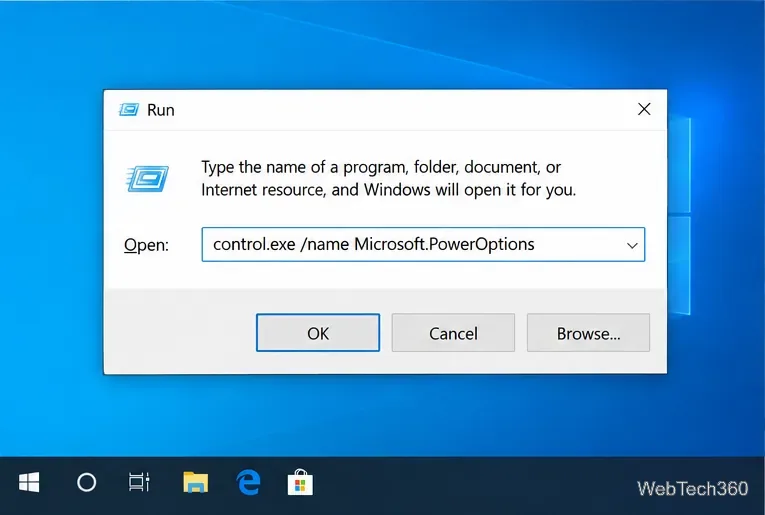
Microsoft also documents direct commands for particular pages. Use control.exe /name Microsoft.PowerOptions /page pagePlanSettings to open the current plan’s settings, or control.exe powercfg.cpl,,3 to open the older Advanced Power Options dialog. The detailed controls shown there depend on the computer’s hardware and Windows configuration. Opening a page does not require administrator rights, though changing some protected options may require approval.
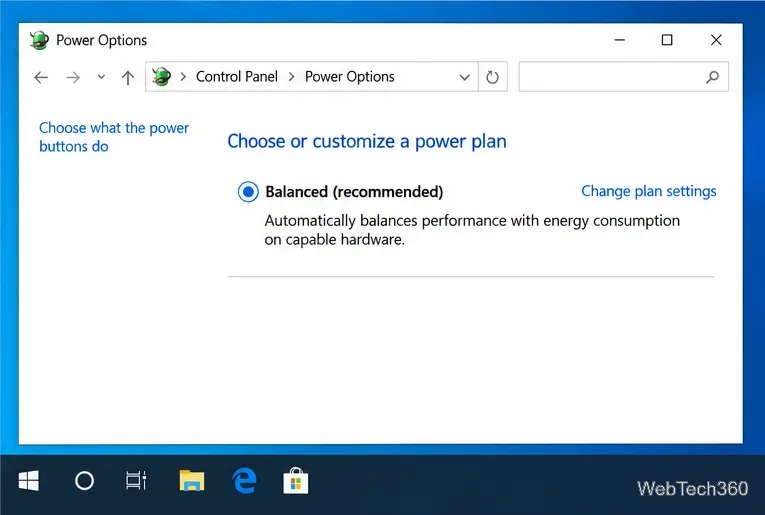
On the Power Options page, select a plan to make it active. Windows may show Show additional plans if more are available. The list differs between computers: a manufacturer or administrator can manage the plans, and some desktops show only Balanced.
After changing a timeout or button action, select Save changes if that button appears. If an option is grayed out, open Choose what the power buttons do and select Change settings that are currently unavailable. Windows may ask an administrator to approve changes to some shutdown options.
If you only want to change when the screen turns off or the desktop sleeps, use Start > Settings > System > Power & sleep. Change the display and sleep durations there. To continue to the classic Control Panel page, select Additional power settings under Related settings. Control Panel is useful when you need to select a plan or open its more detailed power controls.
Check the Control Panel’s View by menu. In Category view, Power Options is under Hardware and Sound; in icon view, it is listed on its own. If it is still difficult to locate, use the Run command above. If the page opens but a plan or control is missing, that does not always mean Windows is broken: available plans depend on hardware, drivers, and management policies. On a managed work computer, ask its administrator before trying to change a restricted setting.
Windows 10 continues to run and these navigation steps remain useful, but Microsoft ended standard support on October 14, 2025. Microsoft says regular technical support, feature updates, and security updates are no longer provided for Windows 10. Check Microsoft’s support page for current upgrade or Extended Security Updates options if your desktop still runs Windows 10.
Adjust each Windows 10 monitor independently with per-display scaling, keep text readable, and troubleshoot custom scaling or blurry apps.
Use AirType’s browser pairing setup to type on an iPhone from a Windows 10 PC, with current setup steps, troubleshooting, and privacy limits.
Hide the mouse pointer in Windows 10 videos, games, and other apps with built-in typing controls or PowerToys CursorHide’s adjustable inactivity timer.
Find Control Panel Power Options on a Windows 10 desktop, open the page with a Run command, and adjust power plans, display timeouts, sleep, and button behavior.
Learn what Windows 10 deletion leaves behind, how to use SDelete on an HDD, and why SSDs and cloud backups need separate treatment.
Use FFmpeg’s DirectShow tools to open an integrated webcam’s driver properties in Windows 10, find the correct device, and troubleshoot missing controls.
Identify a keypress in Windows 10 with a browser event tester or SharpKeys, then separate layout, software, and keyboard hardware issues.
Use double quotes around each complete path with spaces in Command Prompt. Learn how to list, change to, copy, and troubleshoot Windows 10 files and folders.
Turn off the Windows 10 Start menu’s hover-to-expand behavior with a legacy Mach2 command, check build limits, and see the built-in app-list alternative.
Fix the iTunes Library.itl read error on Windows 10 by updating iTunes, restoring a compatible backup, or safely creating a new library without deleting media files.







