How to Set Different Scaling Levels for Multiple Monitors in Windows 10

Adjust each Windows 10 monitor independently with per-display scaling, keep text readable, and troubleshoot custom scaling or blurry apps.
To make a deleted file harder to recover on Windows 10, choose the method that matches the storage drive. On a traditional hard disk drive (HDD), use Microsoft Sysinternals SDelete to securely delete a file that still exists. If you already deleted it, Windows cipher /w can overwrite unused space across that volume. On a solid-state drive (SSD), neither command can guarantee that every physical flash cell containing old data was erased, so use the drive maker’s supported sanitization method if you need to erase the whole SSD.

When you delete a file and empty the Recycle Bin, Windows generally marks the file’s space as available for reuse. The content can remain in that space until something overwrites it, which is why recovery software may be able to find a file that is no longer listed in File Explorer. Formatting or reinstalling Windows is not a reliable way to securely erase an individual file either.
Replacing a deleted file with a decoy that has the same name is not a dependable fix. NTFS may allocate different clusters for a replacement, and an SSD may remap writes internally. The name and folder location do not force Windows or the drive to reuse the exact physical location that held the original content.
Open Start, type defrag, and select Defragment and Optimize Drives. Check the drive’s media type. The Microsoft Windows instructions distinguish hard disk drives from SSDs because Windows handles their optimization differently. If the file was stored on a secondary drive, check that drive rather than assuming it is the C: drive.
cmd, and press Enter. If Windows reports a permissions problem, reopen Command Prompt with the access needed for that file.
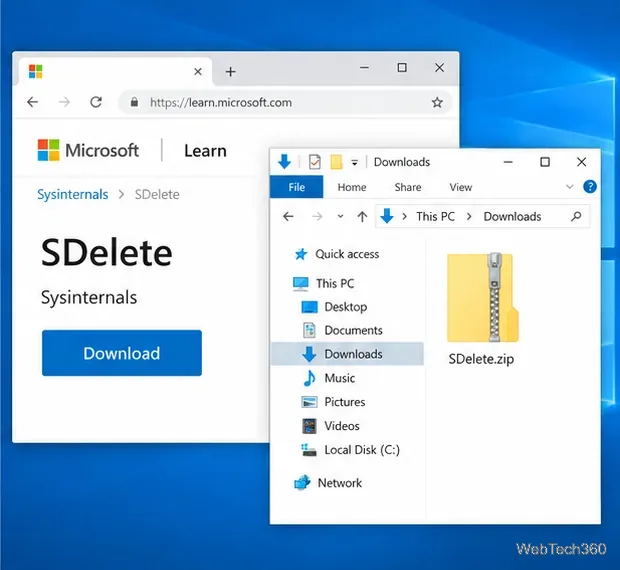
sdelete64.exe -p 1 "C:\Users\YourName\Documents\private.txt"SDelete securely overwrites and deletes the file. The -p 1 option requests one overwrite pass; one is also the documented default. Add more passes only if your policy specifically requires them. Extra passes take longer and do not solve SSD remapping. Check the quoted path before pressing Enter.
For data that is already in unallocated space, use Cipher’s free-space option on the volume that held the file. Close other programs first. In Command Prompt, enter a folder on that same volume; for example:
cipher /w:C
cipher /w works on unused space across the selected volume, rather than targeting one deleted file.Change C to the affected drive letter. Microsoft documents that cipher /w:<directory> overwrites available unused space on the entire volume containing that directory. It does not erase a currently existing file by itself, and it can take a long time on a large or nearly full drive. Avoid saving new files to that volume until the process finishes. Read the Cipher command reference before running it.
Do not treat SDelete or cipher /w as a guaranteed physical wipe on an SSD. SSD controllers use wear leveling to spread writes across flash cells, so a command that overwrites a file’s logical address may not overwrite every older physical copy. Samsung’s SSD documentation describes this controller behavior. Microsoft also notes that Windows sends TRIM information to SSDs as part of normal drive optimization; TRIM is routine drive maintenance, not proof that a particular file has been securely erased.
If you must sanitize an entire SSD, use the manufacturer’s instructions or management utility for that exact model, and make a backup first: a sanitize or Secure Erase operation removes other data on the drive too. NIST’s current SP 800-88 Revision 2, published in September 2025, covers media sanitization and points organizations to current approved standards and methods. BitLocker can protect a locked volume from offline access, but it is not a tool for shredding one file after the fact.
A local wipe does not remove copies in File History, backup software, email attachments, shared folders, or a cloud recycle bin. If the file was synced with OneDrive, delete it from OneDrive’s recycle bin as well; Microsoft says deleted OneDrive items can remain recoverable there for a retention period that depends on account type and policy. Review the OneDrive deletion guidance and separately remove any backups you control.
For an HDD, use SDelete before deleting a file or Cipher after it has already been deleted. For an SSD, rely on the drive maker’s full-device sanitization method when the whole drive can be erased. In either case, check cloud and backup copies separately; Windows cannot erase copies stored elsewhere.
Adjust each Windows 10 monitor independently with per-display scaling, keep text readable, and troubleshoot custom scaling or blurry apps.
Use AirType’s browser pairing setup to type on an iPhone from a Windows 10 PC, with current setup steps, troubleshooting, and privacy limits.
Hide the mouse pointer in Windows 10 videos, games, and other apps with built-in typing controls or PowerToys CursorHide’s adjustable inactivity timer.
Find Control Panel Power Options on a Windows 10 desktop, open the page with a Run command, and adjust power plans, display timeouts, sleep, and button behavior.
Learn what Windows 10 deletion leaves behind, how to use SDelete on an HDD, and why SSDs and cloud backups need separate treatment.
Use FFmpeg’s DirectShow tools to open an integrated webcam’s driver properties in Windows 10, find the correct device, and troubleshoot missing controls.
Identify a keypress in Windows 10 with a browser event tester or SharpKeys, then separate layout, software, and keyboard hardware issues.
Use double quotes around each complete path with spaces in Command Prompt. Learn how to list, change to, copy, and troubleshoot Windows 10 files and folders.
Turn off the Windows 10 Start menu’s hover-to-expand behavior with a legacy Mach2 command, check build limits, and see the built-in app-list alternative.
Fix the iTunes Library.itl read error on Windows 10 by updating iTunes, restoring a compatible backup, or safely creating a new library without deleting media files.







