How to Set Different Scaling Levels for Multiple Monitors in Windows 10

Adjust each Windows 10 monitor independently with per-display scaling, keep text readable, and troubleshoot custom scaling or blurry apps.
When a file or folder path contains a space, put straight double quotation marks around the complete path. For example, use dir "C:\Users\Public\Project Files". The quotes keep the path together as one argument instead of letting a command interpret the words after a space as separate input.
In Command Prompt, the exact error depends on the command you run, so a missing or misread path may look like a syntax problem. Microsoft’s cmd reference says to put double quotes around supplied text that contains spaces. The examples below use sample folders; replace them with paths that exist on your PC.
Start the opening quote before the drive letter or first folder, and close it after the final character of that path. Do not quote the command name, switches, or unrelated text. Use one pair of quotes for each path argument:
dir "C:\Users\Public\Project Files"
copy "C:\Users\Public\Project Files\meeting notes.txt" "D:\Backups\meeting notes.txt"
In the copy example, the source and destination are two different arguments, so each is quoted separately. Leave command options such as /T outside the quotation marks. Use ordinary straight quotes ("), not curly quotation marks copied from formatted text. A backslash before a space is not the way to quote a Windows path.

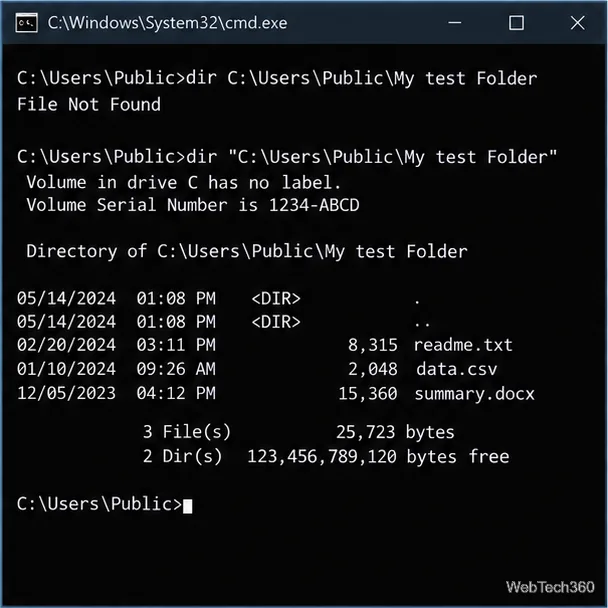
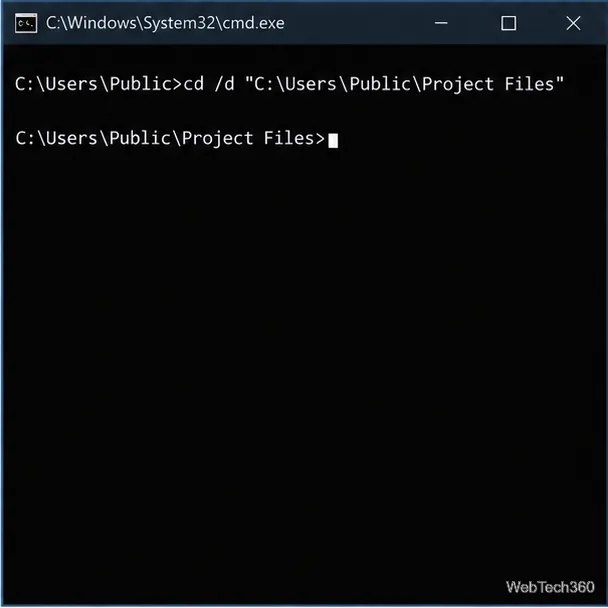
dir followed by the quoted folder path, then press Enter. For example: dir "C:\Users\Public\Project Files". This lists the folder contents so you can confirm the path resolves before using it in a command that changes files.cd /d "C:\Users\Public\Project Files". The /d switch changes both the current drive and directory if needed. Microsoft documents that cd treats spaces as part of its path when command extensions are enabled; the quoted version is accepted, and quotes are required if extensions are disabled. See the Microsoft cd reference.After changing directories, the prompt usually displays the current folder. You can also type cd without a path to check the current drive and directory. If you are already in the correct folder, use a file name such as meeting notes.txt only where the command expects a file argument; quote it if it contains spaces.
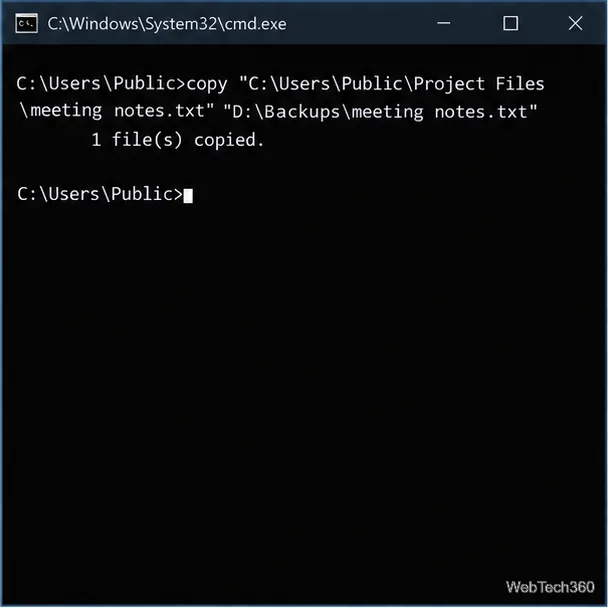
For a file copy, put quotes around both complete paths. In this example, make sure D:\Backups already exists, because quoting a destination does not create a missing parent folder:
copy "C:\Users\Public\Project Files\meeting notes.txt" "D:\Backups\meeting notes.txt"For a folder-tree example using xcopy, quote the source and destination and keep the options after them:
xcopy "C:\Users\Public\My test Folder" "D:\Backup Folder" /T /E /IThis command creates the directory structure without copying files: Microsoft defines /T as copying the tree only, /E as including empty subdirectories, and /I as treating a non-existent destination as a directory in this situation. It writes to the destination, so replace both sample paths and verify the destination before running it. The Microsoft xcopy reference lists these options and explains that /I suppresses the file-or-directory prompt for a directory source.
"C:\Users\Public\Project Files\meeting notes.txt" as one complete path.copy "source path" "destination path", not "copy source path destination path"./T /E.dir "full path here" to check spelling, drive letter, folder name, and file extension. Then confirm the source exists, the destination is available, and the command supports the requested operation. Quotation marks solve parsing of spaces; they do not fix a typo, permissions issue, unavailable drive, or invalid command option.If name completion is enabled in Command Prompt, Microsoft documents Ctrl+D for directory completion and Ctrl+F for file completion. Put quotes around the matching partial path when it contains spaces; press the completion key again to cycle through matches. If completion is not enabled, type the path directly and keep the quotes in place.
The reliable pattern is simple: quote each complete file or folder path wherever it appears as a command argument. Keep switches outside those quotes, verify that the example path matches your own folders, and use dir to check a path before running a command that copies or changes data.
Adjust each Windows 10 monitor independently with per-display scaling, keep text readable, and troubleshoot custom scaling or blurry apps.
Use AirType’s browser pairing setup to type on an iPhone from a Windows 10 PC, with current setup steps, troubleshooting, and privacy limits.
Hide the mouse pointer in Windows 10 videos, games, and other apps with built-in typing controls or PowerToys CursorHide’s adjustable inactivity timer.
Find Control Panel Power Options on a Windows 10 desktop, open the page with a Run command, and adjust power plans, display timeouts, sleep, and button behavior.
Learn what Windows 10 deletion leaves behind, how to use SDelete on an HDD, and why SSDs and cloud backups need separate treatment.
Use FFmpeg’s DirectShow tools to open an integrated webcam’s driver properties in Windows 10, find the correct device, and troubleshoot missing controls.
Identify a keypress in Windows 10 with a browser event tester or SharpKeys, then separate layout, software, and keyboard hardware issues.
Use double quotes around each complete path with spaces in Command Prompt. Learn how to list, change to, copy, and troubleshoot Windows 10 files and folders.
Turn off the Windows 10 Start menu’s hover-to-expand behavior with a legacy Mach2 command, check build limits, and see the built-in app-list alternative.
Fix the iTunes Library.itl read error on Windows 10 by updating iTunes, restoring a compatible backup, or safely creating a new library without deleting media files.







