How to Open a Linux Shell in a Folder on Windows 10

Open a Linux shell in any Windows 10 folder with File Explorer, PowerShell, and WSL. Check the Linux path and fix common setup issues.
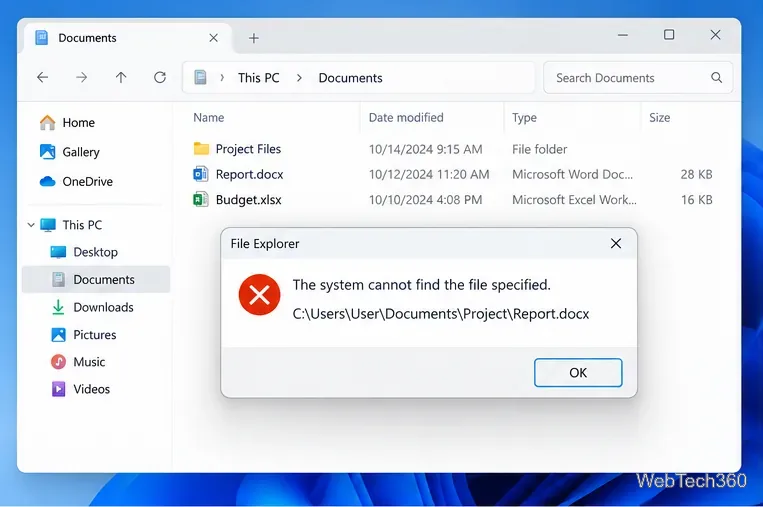
“The system cannot find the file specified” means Windows or an app asked for a file that is not available at the expected location. Microsoft maps this message to ERROR_FILE_NOT_FOUND, system error code 2; “The system cannot find the path specified” is a separate code 3.
Start with the exact path named in the error, then work through the fixes below from least disruptive to most disruptive. Avoid downloading random DLLs or editing the Registry just because a generic guide suggests it. Microsoft’s system error code reference confirms what the message actually means.
If the dialog shows a path, open File Explorer and browse to that location. Confirm that the drive letter, folder names, filename, and extension are correct. If you moved or renamed the file, update the shortcut, script, scheduled task, project, or app setting that still points to the old location.
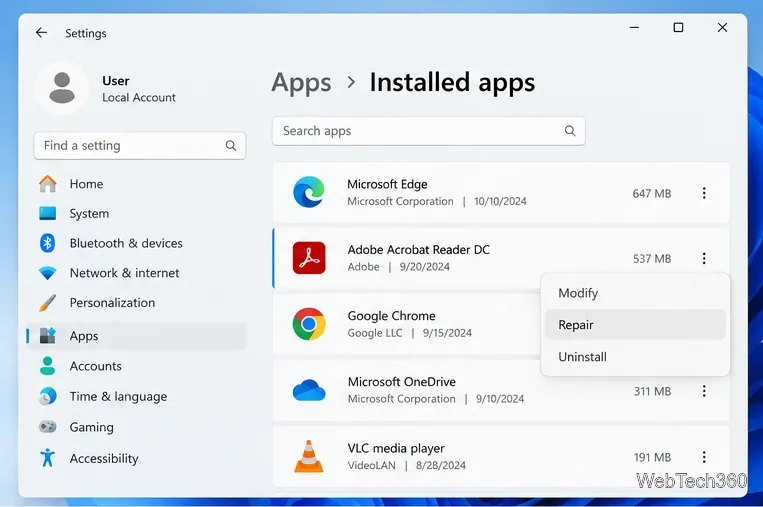
If the message appears only when one program starts, the program may be missing one of its own files. In Settings > Apps > Installed apps, use Repair, Reset, or Modify when the app provides that option. Otherwise uninstall it, restart Windows, and reinstall the latest version from the developer’s official site or Microsoft Store.
Also check your security software’s quarantine or protection history. Restore a quarantined file only when you are certain it belongs to trusted software.
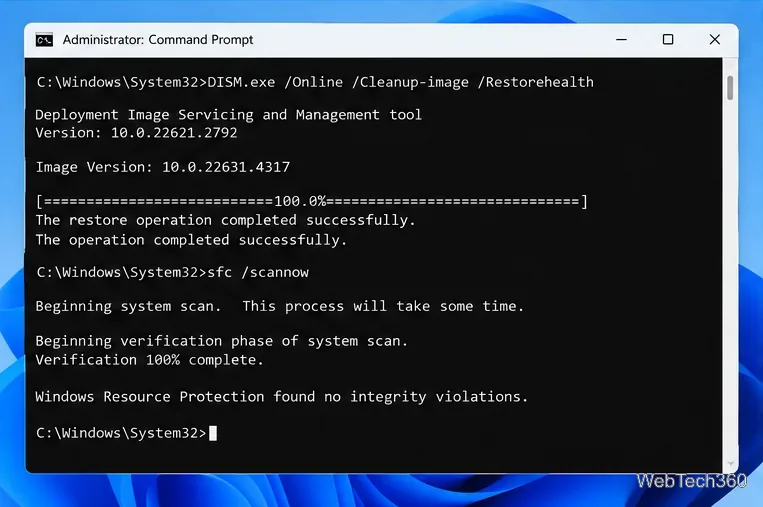
If several Windows features or apps fail with missing-file errors, repair the Windows component store and protected system files. Open Command Prompt as administrator, then run these commands in order:
DISM.exe /Online /Cleanup-Image /RestoreHealth
sfc /scannow
Microsoft recommends running DISM before SFC. Let both commands finish; do not close the window while SFC is scanning. See Microsoft’s DISM and System File Checker instructions for the supported procedure.
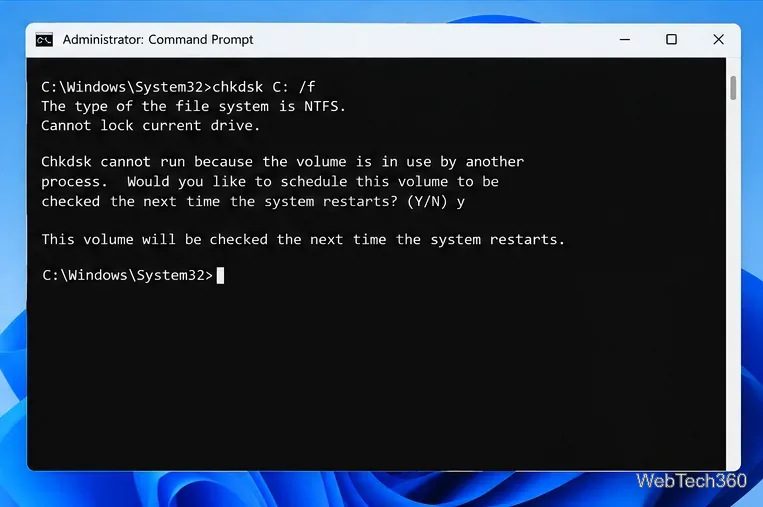
If files repeatedly become inaccessible, or the error points to a local drive, run CHKDSK. In an elevated Command Prompt, use chkdsk C: /f, replacing C: with the affected volume. If the volume is in use, Windows may offer to schedule the check for the next restart.
The /f switch fixes file-system errors. Review Microsoft’s CHKDSK reference before using additional options.
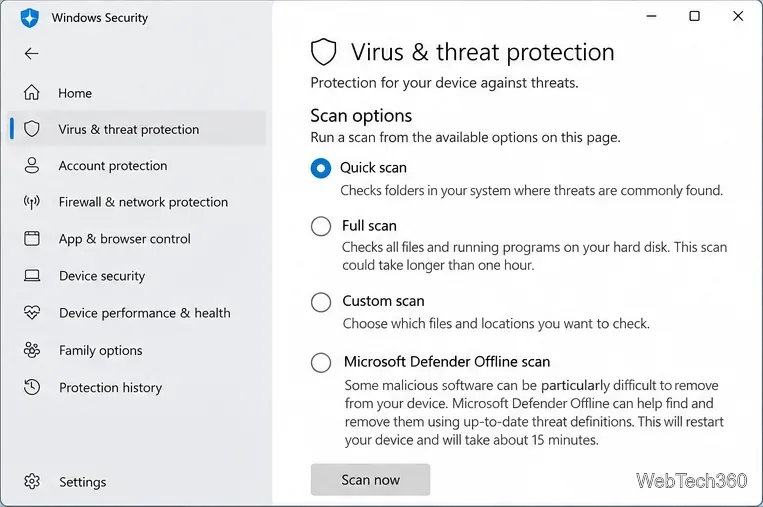
Malware can remove or alter files, while antivirus software can quarantine suspicious files. Open Windows Security > Virus & threat protection and run a scan. If you still suspect an infection, use the available full or Microsoft Defender Offline scan options. Check Protection history afterward, but do not restore an item merely to make the error disappear.
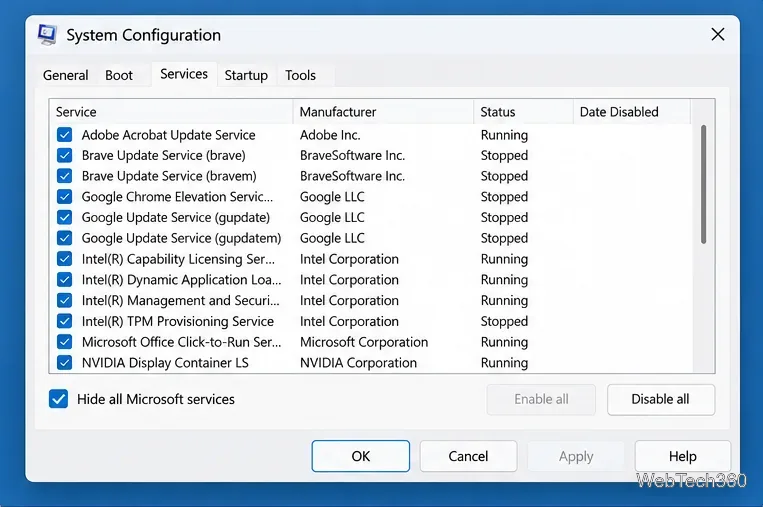
If the problem started after installing a utility, security suite, backup tool, or shell extension, test a clean boot. Open msconfig, go to Services, select Hide all Microsoft services, and disable the remaining third-party services. Then open Task Manager from the Startup section and disable startup apps. Restart and test again.
If the error disappears, re-enable items in small groups until you identify the conflict. Follow Microsoft’s clean boot instructions; do not disable Microsoft services indiscriminately.
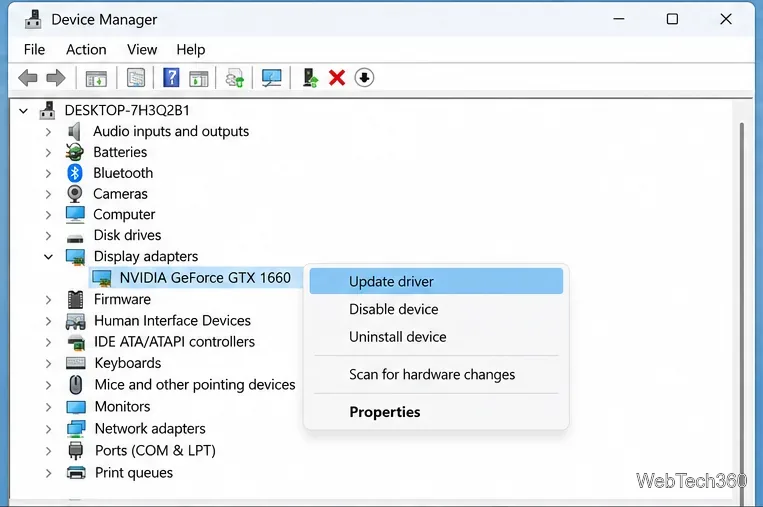
If the message began after adding hardware or updating a driver, open Device Manager. Update the affected device, or uninstall the device and restart so Windows can detect it again. If a recent driver caused the problem and Roll Back Driver is available, use it.
Prefer Windows Update or the hardware manufacturer’s official support page for drivers. Microsoft also documents driver updates through Device Manager.
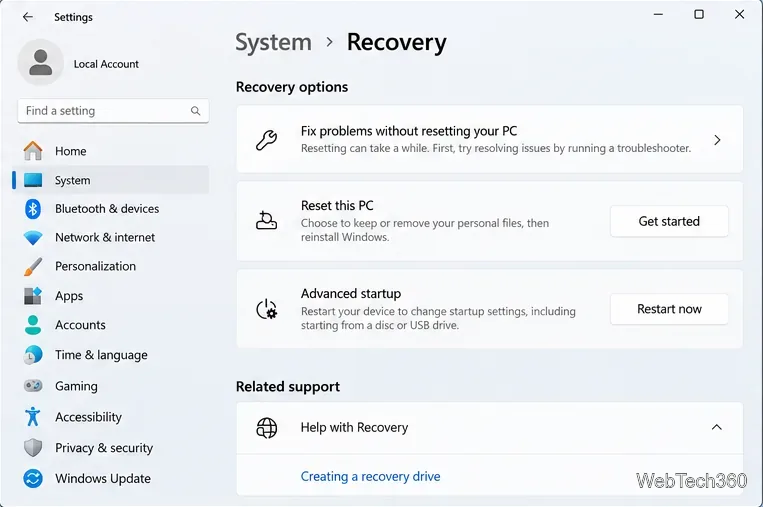
If the error started after a recent system change and the earlier fixes fail, use System Restore if a suitable restore point exists. If Windows itself is badly damaged, Reset this PC can reinstall Windows; the Keep my files option preserves personal files but removes installed apps and settings. Back up important data first, and make sure you have your BitLocker recovery key if device encryption is enabled.
Microsoft’s Windows recovery options page recommends using less disruptive recovery methods before a reset.
Do not create Registry keys such as RunOnce without evidence that a specific application requires them. Do not disable networking services, format a partition, or replace Registry hives as generic fixes for error code 2. Those actions can create new problems while leaving the missing-file reference untouched.
If you are still using Windows 10, note that Microsoft ended standard Windows 10 support on October 14, 2025. Microsoft recommends moving to Windows 11 when the hardware supports it, or using an eligible Extended Security Updates option during the transition. See Microsoft’s Windows 10 end-of-support guidance.
Open a Linux shell in any Windows 10 folder with File Explorer, PowerShell, and WSL. Check the Linux path and fix common setup issues.
Use a screenshot test, cable and port checks, monitor diagnostics, display settings, and driver rollback to pinpoint lines on a Windows 10 monitor.
Show two other time zones beside your Windows 10 clock. Set up each additional clock, give it a clear label, and find it in the taskbar calendar.
Find the File Explorer extension that delays right-click menus in Windows 10, test it safely with ShellExView, and restore any menu features you still need.
Stop Windows 10 from powering down a specific network adapter or USB device with plan-level settings and Device Manager controls, plus tips to avoid excess battery drain.
Check whether Windows 10 uses a digital license or product key, find a firmware-stored OEM key, and save license details securely for a reinstall.
Identify a Windows 10 Task Manager process by checking its executable path, file properties, publisher, linked services, and a Microsoft Defender scan.
Create a searchable Windows 10 folder inventory with PowerShell. Save every file and subfolder path as plain text or export details to a sortable CSV.
Add a custom reminder, quote, or label to your Windows 10 desktop with a Rainmeter text skin. Create the INI file, load it, then adjust its font and position.
Use Bluetooth Swift Pair on Windows 10 to pair a compatible accessory from a notification, with setup steps and fixes when the prompt does not appear.








