How to Access a Network Location in Command Prompt on Windows 10

Use pushd to open a UNC network path in Windows 10 Command Prompt, run commands in the shared folder, and return with popd.
If your HDMI port is not working in Windows 10, start with the cable and display input, then confirm Windows is sending video to the external screen. If video works but sound does not, select the HDMI device as the audio output. Driver rollback or reinstallation should come later, after the simpler checks.
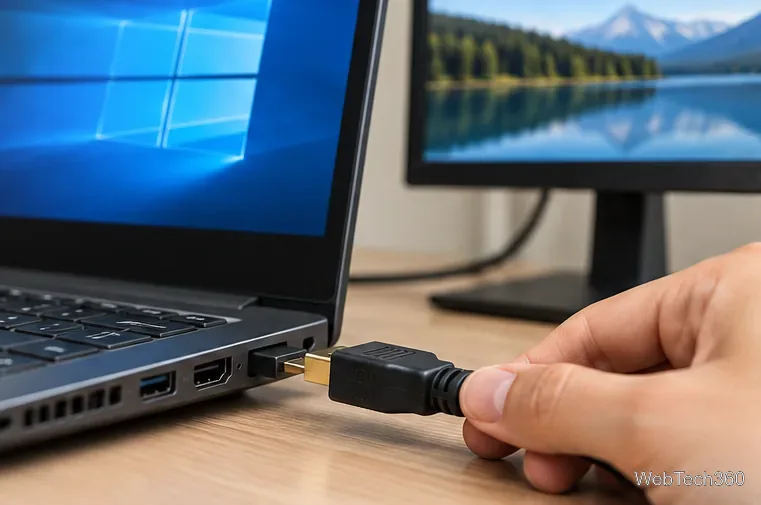
If the same monitor and cable work with another computer, the problem is more likely on the Windows PC. See Microsoft’s external monitor troubleshooting guide for the same isolation approach.
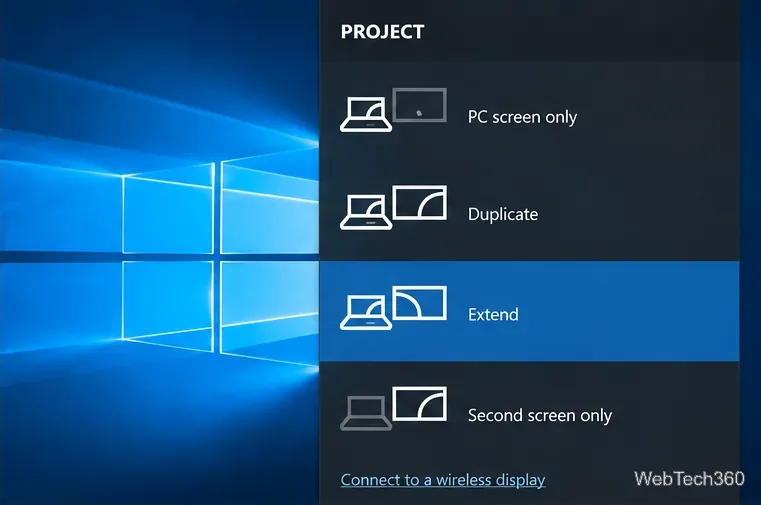
Press Windows key + P. Choose Duplicate, Extend, or Second screen only. If the PC is set to PC screen only, the HDMI display can remain blank even though the cable is connected.
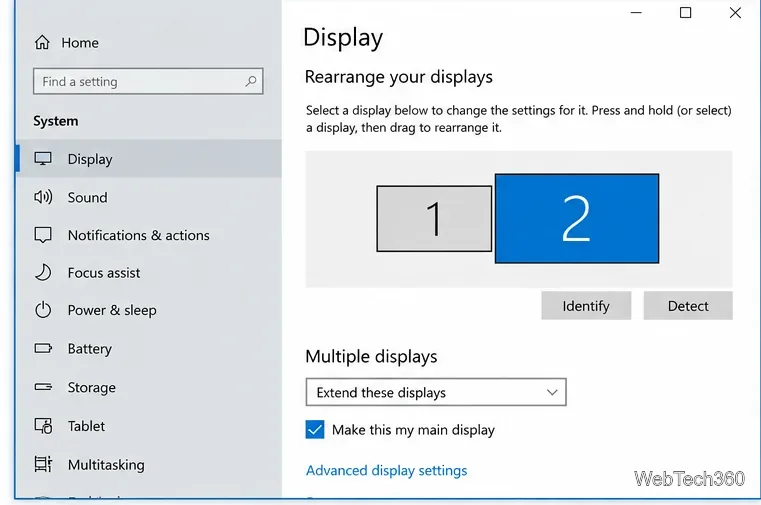
Open Settings > System > Display. Under Multiple displays, select Detect. Microsoft documents this path for Windows 10 in its multiple-monitor setup guide.
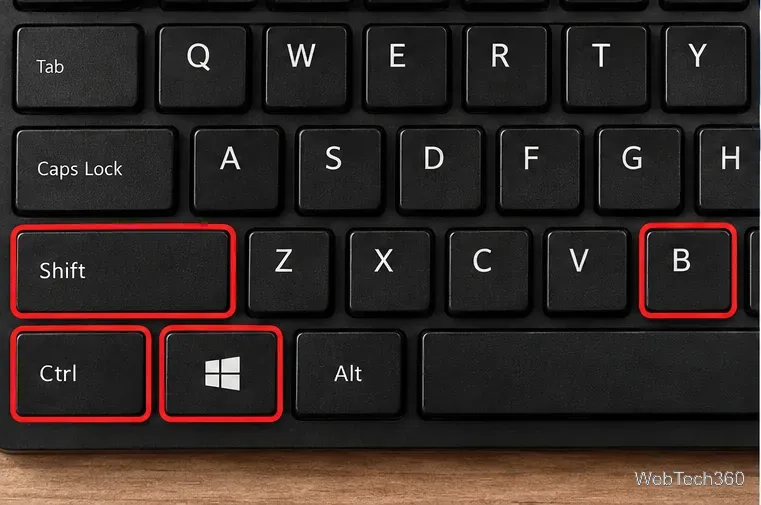
If HDMI worked previously and suddenly stopped, press Windows key + Ctrl + Shift + B. The screen may blink or briefly go dark while Windows resets the graphics driver. Microsoft lists this shortcut as a troubleshooting step for an existing external-monitor setup.
Right-click Start and open Device Manager, then expand Display adapters. Use the actual Intel, AMD, or NVIDIA graphics device listed there; the old article’s “Parallel Display” label is not a standard Windows device name.
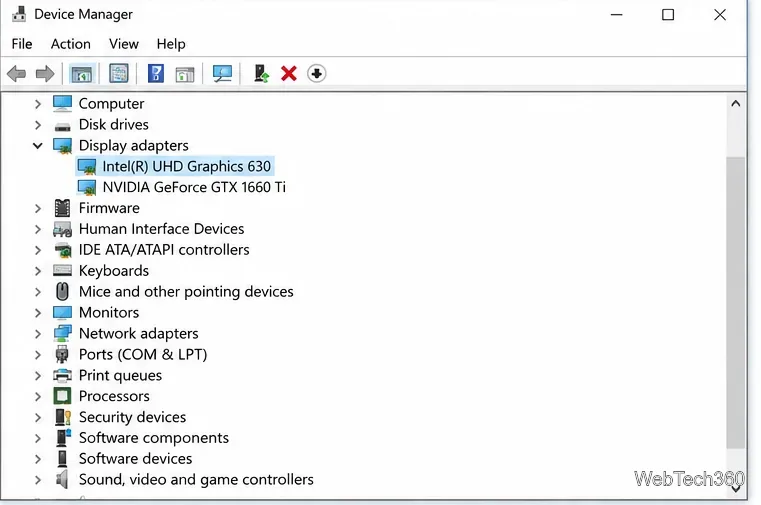
If the HDMI failure began after a driver change, open the adapter’s Properties > Driver tab and try Roll Back Driver. If rollback is unavailable, update or reinstall the display driver.
Microsoft recommends Windows Update as one source for drivers and also supports updating or reinstalling through Device Manager. For many laptops and desktops, the PC maker’s support page is preferable when it provides a customized graphics package.
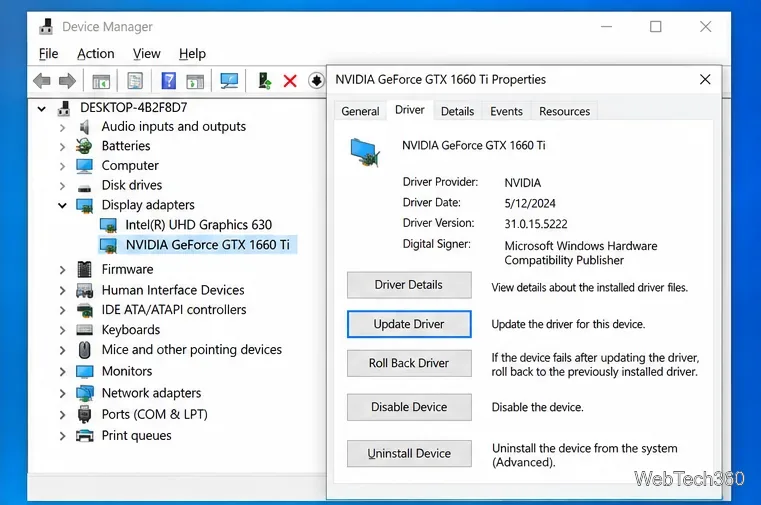
Microsoft’s Device Manager driver instructions cover these supported actions.
HDMI can carry both video and audio, but Windows may still send sound to the laptop speakers. Open Control Panel > Hardware and Sound > Sound. On the Playback tab, select the TV or monitor’s HDMI audio device and choose Set as Default Device. If the display has no speakers, keep your speakers or headphones as the default instead.
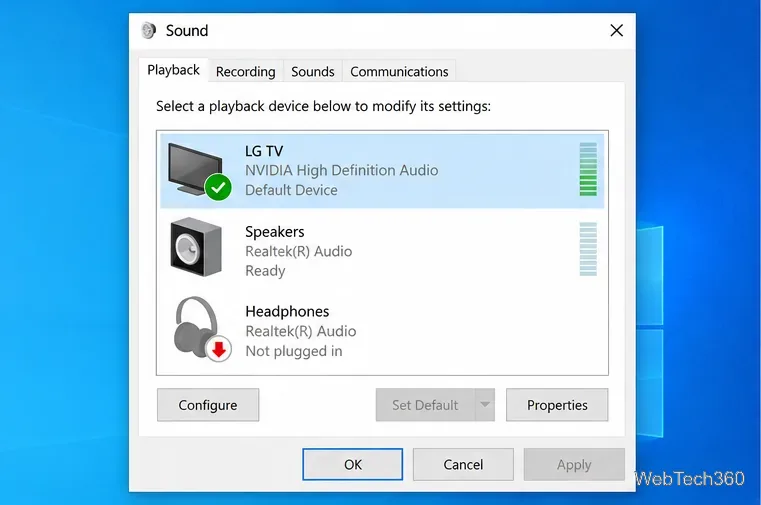
Microsoft’s Windows audio troubleshooting page confirms that HDMI devices may need to be selected as the default output.
Do not use “registry cleaner” utilities for an HDMI problem. If Windows components appear damaged or several hardware features are malfunctioning, open Command Prompt as administrator and run these supported Microsoft repair commands in order:
DISM.exe /Online /Cleanup-Image /RestoreHealth
sfc /scannow
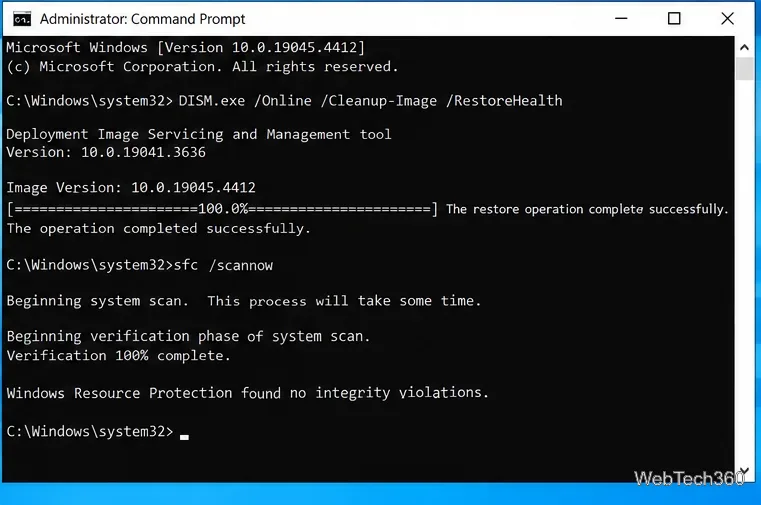
Microsoft recommends running DISM before SFC in its System File Checker guidance.
If Windows never detects the display after you have tested another cable, another monitor, another video output, and the correct graphics driver, the HDMI port or graphics hardware may be faulty. A repair technician or the PC manufacturer can test the physical port more reliably than a generic “port tester” recommendation.
Windows 10 support note: Microsoft ended standard Windows 10 support on October 14, 2025. Windows 10 PCs still run, but Microsoft no longer provides normal free security fixes and technical support. Eligible devices may use the Windows 10 Extended Security Updates program, or move to a supported Windows version. See Microsoft’s Windows 10 end-of-support notice.
Use pushd to open a UNC network path in Windows 10 Command Prompt, run commands in the shared folder, and return with popd.
Learn how to install a Rainmeter skin from an INI file by placing it in the right Skins folder, preserving its resources, refreshing Rainmeter, and loading it in Manage.
Open one folder in its own File Explorer window with Shift or the context menu, or change Folder Options to make every folder open separately.
Pin a frequently used Control Panel applet, such as Power Options or Sound, to the Windows 10 Start menu for one-click access.
Choose a supported Windows 10 hotkey for switching input languages, assign shortcuts to individual layouts, or disable an accidental shortcut.
Move a Windows 10 app to the display you want, use its game monitor setting, and handle full-screen apps with a practical primary-monitor workaround.
Use a transparent PNG and a Rainmeter skin to keep an image watermark above windows, adjust its transparency, and make it click-through on Windows 10.
Convert stereo audio to mono on Windows 10 with Audacity. Mix both channels into one mono track, export a new file, and verify the channel count.
Use Windows 10 Clipboard history to save recent text and images, paste an earlier clip with Windows key + V, and manage sync, pinned items, and privacy.
Learn how to zoom in on a video in Windows 10 with VLC’s Interactive Zoom, or use Windows Magnifier when the clip is playing in another app.








