How to Set Different Scaling Levels for Multiple Monitors in Windows 10

Adjust each Windows 10 monitor independently with per-display scaling, keep text readable, and troubleshoot custom scaling or blurry apps.
Windows 10’s built-in desktop and lock screen images are usually stored in the Windows Web folder: %windir%\Web. On a typical installation, that expands to C:\Windows\Web. In File Explorer, select the address bar, enter %windir%\Web, and press Enter. The folder normally contains 4K, Wallpaper, and Screen, although the exact contents vary by Windows build and PC manufacturer.
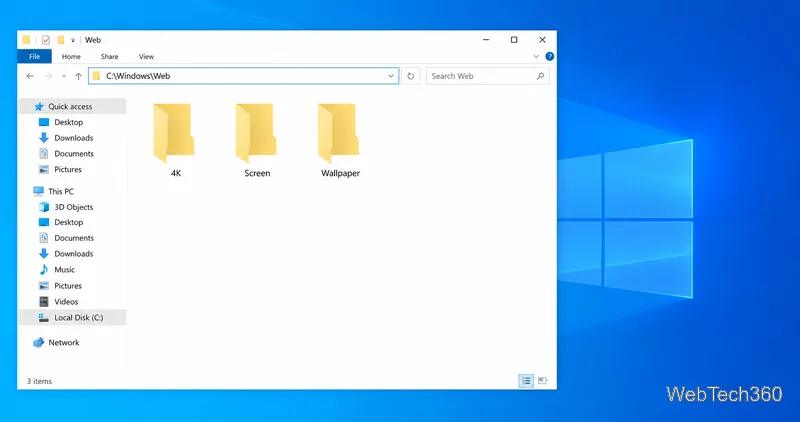
These folders separate some of the images that ship with Windows. If a particular image is missing, check its dimensions and the neighboring folders before assuming the file was deleted.
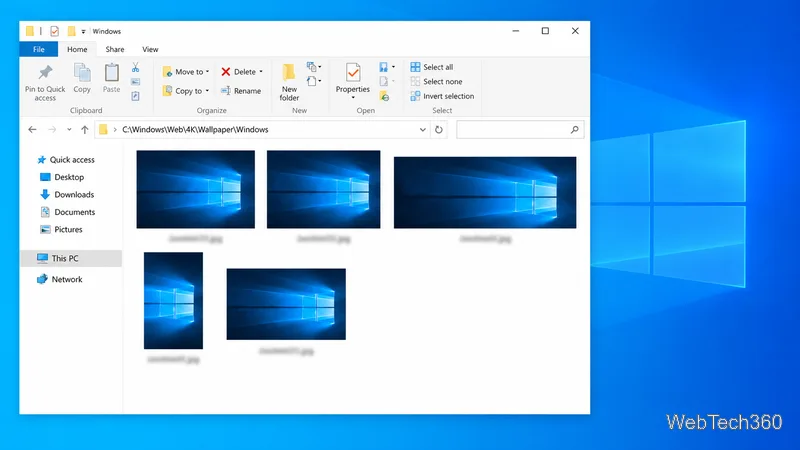
Look under C:\Windows\Web\4K\Wallpaper\Windows for variants of the Windows 10 Hero background. Depending on the installation, the folder can contain images in different sizes and orientations. A portrait version may suit a rotated monitor, while a wide version may better match a landscape display. The folder name does not guarantee that every file is exactly 4K pixels wide; open an image’s Properties and check its dimensions if resolution matters.
C:\Windows\Web\Wallpaper is the other place to check for built-in desktop backgrounds and folders associated with installed Windows themes. A PC maker may add its own images during setup, but the location is not standardized across brands or models. If you do not see a manufacturer’s wallpaper here, search that PC’s Pictures folder or the manufacturer’s support materials rather than assuming Windows removed it.
C:\Windows\Web\Screen commonly holds the static lock screen pictures included with Windows. These are useful image files you can copy for another purpose. They are separate from the live images shown by Windows Spotlight, so this folder may not contain the photo currently appearing on your lock screen.
%windir%\Web in the address bar. This uses the Windows installation directory even if Windows is installed on a drive other than C:.4K, Wallpaper, or Screen, then browse the image files. Use large icons or the Preview pane to identify a picture, and check Properties for its dimensions.Pictures\Wallpapers. Copy it instead of moving or deleting files from the Windows folder.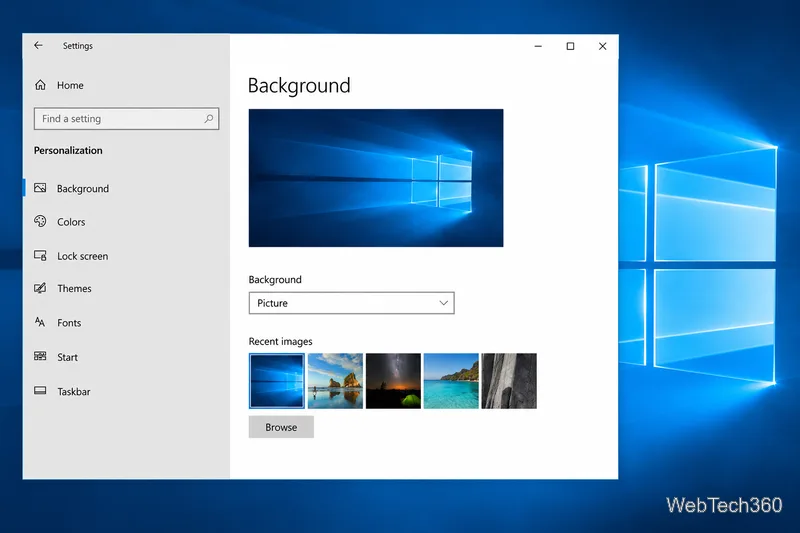
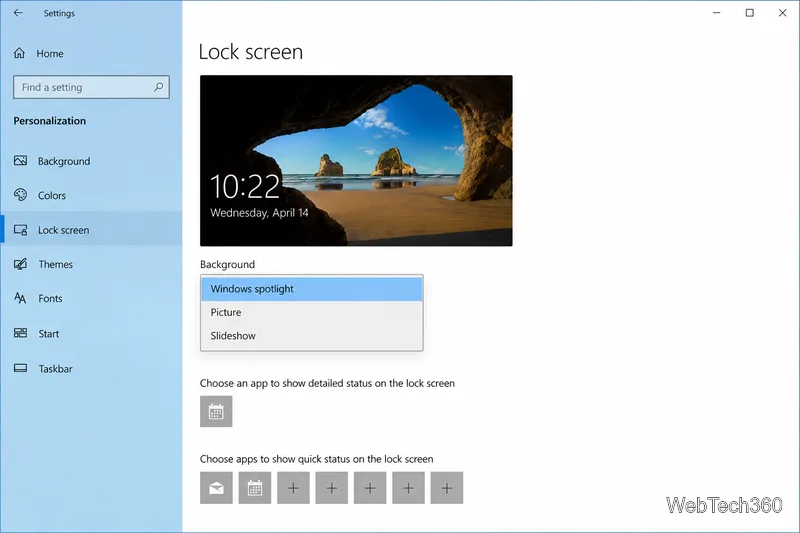
Windows Spotlight rotates images supplied by Microsoft. In Windows 10, open Settings > Personalization > Lock screen to see whether the Background option is set to Windows Spotlight, Picture, or Slideshow. Microsoft describes Spotlight as a rotating set of images; Picture uses one image you select, while Slideshow draws from folders on your device. That distinction matters when you are trying to find a specific lock screen image: the included files in Screen are not a guaranteed archive of Spotlight’s current or past photos.
If the picture is no longer in its original folder, Windows may have a working copy in your user profile. In File Explorer, enter %AppData%\Microsoft\Windows\Themes. If a CachedFiles folder is present, copy its images to another folder and check whether one matches. You may also see a file named TranscodedWallpaper with no extension. Copy it first; adding .jpg to the copied file can make it easier to preview in an image viewer.
Treat these as recovery possibilities, not a dependable backup. A cache may be absent, overwritten, cropped, or saved at a different size than the original. If you used a slideshow or theme, the original image may still be in the folder you selected for it. For Spotlight, Microsoft’s lock screen documentation explains the setting, but does not promise a stable public archive path for every Spotlight image.
Check the expanded path by entering %windir% in File Explorer; Windows opens its installation directory, which may not be C:\Windows on your PC. Then look for its Web subfolder. Some manufacturer images are installed outside this directory, and a customized or managed Windows installation can have a different set of files. Microsoft Q&A community answers also point to C:\Windows\Web and its Screen and 4K\Wallpaper\Windows subfolders as common locations, but the files on your PC are the definitive source.
Adjust each Windows 10 monitor independently with per-display scaling, keep text readable, and troubleshoot custom scaling or blurry apps.
Use AirType’s browser pairing setup to type on an iPhone from a Windows 10 PC, with current setup steps, troubleshooting, and privacy limits.
Hide the mouse pointer in Windows 10 videos, games, and other apps with built-in typing controls or PowerToys CursorHide’s adjustable inactivity timer.
Find Control Panel Power Options on a Windows 10 desktop, open the page with a Run command, and adjust power plans, display timeouts, sleep, and button behavior.
Learn what Windows 10 deletion leaves behind, how to use SDelete on an HDD, and why SSDs and cloud backups need separate treatment.
Use FFmpeg’s DirectShow tools to open an integrated webcam’s driver properties in Windows 10, find the correct device, and troubleshoot missing controls.
Identify a keypress in Windows 10 with a browser event tester or SharpKeys, then separate layout, software, and keyboard hardware issues.
Use double quotes around each complete path with spaces in Command Prompt. Learn how to list, change to, copy, and troubleshoot Windows 10 files and folders.
Turn off the Windows 10 Start menu’s hover-to-expand behavior with a legacy Mach2 command, check build limits, and see the built-in app-list alternative.
Fix the iTunes Library.itl read error on Windows 10 by updating iTunes, restoring a compatible backup, or safely creating a new library without deleting media files.








