How to Fix Lines on a Monitor Screen in Windows 10

Use a screenshot test, cable and port checks, monitor diagnostics, display settings, and driver rollback to pinpoint lines on a Windows 10 monitor.
To access the Microsoft Edge flags page, open Edge, type edge://flags in the address bar, and press Enter. The page opens as Experiments, where Edge exposes experimental browser features that can be enabled, disabled, or returned to their default state. Older instructions may call this the about:flags page, but edge://flags is the address to use in current Chromium-based Microsoft Edge.
edge://flags and press Enter.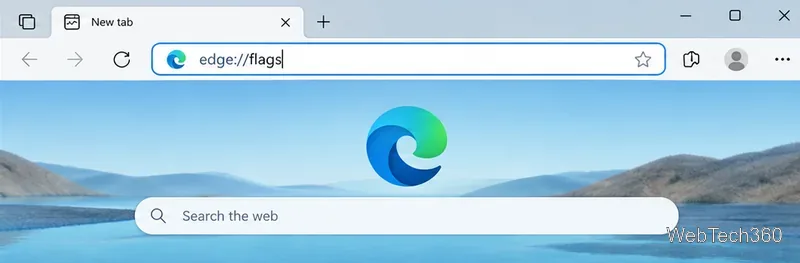
You do not need to install an extension or open Edge Settings first. Microsoft also references edge://flags in its Edge developer documentation for experimental features.
Flags are switches for features that are still being tested, are being rolled out gradually, or need a temporary developer option. The exact list is not fixed. A flag can be renamed, changed, moved to a normal setting, or removed in a later Edge release.
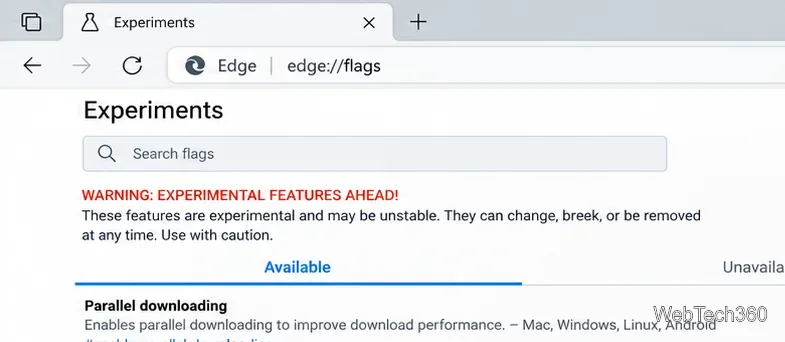
That changing list is why instructions that name a specific flag can become outdated quickly. If a guide tells you to enable a flag that no longer appears, check the current Edge version and the Microsoft Edge web platform release notes rather than assuming the feature is broken.
Important: flags are experimental. They can affect stability, performance, privacy, compatibility, or browser behavior. Change a flag only when you understand what it does, and avoid changing several unrelated flags at once.
edge://flags.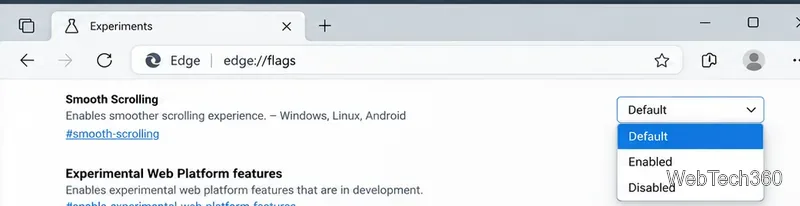
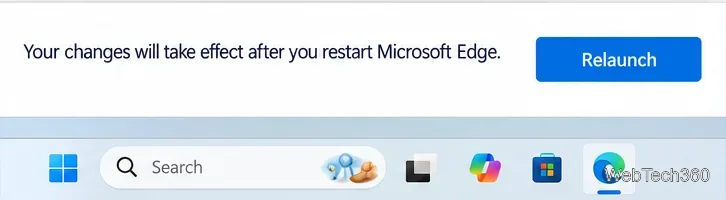
Default does not always mean Disabled. It means Edge will use the browser's current default behavior for that feature. That default can change after an update or as Microsoft changes an experiment.
If Edge starts behaving unexpectedly after you changed a flag, return to edge://flags. For a single flag, change its dropdown back to Default and relaunch the browser. To undo multiple flag changes at once, use Reset all on the Experiments page, then relaunch Edge.
Resetting flags is different from resetting all Edge settings. It is the better first step when the problem began immediately after you changed something on the Experiments page.
On a work or school computer, an administrator can restrict whether users are allowed to override feature flags. Microsoft documents this through the FeatureFlagOverridesControl policy. Depending on the policy, the edge://flags page may not allow overrides even though Edge itself works normally.
If the browser says it is managed by your organization, do not try to bypass that policy. Contact the administrator responsible for the device or browser configuration.
No. The browser flags page controls experimental Edge features, while Microsoft Edge DevTools has a separate Settings > Experiments page for developer-tool features. Microsoft documents those separately in its DevTools experimental features guide.
A missing flag usually means the experiment changed in your Edge version. The feature may have graduated into the browser, moved to a normal setting, been renamed, become controlled by a rollout or policy, or been removed. Avoid copying an old flag name into command-line switches unless current Microsoft documentation specifically tells you to do so.
Use a screenshot test, cable and port checks, monitor diagnostics, display settings, and driver rollback to pinpoint lines on a Windows 10 monitor.
Show two other time zones beside your Windows 10 clock. Set up each additional clock, give it a clear label, and find it in the taskbar calendar.
Find the File Explorer extension that delays right-click menus in Windows 10, test it safely with ShellExView, and restore any menu features you still need.
Stop Windows 10 from powering down a specific network adapter or USB device with plan-level settings and Device Manager controls, plus tips to avoid excess battery drain.
Check whether Windows 10 uses a digital license or product key, find a firmware-stored OEM key, and save license details securely for a reinstall.
Identify a Windows 10 Task Manager process by checking its executable path, file properties, publisher, linked services, and a Microsoft Defender scan.
Create a searchable Windows 10 folder inventory with PowerShell. Save every file and subfolder path as plain text or export details to a sortable CSV.
Add a custom reminder, quote, or label to your Windows 10 desktop with a Rainmeter text skin. Create the INI file, load it, then adjust its font and position.
Use Bluetooth Swift Pair on Windows 10 to pair a compatible accessory from a notification, with setup steps and fixes when the prompt does not appear.
Learn what common laptop function key symbols mean, how Fn and Fn Lock affect them, and how to confirm the right shortcut for your Windows 10 laptop model.








