How to Create a List of All Items in a Folder on Windows 10

Create a searchable Windows 10 folder inventory with PowerShell. Save every file and subfolder path as plain text or export details to a sortable CSV.
On current Windows 10 builds, you cannot open the old full-page System Control Panel the same way you could on earlier releases. Starting with Windows 10 version 20H2, Microsoft changed the System item in Control Panel so it opens Settings > System > About instead. That page is now the supported place to view your processor, installed RAM, Windows edition, system type, and related device information.
If you actually need the classic System Properties dialog for performance options, environment variables, startup and recovery, computer name, system protection, or remote settings, you can still open it directly. The steps below show the reliable methods and replace older shell-GUID workarounds that are no longer necessary.
For most people, this is the correct replacement for the old Control Panel System page:
You will see Device specifications and Windows specifications, including the device name, processor, installed RAM, system type, Windows edition, version, and OS build. Microsoft documented the move from Control Panel System to the About page in Windows 10 version 20H2.
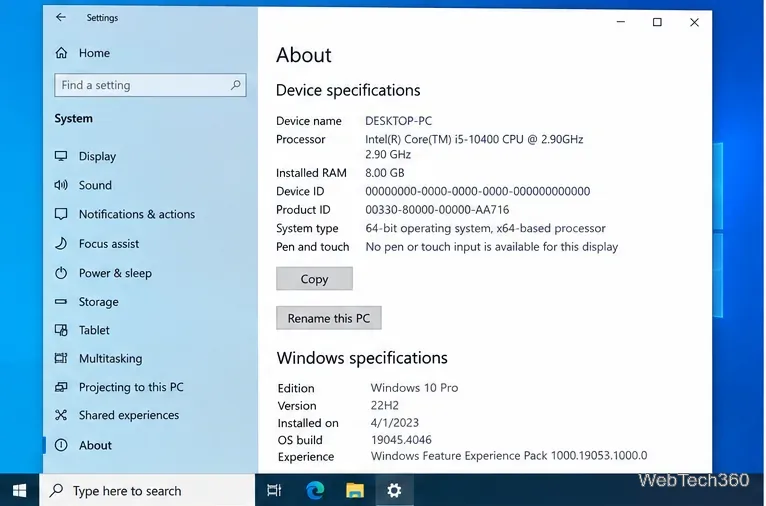
If you want a faster route, Windows provides an official Settings URI for the About page.
The command opens Settings directly to System > About. Microsoft lists ms-settings:about in its Windows Settings URI documentation.
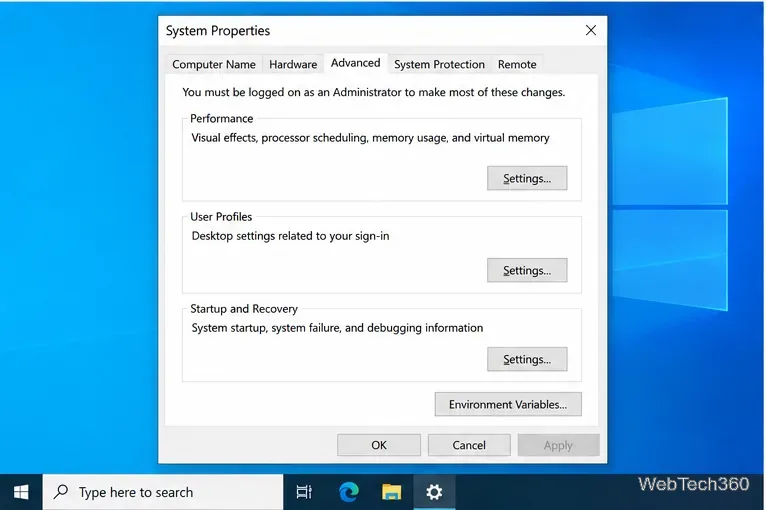
If your goal is not just to view hardware details, use the legacy System Properties utility. This is where Windows 10 still exposes several advanced settings that are not part of the old System overview page.
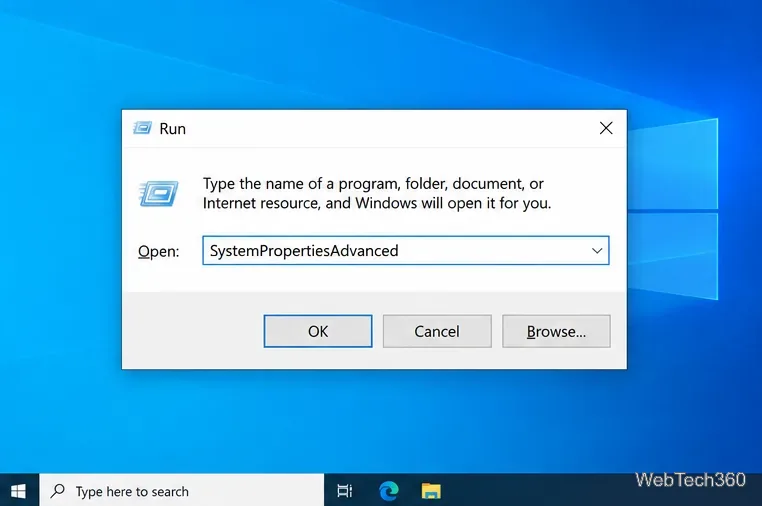
The Advanced tab includes Performance, User Profiles, Startup and Recovery, and Environment Variables. You can also switch to the Computer Name, System Protection, or Remote tabs. Microsoft documents SystemPropertiesAdvanced as an Advanced System Settings tool in System configuration tools in Windows.
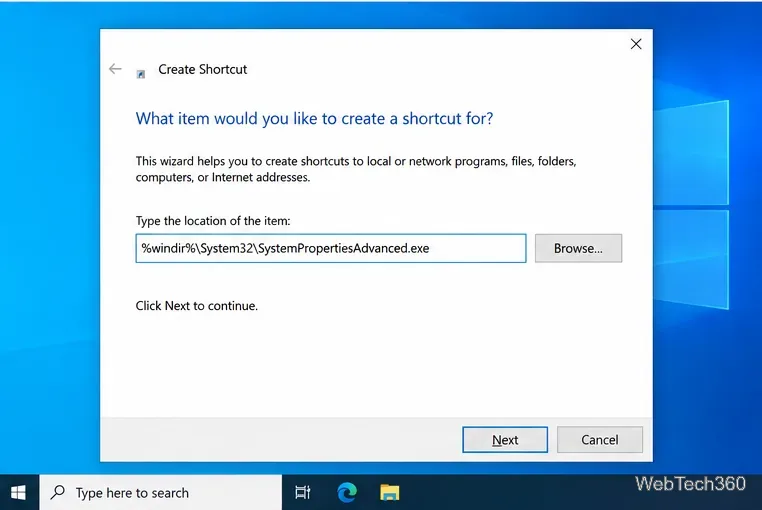
If you use these controls often, a shortcut is easier than entering the command each time.
You can still open Control Panel and choose System and Security > System, but on Windows 10 version 20H2 and later that route opens the Settings About page rather than restoring the old System screen. This behavior is intentional. Microsoft also moved links such as Device Manager, Remote Desktop, System Protection, and Advanced System Settings into or around the newer Settings experience.
For that reason, older instructions that use the shell identifier {BB06C0E4-D293-4f75-8A90-CB05B6477EEE} should not be your first choice. Microsoft’s canonical Control Panel documentation lists that System identifier for older Windows releases, while Windows 10 20H2 officially redirected System to Settings. The supported approaches above are clearer and easier to maintain.
Windows 10 itself reached end of support on October 14, 2025. PCs can continue to run it, but Microsoft recommends moving to Windows 11 or using an eligible Extended Security Updates option when continued Windows 10 use is necessary. See Microsoft’s Windows 10 end-of-support guidance for current support information.
Create a searchable Windows 10 folder inventory with PowerShell. Save every file and subfolder path as plain text or export details to a sortable CSV.
Add a custom reminder, quote, or label to your Windows 10 desktop with a Rainmeter text skin. Create the INI file, load it, then adjust its font and position.
Use Bluetooth Swift Pair on Windows 10 to pair a compatible accessory from a notification, with setup steps and fixes when the prompt does not appear.
Learn what common laptop function key symbols mean, how Fn and Fn Lock affect them, and how to confirm the right shortcut for your Windows 10 laptop model.
Turn off your Windows 10 display instantly with ScreenSleep, set a keyboard shortcut, and see when to use the built-in screen timeout instead.
Fix the “running scripts is disabled on this system” PowerShell error on Windows 10 with a current-user policy, a temporary session option, and safe steps for downloaded scripts.
Change the Windows 10 drag-selection color with a backup-first registry walkthrough, RGB examples, troubleshooting tips, and steps to restore your original values.
Check your router’s connected-device list or scan a local network with Fing Desktop on a supported PC. Learn what each method can show and how to verify unfamiliar entries.
Messenger does not offer a documented per-friend online alert. Learn how Active Status works, where to check the green dot, and which notifications you can enable instead.
Use 7-Zip to find an exact filename or wildcard match inside a ZIP or other supported archive on Windows 10 without unpacking its files.








