How to Move Minecraft to Another Drive in Windows 10

Move Minecraft for Windows to another drive with the built-in Settings option, protect your worlds, and see what to do if Move is unavailable.
If Cortana is missing from Windows 10, there is no supported way to activate it again. Microsoft retired Cortana voice assistance in Windows as a standalone app in 2023. That means the old fixes—changing your region, enabling Location, restarting the Cortana process, or reinstalling the app from the Microsoft Store—no longer restore the service in a supported, working form.
If you are following an older guide, the important distinction is that this is no longer an activation problem. Cortana itself has been retired. You can still use Windows Search to find apps, settings, and files, and Windows 10 still supports voice typing for dictation.
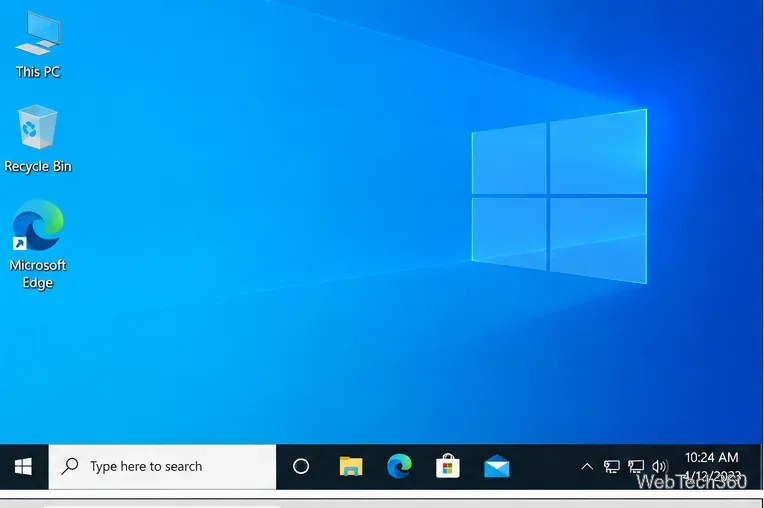
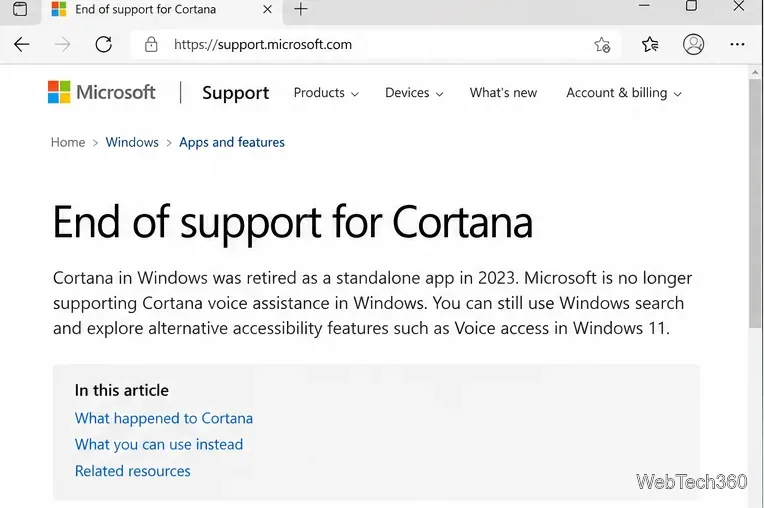
Microsoft’s current Cortana support notice says that Cortana voice assistance in Windows as a standalone app was retired in the spring of 2023. Microsoft also lists Cortana in Windows as a deprecated feature in its Windows client documentation.
So if the Cortana icon or app has disappeared after Windows updates, a reset, or a clean installation, that does not necessarily mean anything is broken. On a current Windows 10 installation, you should not expect the old Cortana experience to be available.
Press Windows + R, type winver, and press Enter. For the regular Windows 10 release channel, version 22H2 was the final feature version. Microsoft ended standard Windows 10 support on October 14, 2025, although eligible PCs can still receive security updates through the Extended Security Updates program.
If your PC can run Windows 11, Microsoft recommends upgrading rather than trying to restore retired Windows 10 components. See Microsoft’s Windows 10 end-of-support guidance for the current options.
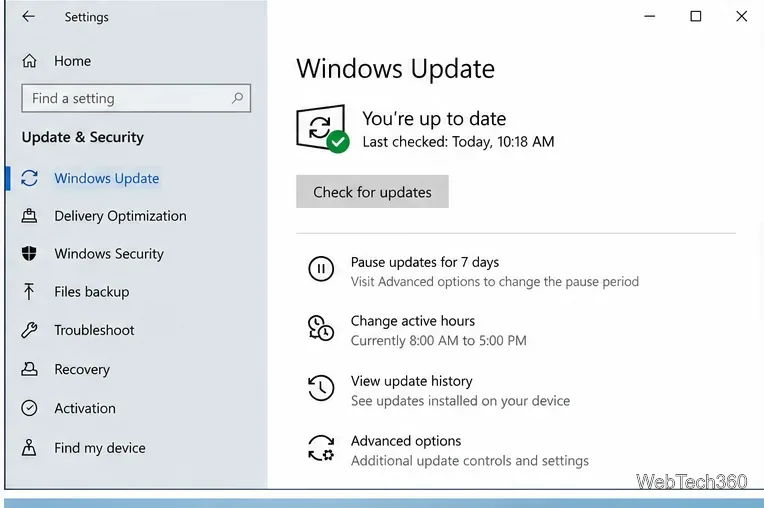
Open Start > Settings > Update & Security > Windows Update and select Check for updates. Updating will not bring Cortana back, but it helps keep the rest of Windows as current as your servicing channel allows.
For tasks that used to begin with Cortana, use the Search box or Search button on the taskbar. Microsoft says Windows Search can find apps, settings, files, and—depending on your account and settings—content from Microsoft services. Cortana is not required for this.
If you mainly used Cortana to dictate text, Windows 10 still supports voice typing. Click in a text field and press Windows + H. Microsoft’s voice typing guide confirms that the feature applies to Windows 10 and Windows 11.
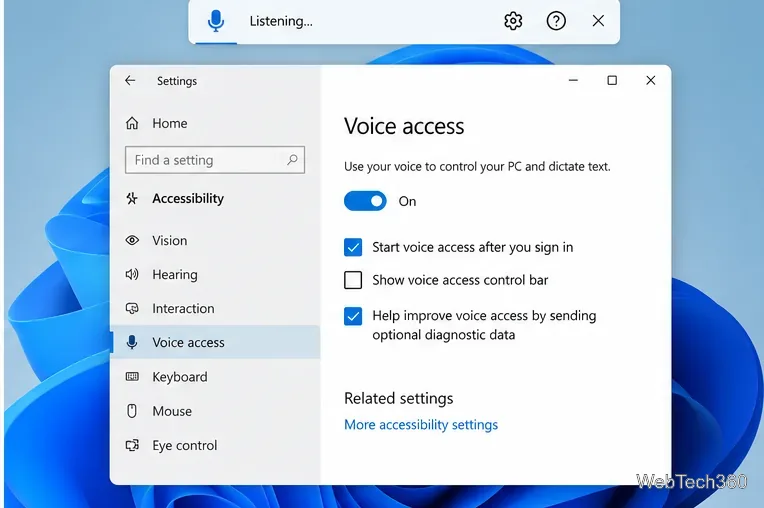
If you move to Windows 11 and want hands-free PC control, Voice access can open and switch apps, navigate Windows, browse the web, and dictate text. Voice access is available in Windows 11 version 22H2 and later.
Several troubleshooting steps that made sense when Cortana was still supported are now outdated. In particular, you should not change your country or region just to make Cortana appear, disable antivirus protection, or turn on Location solely for Cortana.
You may also find PowerShell commands online that re-register the old Cortana app package. On an older image, such a command might restore package files or an app entry, but it does not reverse Microsoft’s retirement of the service. Reinstalling a deprecated package is therefore not the same as restoring a supported Cortana assistant.
You might still see the Cortana app or icon on an old Windows 10 image that has not been fully updated. That does not mean the cloud-backed assistant remains supported or reliable. Avoid freezing an outdated Windows installation just to preserve Cortana, because doing so can leave the PC without important security fixes.
Cortana missing from Windows 10 is now expected behavior, not something you should try to fix with region changes or reinstall commands. Use Windows Search for local searching, Windows + H for dictation, and a supported current assistant for web-based help. If you want Microsoft’s modern voice-control experience, that path is Windows 11 with Voice access rather than restoring Cortana.
Move Minecraft for Windows to another drive with the built-in Settings option, protect your worlds, and see what to do if Move is unavailable.
Find out why Windows 10 hides SmartScreen’s Run anyway button, how to review the warning, and how to allow a bypass while keeping SmartScreen on.
Combine left and right channels so you can hear the full mix through one earbud. Follow the Windows 10 Settings path and learn how to restore stereo when you want it.
Learn how to build a custom grid for your display in Windows 10 with PowerToys FancyZones, adjust zones, choose each monitor, and snap apps into place.
Set Windows 10 to sign in automatically at startup with Microsoft Sysinternals Autologon, then learn how to disable it and understand the security tradeoffs.
Add the Ultimate Performance power plan in Windows 10 with an elevated command, select it in Power Options, and check compatibility and power-use limits.
Refresh missing or incorrect bookmark icons in Edge by reopening the saved page, clearing cached images, or rebuilding the favicon cache safely.
Turn the number row into virtual numpad keys on Windows 10 with AutoHotkey v2. Set up a Caps Lock toggle, test it in your app, and see what the script cannot remap.
Turn off a wired Ethernet adapter in Windows 10, confirm you selected the right device, restore it later, or use PowerShell.
Pair Bluetooth headphones with Windows 10, choose them as your audio output, and fix common discovery or sound problems.








