How to Create a List of All Items in a Folder on Windows 10

Create a searchable Windows 10 folder inventory with PowerShell. Save every file and subfolder path as plain text or export details to a sortable CSV.
You can add “Copy To folder” and “Move To folder” to the Windows 10 right-click menu by registering Windows’ built-in shell handlers. The safer version of this tweak is to add the handlers for your user account under HKEY_CURRENT_USER\Software\Classes, rather than writing through HKEY_CLASSES_ROOT. Microsoft documents HKEY_CLASSES_ROOT as a merged view and recommends storing interactive-user class settings under HKEY_CURRENT_USER.
Before editing the Registry, remember that Windows 10 reached end of support on October 14, 2025. The tweak can still be used on existing Windows 10 installations, but Microsoft recommends moving to a supported Windows version when possible.
Registry edits take effect at the shell level, so make a small backup first. Microsoft’s Registry backup instructions explain how to select a key and use File > Export.
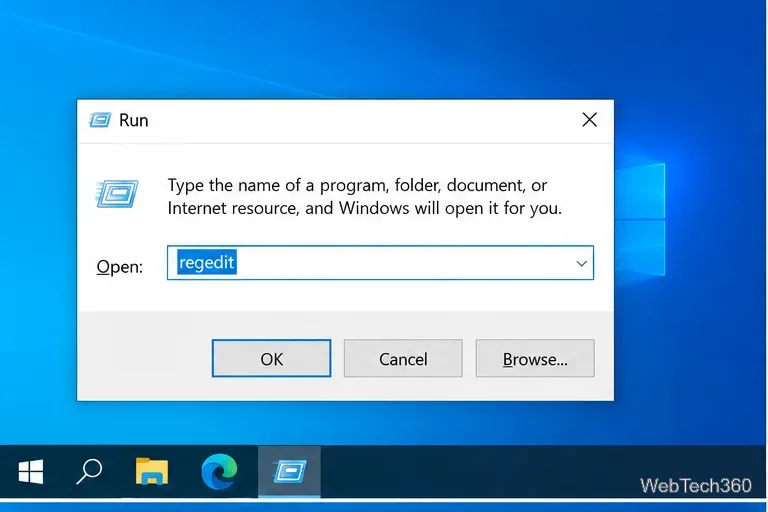
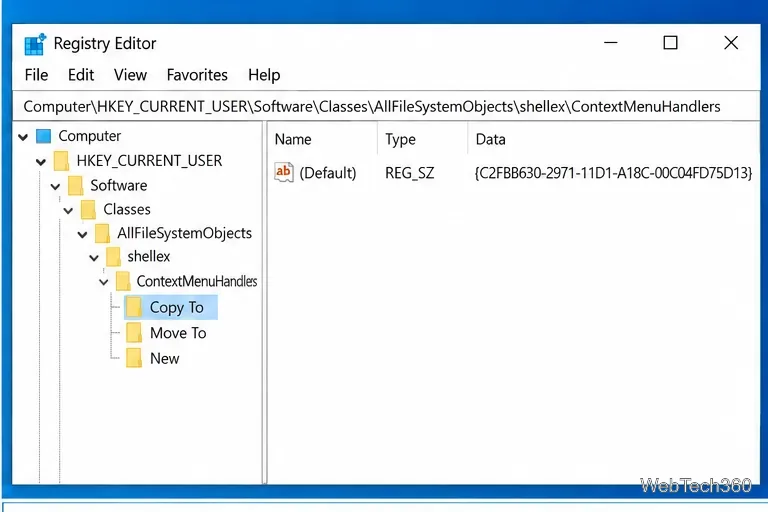
regedit and press Enter.HKEY_CURRENT_USER\Software\Classes\AllFileSystemObjects\shellex\ContextMenuHandlers.If AllFileSystemObjects, shellex, or ContextMenuHandlers is missing in your user branch, create the missing keys in that order. Microsoft’s documentation for registering shell extension handlers confirms that shortcut-menu handlers are registered beneath shellex\ContextMenuHandlers.
{C2FBB630-2971-11D1-A18C-00C04FD75D13} and click OK.The key name is mainly for readability; the default value identifies the Windows Copy To shell handler.
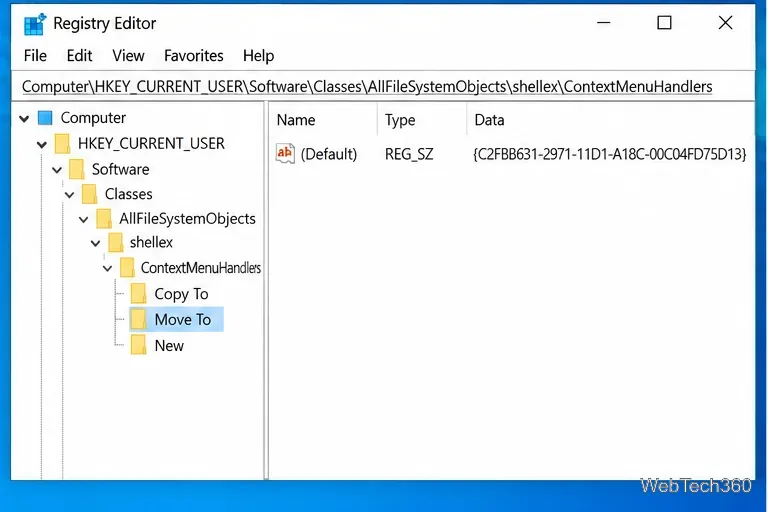
Stay in the same ContextMenuHandlers location and create the second handler:
{C2FBB631-2971-11D1-A18C-00C04FD75D13}.Microsoft notes that shell-handler changes may not be recognized until the shell is notified or restarted. In practice, first close and reopen File Explorer. If the commands still do not appear, sign out and back in or restart Windows.
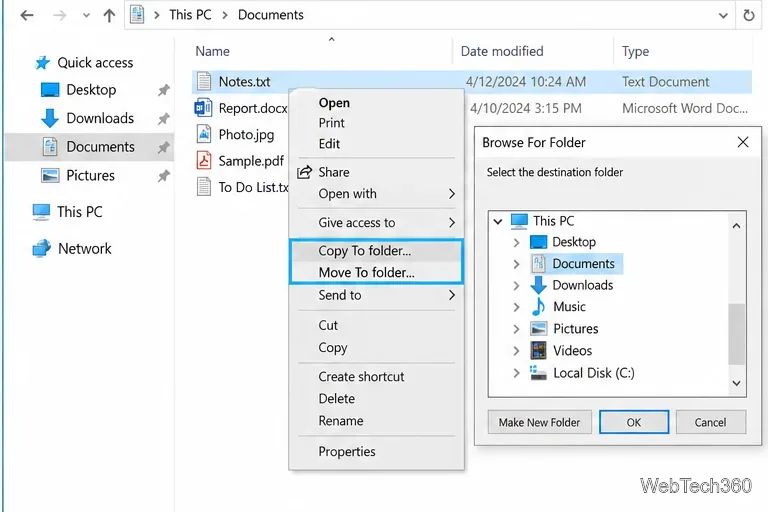
Select a file, a folder, or several items in File Explorer and right-click the selection. Choose Copy To folder... to leave the originals in place, or Move To folder... to relocate them. Windows opens a folder picker; select the destination and click OK.
This can be convenient when the destination is not already open, because you do not need to cut or copy the items, browse to another folder, and paste them manually.
Return to HKEY_CURRENT_USER\Software\Classes\AllFileSystemObjects\shellex\ContextMenuHandlers. Delete the Copy To key to remove Copy To folder, delete Move To to remove Move To folder, or delete both. Then reopen File Explorer or restart Windows if the menu does not refresh immediately.
Check the spelling of both GUIDs first; a single missing character prevents the handler from loading. Also confirm that each named key contains a (Default) value of type REG_SZ with the matching GUID. If the Registry entries are correct, close all File Explorer windows and open Explorer again. A sign-out or restart is the next reasonable step because Microsoft notes that shell-extension registration changes are not always noticed immediately. On a work or school PC, do not try to bypass organization policies that block Registry changes; use the normal Cut, Copy, and Paste commands instead.
These are legacy Windows shell handlers, and they were not originally designed as general-purpose context-menu extensions. Microsoft engineer Raymond Chen documented that adding them to context menus can, in some shell scenarios, make a Copy To or Move To dialog appear when you did not expect it. If that happens on your PC, remove the keys above rather than trying to work around the unwanted prompts. See Microsoft’s technical explanation of the Copy To/Move To behavior.
For reference, Microsoft also explains why per-user class registrations belong under HKEY_CURRENT_USER\Software\Classes. Using that location keeps the change scoped to your account and avoids changing the default class registration for every user on the PC.
Windows 10 support note: Microsoft ended general Windows 10 support on October 14, 2025; see the Windows 10 lifecycle announcement for current support guidance.
Create a searchable Windows 10 folder inventory with PowerShell. Save every file and subfolder path as plain text or export details to a sortable CSV.
Add a custom reminder, quote, or label to your Windows 10 desktop with a Rainmeter text skin. Create the INI file, load it, then adjust its font and position.
Use Bluetooth Swift Pair on Windows 10 to pair a compatible accessory from a notification, with setup steps and fixes when the prompt does not appear.
Learn what common laptop function key symbols mean, how Fn and Fn Lock affect them, and how to confirm the right shortcut for your Windows 10 laptop model.
Turn off your Windows 10 display instantly with ScreenSleep, set a keyboard shortcut, and see when to use the built-in screen timeout instead.
Fix the “running scripts is disabled on this system” PowerShell error on Windows 10 with a current-user policy, a temporary session option, and safe steps for downloaded scripts.
Change the Windows 10 drag-selection color with a backup-first registry walkthrough, RGB examples, troubleshooting tips, and steps to restore your original values.
Check your router’s connected-device list or scan a local network with Fing Desktop on a supported PC. Learn what each method can show and how to verify unfamiliar entries.
Messenger does not offer a documented per-friend online alert. Learn how Active Status works, where to check the green dot, and which notifications you can enable instead.
Use 7-Zip to find an exact filename or wildcard match inside a ZIP or other supported archive on Windows 10 without unpacking its files.








